Archive
Room and Equipment handling using MS-Exchange Resource Mailboxes: What the parameter AllowConflict means
-
NOT TRUE HERE? More info here, search “AllowConflicts”.
-
Is required for a practically very desirable feature in handling of recurring meeting requests: A conflict exception still allows the basic recurrent meeting go through I found a helpful flowchart
 , see bottom left for effect of Allowconflicts.
 -
what will the effect be on non-recurring meeting requests? Will conflict in.stances (there are only instances with non-recurring meeting requests) still be denied? From the flowchart and when allowconflicts comes into play (only after automateprocessing: autoaccept (it does not come into play with automateprocessing:autoupdate) immediately before thresholds ) and that it still does not allow actual conflicts, it appears to me that allowconflicts should have been called “allow-a-recurring-meeting-request-to-be-not-outright-denied-if-it-has-conflict-instances-that-have-to-be-denied-(always-by-the-autoaccept-agent)-as-long-as-not-the-ConflictPercentageAllowed-and-MaximumConflictInstances-numbers-are-also-exceeded”. it was, however, with good reason not called: “allowdoublebooking” J
- That much about the theory. Now the Test results for AllowConflicts $true
-
What works: Allowconflicts does not prompt the autoprocessing: autoaccept (calendar booking assistant) to allow actual conflict instances (double bookings)) from recurring meeting requests.
-
What does not seem to work, but is not important right now: thresholds for conflict amounts are ignored, even if both are crossed
-
MaximumConflictInstances= 5
-
ConflictPercentageAllowed= 25% guides the calendar booking assistant in deciding whether a recurring meeting request gets
-
(10 conflict instances out of 20) still get accepted,
-
-
Room and Equipment handling using MS-Exchange Resource Mailboxes with Autoprocessing: AutoAccept and ForwardtoDelegates
- Autoprocessing: AutoAccept automates managing (blocking, sharing information on the block, unblocking) resources for users (those that can BookInPolicy, or AllBookInPolicy).
- At least as long as the policies that resource mailboxes allow you to define and the user groups that can be and have been set up in your MS-Exchange environment.
- AdditionalResponse can aid in avoiding some of the problems, if the requesters collaborate.
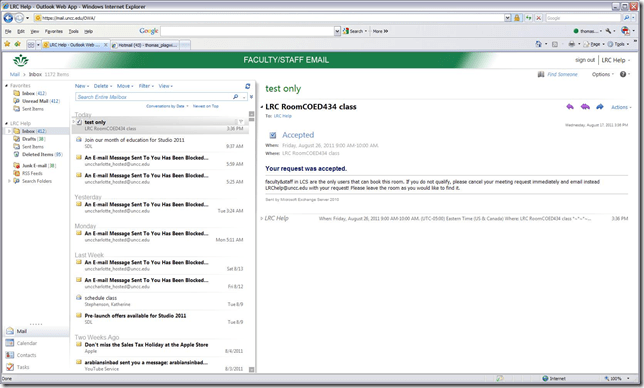
- Here is an example of an automated autoaccept message with an additional response:
- Forwardtodelegates
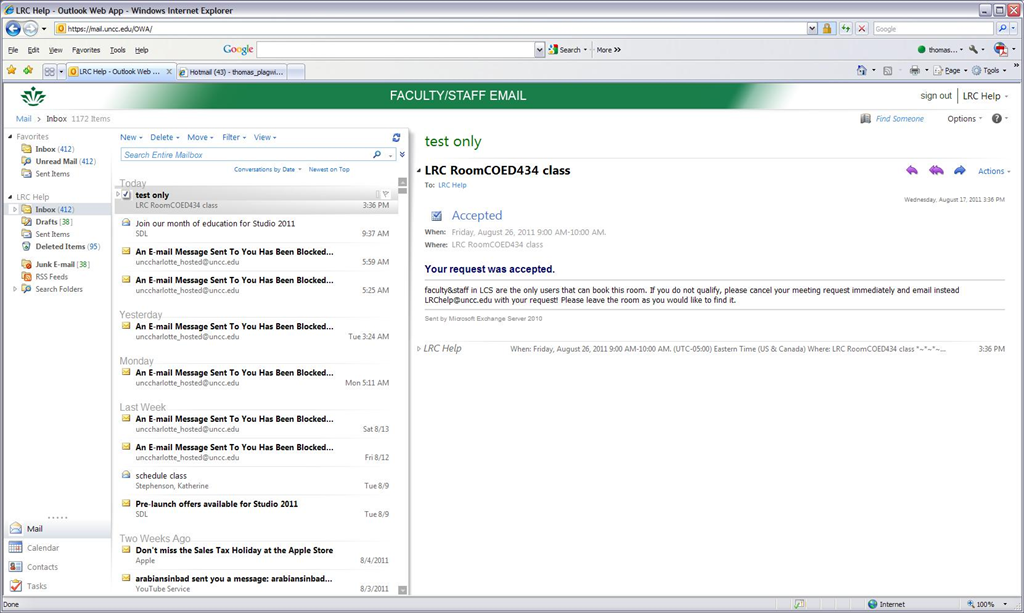
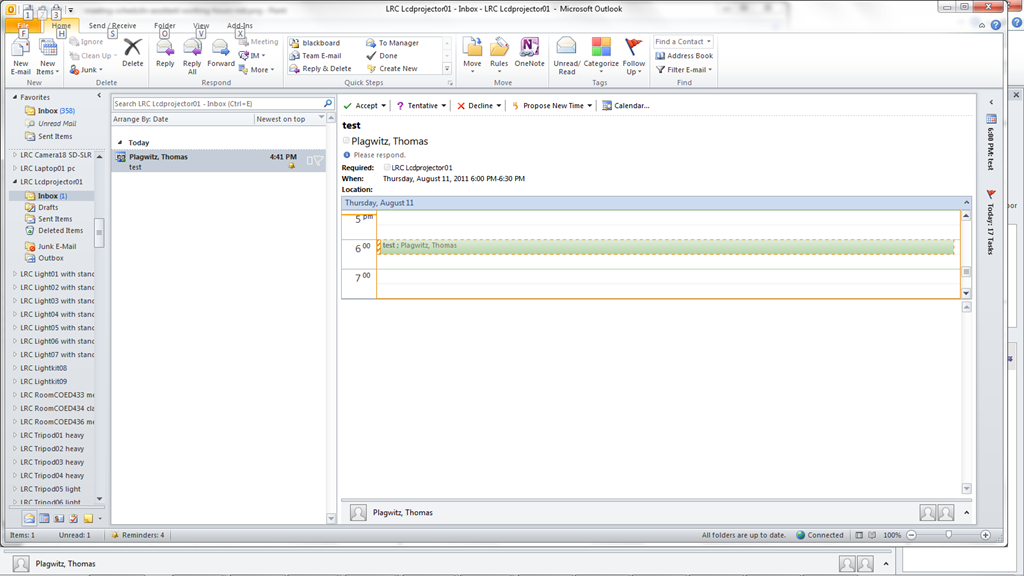
- forwards requests, saving delegates the effort to monitor the resource mailbox and calendar, like so:

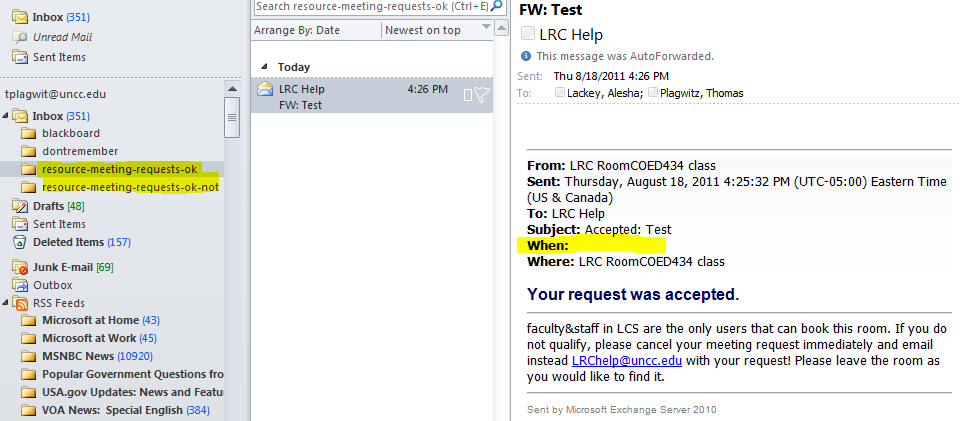
- Not only that, it seems to also forward accepted requests, useful for creating a paper-trail, e.g. for future reporting needs (Q:can the entire history of a request, including all changes be monitored this way?).

- This forwardtodelegates seems to work reliably, and you can filter notifications with a rule into the “digital paper-trail” folder:

- I notice a few gotchas with forwardtodelegates , however:
- Not all requesters will have their requests forwarded: If your requester is a delegate, or her account even only linked to that of a delegate, it seems no notification message is forwarded to delegates (at least for in-policy requests).
- As you can see in the above screenshots, the forwardtodelegates seems to omit meeting time requested (bug?) which you can track down by opening the calendar of the resource and search for the the meeting title, both of which are included in the notification message.
- forwards requests, saving delegates the effort to monitor the resource mailbox and calendar, like so:

Renaming Outlook Calendars
Calendaring is still an underutilized data source, but sharing of and collaboration on calendars are picking up.
If you find yourself juggling more and more calendars of your own and others that are shared with you, you will want to organize your calendars by naming them.
In MS-Outlook, however, you may find that the renaming option is grayed out and disabled when trying to rename your Calendar:  .
.
To work around this issue, do this:
-
Download the Exchange 2003 Information Store Viewer to your computer.http://www.microsoft.com/downloads/details.aspx?FamilyId=3D1C7482-4C6E-4EC5-983E-127100D71376&displaylang=en, unpack Mdbvu32.exe (CAUTION: THIS IS A POWERFUL UTILIITY THAT CAN ALTER YOUR DATA IN MANY WAYS, INCLUDING DELETING IT. HANDLE WITH CARE!).
-
Create an Outlook profile that can connect to the problem mailbox.[If you work on your own mailbox, you can skip this].
-
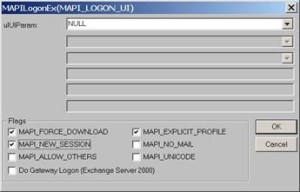
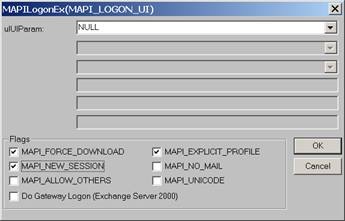
Run Mdbvu32.exe. Select the following three options and click OK: MAPI_FORCE_DOWNLOAD, MAPI_EXPLICIT_PROFILE, MAPI_NEW_SESSION
-
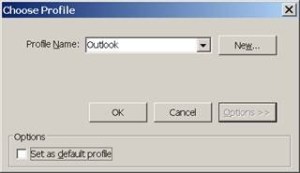
Make sure that the profile you have created in Step 2 [or your default profile] is selected. Click OK.
-
Click MDB -> OpenMessageStore.
-
Make sure the problem mailbox is selected and click Open.

-
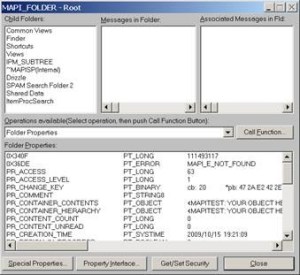
Click MDB -> Open Root Folder.
-
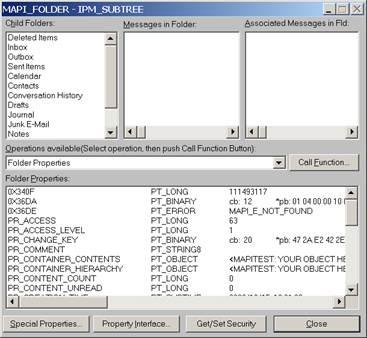
Double-click “IPM_SUBTREE” in the left list (if for some reason you don’t see this double click each entry in the top/left until you get a folder list.)

-
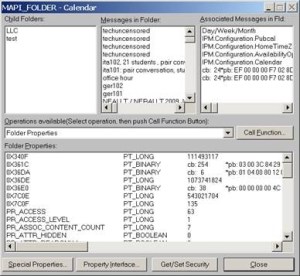
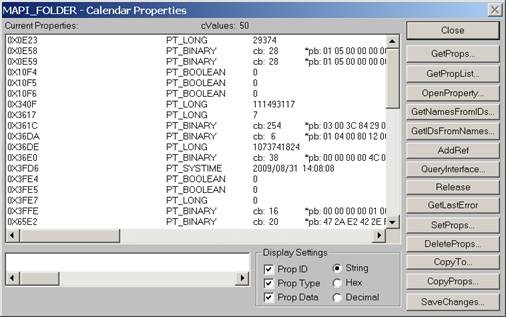
Double-click the Calendar.
-
Click the “Call Function” button.

-
Click the “SetProps” button.

-
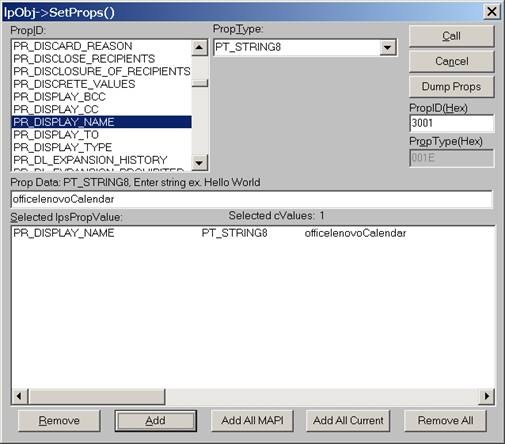
Make sure the “PR_Display_Name” is selected from the PropID list. Change its name to <whatever> in the textbox below and click the ”Add” button. You will see that the change action is added to the list. Click the “Call” button on the right-top corner to apply the change.

-
4. Click Close until you drop out of the windows, then close the MDBVU utility and OK to the logoff. From:
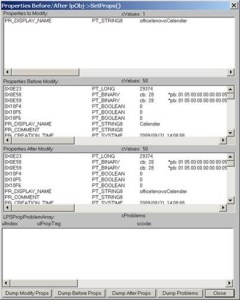 To:
To: 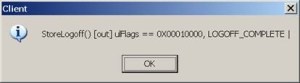
-
You may need to close and reopen Outlook to refresh the folder name.
-
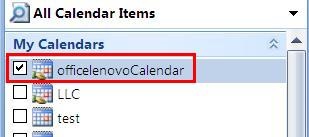
And voilà:







I just verified this to work on MS-Outlook 2007 against MS-Exchange 2007 (and assume it to work on stand-alone PST files also), and added the screenshots to clarify this. My thanks go to user traval and MS for the heavy lifting (although I wish MS would make my lifting still easier).
View the departmental calendar with your Outlook calendar
If you are looking for a more convenient way to coordinate your personal calendar (and in the future: –s) with the departmental calendar, you can do what is called “Connect to Outlook” a Sharepoint Teamsite Calendar.
Go to “Inside Loyola”, go to your Modern Languages & Literatures team site, 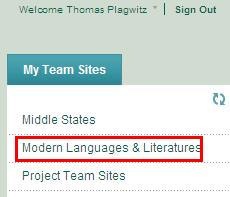
click in the left menu: “Calendar”, click from the calendar top menu: “Actions”/ “Connect to Outlook”, like here:

Click “Yes”here: 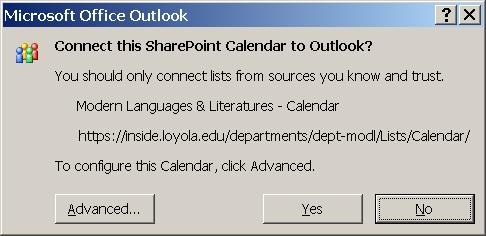 , or “Advanced”,
But there is not much to configure here: 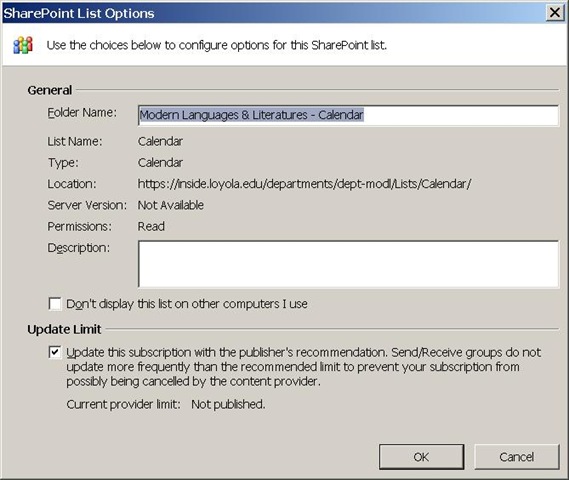
In the resulting view (in “Overlay mode”, like 2 overlaid transparencies), events are much easier to coordinate: like so:
Incidentally: If, after “Connect to Outlook” a Sharepoint Teamsite Calendar, this password dialogue keeps popping up, like so: 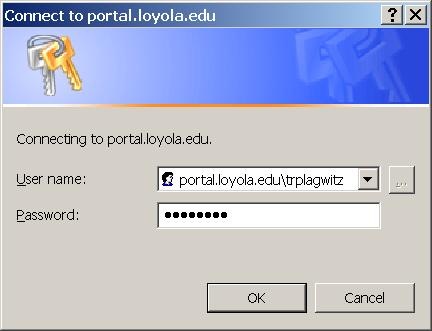 , instead of [your usual username], put [your usual username]@loyola.edu, plus remove the prefix “portal.loyola.edu/”.


Questions? Read the About. Or just ask me a quick
Your message has been sent

FAQs for LRC student staff or for students or for teachers. To search our FAQs, in the browser addressbar, add after "https://plagwitz.wordpress.com/feed/?tag=faqs+/" "+TAG1" (from tag cloud below) OR "https://plagwitz.wordpress.com/feed/tag=faqs
&category_name=" "CAT1" (from category hierarchy below). OR search both categories and tags, and multiple TAGs/CATs (connect with "," for OR-search, with "+" for AND-search), like so: https://plagwitz.wordpress.com/feed/?tag=TAG1+TAG2+...TAGn&category_name=CAT1
+CAT2+...CATn"
Other ways to find help
If you cannot find it here, look there: 5,500 Language-Learning Links and Programs for learning or teaching 150 languages
Shortcuts:Our Lists, Our Maps, LRC Staff Moodle Site,LRC Project Moodle Site, 49erexpress, UNCC Moodle, Student Recordings: s:claslcslrcsanakostudent
Learning usage samples: Sanako oral exam, Kaltura webcam presentation, Dictation with speech recognition, Sanako written exam, Chinese and Japanese interactive stroke-order practice
Test the Sanako Installer, Webbrowser Popup Konfigurator for XP, or Windows7, faster LRC TeacherPC Log-in Let MS facilitate diacritics writing by installing for you US-International keyboard layout
This is my personal blog (Google+). The views expressed on these pages are mine alone and not those of my employer. The information in this weblog is provided “AS IS” with no warranties, and confers no rights.
 Thomas' Work Space