Archive
LLC Catalogue: Video-Reserves.xlsm, Reserve desk, Schedule, using Blackboard Content System WebDAV
For a LLC video schedule, we came up with the following repurposing of existing infrastructure:
- MS-Excel: still the “Swiss army knife” of choice for the middle manager. Allows for: semi-automatic creation of reserve date sequences (insert series), given a start and end date; data validation during data entry, and, based on that, sorting and filtering and, based on that, finding.
- Blackboard Content management system (WebDAV) to manage reading and writing (editing) permissions.

- Staff can use MS-Excel to request videos – preferably at start of term – to be put on reserve within a start and end date, during which they will be periodically shown, by opening the spreadsheet from MS-Excel and filling in the green cells in the first empty row at the bottom.

- Lab Staff can use MS-Excel to periodically transfer video reserve requests into video showings.
- Lab Assistants can use MS-Excel to daily maintain video reserve desk and video showings.
- Students can use a web browser to preview video showing times during the remainder of the term.
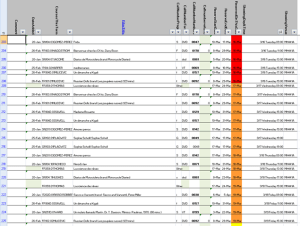
- To open the video schedule for read-only, Loyola students and staff can simply click this link in their browser: https://blackboard.loyola.edu/bbcswebdav/users/trplagwitz/llc-pfiles/video/video-reserves.xslm. Even read-only access includes the capability to search, sort and filter the schedule data, but you cannot save back.
- To open the video schedule for editing, LLC and Modern Languages staff can start MS-Excel, click menu: File / Open, and copy/paste this link: https://blackboard.loyola.edu/bbcswebdav/users/trplagwitz/llc-pfiles/video/video-reserves.xslm, then click open.
- All users will have to authenticate with their institutional account info:


Student attendance metering: present signin.xls and perspectives
We are working on replacing the old attendance meter which is still down:

As you will remember, we have been recording attendance last term and made this data available to you on our new network share: H:\llc\people\Sign_In_Sheet.xls. To summarize your students attendance, you can filter this data, using standard excel features.
New this term: To help you with this, we added an hard-coded MS-Excel auto-filter (see down-arrows in column headers): filter by course language, then number, then teacher, then the student in question , to summarize during assessment.
We expanded the data validation, so that we get the computer help us processing the data (sort, filter, search…).
Per your request, we added the course number, section and teacher columns to the sign-in sheet (to be manually updated at every term start – a poor man’s integration into the campus information system which had better not be done even by central services, but rather only purchased by them):

Individual teachers can use the built-in filters to drill down to their classes/students for advising/grading.

Individual student can be tracked, together with their time spent in the LLC:

Students enter in the green columns, mostly having to access only built-in shortcuts and selection boxes, while the other columns get updated completely automatically.
To enable students inputting their information directly, we have hacked together a dual screen system in the LLC entrance area.

We will also use this dual screen system for improving other LLC services, by hooking into central services. We will ask students with less than clear requests (“My professor wants me to do my homework here, where is it?”) to load their syllabus from blackboard and share their screen with the lab assistant, to assist with (not solve: that would need library resources, meaning professional library catalogue, library professional staff and library professional network and procedures) locating movies and other assigned learning materials.
For the attendance meter, this means: students can enter this information themselves; lab assistants still supervise, and collect the student ID to double check and prevent the cheating that I was approached about to fix with the prior system: signing in for friends, especially with passwords separate from university-wide passwords which there is no reason to keep secret.
Please note that this home-brew spreadsheet-based system is still severely limited in its functionality.
We could POSSIBLY (this would need setup and coordination with various central offices) automate this more, given time for the initial investment.
I have experimented with hooking into the swipe card system. However, students would have to be asked to swipe out also. For other reporting purposes, I have already managed to retrieve this data in this form: 
I have experimented with recording log-in (but no log-off) data on the LLC computers (another hack) in a centrally available spreadsheet, in this format:
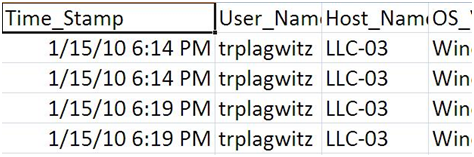
I have inquired about using Microsoft’s SCCM (a generic software management application not meant for monitoring learning or language learning): We could gather statistics on two LLC-specific programs: the SANAKO media player and the webbrowser.exe (both, however, are likely, but not required to be used for language learning if a student prefers to do the learning in other applications). Neither would record actual files being opened.
All of these approaches, while preventing the most blatant cheating, still would not record actual language learning activity. They do not prevent students from spending their time in the LLC doing unrelated activities (like browsing sports news or playing online games) while they can do their assigned Blackboard and Quia homework from the convenience of their residence.
It is the professional systems that have been programmed with the resources from of revenue of literally thousands of campus-wide installations that can record these language learning activities.
The Sanako language lab software contains a webbrowser.exe which can not only be remote controlled by the teacher, but also be configured to allow only browsing certain (partial) urls or disallow browsing certain urls. it is also possible to apply different policies in different situations. this facility, while part of the package your purchased with the lab, has not been set up as of yet.
It would require developing policies and implementing them. E.g. one could during non-class use of the LLC only allow browsing publisher websites, including Quia.com, and Blackboard.loyola.edu and Loyola.edu (a radical approach).
One could also explicitly preventing certain websites, like Facebook (this would be more effective during face-to-face session in the LLC).
Then there are the facilities within your textbook websites (Quia) and within your course management (Blackboard, keywords for free tools being: Course Statistics, Statistics Tracking with activity_accumulator, Performance Dashboard, Early Warning System Rules, Adaptive Release rules for content, project ASTRO which is an acronym for Advanced System Tracking and Reporting Online), or as an add-on (Provost Pulse).
With the impetus being on ubiquity these days, it will have to be seen whether there are tools for Blackboard or Quia that can help enforcing that students use specific computers (maybe via IP address of computer?).
Beyond these solutions, there is an entire research area for, and software market revolving around, student retention management which also covers attendance tracking. Notable players include Hobsons EMT® Retain and Starfish Early-alert (which is run by a former Blackboard VP and can be integrated with Blackboard student data system as a building block).
I suggest we invest our limited local resources into finding better ways to integrate and train on these existing central facilities that provide information on learning (which we then can use to refine our teaching). Given current circumstances, I would recommend exploring the tracking systems in Quia and Blackboard (not restricted to being used on the LLC computers) and tracking learning outcomes (like student language recordings which the LLC can help with – not as much with the digital recording technology which is being commoditized, but rather with providing a language learning shared/collaborative/meeintg space).
Demoing a requirements gathering template for IT project management
Designed for SME focus group meeting capture when upgrading the City-of-London conference interpreting facility at London Metropolitan University. Querying users for business requirements in use case form. Watch a demo: 
to generate functional requirements:

and to generate technical requirements (and questions for vendors):
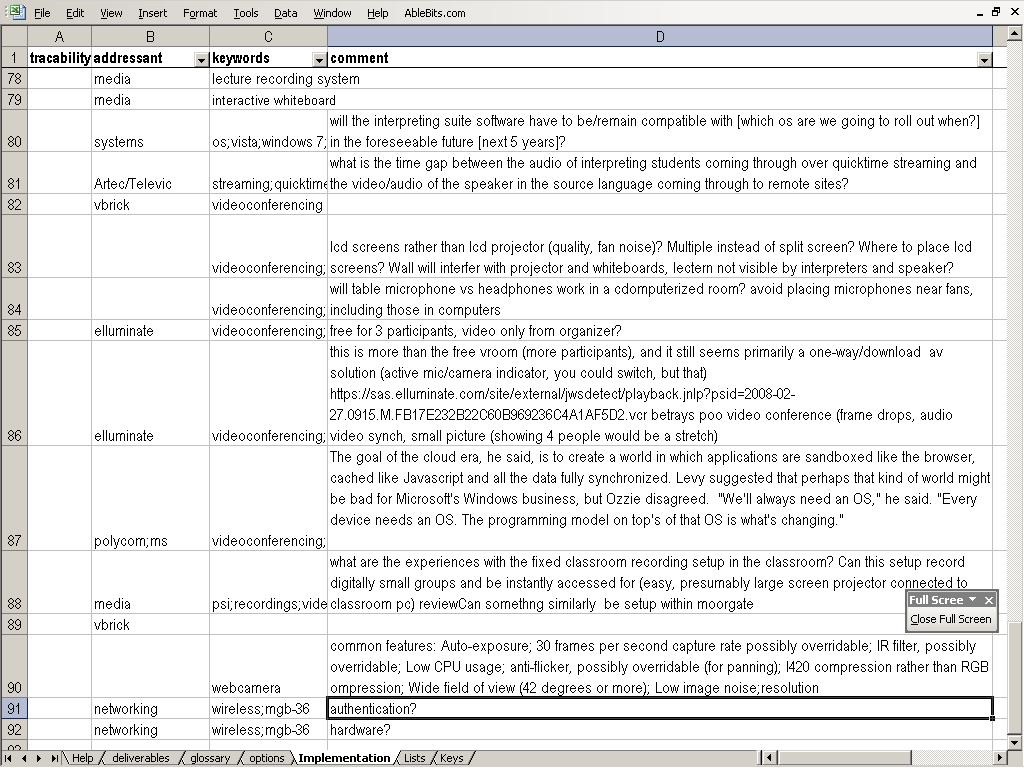
While keeping an eye on requirements metrics (what is important, contentious, unclear):

Managing learning materials: How to use an inventory spreadsheet
- Have the person that wishes to check out items identify the item appropriately, usually by “”title” (“Main and subt[itle]”or “alternate title”).
- You can locate items in various ways:
- either by full text search (menu “Edit” / “Find” or shortcut CTRL+F)
- Select the columns ((ctrl-)click on column headers (=
 ) or ctrl-space while the cursor is in the column) in which want to search (= restrict the search to these columns)
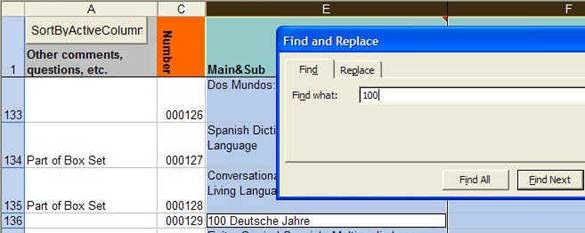
- Example: you are looking for movies entitled “100 deutsche Jahre” and want to use “100” as search term. If you do not select the column “Main and subt[itle]”, you will have to wade through a lot of unrelated matches in other columns (e.g. field:number).

- Example: you are looking for movies entitled “100 deutsche Jahre” and want to use “100” as search term. If you do not select the column “Main and subt[itle]”, you will have to wade through a lot of unrelated matches in other columns (e.g. field:number).
- use the wildcard “?” to match any single character – useful for misspelled accented characters
- Example: you are looking for the movie “Amélie”, and cannot find it; try searching for “Am?lie” instead
- Then fix the misspelled title (on how to enter accented characters see 5.1)
- Example: you are looking for the movie “Amélie”, and cannot find it; try searching for “Am?lie” instead
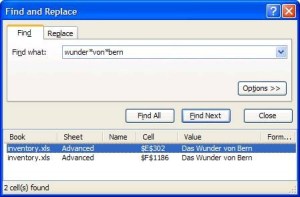
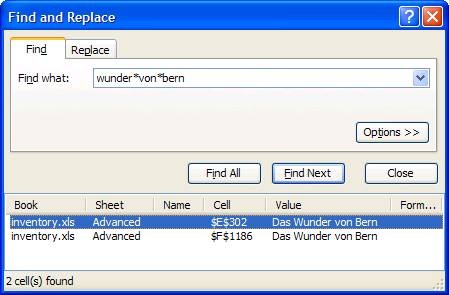
- Use the wildcard “*” (star) to match any (0 to many) characters – useful e.g. for ignoring over multiple spaces
- Use “Find all” to make sure you have all relevant entries – double click on the result to jump to that row
- Example: Duplicate movies
- Select the columns ((ctrl-)click on column headers (=
- or by filtering, using the dropdowns (arrows in column headers)
- You can

- Select an option from the dropdown to only display rows that match this condition
- Note: In the dropdown, unlike in the spreadsheet itself, options are automatically sorted alphabetically
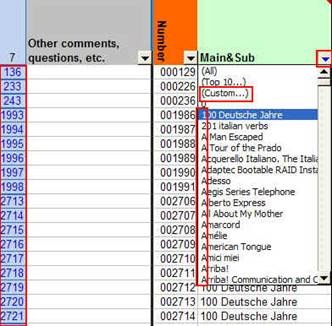
- Select “Custom” from the dropdown to create more advanced queries
- Use “contains” to search for a substring (example: you are looking for the “Terminator”, but do not remember, whether the exact title “The Terminator” or “Terrminator”)
- Select “All” from the dropdown to stop filtering or press the button “Remove Filtering”
- Filter on more than 1 column by selecting options in multiple dropdowns
- Select an option from the dropdown to only display rows that match this condition
- The blue color (in row headers and dropdown arrows) indicates that these results are filtered.
- You can
- or by sorting, using the button “Sort on active column” (click on a field in the column you want to sort on, then click the button),
- To sort by multiple columns, sort in descending order of importance.
- Example: you want to go alphabetically through the titles of the French Videotapes.
- click on a field in the column “main & sub”, click “sort”,
- then click on a field in the column “Media type”, click “sort”,
- then click on a field in the column in “Language” and click “sort”.
- Then scroll to “French” in “language”, within the “French” items, scroll to “Tape:Video”, now you can browse the French videotape titles in alphabetical order.
- Example: you want to go alphabetically through the titles of the French Videotapes.
- To sort by multiple columns, sort in descending order of importance.
- Note: if the spreadsheet becomes slow or unresponsive, try one of the following:
- remove filtering, especially on two or more columns. Sorting is faster than filtering
- Ctrl-alt-delete, “task manager”, end application and start over; the spreadsheet has been programmed to remove the filter on restart
- either by full text search (menu “Edit” / “Find” or shortcut CTRL+F)
- When to do what:
- When should you use regular find?
- Whenever possible. That means: If you look for an item which has a findable substring from a single database-field
- Example: Video with the word “Wunder” in the title
- Whenever possible. That means: If you look for an item which has a findable substring from a single database-field
- When should you use the dropdowns?
- If you look for an item that does not have a findable substring from a single database-field
- Example: You are looking for a movie with the title,main&sub=”El”
- Example: You are looking for a specific issue of a periodical title,main&sub=“Schauinsland”, field:volume = 1, field:issue=18 (means: you need to search on multiple fields)
- If you want to browse multiple items
- Example: You need to get an overview what parts of the language program “Deutsch, na klar” we have (there are the main textbook, several workbooks, instructor handbooks, cds, dvds, … etc.)
- If you look for an item that does not have a findable substring from a single database-field
- When should you sort?
- If you expect a dropdown search to get too slow.
- When should you use regular find?
- Locate items in the Media Cabinet by label number
- record checkin and checkout of items in the (violet) section “Location & Loanee”, appropriate column for loanee and date:
- instructor: instructors can check out materials for use within and outside of the lab; record instructor name and date
- students can check out materials for use within the lab only; record the student id number
- when an item is returned, reset the name and date column to blank
- Editing:
- You have been given the editor password (complain if not). This password does not completely unlock the spreadsheet.
- Hiding Columns
- For specific tasks, you can hide certain columns to fit the columns you are working with on the screen. You need to get the advanced password for doing that.
- For specific tasks, you can hide certain columns to fit the columns you are working with on the screen. You need to get the advanced password for doing that.
Learning materials management: Offline resources (2005-2006)
AKA books, shiny disks, VHS and – oh my! – cassette tapes. All come with shelves. Yuck! Where is Google Books, when you need it?
The media library I had to work with had, as I found it, a content specific labeling system and a language specific sort order on the shelves. This seems an anti-pattern in many modern languages departments: try to avoid complexity by isolating yourself. 1st degree: each language program on its own; 2nd degree: each instructor on his/her own. Atomization leads to idiosyncrasies and duplication of efforts (which must result in lowering of standards, despite, no doubt, individual toiling).

Trying to find an easy answer for complexity: I am afraid I quickly had to throw overboard the suggestion to implement the Library of Congress labeling scheme. I also abandoned trying to represent in one physical order what has to be viewed under multiple perspectives. I introduced a unique id labeling scheme based on a a simple numerical counter, where each new item would be added to the end of the stacks with a label equaling max(counter) + 1, and as a new row at the bottom of an Excel spreadsheet, which supported all discovery and lending with sort, filter, search.
And here is a partial screenshot of the offline_resources.xls:

Way too much complexity still remained: too many fields, all types of resources had to be coerced into records of the same format (hand-coded an access database for records to avoid this requirement – don’t go there!). Should have relied more on full text search, even with the simple regular expressions that come with Excel.
However, the sheet was open all day on the lab assistant’s computer behind the reference desk and worked pretty well, or was at least a major improvement. Remaining issues: speed of spreadsheet (too many complex ISBN validating formulas), lab staff training, more so instructor training (if they did not want to rely on lab staff entirely or on trying to browse the physical stacks looking for a physical order where there was no such system any more: change management problems).
Learning materials management: Online_resources.xls II: E-repository (2006-7)
I participated in the implementation of a “ learning object” repository – is there such a thing as a learning “object” in a progression-oriented field like SLA? Anyhow, the software of choice was Equella which, as I read on the listservs, is favored by Blackboard Admins for its Blackboard module and is supposed to provide the primary interface to the equella for instructors in their Blackboard course websites.
Since this did not get implemented during my time, we used what seems primarily the admin-interface and, since equella does not come with one, attempted to implement a metadata schema, based on the prior work of an LLAS-sponsored group. We also soon found that despite complexity, the metadata schema was still lacking (E.g. you won’t get through French 101 without several sections on “Negation”. nor German, nor Spanish etc.).

Excel to the rescue once more: Here is a spreadsheet in action that not only allows adding, tagging, searching and filtering links to, once more – easier than to make your own – web-based exercises, but now also allows the collaborative building of a metadata schema. But alas, the number of fields is growing again.
Learning materials management: Online_resources.xls I: Intranet (2003-2009)
Language labs tend to have many multimedia files (audio and video) on network shares – still more flexible than the web-based interfaces we are given (1 user operation does a batch on many files versus multiple clicks are needed for an operation on 1 file).
As a variation on the spreadsheet for multimedia file collections, I created a cataloging spreadsheet that imports lists of audio and video files, including metadata which gets preserved when windows media center records commercial digital TV, from a language center network share – you can find sample code on MS-Excel lists. You can see the import code in action in this screen cast.
Unfortunately, no recursion into subfolders and once more meant to move the files off the network and store on DVDs, for lack of space. Here at least the fields are less and the search relies more on regular expressions.
The current quick and dirty incarnation of self-made source material for interpreting exercises is here: 
Learning materials management: Textbook exercises (2000-2008)
Textbook exercise management is a rapidly evolving field, with more textbook becoming digital and online resources and more metadata getting added and AI getting implemented to enable personalized (data-driven, feedback-based) learning paths.
German.xls was an attempt to be able to sort, search, filter the exercises of some bigger textbooks in the American college market, each containing thousands of exercises (how many? why does it take a sumif() to find out?):

Subtitles.xls converted text files with movie subtitles which can be extracted from DVDs or found into spreadsheet for post-processing (search, filter, sort – and assign different show times, for DVD editions differ).  online,
Auralog Tell me more 7 is a language program that allegedly comes with “more than five times the amount of content than other language programs” – but strangely not with a table of contents of its exercises. Automation extracted the exercises first into the file system for full text search with Windows Desktop Search, then converted the extracted files into links in the Auralog Content XLS.


Questions? Read the About. Or just ask me a quick Our Databases: Resources with calendars -- Language learning material Moodle Sites, multimedia files -- films


FAQs for LRC student staff or for students or for teachers. To search our FAQs, in the browser addressbar, add after "https://plagwitz.wordpress.com/feed/?tag=faqs+/" "+TAG1" (from tag cloud below) OR "https://plagwitz.wordpress.com/feed/tag=faqs
&category_name=" "CAT1" (from category hierarchy below). OR search both categories and tags, and multiple TAGs/CATs (connect with "," for OR-search, with "+" for AND-search), like so: https://plagwitz.wordpress.com/feed/?tag=TAG1+TAG2+...TAGn&category_name=CAT1
+CAT2+...CATn"
Other ways to find help
If you cannot find it here, look there: 5,500 Language-Learning Links and Programs for learning or teaching 150 languages
Shortcuts:Our Lists, Our Maps, LRC Staff Moodle Site,LRC Project Moodle Site, 49erexpress, UNCC Moodle, Student Recordings: s:claslcslrcsanakostudent
Learning usage samples: Sanako oral exam, Kaltura webcam presentation, Dictation with speech recognition, Sanako written exam, Chinese and Japanese interactive stroke-order practice
Test the Sanako Installer, Webbrowser Popup Konfigurator for XP, or Windows7, faster LRC TeacherPC Log-in Let MS facilitate diacritics writing by installing for you US-International keyboard layout
This is my personal blog (Google+). The views expressed on these pages are mine alone and not those of my employer. The information in this weblog is provided “AS IS” with no warranties, and confers no rights.
 Thomas' Work Space