Archive
Protected: New LRC Calendars/Equipment mailboxes visible to students
If students have no mp3 audio on LRCRoomCoed433a Listening Stations
Problem: A Student that took the French Respondus Lockdown browser on PC 43, when playing to listening comprehension files, had no audio on her headset (except for her microphone input was played back for her. The test is single attempt only, and lockdown browser prevents us from troubleshooting.
Cause: Master volume for Wave and SW Synth on lrcroomcoed433b back to 0, like so:

Workaround: plug in one of the black headsets (USB) temporarily (plugging in another brown headset did not resolve the issue).
Solution: None currently: even when the Respondus lockdown browser is not running, Deepfreeze will not allow making changes, and changes in the current user profile will not affect users whose profiels gets created upon login (which is all student users). Longterm: Don’t try to run identical software images on different hardware configurations. Not as longterm: Autoit FTW?
What additional help can I get from the LRC to study my language?
The LRC’s mission is to support language study within the LCS course offerings and is focused on a learning approach that blends instructor-led learning with AI in both face-to-face and self-access settings. Because of the complexity of SLA, separate resources are not easy to align and combine with a well-structured syllabus and textbook publisher resources – neither for teachers and other course builders, nor for learners. Also, independent study is even more challenging than self-access as part of a course.
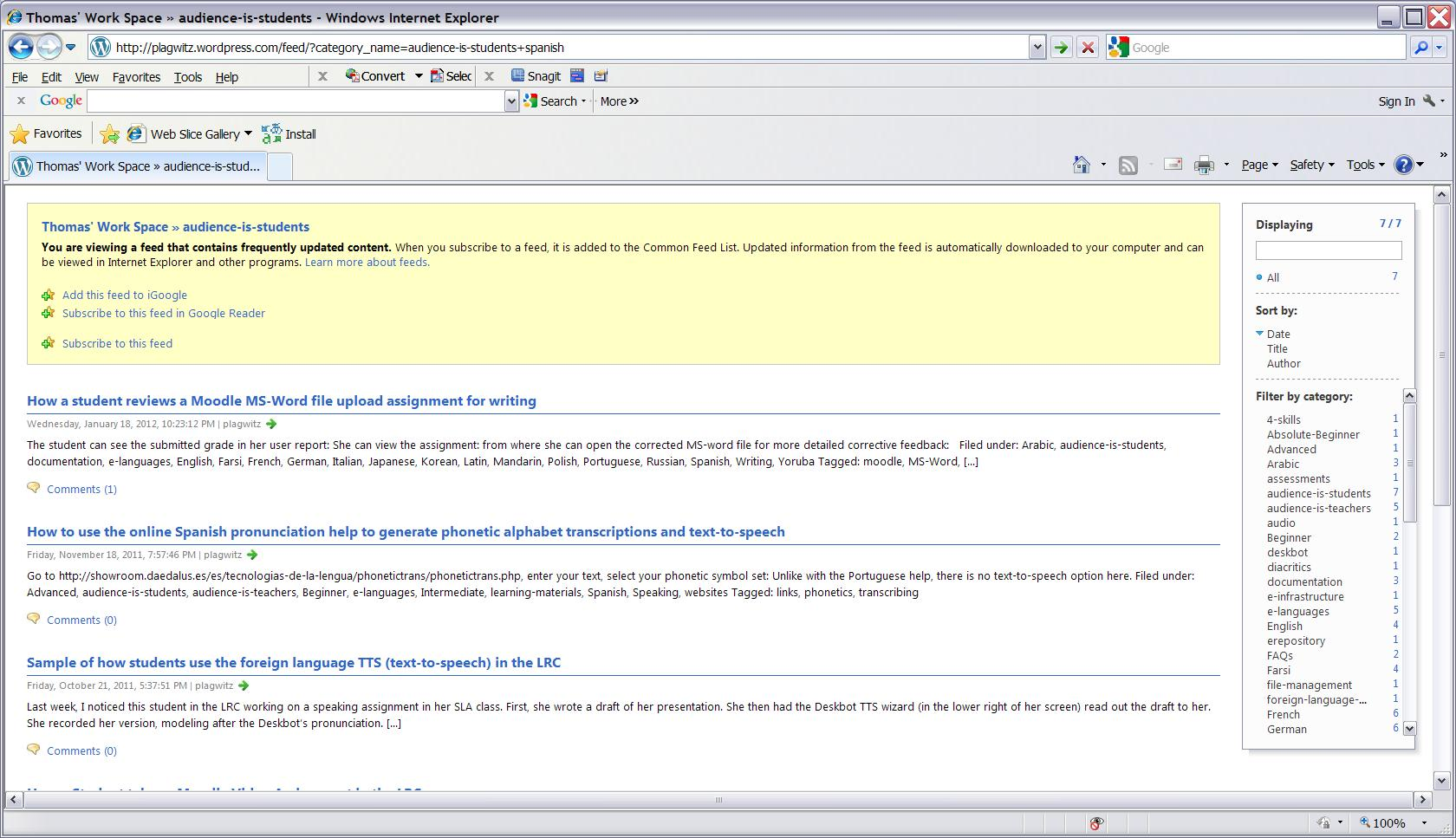
That being said, we have a host of resources listed that you may find of additional help. Look at our blog categories, and build a search in the browser address-bar, like combining (“+”) from our categories list the language (”Spanish”) with “the intended audience (“audience-is-students”) . If you use Internet Explorer for your search, you can easily search within your search results:
How to access most important LRC calendars from quick links on LRC home page
- Go to http://lrc.uncc.edu
- access like so:


- The default calendar view in OWA is monthly:
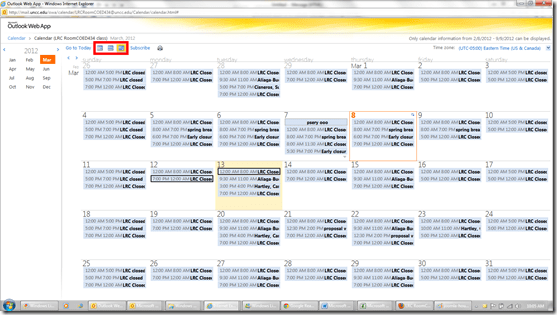
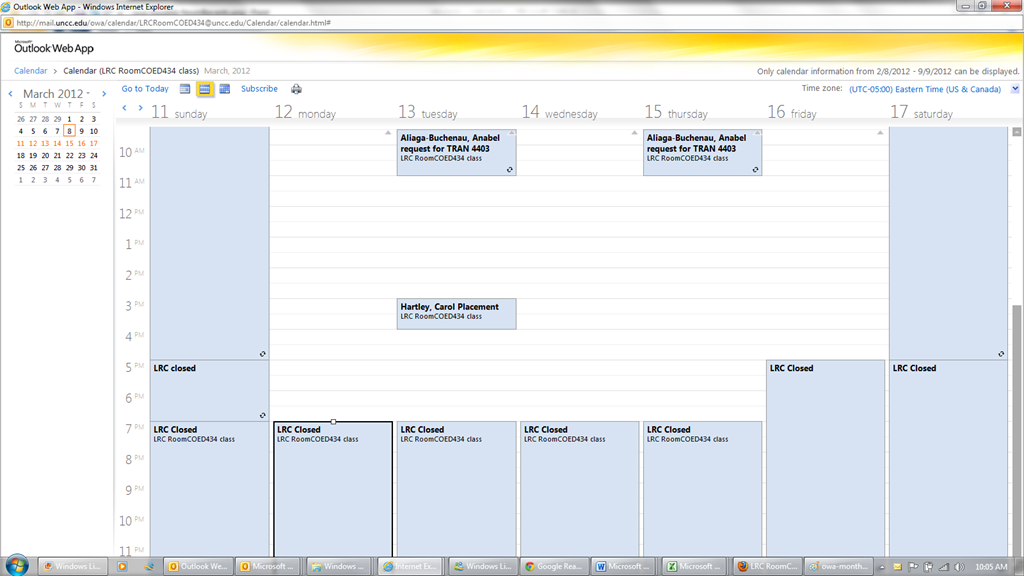
- From the top menu icons, you can easily change to weekly and daily views:

- The calendars are edited directly by the service-providing party, to stay up to date with the frequent changes in tutor availability (see #1 on Seven ways to think like the web; #4, getting them to stick to our “disciplined naming conventions” remains a work in progress).
- Thanks to Joomla’s Publish/Unpublish feature, we also stand a chance keeping up with the frequent changes in tutors being sent to the LRC or not, by entirely hiding non-applicable calendars (so that students do not have to think about what we mean by “no time slots = sorry, currently no tutor”):



Things you can try when having trouble playing video from the internet
There are several things you can try when having trouble playing video from the internet. I made a list here (less would be more, but hey, it’s computers, right?):
- Refresh the web page (f5 or ctrl-f5).
- Can you see an error message on the page itself? some video services prevent you from watching video abroad BBC iPlayer used to do this, since it is financed by fees of a local audience – so are ARD and ZDF, but they do not bother restricting by viewer location. However, they assume you are in Germany, and in their time zone, so they restrict you from watching the equivalent of R-rated content during daytime in Germany.
- Restart the web browser.
- Can your web browser play a video from a different website. Good candidates are Youtube.com (may be HTML5 delivered by now), hulu.com, ARD Mediathek if trying ZDF Mediathek or vice versa). Maybe your plug-in has crashed – try restarting your computer.
- Try a different web bowser (chrome, internet explorer, Firefox, safari, opera are all free downloads).
- Can you discern a notification bar on top of your web browser window telling you of an error or asking you to upgrade something?
- At this point it might be easier to come to the LRC and use what we maintain for you there, or, if you are trying to use your office computer, alter the helpdesk.
- Do you have to upgrade your video-plugin? Currently (before HTML5 delivered plug-in free video), most videos are plug-in based. search for adobe flash and MS-Silverlight upgrades.
- Do you have to upgrade your browser?
- Do you have to upgrade your operating system? your computer hardware? Let’s hope you do not get to here in this list…
How to bypass a Moodle Popup Window when using Respondus lockdown browser
- Problem: when starting the Moodle Lockdown browser to take an online exam, it opens with a popup window about messages. Popup window prevents access to the underlying main Moodle browser window (and exam). When closing the popup window, the entire lockdown browser closes, including main Moodle browser window.
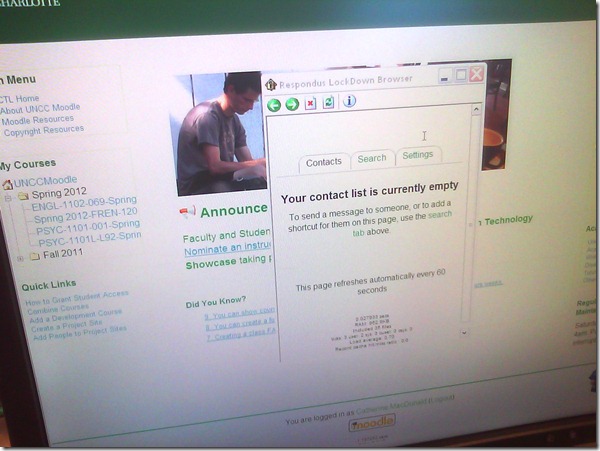
- Cause: Moodle can be configured to show a notification window when messages have arrived since your last login. This notification window has poor compatibility with the lockdown browser.
- Workaround: In the popup window, click on the tab: “Settings” and uncheck (at least for this exam session) the checkbox to show the message box as a popup when logging in. Close the popup window.

- Result: Even if this closes the main Moodle browser window once again, when you start the Moodle Lockdown browser again, the popup window will not appear again, and you can take your exam.


Students get an error when trying to open links from MS-Word file
- Error reads: “”this operation has been cancelled due to restrictions in effect on this computer”.
- Immediate workaround:
- right-click on the link, choose copy, open a web browser window
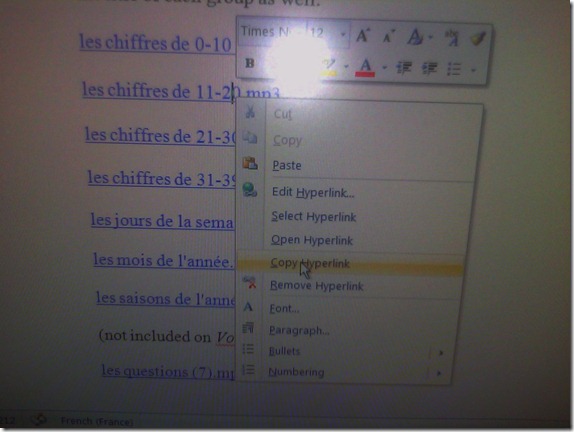 and paste the link into the address bar, browse to it from there.
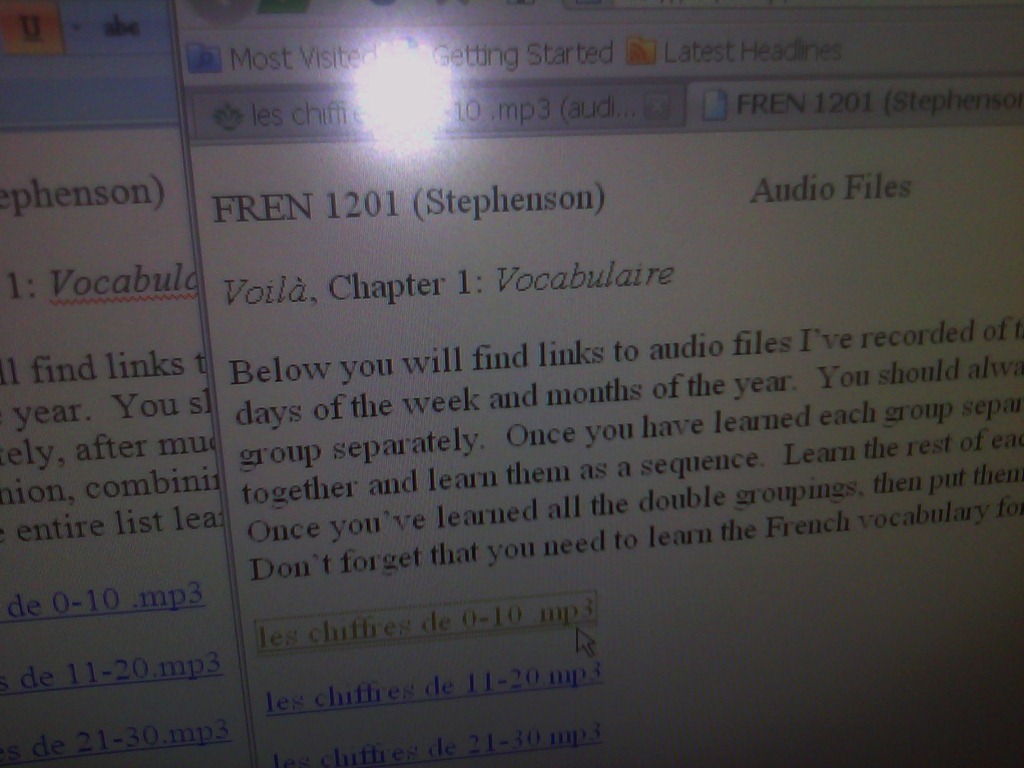
 - File / Save as / Web page. From where you saved the web page, double click to open it in the your web browser, click the links form within there.

- Have you tried saving your MS-Word files to the new SkyDrive.live.com (login with your NINERNET password) yet? Students can choose to open MS-Word documents in either MS-Word or their web browser which should also bypass the problem.
- right-click on the link, choose copy, open a web browser window
- Solution: Investigating. Seems related to no “default browser set” in XP Control Panel / Internet options. If you cannot live with the workaround, do ask your System Administrator. Or stay tuned

UNCC LCS Language Placement Exam Information
- Short URL of this page for over the phone inquiries: http://goo.gl/ezQLu.
- The dates for the language placement exam are listed
- on the LCS department webpage. If you have trouble locating this page, use this canned Google search “placement exam site:uncc.edu”;
- on the calendar of the LRC main classroom (where the exam is held).
- The requirements, limitations and step-by-step procedure off the exam are explained here: https://plagwitz.wordpress.com/2011/06/08/uncc-lrc-language-placement-test-cape-online-placement-exam-step-by-step/


Questions? Read the About. Or just ask me a quick Our Databases: Resources with calendars -- Language learning material Moodle Sites, multimedia files -- films


FAQs for LRC student staff or for students or for teachers. To search our FAQs, in the browser addressbar, add after "https://plagwitz.wordpress.com/feed/?tag=faqs+/" "+TAG1" (from tag cloud below) OR "https://plagwitz.wordpress.com/feed/tag=faqs
&category_name=" "CAT1" (from category hierarchy below). OR search both categories and tags, and multiple TAGs/CATs (connect with "," for OR-search, with "+" for AND-search), like so: https://plagwitz.wordpress.com/feed/?tag=TAG1+TAG2+...TAGn&category_name=CAT1
+CAT2+...CATn"
Other ways to find help
If you cannot find it here, look there: 5,500 Language-Learning Links and Programs for learning or teaching 150 languages
Shortcuts:Our Lists, Our Maps, LRC Staff Moodle Site,LRC Project Moodle Site, 49erexpress, UNCC Moodle, Student Recordings: s:claslcslrcsanakostudent
Learning usage samples: Sanako oral exam, Kaltura webcam presentation, Dictation with speech recognition, Sanako written exam, Chinese and Japanese interactive stroke-order practice
Test the Sanako Installer, Webbrowser Popup Konfigurator for XP, or Windows7, faster LRC TeacherPC Log-in Let MS facilitate diacritics writing by installing for you US-International keyboard layout
This is my personal blog (Google+). The views expressed on these pages are mine alone and not those of my employer. The information in this weblog is provided “AS IS” with no warranties, and confers no rights.
 Thomas' Work Space