Archive
Delete the Flash Global Settings if the iMacs webcam displays black frame only
- Problem: Safari and (not recommended after last testing round) Firefox both hung on iMAC6 when a student tried to do a Moodle Kaltura Webcam assignment and got to the built-in ISight camera display page.
- Cause: maybe a Flash security problem accessing the web cam? maybe security dialogue was not answered by the student correctly earlier, and the “preference”stored in her account?
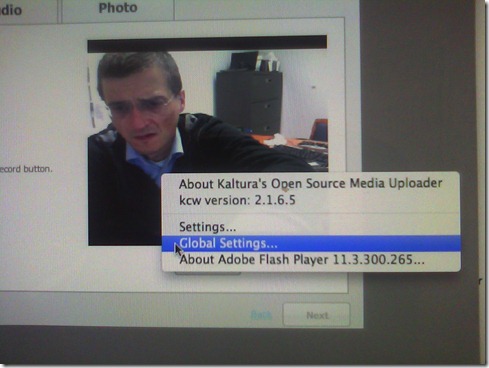
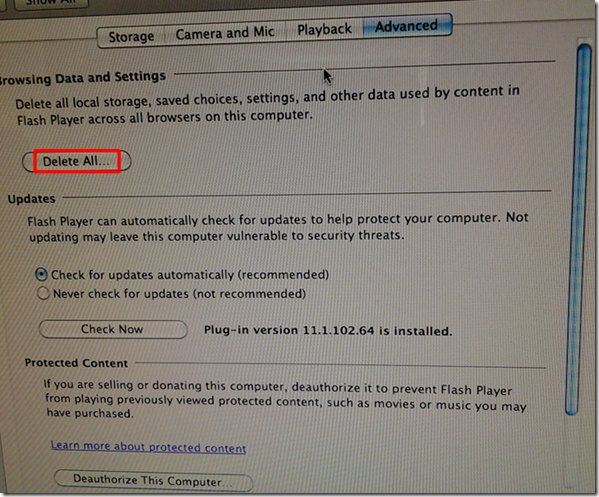
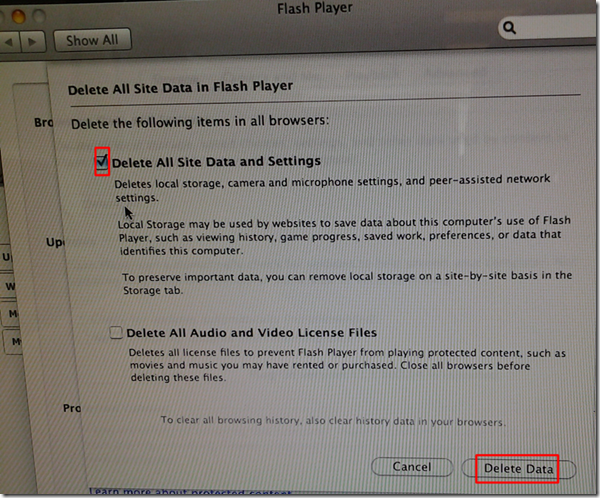
- Solution (presumably): System started working again after I deleted the Flash Global settings, by right-clicking on the webcam video preview window like so:
-
- Ceterum censeo that we need a computer management infrastructure if we want to use MACs for language learning technology. Faronics-Deepfreeze would have prevented this problem, provided we have a software imaging system (CASPER coming up apparently) that can let us start with a usable image, and the staff time to learn and configure 2 usable OS images and dual usable computer management infrastructures. TCO now > TCO dual OS infrastructure > TCO web cams for 45 PCs.


How to fix “no audio” on the computers with black Sanako headsets
- First, show the Sanako student application (e.g. from button:Start / Student).
- Is the Volume Control slider set to 0? Move it up where it says “Adjust volume”:

- Still hear no audio playing on the black Sanako headsets? Then the volume slider was likely moved to 0 since the headset was not detected: On the rear of the computer, check the connection
- of the blue headset plug into the USB extension cord, and
- of the extension cord into the rear of the computer.

Group conference with all students and the teacher using Sanako Study 1200
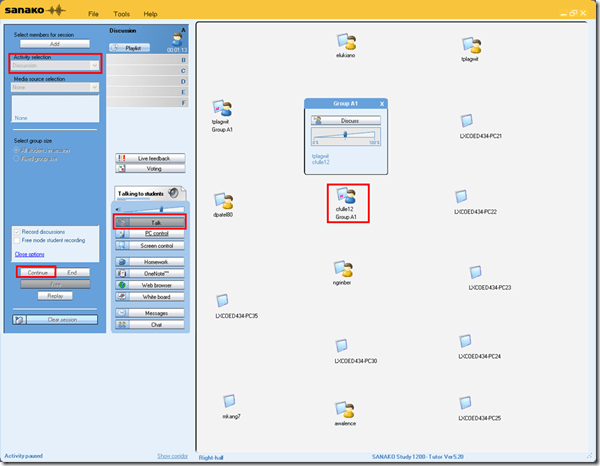
- To set up the maybe most common language classroom activity – everybody listening or talking to everbody else (whether student or teacher) –
-
try this with the Sanako Study 1200 – plus have no student fade off because of “incomprehensible input” caused by bad classroom acoustics and self-conscious learners mumbling –:
-
-
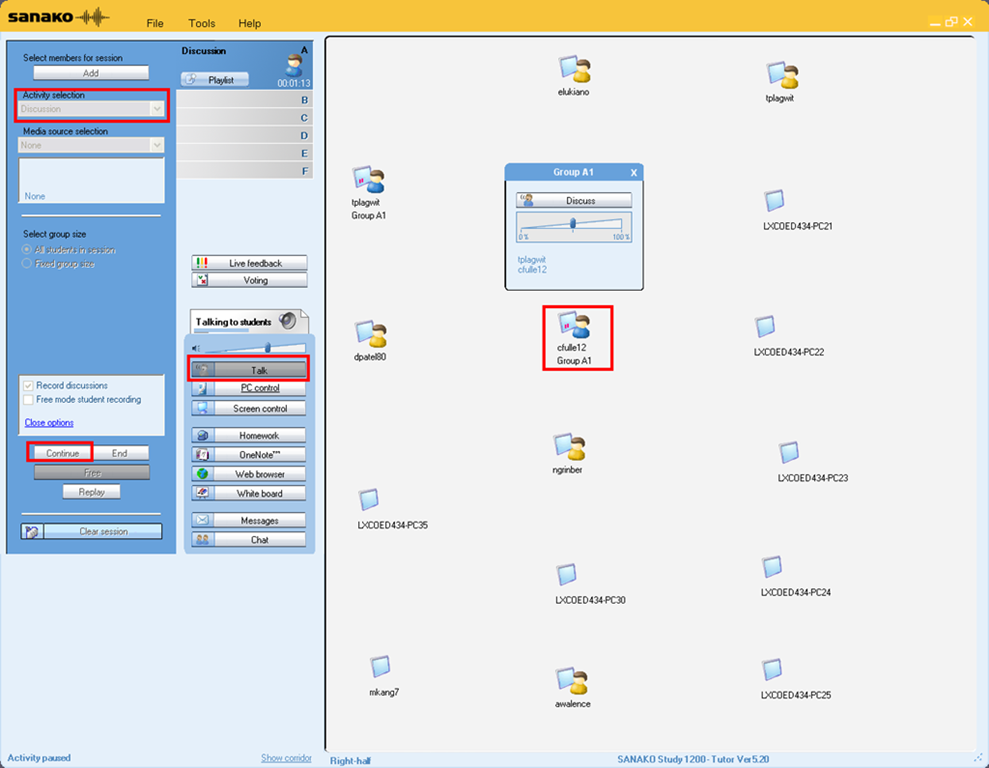
Activity pane: discussion, start –> students can talk with each other
-
Button:talk –> teacher can talk to students
-
Student icon / popup-menu: teacher can hear students – not only the one from the student icon, but anybody in discussion.
No audio on listening stations and group rooms, and workaround
- Symptom: Headsets work (test feedback by putting microphone near headset speakers), but audio files from internet do not play with sound.
- Cause: having to support 2 different kinds of headsets (USB with built-in soundcard versus traditional analog) in one PC software image.
- The workaround
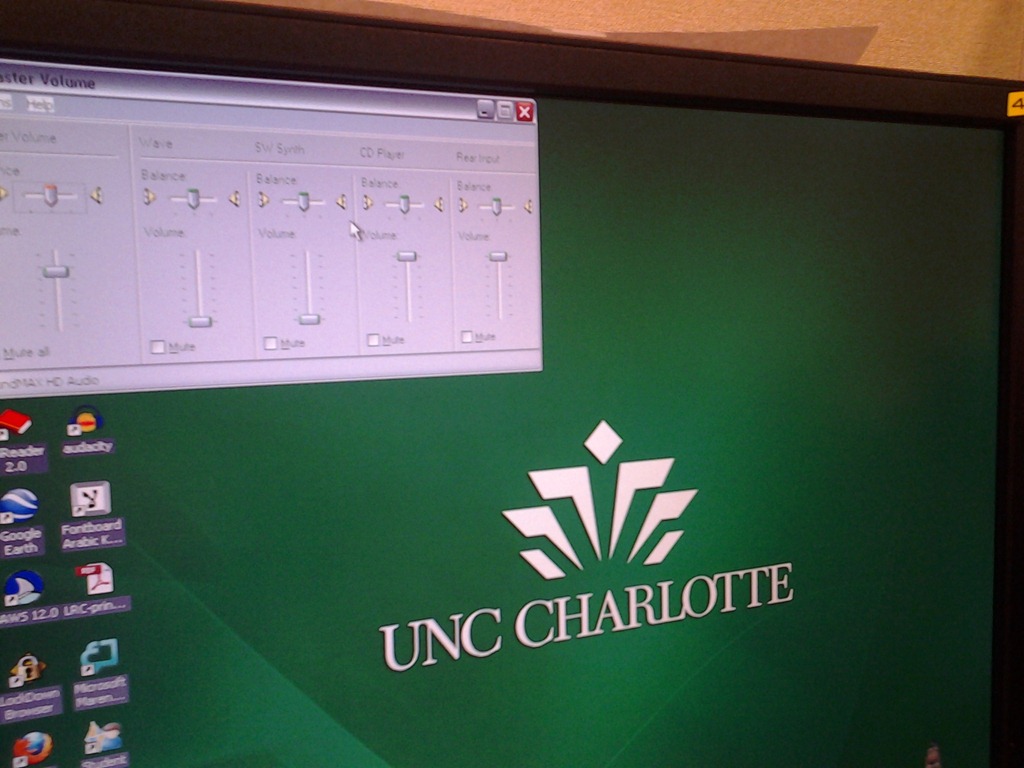
- for temp staff is to start / run / sndvol32.exe and up the low volume sliders here:

- for permanent staff is to unfreeze any computers that have been missed previously
 and put this script into the all users startup folder now: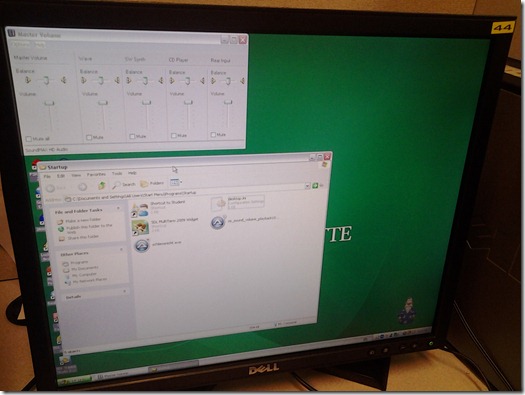
- The solution: standardize on USB headsets when you get a chance.


How to link your LRC tutor calendar and Moodle metacourse from your Moodle course

Film equipment booking FAQ
- Do not send the meeting request to lrchelp@uncc.edu or some other person you know in the LRC, but rather send to the equipment email as listed here. Your meeting request will reach this equipment item’s “Resource Attendant who manages the item.
- Do not attempt to book equipment items that are “blocked” on the Scheduling Assistant tab of your meeting request. The Attendant currently mails acceptance responses only to permanent staff, not to students (check for booking success instead using the calendars shared with you in your NINERMAIL), but still has her Scheduling Assistant update the equipment’s publically visible calendar with the booking (tentatively for students). You may have figured by now that TBA:the Resource Attendant and her Scheduling Assistant are actually robots, “Do more with less” and all.
- Do not write in the notes field “I would like a Boom Pole as well” or similar. Nobody but robots is supposed to look at your message, and Robots cannot process this note, and they do not need to: Just add all equipment items,that you plan to check out and back in at the same time, as additional recipients in the “Resources” textbox, as listed here, so that the Resource Attendant and her Scheduling Assistant can manage the sharing of the items.
- Do not load only a single equipment piece – you would be playing a time-consuming lottery with the availability of this item. Rather, load all equivalent equipment pieces in the “Resources” field (see explanation on list of bookable items ) that you could use. E.g. if you need a Vixia camera with a heavy tripod and a microphone, load (-> list of bookable items ) LRC Camera 11-14 and all LRC Tripods 01-04. Then compare availability lines in the scheduling assistant for these items: You will find more easily one Vixia camera and one heavy tripod that fits well into your schedule. Just remember to remove the other equivalent items that do not fit as well into your schedule, before sending the meeting request.
- New memory options from Summer 2013:
- Cameras do not include sd-cards anymore. If you need an LRC sd-card, you have to check it out (and back in) separately, by adding to the “resources:” LRCsd-card##
- Have no way of getting your footage off the camera when returning equipment. Don’t hog the equipment. You can now store your footage temporarily on an LRCthumbdrive##.
Why to save Audacity projects locally …
… with enough file space to avoid unspecific problems, including later parts of your recording becoming inaudible.
This problem was caused by attempting to save an Audacity project to a network share over a slow network and with limited storage space.
This Audacity project (.aup extension, with subfolders) had a size of a 200MB – the exported .mp3 likely less than 1% off that.
So always save Audacity projects you are working on on local hard drive or USB thumb drive.
Problems with accented characters in Respondus Lockdown Browser
Update: Just click on the menu item “ A” under Respondus titlebar window to bring the floating accents window back. 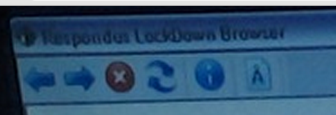 Problem is only: this menu disappears now also. Anyhow: using below keyboard shortcuts is faster, and MS FixIT can now enable it for you on your home or office PC also.
Respondus Lockdown browser limits the use of modifier keys (e.g. on Windows CTRL, ALT). This prevents the use of certain traditional keyboard shortcuts for entering foreign language accented characters – including the method from times yore: ALT+number code.
Respondus Lockdown browser can work with a floating toolbar for accented characters. Unfortunately, reports are in that the floating toolbar disappears (may be related to a recent Respondus upgrade?).
Fortunately, Windows US-international keyboard – the default in the LRC – is not as much hampered by Respondus – except in t he few cases where US-international keyboard also relies on ALT- and CTRL-modifier: consult this table.
|
Press (, then release) |
then press |
Example Result |
|
` (accent grave) |
any letter that can have this accent, e.g. “a”, also cedilla ç |
à |
|
‘ (apostrophe) |
á |
|
|
^ (caret)- |
â |


Questions? Read the About. Or just ask me a quick Our Databases: Resources with calendars -- Language learning material Moodle Sites, multimedia files -- films


FAQs for LRC student staff or for students or for teachers. To search our FAQs, in the browser addressbar, add after "https://plagwitz.wordpress.com/feed/?tag=faqs+/" "+TAG1" (from tag cloud below) OR "https://plagwitz.wordpress.com/feed/tag=faqs
&category_name=" "CAT1" (from category hierarchy below). OR search both categories and tags, and multiple TAGs/CATs (connect with "," for OR-search, with "+" for AND-search), like so: https://plagwitz.wordpress.com/feed/?tag=TAG1+TAG2+...TAGn&category_name=CAT1
+CAT2+...CATn"
Other ways to find help
If you cannot find it here, look there: 5,500 Language-Learning Links and Programs for learning or teaching 150 languages
Shortcuts:Our Lists, Our Maps, LRC Staff Moodle Site,LRC Project Moodle Site, 49erexpress, UNCC Moodle, Student Recordings: s:claslcslrcsanakostudent
Learning usage samples: Sanako oral exam, Kaltura webcam presentation, Dictation with speech recognition, Sanako written exam, Chinese and Japanese interactive stroke-order practice
Test the Sanako Installer, Webbrowser Popup Konfigurator for XP, or Windows7, faster LRC TeacherPC Log-in Let MS facilitate diacritics writing by installing for you US-International keyboard layout
This is my personal blog (Google+). The views expressed on these pages are mine alone and not those of my employer. The information in this weblog is provided “AS IS” with no warranties, and confers no rights.
 Thomas' Work Space