Archive
How to extend your LRC class booking to the entire term by adding weekly recurrence
- The single screenshot booking FAQ mentions recurrence briefly. If you failed to add recurrence when you booked the LRC for your class, you can likely still add it:
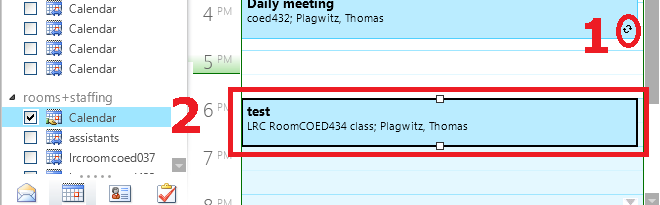
- Go to your NINERMAIL calendar, open your “meeting”, like so:

- if the (1) recurrence indicator is missing or if, when browsing your NINERMAIL calendar for the term, your class booking shows up not every week, only during the first?
- Then (2) open your class booking by double-clicking on it.
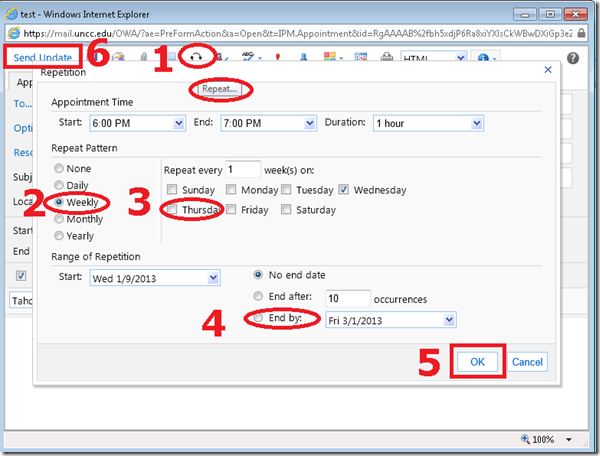
- In the window of your class booking, do these steps (use your own class times, not the ones in the example)
- note how the (1) tooltip for the “repetition” dialogue says “repeat”;
- classes meet (2) “weekly”, but more complex schedules can also be set up (“repeat every x week”)
- don’t forget to (4) “end by” the last day of classes.
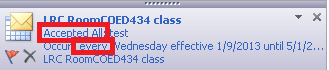
- You will receive an immediate response from the LRC classroom in your NINERMAIL inbox. Check it for and report any problems that you cannot resolve to the LRC reception desk.


How to play Windows media on the MAC OS platform
LRC-provided Windows Media encoded audio and video learning materials files can easily also be played on the MAC, since Microsoft supports Windows Media also on the Mac-platform.
Mac users can download wmv/wma support for the Mac OS X version 10.3.9 or later, QuickTime version 7.0 or later) from http://www.microsoft.com/windows/windowsmedia/player/wmcomponents.mspx for free. In this download from Microsoft, Windows Media® Components for QuickTime are now “new & improved”.
Protected: How teachers find their Sanako materials
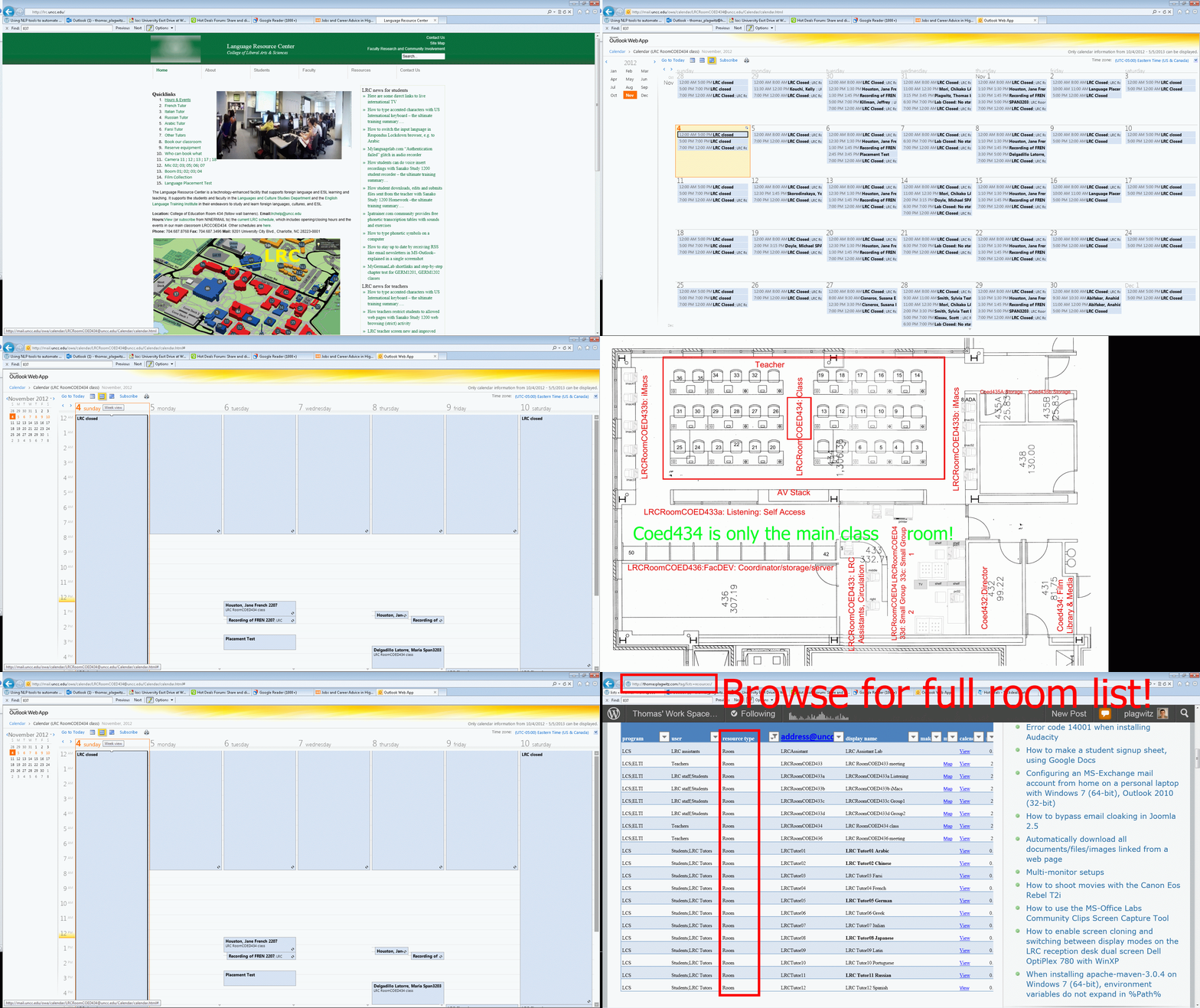
How to view LRC hours&events ….
Here are some direct links to live international TV
|
Arabic |
|
|
Chinese |
|
|
Dutch |
|
|
Finnish |
|
|
French |
|
|
French |
|
|
German |
(new & untested) ARD live stream, or (likely more useful)ARD Mediathek |
|
Italian |
|
|
Italian |
|
|
Japanese |
|
|
Japanese |
|
|
Korean |
|
|
Norwegian |
|
|
Portuguese |
|
|
Russian |
|
|
Spanish (Spain) |
|
|
Spanish (Spain) |
|
|
Spanish (Latin America) |
|
|
Swedish |
You can probably tell from the language selection where this list is from  : Many thanks, University of Minnesota Language Center, I only had to remove your scheduling information which we have no use for…
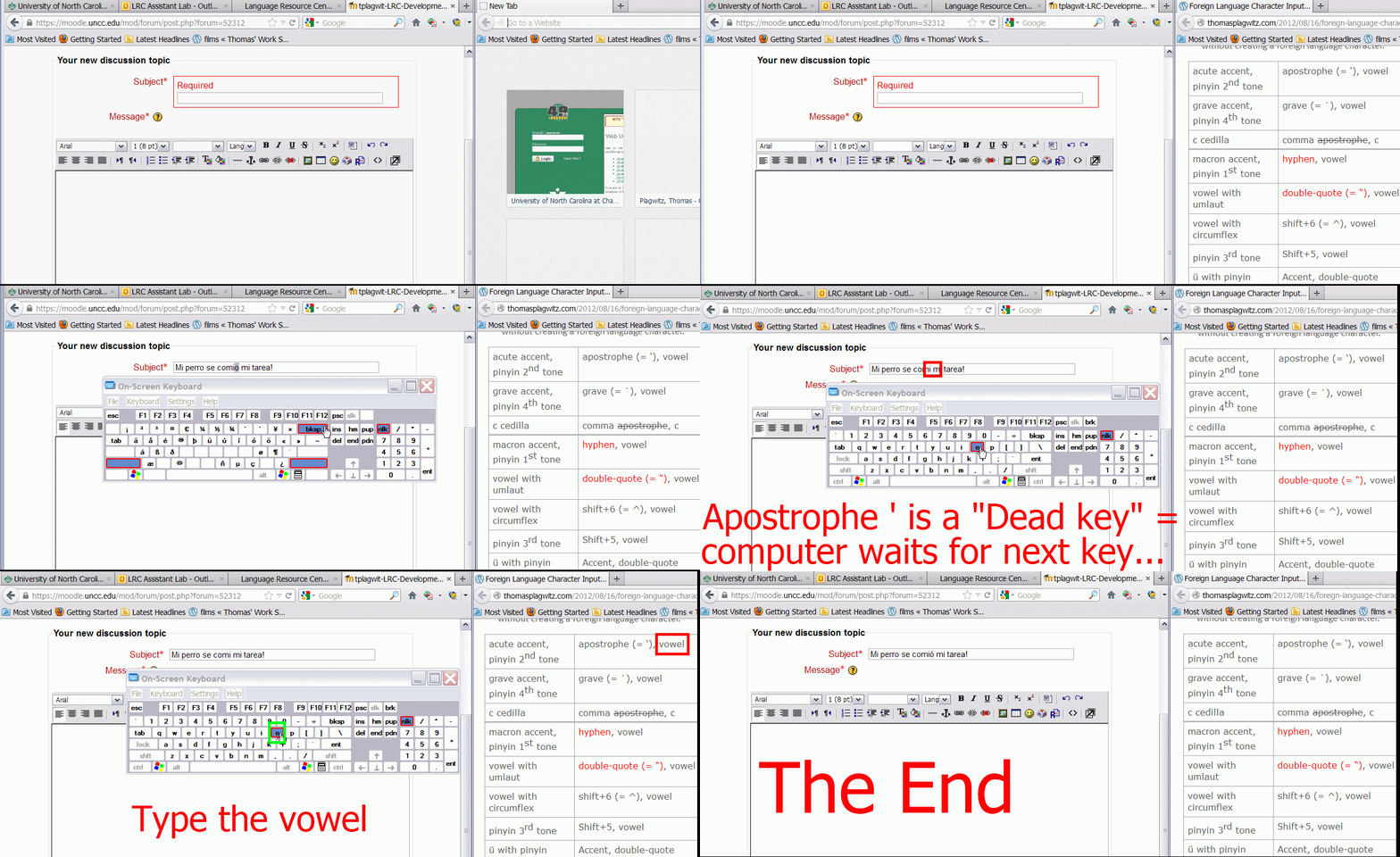
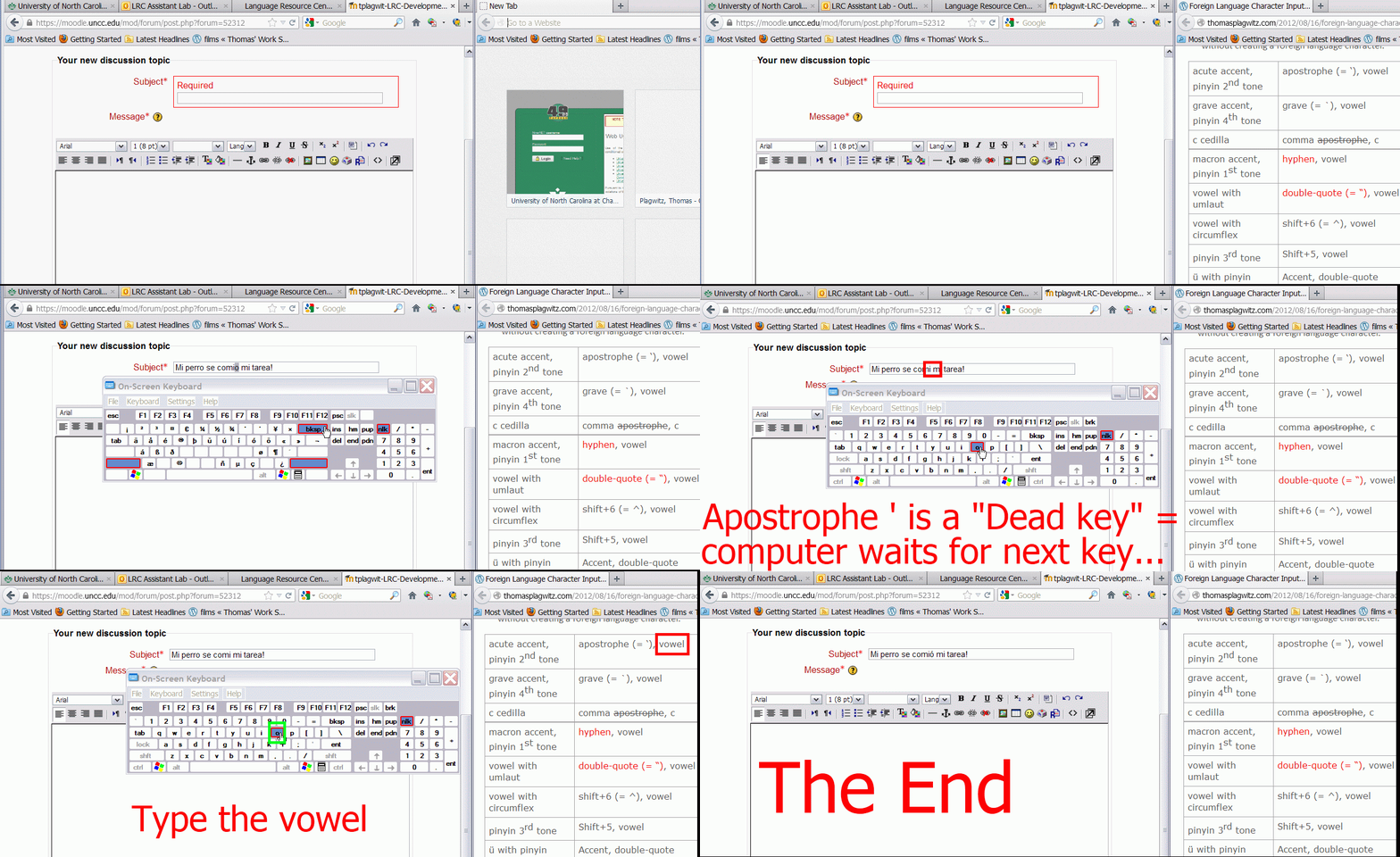
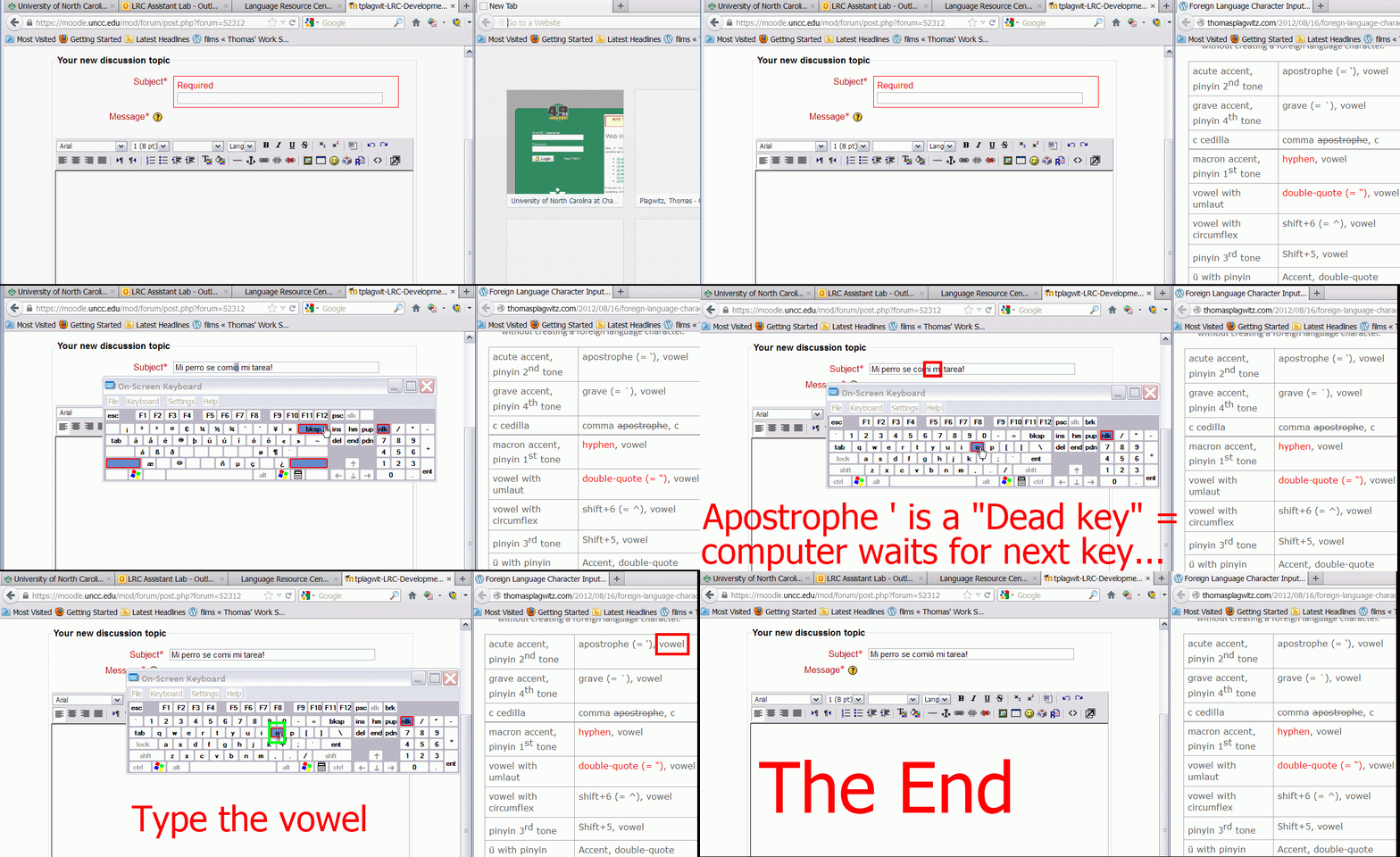
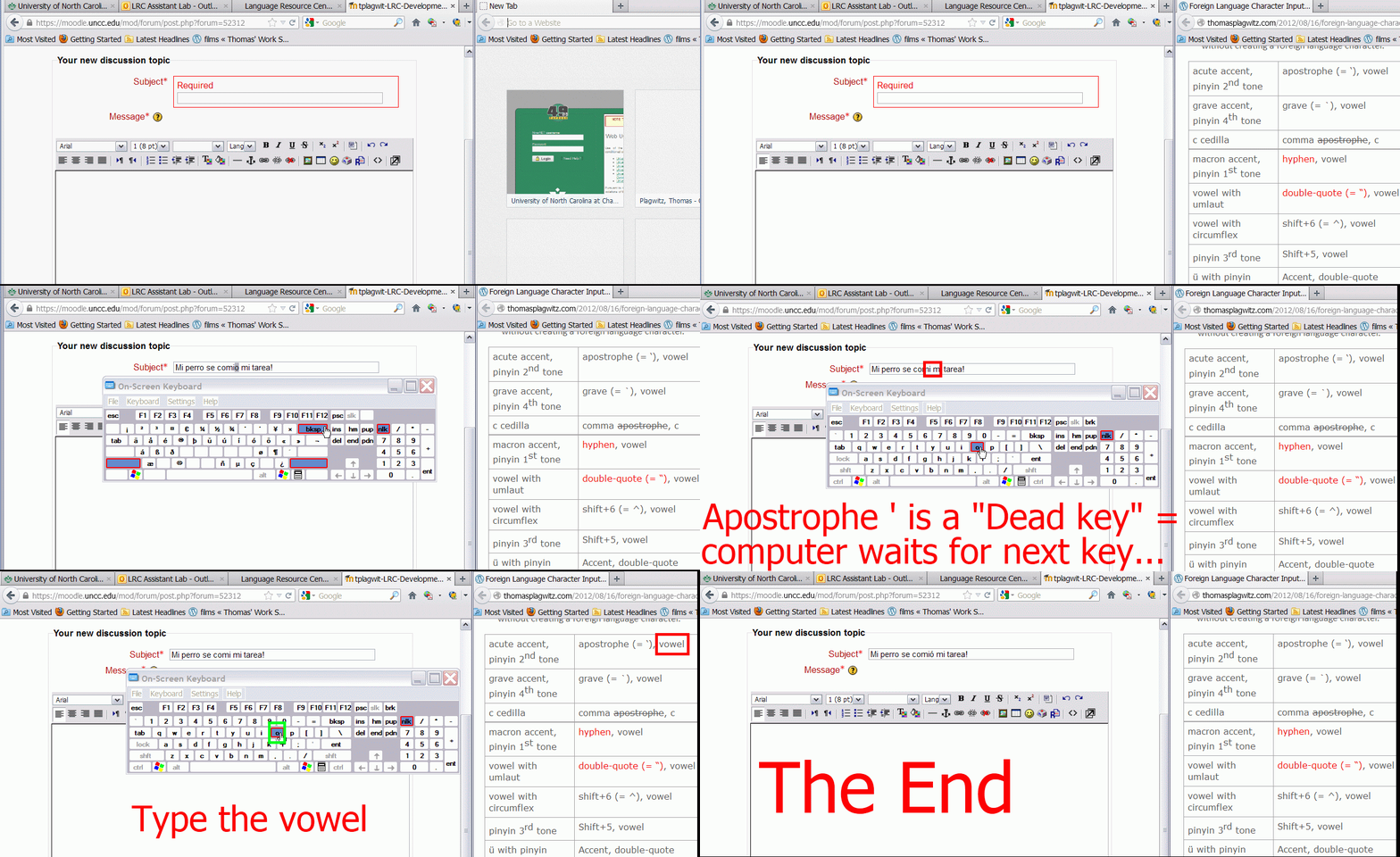
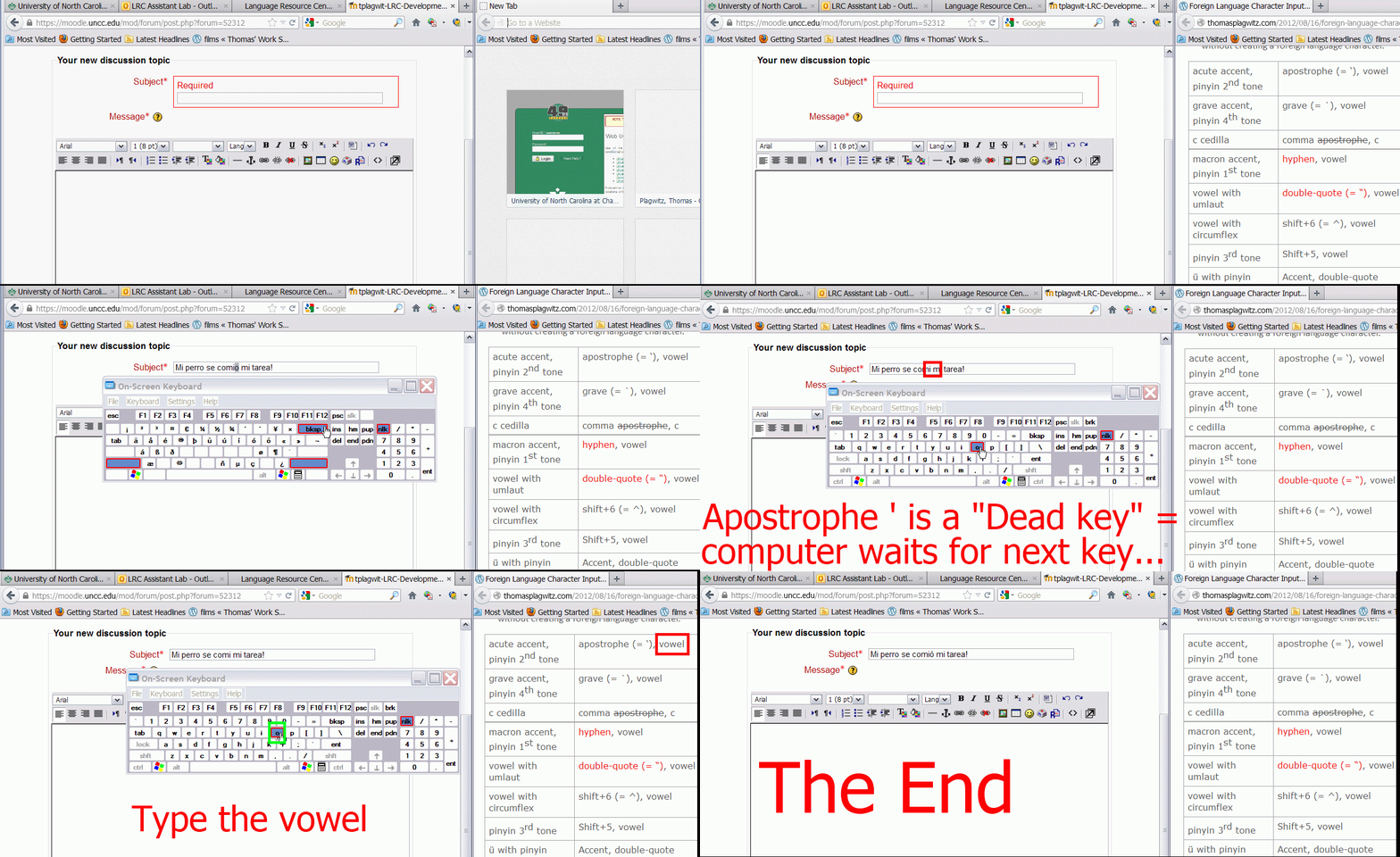
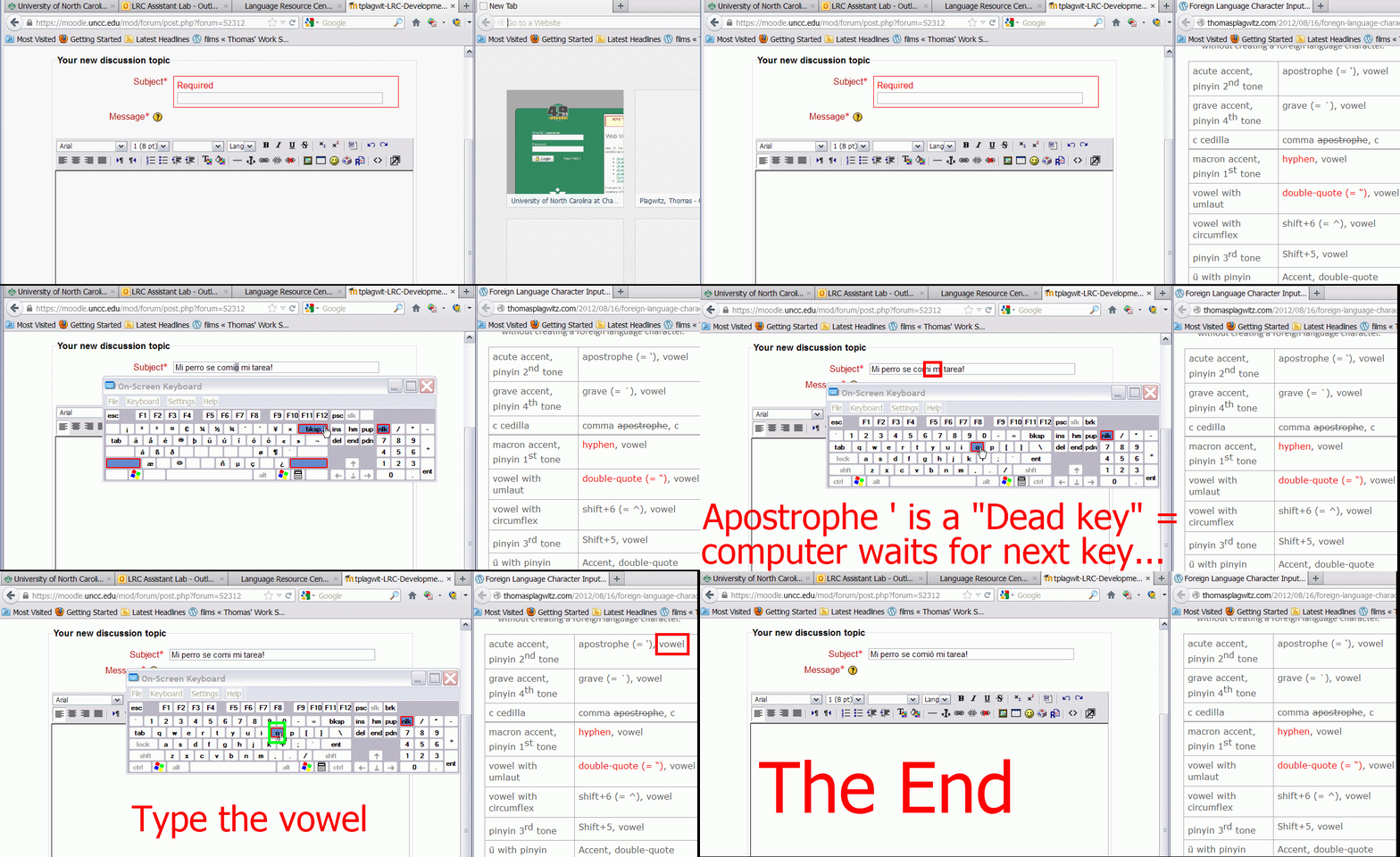
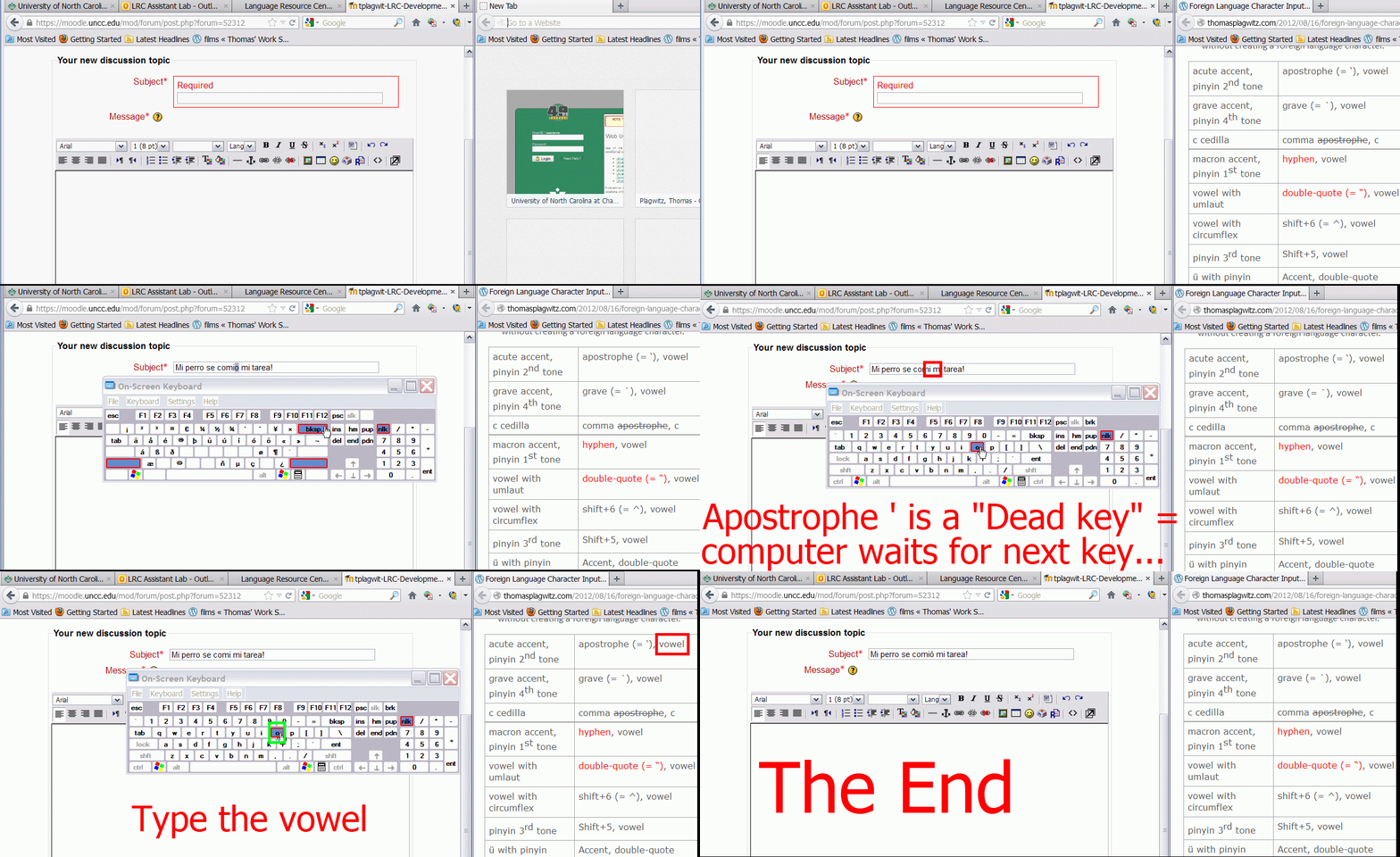
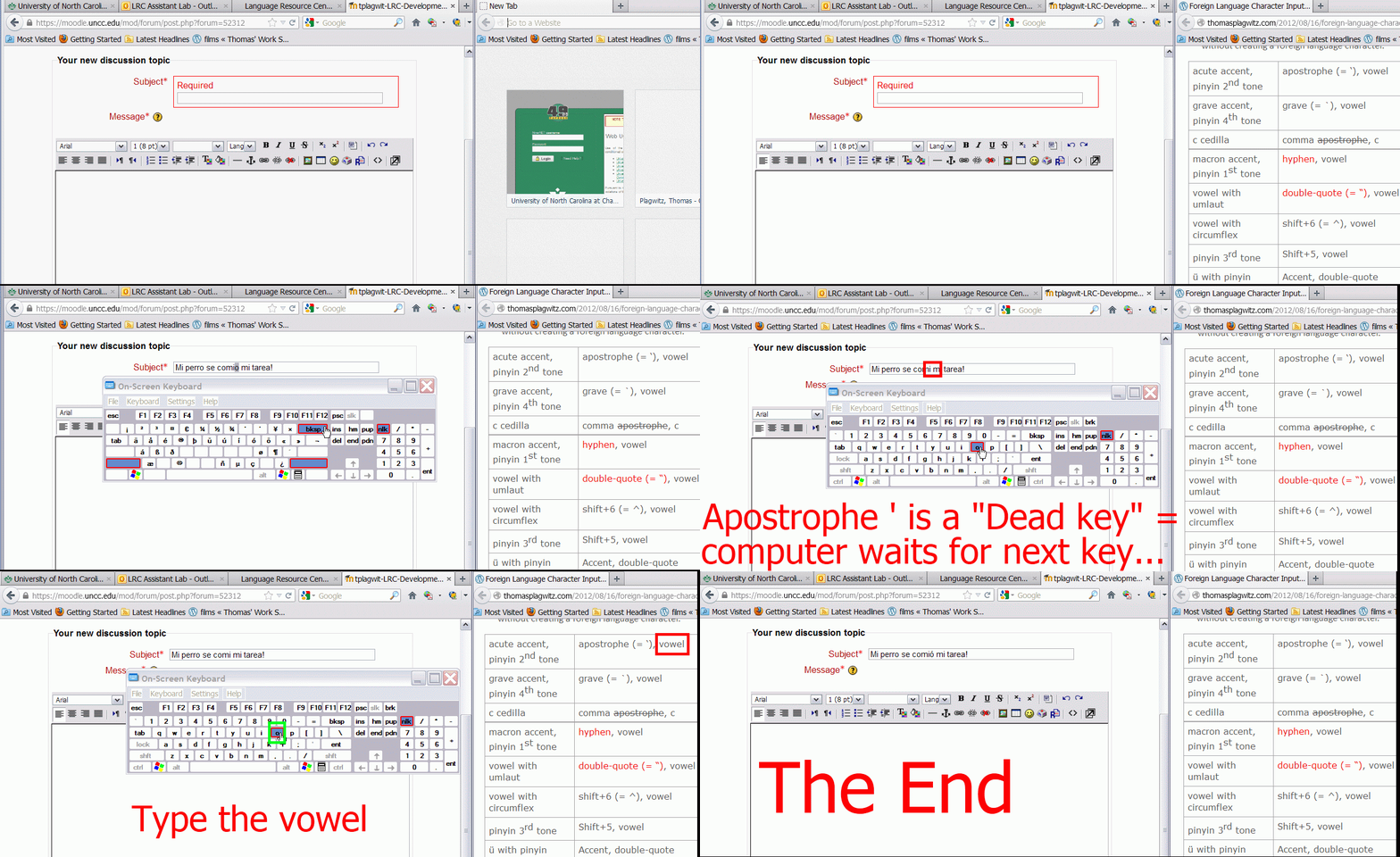
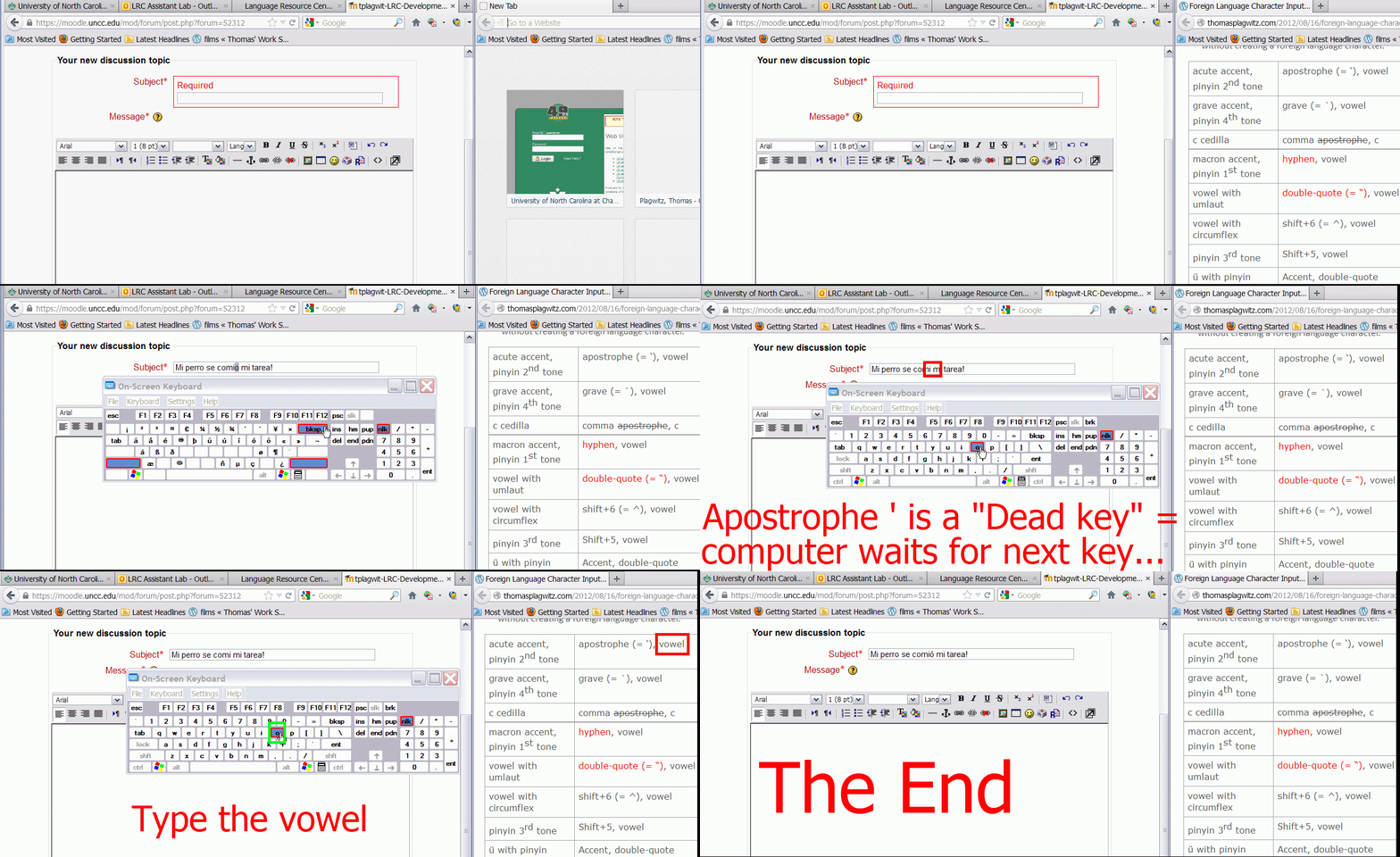
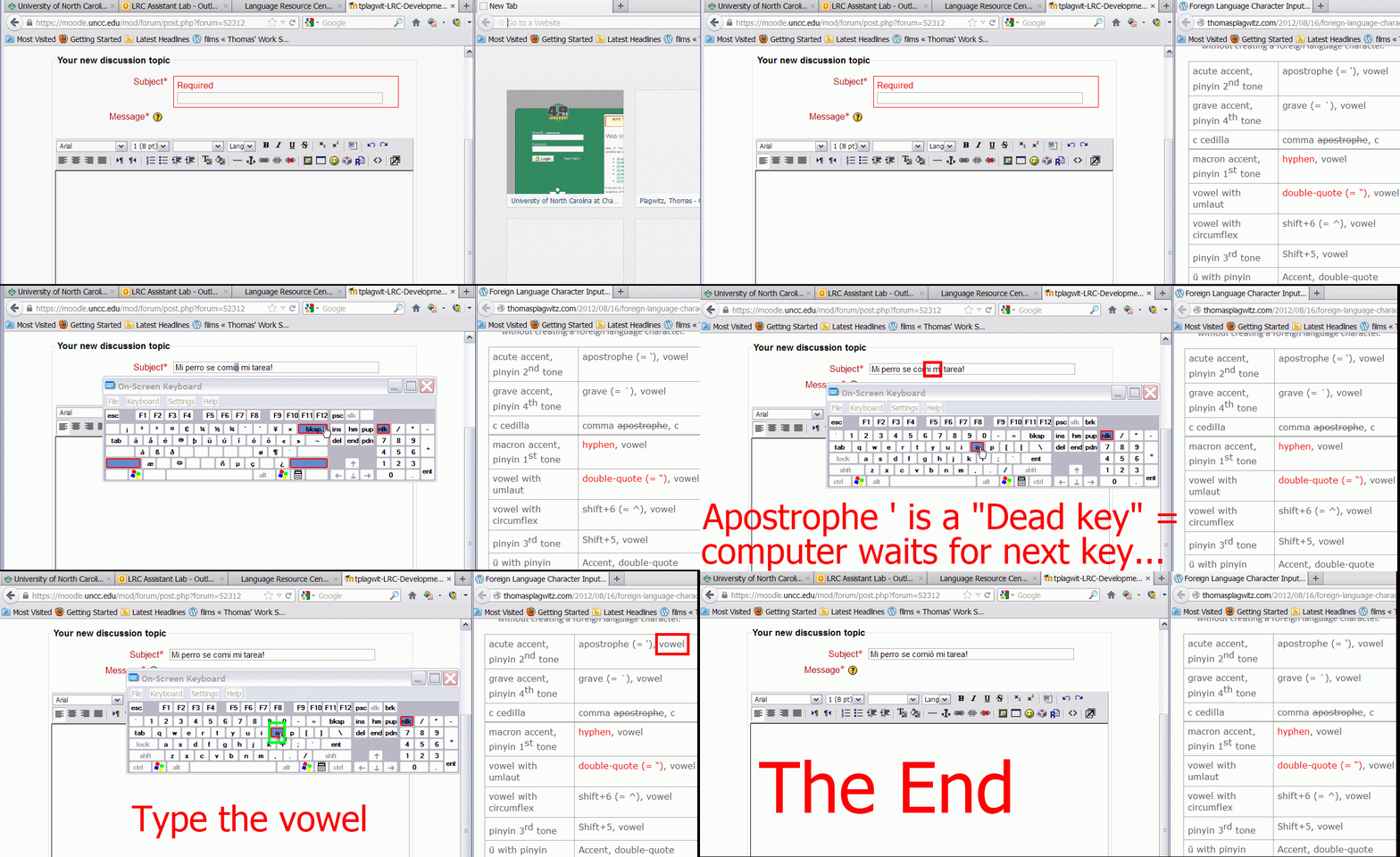
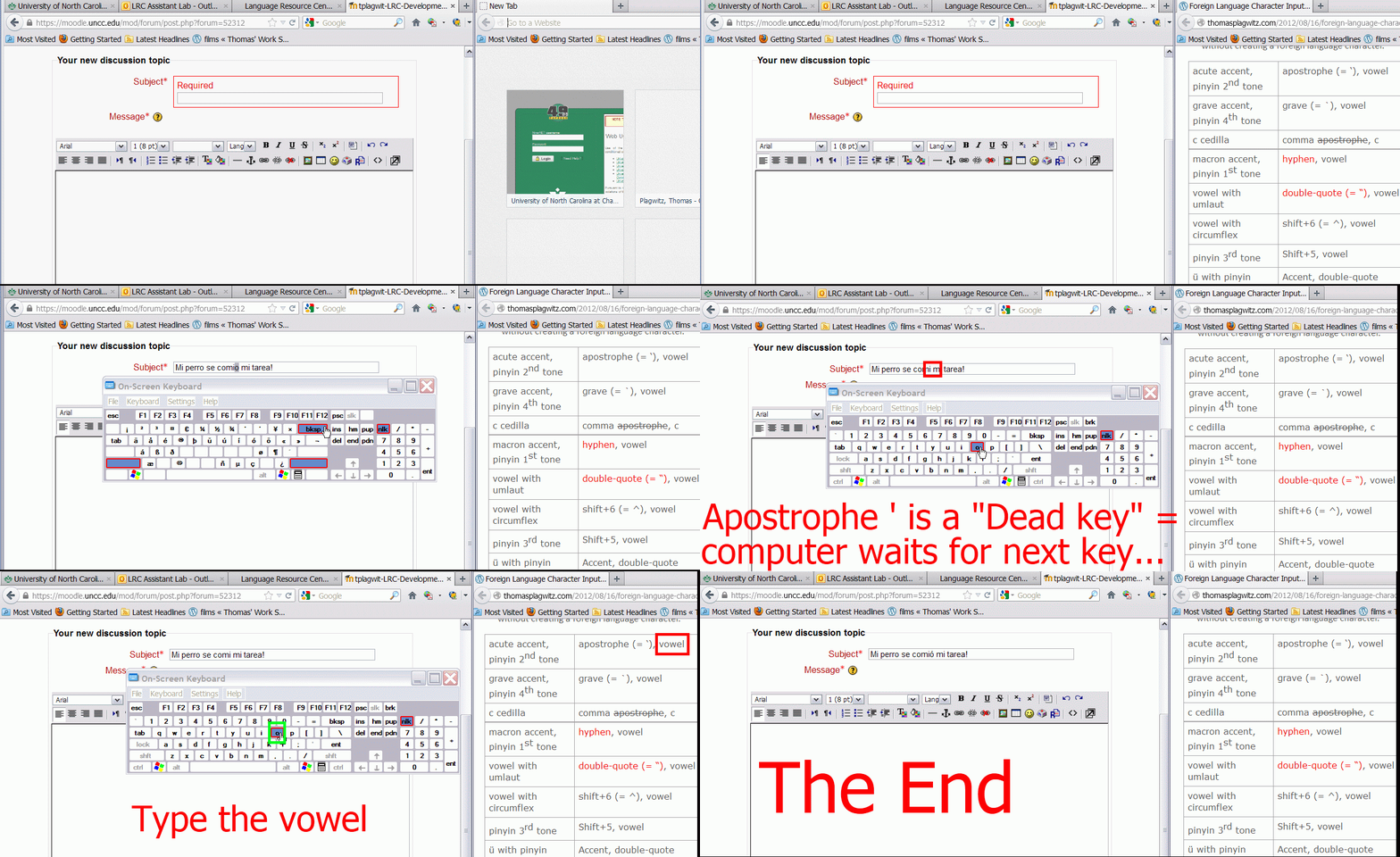
How to type accented characters with US International keyboard – the ultimate training summary….
 .
. .
.How to retrieve students’ recordings under student login name if you saved under position or computer name in Sanako Study 1200
- Why? Most (though not all) times you will find it easier to manage student files if their names contain the student login names
- How?
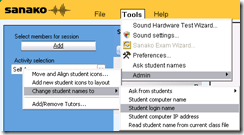
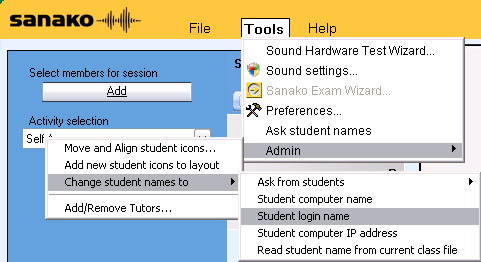
- Change the classroom layout naming scheme from menu:”Tools”/ “Admin”/ “Change student names to” / “Student login name”
 and
and - collect or repeat a prior collection of the student recorder buffer by using the activity pane: files icon
 (this requires that you have not yet used activity pane:button:”clear session”).
- Change the classroom layout naming scheme from menu:”Tools”/ “Admin”/ “Change student names to” / “Student login name”


How to conduct a Sanako Study 1200 functionality test before oral exams
- Why? Before high-stakes oral assessments, it is best practice to test the functionality of all computers in the digital audio lab.
- How?
- Log into 2 computers with your own account (these will serve as a backup computers. Should you need backup computers later, there will be no delay waiting for them to start up and become operational).
- Change Sanako classroom layout names to computer or position name (whatever makes it easier for you to identify any non-functioning machines).
- If you are doing this for a first time with a class, load your test exam audio into Audacity and display the voice graph to students on a projector. This way you make sure that students understand from the voice graph that they are supposed to
- hear an instruction over the headphones and
- respond to the instruction by saying their names into their microphones.
- Perform a name-test recording using Sanako activity:”Model imitation”and examine the results:
- Make sure the Sanako collection folder opens – meaning all student recordings could be collected. If not, identify the offending positions from the Sanako collection dialogue and open the folder with the remaining collected recordings manually from the Sanako collection dialogue
- Drag the recorded files into an empty Audacity window and examine the collected recordings visually, plus, where in doubt, aurally, by clicking “solo” and play on the track in question.
- React accordingly:
- If some positions show problems, move students to one of the backup machines that you logged into earlier.
- move backup machines not needed to a different session by right-clicking on their classroom layout icon.
- if more than one backup machine is indeed needed, Sanako – since it is you who are logged in on both – will ask you later for permission to number collected files for duplicate students sequentially. Allow that and rename the files manually.
- Don’t forget to change Sanako classroom layout names back to student login name.
 . Or else here is how you can later recover student recordings by student login names.


Questions? Read the About. Or just ask me a quick Our Databases: Resources with calendars -- Language learning material Moodle Sites, multimedia files -- films


FAQs for LRC student staff or for students or for teachers. To search our FAQs, in the browser addressbar, add after "https://plagwitz.wordpress.com/feed/?tag=faqs+/" "+TAG1" (from tag cloud below) OR "https://plagwitz.wordpress.com/feed/tag=faqs
&category_name=" "CAT1" (from category hierarchy below). OR search both categories and tags, and multiple TAGs/CATs (connect with "," for OR-search, with "+" for AND-search), like so: https://plagwitz.wordpress.com/feed/?tag=TAG1+TAG2+...TAGn&category_name=CAT1
+CAT2+...CATn"
Other ways to find help
If you cannot find it here, look there: 5,500 Language-Learning Links and Programs for learning or teaching 150 languages
Shortcuts:Our Lists, Our Maps, LRC Staff Moodle Site,LRC Project Moodle Site, 49erexpress, UNCC Moodle, Student Recordings: s:claslcslrcsanakostudent
Learning usage samples: Sanako oral exam, Kaltura webcam presentation, Dictation with speech recognition, Sanako written exam, Chinese and Japanese interactive stroke-order practice
Test the Sanako Installer, Webbrowser Popup Konfigurator for XP, or Windows7, faster LRC TeacherPC Log-in Let MS facilitate diacritics writing by installing for you US-International keyboard layout
This is my personal blog (Google+). The views expressed on these pages are mine alone and not those of my employer. The information in this weblog is provided “AS IS” with no warranties, and confers no rights.
 Thomas' Work Space