Archive
Why meeting organizers should cancel meetings from their calendar and not by email
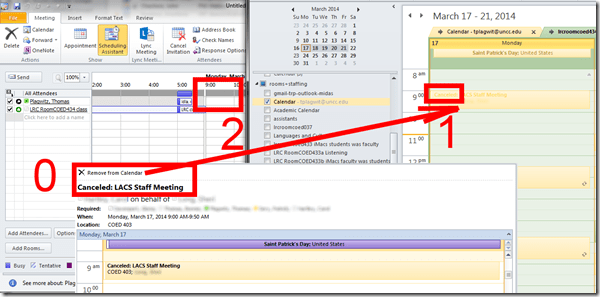
- Because cancelling from the calendar like in video2 here sends the meeting participants not only a (0)message, which includes a handy “Remove from calendar” button,
- but also – in case they fail to see the message – a (1) “Cancelled” indicator on their calendars,
- while third parties who want to schedule a meeting with the meeting participants, see those participants (including an Rooms that “participate”) as (2) free/available during the time slot of the cancelled meeting,
- as you can see in this example:

Have patience if you see “No free/busy information could be retrieved” on Room mailbox
When trying to schedule a room, I am now seeing this: 
When ctrl-right clicking: 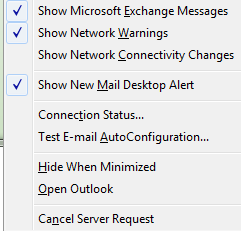 , I get this as my connection status:
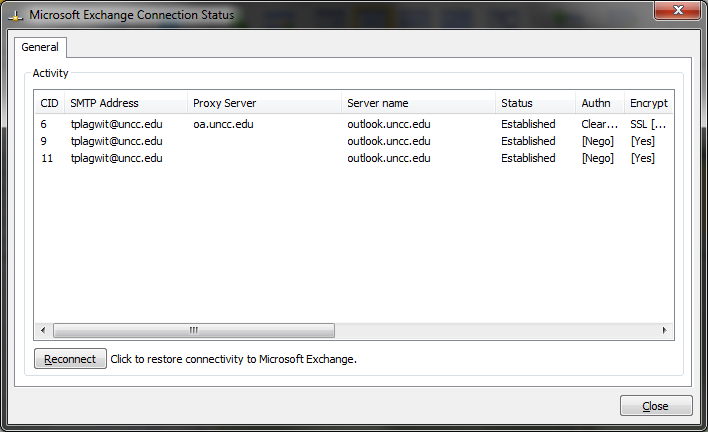
Becomes available after a long while:

What can I tell my users how long is the wait currently usually is?
What a delegate in MS-Outlook/MS-Exchange is and does
- Definitions:
- I would say: S/he can act on your behalf, while you keep in the loop and others see who s/he is acting on behalf of which disintermediates (e.g. saves tags like “This message is sent on behalf of [you]”: The message will appear to originate from you, as it ought to – imagine e.g. that users want to search their email for “from:[you]”).
- Looking for guidance, I find Cornell.edu has generally good instructions for their similar Outlook/Exchange environment, so I also quote them:
- “Just as an assistant can help you manage your paper mail, your assistant can use Outlook to act on your behalf”.
- “If your manager has granted you delegate access, you have the ability to act "on behalf of" him or her. Depending on exactly how much access they’ve given you, you may be able to respond to meeting requests, send out meeting invitations, and handle their email messages.”
- Find more information on delegates here for the source.
- Sounds interesting? Next steps:
- How you can set up a delegate
- what does the delegate see/do
Notes on how to act as a delegate in MS-Outlook on Exchange
- In Manage another person’s mail and calendar items, you can learn form the source, how to:
- Cornell.edu has generally good instructions for their similar Outlook/Exchange environment, so I just quote them :
Create meeting requests on behalf of your manager: You must be viewing your manager’s calendar in order for the meeting request to appear to come from them rather than you. (How do I view my manager’s calendar?)
If you have more than one calendar open (many people leave both their own calendar and their manager’s calendar open), click anywhere in your manager’s calendar before creating the meeting request.
Notice that in the Scheduling Assistant, your name will not appear. Instead, your manager’s name is included. Which is what you want. So that’s good. Respond to meeting requests on behalf of your manager: [with delegate access,] You can respond to these messages in exactly the same way you would respond to an invitation sent to you.
Step-by-step how to set up a delegate for your mail account in MS-Outlook 2010 on MS-Exchange 2010

We are just using the default options here – explore more on your own, as you wish (e.g. Let someone else mind your busyness). You need to use MS-Outlook – I don’t see an option in OWA to set up delegate access. But your delegate will carry over to OWA if you prefer to use the webmail client.
Next question: what does the delegate see/do?
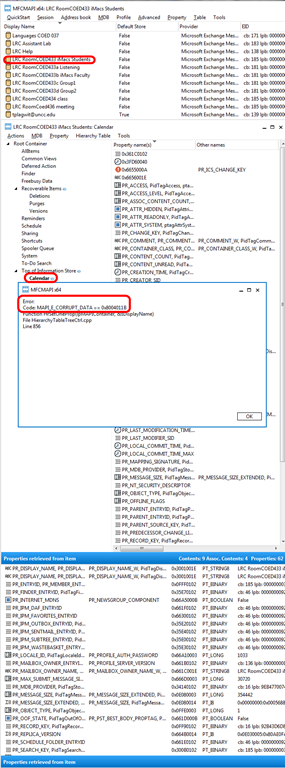
Can’t rename default folder names for Room and resource mailboxes with MFCMAPI
- To get the MS-Exchange calendar ICS to include a name line other than “X-WR-CALNAME:Calendar” (which, when trying to aggregate calendars, does not play well with other mailbox calendars also emitted by MS-Exchange with default name )
- when trying to follow the renaming instructions here using MFCMAPI (which seem however for personal mailboxes, not the different folder hierarchy: “information store”).
- I only get this 0x8004011b mapi_e_corrupt_data (would have kind of surprised me they had let me mess with MS-Exchange, this is not PST world anymore):

- Is there another way to rename room/resource mailbox calendars? Seems like not. But there is a recommended feedback form for this (or is this for office online only, not for exchange on premise?).
To publish an aggregate calendar of MS-Exchange ICS calendar subscriptions, use Google Calendar
If you manage many resources that many users need to share, you will want to give them an intuitive overview of the utilization. We manage room and equipment booking in MS-Exchange 2010, but both Exchange and Outlook/OWA/Office365 are not for everyone (to set up), and seem to lack a convenient way to publish an aggregation of the iCal feeds of the individual resources that can be published.
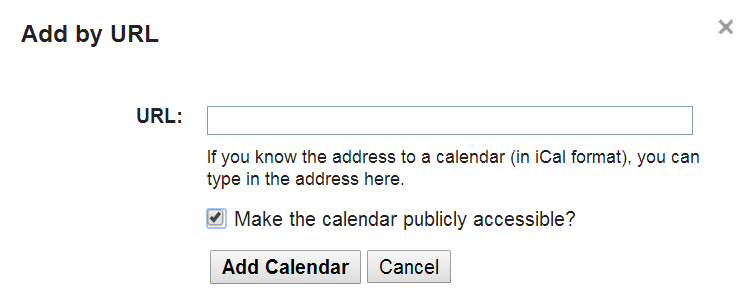
Enter Google calendar: Start with creating a new calendar which will hold your calendar aggregation, and make it public:




First add ICS-based internet calendar subscriptions to Google calendar:

We have prior ICS feeds arranged in MS-Exchange 2010 which are listed in the LRC calendar spreadsheet:
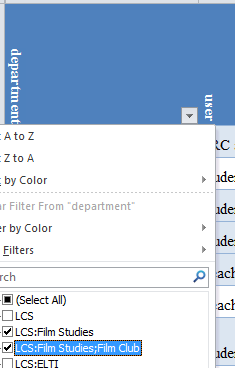
Open the calendar
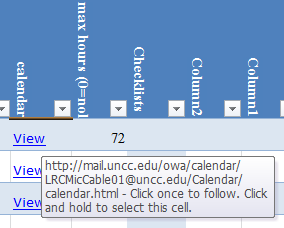
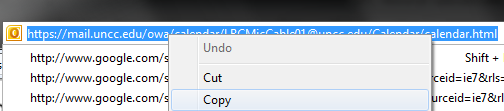
Copy the URL form the address bar:
Insert it here:
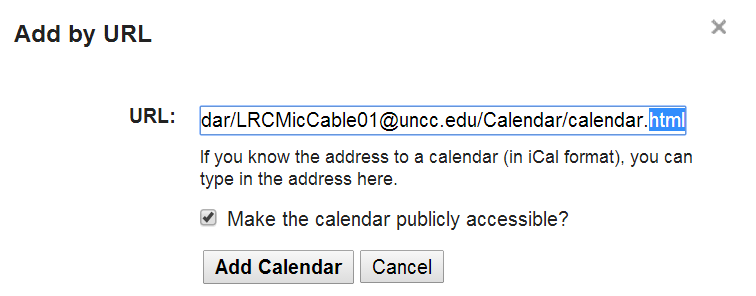
Replace html at the end by ics.
Check “make calendar publicly accessible”

Access calendar settings

Change calendar name to part before @



You can rename these subscribed calendars, but this name will not carry over to the embedded calendar, see below:


Open the settings for the main calendar:
In the settings section “embed”, Click the “Customize” link to open the “Google Embeddable Calendar helper”:

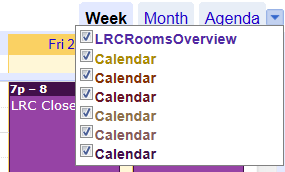
Select the “Calendars to display”: this list contains the ICS-subscriptions you added earlier.
Unfortunately, the Google’s embeddable Calendar helper seems to “eat” the names you have given these calendars, and replace it by the default “Calendar” (there is no calendar name stored in the ICS, it seems), so you have to maintain a color legend manually (the color is permanently stored in the iframe HTML code snippet).
Also, you users have to manually match the color when they (de)select calendar subscriptions from the main calendar:
Embedding the iframe HTML snippet works in WordPress
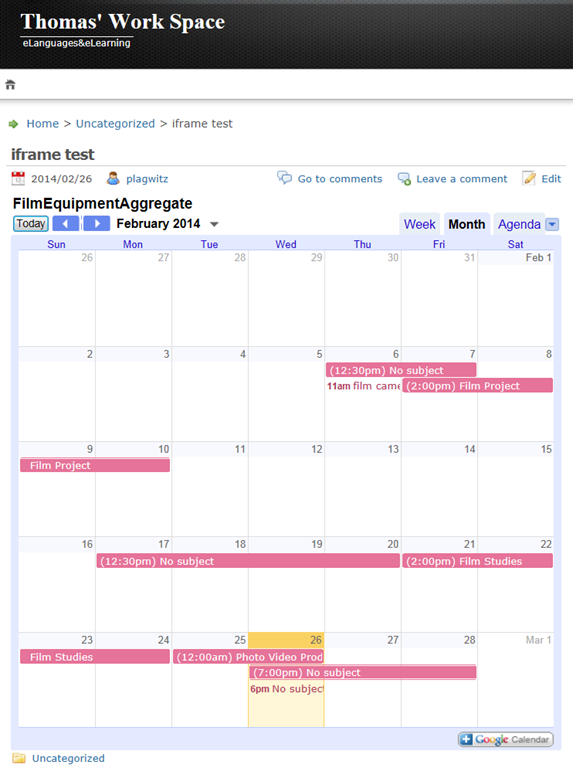
as well as Drupal: 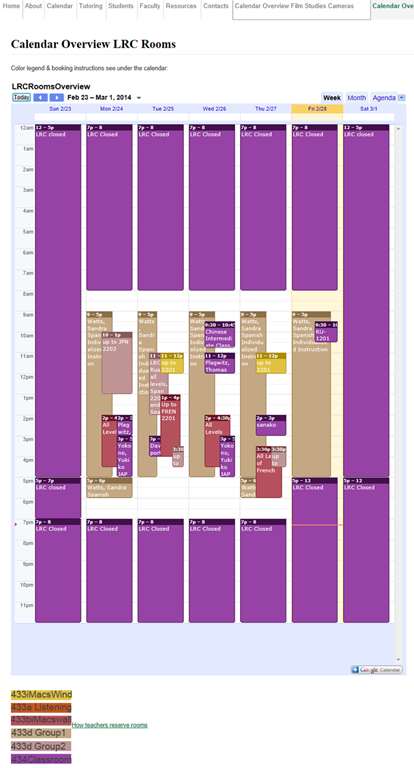


Questions? Read the About. Or just ask me a quick Our Databases: Resources with calendars -- Language learning material Moodle Sites, multimedia files -- films


FAQs for LRC student staff or for students or for teachers. To search our FAQs, in the browser addressbar, add after "https://plagwitz.wordpress.com/feed/?tag=faqs+/" "+TAG1" (from tag cloud below) OR "https://plagwitz.wordpress.com/feed/tag=faqs
&category_name=" "CAT1" (from category hierarchy below). OR search both categories and tags, and multiple TAGs/CATs (connect with "," for OR-search, with "+" for AND-search), like so: https://plagwitz.wordpress.com/feed/?tag=TAG1+TAG2+...TAGn&category_name=CAT1
+CAT2+...CATn"
Other ways to find help
If you cannot find it here, look there: 5,500 Language-Learning Links and Programs for learning or teaching 150 languages
Shortcuts:Our Lists, Our Maps, LRC Staff Moodle Site,LRC Project Moodle Site, 49erexpress, UNCC Moodle, Student Recordings: s:claslcslrcsanakostudent
Learning usage samples: Sanako oral exam, Kaltura webcam presentation, Dictation with speech recognition, Sanako written exam, Chinese and Japanese interactive stroke-order practice
Test the Sanako Installer, Webbrowser Popup Konfigurator for XP, or Windows7, faster LRC TeacherPC Log-in Let MS facilitate diacritics writing by installing for you US-International keyboard layout
This is my personal blog (Google+). The views expressed on these pages are mine alone and not those of my employer. The information in this weblog is provided “AS IS” with no warranties, and confers no rights.
 Thomas' Work Space