Archive
MS-SharePoint and the LLC
The LLC has a SharePoint team-site (Yay! ). About the first thing asked for in September when I found out searching the company website that Inside Loyola – the locally branded version of DataTEL’s ActiveCampus – is built on MS-SharePoint.

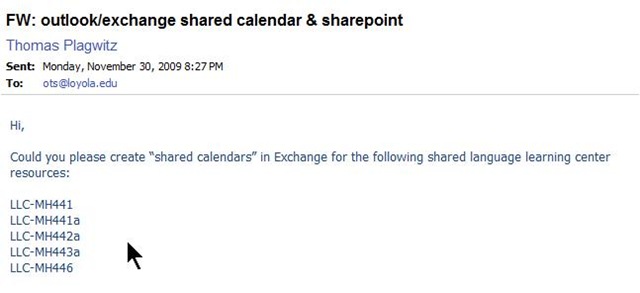

This means MS-SharePoint’s features are available to the LLC. This has benefits which come with groupware applications (aka “What’s Wrong with Email?”) that sit on top of an account management system likes AD.
On the basis of the MS-SharePoint/MS-Exchange/MS-Active directory stack, you can build, with much less effort, a much better calendaring/scheduling solution than CGI’s from the 90s provide.

Calendaring/Scheduling is a productivity task common to most businesses. Learning resource catalogues are much more vertical market specific. But if you cannot even manage the character input issues in foreign language video catalogue in your pre-.Net ASP solution, you might still find a generic solution based on SharePoint lists better.
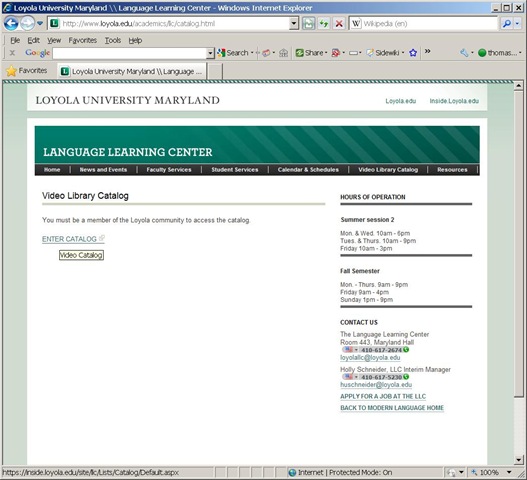
And once you outsourced common productivity software development to MS, you can get implementing e-learning beyond watching TV.
LLC Catalogue: Video-Reserves.xlsm, Reserve desk, Schedule, using Blackboard Content System WebDAV
For a LLC video schedule, we came up with the following repurposing of existing infrastructure:
- MS-Excel: still the “Swiss army knife” of choice for the middle manager. Allows for: semi-automatic creation of reserve date sequences (insert series), given a start and end date; data validation during data entry, and, based on that, sorting and filtering and, based on that, finding.
- Blackboard Content management system (WebDAV) to manage reading and writing (editing) permissions.

- Staff can use MS-Excel to request videos – preferably at start of term – to be put on reserve within a start and end date, during which they will be periodically shown, by opening the spreadsheet from MS-Excel and filling in the green cells in the first empty row at the bottom.

- Lab Staff can use MS-Excel to periodically transfer video reserve requests into video showings.
- Lab Assistants can use MS-Excel to daily maintain video reserve desk and video showings.
- Students can use a web browser to preview video showing times during the remainder of the term.
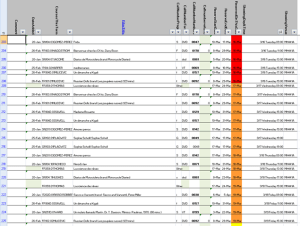
- To open the video schedule for read-only, Loyola students and staff can simply click this link in their browser: https://blackboard.loyola.edu/bbcswebdav/users/trplagwitz/llc-pfiles/video/video-reserves.xslm. Even read-only access includes the capability to search, sort and filter the schedule data, but you cannot save back.
- To open the video schedule for editing, LLC and Modern Languages staff can start MS-Excel, click menu: File / Open, and copy/paste this link: https://blackboard.loyola.edu/bbcswebdav/users/trplagwitz/llc-pfiles/video/video-reserves.xslm, then click open.
- All users will have to authenticate with their institutional account info:


Renaming Outlook Calendars
Calendaring is still an underutilized data source, but sharing of and collaboration on calendars are picking up.
If you find yourself juggling more and more calendars of your own and others that are shared with you, you will want to organize your calendars by naming them.
In MS-Outlook, however, you may find that the renaming option is grayed out and disabled when trying to rename your Calendar:  .
.
To work around this issue, do this:
-
Download the Exchange 2003 Information Store Viewer to your computer.http://www.microsoft.com/downloads/details.aspx?FamilyId=3D1C7482-4C6E-4EC5-983E-127100D71376&displaylang=en, unpack Mdbvu32.exe (CAUTION: THIS IS A POWERFUL UTILIITY THAT CAN ALTER YOUR DATA IN MANY WAYS, INCLUDING DELETING IT. HANDLE WITH CARE!).
-
Create an Outlook profile that can connect to the problem mailbox.[If you work on your own mailbox, you can skip this].
-
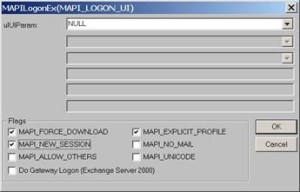
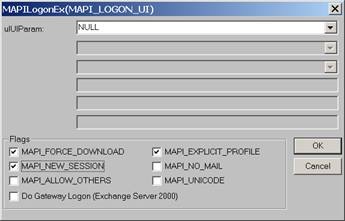
Run Mdbvu32.exe. Select the following three options and click OK: MAPI_FORCE_DOWNLOAD, MAPI_EXPLICIT_PROFILE, MAPI_NEW_SESSION
-
Make sure that the profile you have created in Step 2 [or your default profile] is selected. Click OK.
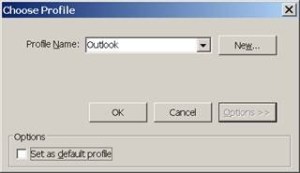
-
Click MDB -> OpenMessageStore.
-
Make sure the problem mailbox is selected and click Open.

-
Click MDB -> Open Root Folder.
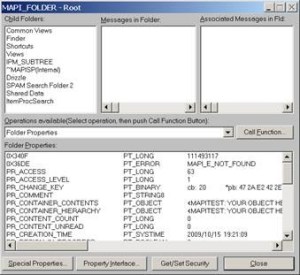
-
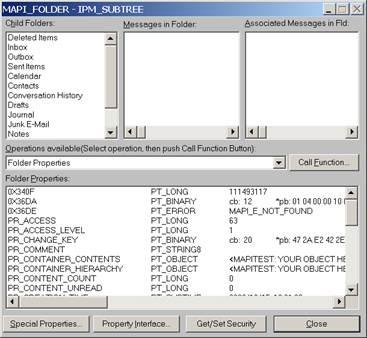
Double-click “IPM_SUBTREE” in the left list (if for some reason you don’t see this double click each entry in the top/left until you get a folder list.)

-
Double-click the Calendar.
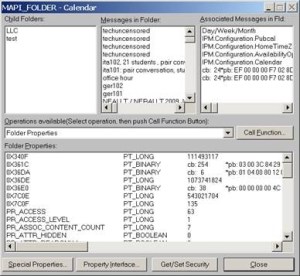
-
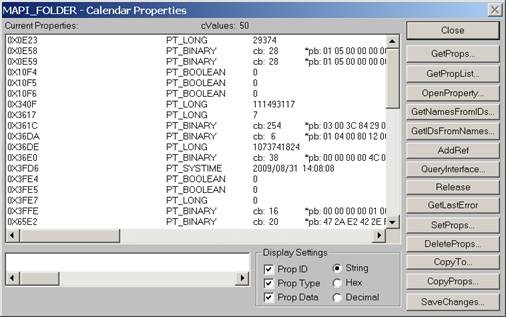
Click the “Call Function” button.

-
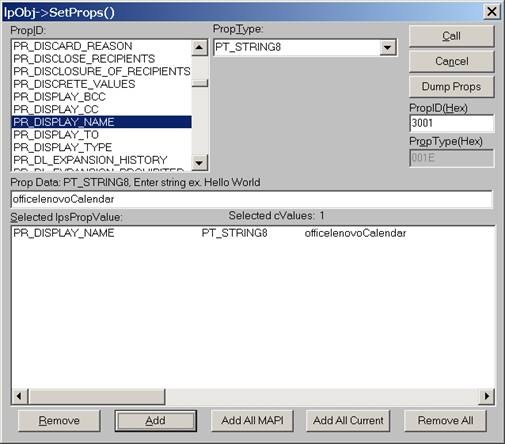
Click the “SetProps” button.

-
Make sure the “PR_Display_Name” is selected from the PropID list. Change its name to <whatever> in the textbox below and click the ”Add” button. You will see that the change action is added to the list. Click the “Call” button on the right-top corner to apply the change.

-
4. Click Close until you drop out of the windows, then close the MDBVU utility and OK to the logoff. From:
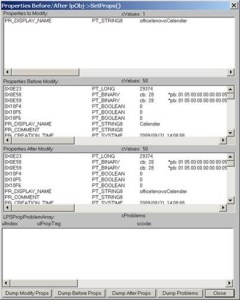 To:
To: 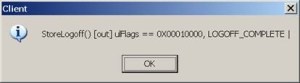
-
You may need to close and reopen Outlook to refresh the folder name.
-
And voilà:







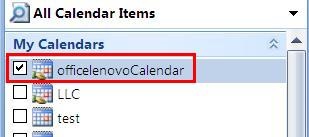
I just verified this to work on MS-Outlook 2007 against MS-Exchange 2007 (and assume it to work on stand-alone PST files also), and added the screenshots to clarify this. My thanks go to user traval and MS for the heavy lifting (although I wish MS would make my lifting still easier).
View the departmental calendar with your Outlook calendar
If you are looking for a more convenient way to coordinate your personal calendar (and in the future: –s) with the departmental calendar, you can do what is called “Connect to Outlook” a Sharepoint Teamsite Calendar.
Go to “Inside Loyola”, go to your Modern Languages & Literatures team site, 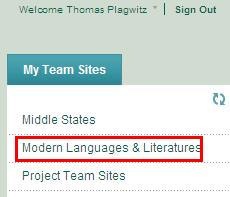
click in the left menu: “Calendar”, click from the calendar top menu: “Actions”/ “Connect to Outlook”, like here:

Click “Yes”here: 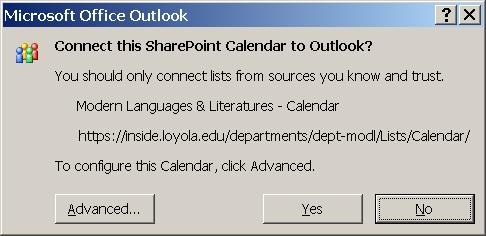 , or “Advanced”,
But there is not much to configure here: 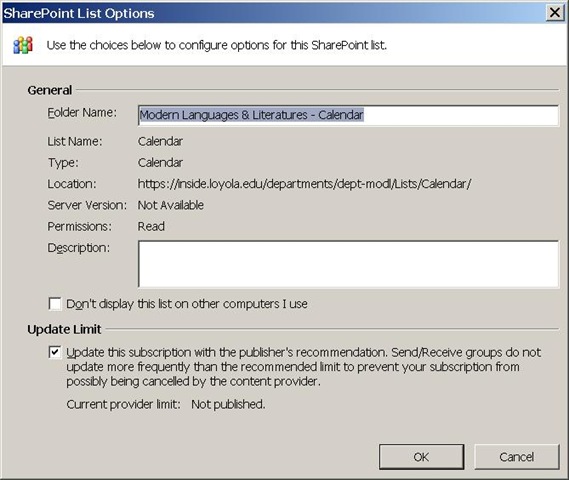
In the resulting view (in “Overlay mode”, like 2 overlaid transparencies), events are much easier to coordinate: like so:
Incidentally: If, after “Connect to Outlook” a Sharepoint Teamsite Calendar, this password dialogue keeps popping up, like so: 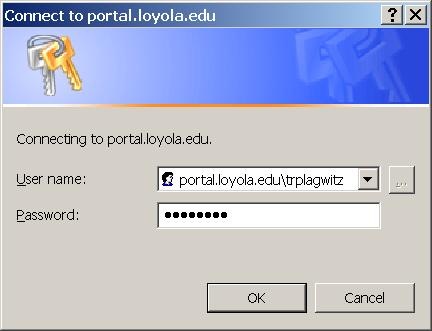 , instead of [your usual username], put [your usual username]@loyola.edu, plus remove the prefix “portal.loyola.edu/”.
A team calendar for work groups on Windows Live
I have been asked whether we can have a workgroup calendar to coordinate who is on campus when.
We can use the hale-interpreting (http://hale-translation.groups.live.com) and hale-translation groups in Windows Live for this (http://hale-interpreting.groups.live.com).
Remember: Members only! You need to be a member of these groups to have access to their calendars. If you have not accepted my invitation email from a long time ago, you are not a member – and there is no point in digging that email out now, since it will have expired. However, you can go to either of the group’s home pages linked above and ask for being added. Then wait for the confirmation email response.
If you go to your calendar home page (http://calendar.live.com), all events from all “calendars” that you have access to (in the time span which you chose as your default – I use week view) display be default in one and the same “calendar”.
A bit of terminology: Lemma “calendar”, meaning: (1) a web page which looks like a paper calendar. (2) a series of related events (E.g. the MGB-36 events belong in one such “calendar” (2) as they all take place in this room).
Windows Live puts/displays all “calendars” (2) you have access to in one “calendar” (1), and differentiates the “calendars” (2) by giving each “calendar” (2) a distinct colour within “calendar” (1). The colours displayed in the picture below may be different for you – you can choose you own colour scheme from the calendar options –, but you, too, will have different colours per calendar.
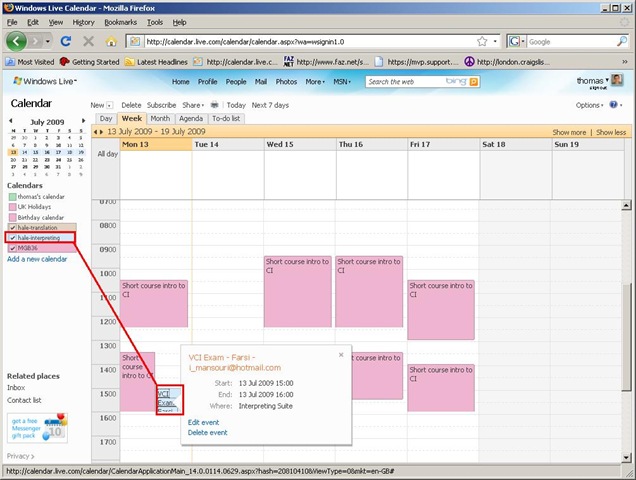
You will note that the Monday “Exam” above should be in the (red) MGB-36 calendar, not in the (light blue) interpreting group calendar. That is something you will have to pay attention to when you add an event, now that you have more than one ”calendar” (2) at your disposal (actually, you always had, and the most common initial error was users putting events in their personal ”calendar” (2) (coloured green above), with the result that nobody else but them could see those events).
You can set which “calendar” (2) to add an event to in the dropdown box labelled “Calendar” (framed red below, meaning “Which one?”). Also note the “All day [event]” option which should prove especially useful for a work group leave calendar (If you find a multi-day span option, let me know).

And here is the result, viewable for all users that have access to the hale-interpreting group calendar:
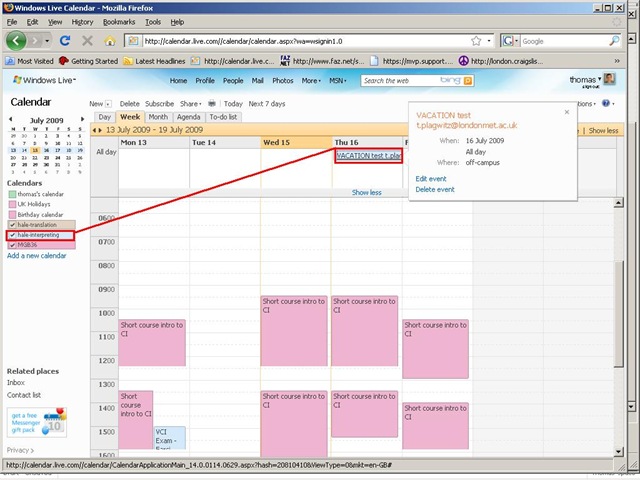
If colouring is not clear enough, filter the calendar (1) for specific “calendars”(2) = display only events from selected “calendars”(2). To do that, in the left menu, uncheck the box next to the calendar to hide all events from this calendar. Result if you view only the interpreting group calendar:

The natural next step is to have better collaboration even when not all workgroup members are in the same location, using instant messaging, including what is called presence. Windows Messenger 4.7 is already installed and ready on our computers (NOT if you have not abandoned Windows 2000 yet – do it now!). Just follow the quick start under my portrait picture at the right of my spaces home page . If you use your Windows Live login, a few things things should just fall into place. If you also want group messaging (multipoint), have the newer Windows Live Messenger installed.
Shared Calendar for Interpreting Suite Bookings on Windows Live: How to get started
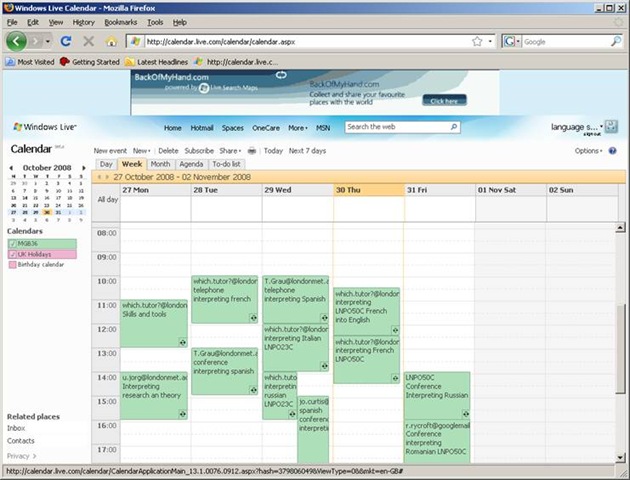
1. We have set up a *shared online calendar*:
2. 
3. Where do I find this calendar?
a. It is on Windows Live.
b. hale.language.services@live.co.uk will email you an invitation to share this calendar on line.
4. What do I do when I receive the email?
a. In the email, click ‘accept’.
i. If the link does not work, copy /paste the text link from the bottom of the email, but first remove line breaks (paste the link into notepad and make sure that the entire link is on single line).
b. If you do not have a Windows Live account, you will be given the option to ‘sign up‘.
i. If you are not asked to sign up, you may be logged in as somebody else: make sure to create your own account with your own password.
c. For best results, open the calendar with a recent Web browser: Firefox 3 or Internet Explorer 7 (if you cannot upgrade, version 6 works also, with some limitations) or better.
5. MGB36 is the coded room number for the interpreting suite. It is also the name of the online calendar.
6. What do I do next?
a. Simply add an appointment to the calendar by hovering over the time slot required and clicking on “ADD“
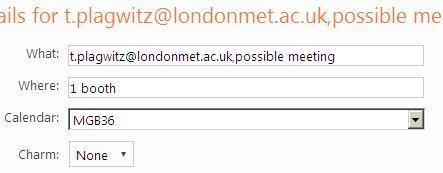
i. Under “Calendar”, select “MGB36” (if you add to your personal Calendar, other users won’t be able to see).
ii. Under “what”, include your e mail address so we can contact you in case of changes, as well as Module number
iii. Under “where” include if you do not need all booths (others may want to share)
iv. for additional options, like recurrence (= enter 1 appointment – recurring weekly, until end of it…, no wait: teaching period! – to book your weekly class meeting for the entire teaching period), click on “Add more details”.
b. Don’t forget to update the calendar if you need to cancel a booking.
c. If you want to see a demonstration, watch the live_calendar_shared_mgb36.wmv using Windows media player
7. Who can view the information on line?
a. Interpreting lecturers only.
b. Students can currently not access the data. We may decide later to let them view it (i.e. make the calendar public).
Did you run into problems with the calendar not explained here? View the FAQ.
Shared Calendar for Interpreting Suite Bookings on Windows Live: Frequently asked questions
-
Problem: How do I return to “Windows live”?
-
Solution: AFTER you followed the “accept” button in the invitation email, you can return to the calendar by simply going to http://calendar.live.com. Or for easy access to other windows live services like groups, go through http://home.live.com and the top menu “more”/ “calendar”.
-
-
Problem: I seem to have lost access to the calendar?
-
Solution: if you go to http://login.live.com, make sure you are logged in with the windows live account that you gave us for calendar access (if you are logged in under a different name, log out from that account first) . Then go to http://calendar.live.com: you should have access now.
-
-
Problem: My calendar time seems off?
-
Solution: adjust your time zone: after going to http://calendar.live.com, in the upper right hand side, click on options / more options / time zone: change this to “Greenwich mean time [….] LONDON” (do NOT choose GMT UNIVERSAL time”, this has no daylight savings time adjustment!). Then click “save”at the bottom Please let me know of any other issues (please provide OS and browser version and error message).
-
-
Problem: Other users cannot see my calendar appointments.
-
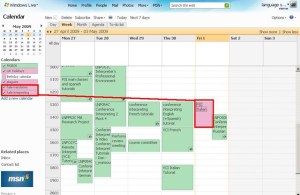
Solution: Make sure you added them to the right calendar, called “MGB-36” (an option when you add an appointment). There are now several calendars for other purposes, but booking of the suite is done in “MGB-36”. You can see something went wrong if your appointment stands out in a different colour (see legend), like here:
-
-
Problem: I would like to book some space (booths) in the suite, but the entire suite seems already booked – what should I do?
-
Solution: The original calendar instructions mentioned to start a booking with your email address under “what” and qualify under “where” if you require only parts of the interpreting suite for your class. If only the latter has been omitted, you can still email the colleague to inquire. If the former has been omitted also, we will have to try tracking down which the information which will take time.
-
-
Problem: There is a (recurring) event which I can not delete (I get the error: “there’s a problem connecting to windows live calendar”).
-
Solution: The error message is misleading. This seems a bug in the software. You can try to work around it like this
: Move one occurrence of the event (drag it with your mouse to a different time). This breaks the recurrence. Now left-click on the moved event to edit it. From the popup, choose to “Edit every occurrence” instead of “Edit this one occurrence”. This should get you to the “Event details” page, where you can delete the entire event from the top menu.
-



Questions? Read the About. Or just ask me a quick Our Databases: Resources with calendars -- Language learning material Moodle Sites, multimedia files -- films


FAQs for LRC student staff or for students or for teachers. To search our FAQs, in the browser addressbar, add after "https://plagwitz.wordpress.com/feed/?tag=faqs+/" "+TAG1" (from tag cloud below) OR "https://plagwitz.wordpress.com/feed/tag=faqs
&category_name=" "CAT1" (from category hierarchy below). OR search both categories and tags, and multiple TAGs/CATs (connect with "," for OR-search, with "+" for AND-search), like so: https://plagwitz.wordpress.com/feed/?tag=TAG1+TAG2+...TAGn&category_name=CAT1
+CAT2+...CATn"
Other ways to find help
If you cannot find it here, look there: 5,500 Language-Learning Links and Programs for learning or teaching 150 languages
Shortcuts:Our Lists, Our Maps, LRC Staff Moodle Site,LRC Project Moodle Site, 49erexpress, UNCC Moodle, Student Recordings: s:claslcslrcsanakostudent
Learning usage samples: Sanako oral exam, Kaltura webcam presentation, Dictation with speech recognition, Sanako written exam, Chinese and Japanese interactive stroke-order practice
Test the Sanako Installer, Webbrowser Popup Konfigurator for XP, or Windows7, faster LRC TeacherPC Log-in Let MS facilitate diacritics writing by installing for you US-International keyboard layout
This is my personal blog (Google+). The views expressed on these pages are mine alone and not those of my employer. The information in this weblog is provided “AS IS” with no warranties, and confers no rights.
 Thomas' Work Space
