Archive
How to stay up to date by receiving RSS like email newsletters in MS-Outlook
- Why subscribe?
- RSS is a great way to get your information both fast and filtered.
- For advanced filtering of RSS feeds, try Yahoo Pipes.
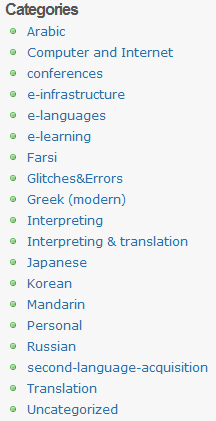
- However, WordPress makes this even easier by allowing for a wealth of atomic searching and filtering options. Choosing the right template (and content strategy), if you click on any of the linked items in either the category list or tag cloud on WordPress,


- the resulting page will include an RSS link
 , or simply add “/feed” to the URL of your category, tag or even search result page, to get a feed that you can subscribe to.
- How to subscribe?
- MS-Outlookmakes subscribing to RSS more convenient since you do not need to go to a separate application like an RSS-Reader. Read your RSS with your email, think of the RSS feed as an email list, but personalized to your interests.
-
You can subscribe to the “RSS feed” link like so:
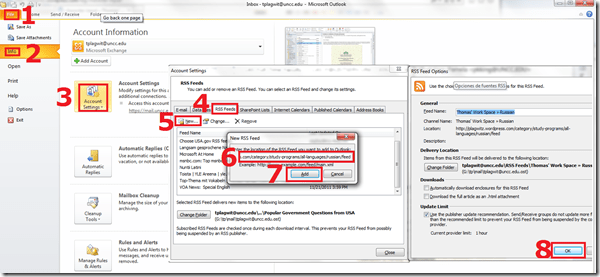
- For historical reasons, I still use Google Reader, but I rely on Outlook’s advanced automated content download (including full text posts and multimedia attachments) and well-understood archiving, search and export features to not miss podcasts which I want to collect for potential use as teaching content:
 When Outlook fails, as with some RSS formats, you can still try and resort to the Internet Explorer Feed store:
-
- If you use OWA: you can read feeds, but not add them through the OWA interface. If you are staff, you can still add them in Outlook first. If you are a student and restricted to NINERMAIL, you need to use a different feed reader. I recommend the free web-based Google Reader.
- MS-Outlookmakes subscribing to RSS more convenient since you do not need to go to a separate application like an RSS-Reader. Read your RSS with your email, think of the RSS feed as an email list, but personalized to your interests.




How to link screencasts from MS-SkyDrive
- I am trying to replace – in the routine cases that do not need post-editing, but where speed is of the essence – my practice to post-process my screencasts in MS-Expression Encoder (installed on one machine only) and upload the result with a page to load a Silverlight Control – all hosted on my MS-Windows Azure portfolio.
- Much easier and quicker would it be to store screencasts in MS-SkyDrive (mapping to drives in MS-Windows enables a more robust drag and drop than the still browser-specific web version on live.com), and top take advantage the embed links provided.
- Unfortunately, WordPress.com, my blogging platform, does not support iframes with videos from MS-SkyDrive.
- However, by linking to the URL in the embed code, to open in a new window (with the inelegant instruction to “click on the thumbnail that opens”; if it loads slow, the thumbnail ALT displays essentially the same),:
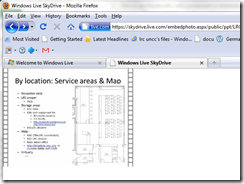
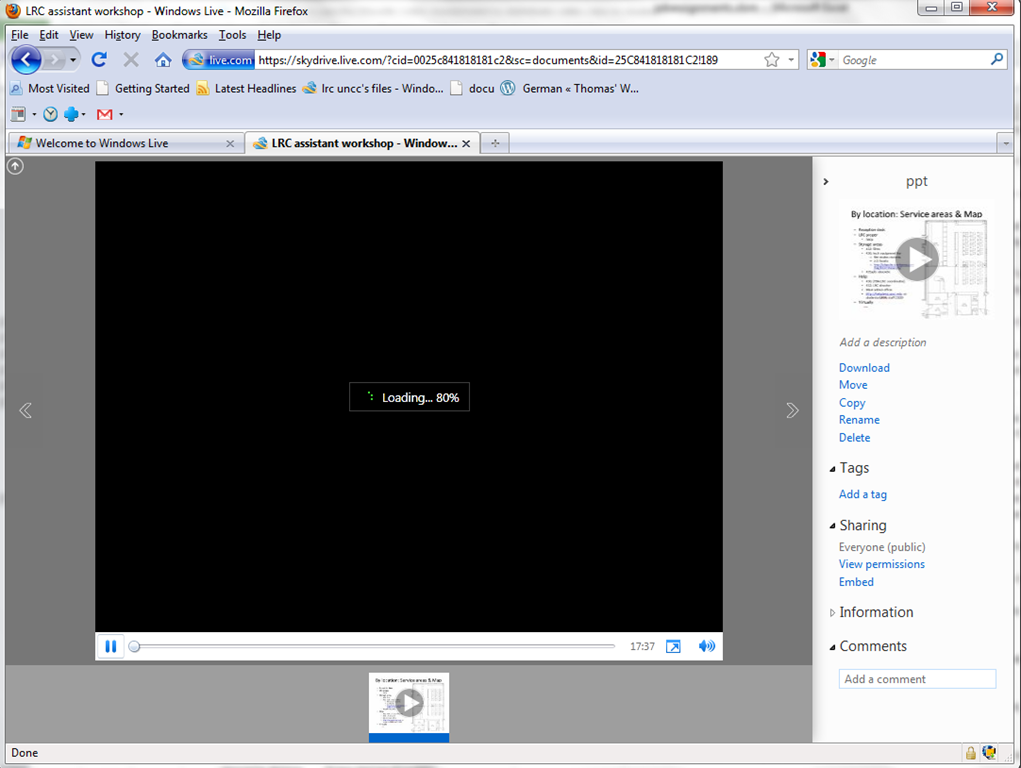
- I can get the user to an MS- Silverlight control which loads:
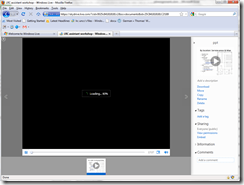
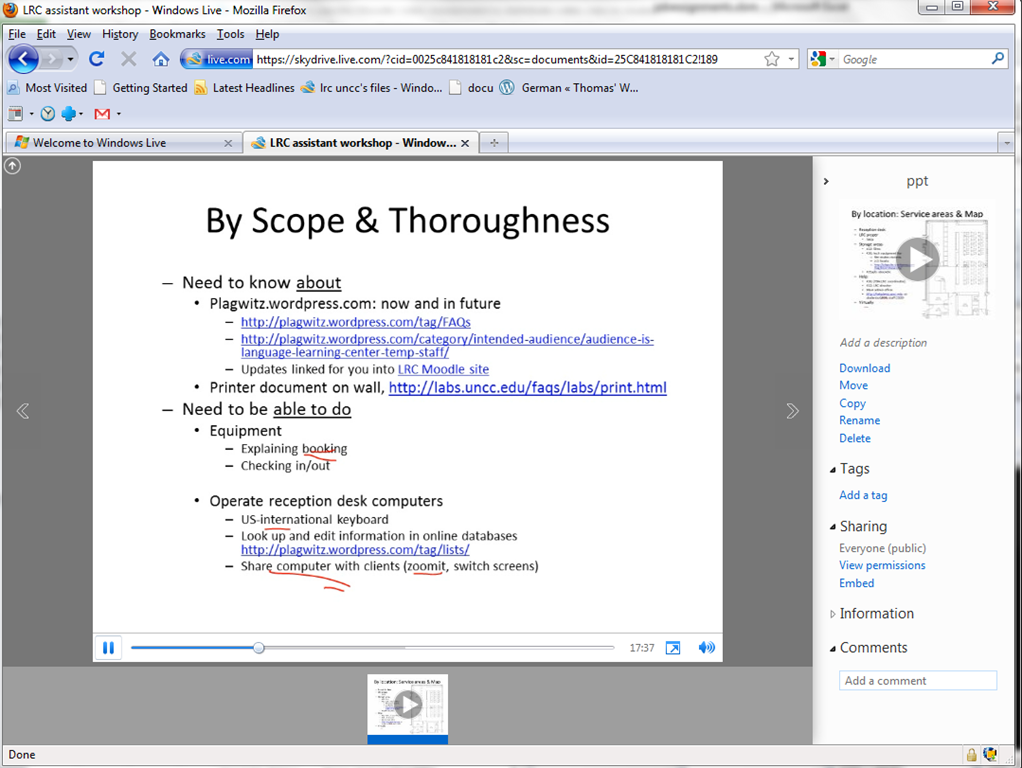
- and plays the video:

- more user-friendly and robustly (This has been tested to work on MS-Windows 7 with IE9 and Firefox 3.6) than distributing the bare WMVs of my screencasts directly.

Meta: WordPress Categories–what are they good for?

Not for AND-searches, as a matter of fact.
Trying out the new Moodle layout options by integrating my blog via an RSS block
- Running a blog? Feeding a twitter account? It could be worthwhile narrowcasting your (teaching-related) postings (presumably more substantial than tweets about tardiness for class) by integrating it with your Moodle course, via RSS.
- As of today, UNCC-Moodle offers new layout options, including putting blocks into the content (center) column, as a “sticky” post underneath the header.
- This is timely, since I have created a Moodle site for the LRC staff and have been wondering how I can use it to quickly update the LRC staff on new technological opportunities or issues and solutions around the LRC.
- Moodle’s RSS block – linking to the feeds that my blog feed/Twitter hash tag for LRC staff emit – makes that easy.
- Except that up until now, outside the center column, there has not been enough space to display also the teaser of blog posts – an area I invest some thought in, in accordance with age old publishing principles transferred into the internet age.
- The layout options upgrade allows me to fix that – here is how:
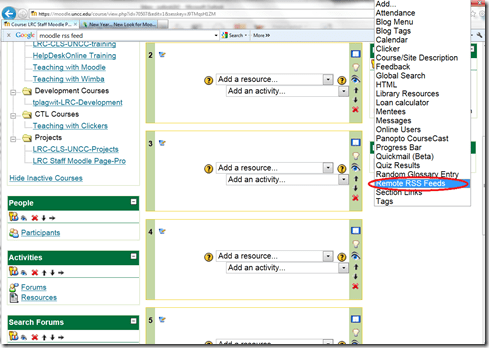
- After pressing button: editing on, choose from the dropdown “blocks”: remote RSS feeds

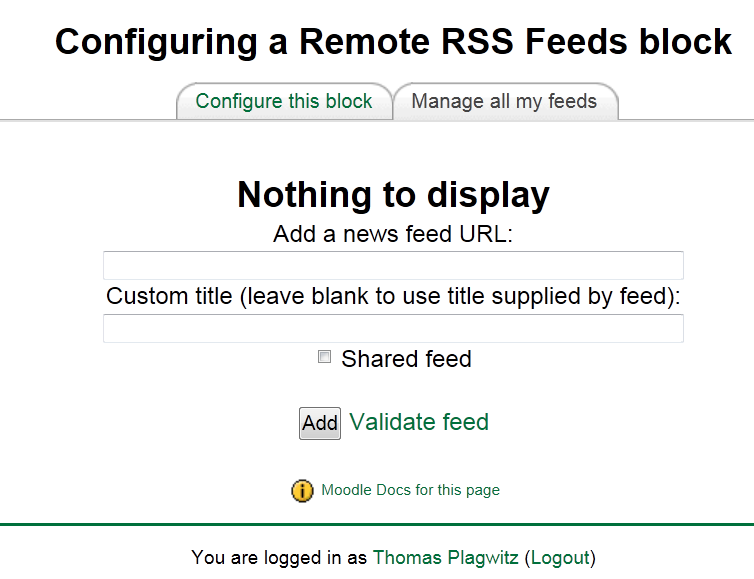
- Don’t be confused by the inability to add your feed source – you need to change to the tab: “manage my feeds” first:
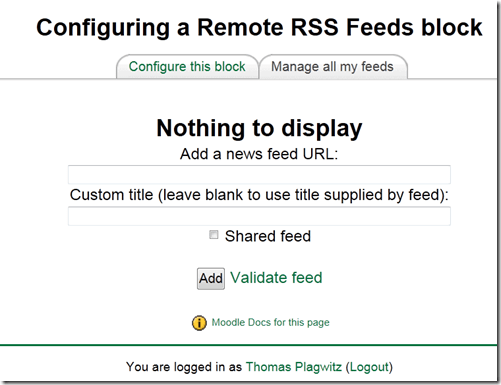
- if you make your feed a “share feed”, it becomes an option for all institutional Moodle sites.
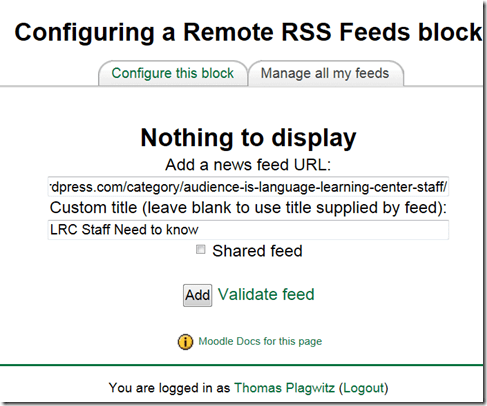
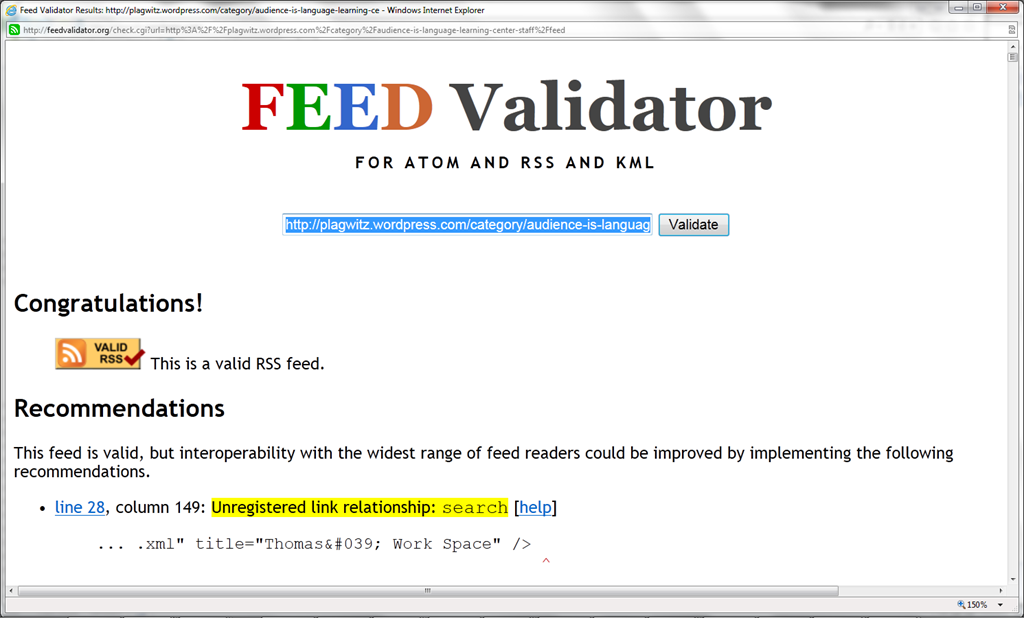
- Validate your feed so that Moodle doe not outright refuse to display (the linked validator will give you error information that can help you fix your feed).

- After moving your feed to the center with the “left arrow”, you can

- You can see more of the Moodle RSS block results here.

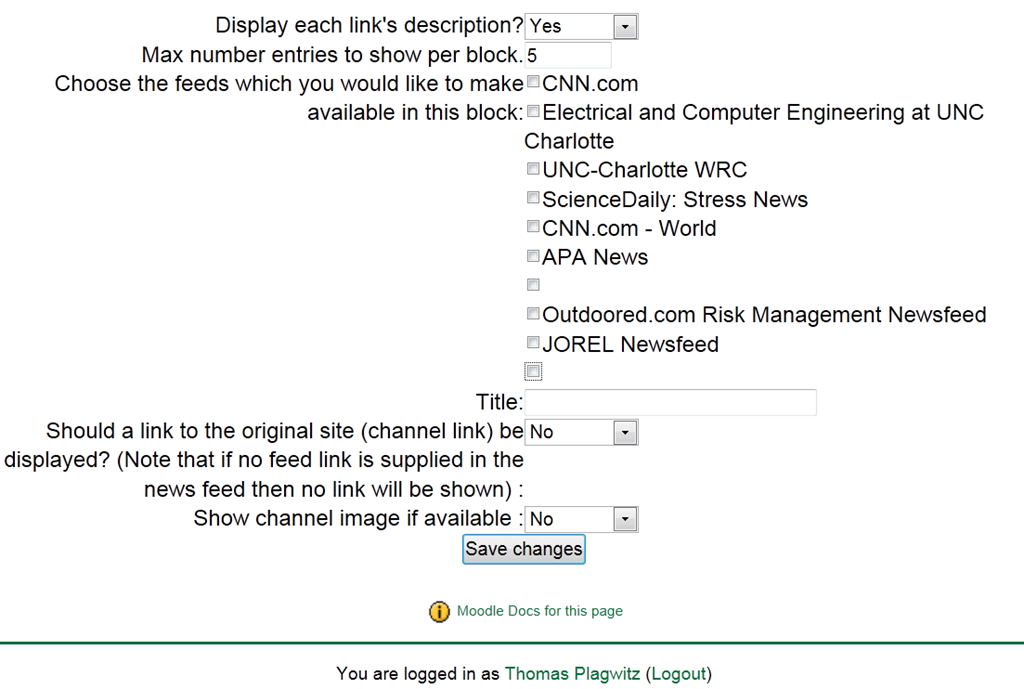
Adjust the settings: for me it is important to display descriptions.


How to make screencasts in animated GIFs for free
If you want a persuasive web (blog) documentation solution for the most casual, time-pressed users and which is supported on the widest possible range of platforms;
and if you are lucky enough to work in environments where it is not the base infrastructure that forms the bottleneck (as this solution is not bandwidth optimized):
then even in the day of Flash 10, Silverlight 4 and HTML5, you might give some consideration the age-old animated GIF.
What you can visualize with animated GIFS will remain basic. But if the basics are what needs fixing, this approach can have remarkable benefits (think low-end, high-gain of the graph for “law of diminishing returns”).
I have been looking for a while for a “soup to nuts” write-up how to do this easily and for free, and experienced am unusually high noise to signal ratio. This is why I want to point to the following article that seems to fit the bill nicely:
http://omaralzabir.com/how-to-make-screencasts-in-optimized-animated-gif-for-free/
The author persuasively combines CamSoft, ImageMagick and the Microsoft GIF Animator.
An example to follow here.


Questions? Read the About. Or just ask me a quick Our Databases: Resources with calendars -- Language learning material Moodle Sites, multimedia files -- films


FAQs for LRC student staff or for students or for teachers. To search our FAQs, in the browser addressbar, add after "https://plagwitz.wordpress.com/feed/?tag=faqs+/" "+TAG1" (from tag cloud below) OR "https://plagwitz.wordpress.com/feed/tag=faqs
&category_name=" "CAT1" (from category hierarchy below). OR search both categories and tags, and multiple TAGs/CATs (connect with "," for OR-search, with "+" for AND-search), like so: https://plagwitz.wordpress.com/feed/?tag=TAG1+TAG2+...TAGn&category_name=CAT1
+CAT2+...CATn"
Other ways to find help
If you cannot find it here, look there: 5,500 Language-Learning Links and Programs for learning or teaching 150 languages
Shortcuts:Our Lists, Our Maps, LRC Staff Moodle Site,LRC Project Moodle Site, 49erexpress, UNCC Moodle, Student Recordings: s:claslcslrcsanakostudent
Learning usage samples: Sanako oral exam, Kaltura webcam presentation, Dictation with speech recognition, Sanako written exam, Chinese and Japanese interactive stroke-order practice
Test the Sanako Installer, Webbrowser Popup Konfigurator for XP, or Windows7, faster LRC TeacherPC Log-in Let MS facilitate diacritics writing by installing for you US-International keyboard layout
This is my personal blog (Google+). The views expressed on these pages are mine alone and not those of my employer. The information in this weblog is provided “AS IS” with no warranties, and confers no rights.
 Thomas' Work Space
