Archive
MS-OneDrive “Get link” incompatible with MS-Word “Always create backup copy”, use MS-OneDrive versioning instead
- Symptoms:
- If I edit my local MS-OneDrive copy with MS-Word, my collaborators lose access to the most recent copy via the link I shared with them.
- Worse, the new file MS-Word generates when the backup is created, won’t get automatically synched with MS-OneDrive, and no sync error seems to get flagged in Explorer.
- Root cause (presumably):
- When saving in MS-Word, I can see my focus moving to the backup file

- MS-Word, when creating a backup of the original file, actually rather creates a “fore-up”: The original file gets renamed (“Backup of…”) and the recent changes get copied into a new file.
- The MS-OneDrive link keeps pointing to the old file “Backup of…”, “when after (which one can see normally, if the user renames a file manually, is a desirable feature)
- Workaround: I managed to manually upload the files that got out off synch.
- When saving in MS-Word, I can see my focus moving to the backup file
- Solution:
- Turn MS-Word backup off, it is not compatible with MS-OneDrive under File / Options /Advanced / section: Save:

- Rather, rely on the MS-OneDrive versioning.
- Turn MS-Word backup off, it is not compatible with MS-OneDrive under File / Options /Advanced / section: Save:


How to prevent accidental deletion of files
Hard drives tend to fail occasionally. We recommend working with the institution-provided personal network shares which are regularly backed up by IT.
However, backups can only ever be run so often (normally overnight), and if you create a file during the day and accidentally delete it, there is no Windows Recycle Bin like functionality for network shares.
I am not making recommendations, especially not to bypass institutionally provided services, but I have worked with these additional (free and MS-backed) tools to extend these services:
1. Microsoft Synctoy 2.1: You can create folder pairs (between local and network drives and portable drives). You can have these folder pairs synchronized on the click of a button. This implies that this is not tool does not completely automate synchronization, but you could e.g. do this every morning and evening when you start/stop working. You will have to wait for the synchronization to finish. You could work on the local drive during the day – being able to benefit form the existence of the Recucle bin – and synchronize with your personal network drive at night.
2. Microsoft Live Mesh Beta: You can sign up with a Windows Live ID and designate a folder on your (multiple) PC(s) to be synchronized via a web folder. This happens automatically. Space is limited (5GB?).
3. There are also some settings in MS-Word you may want to consider, which you can access by clicking the Office button / Word options / Advanced:
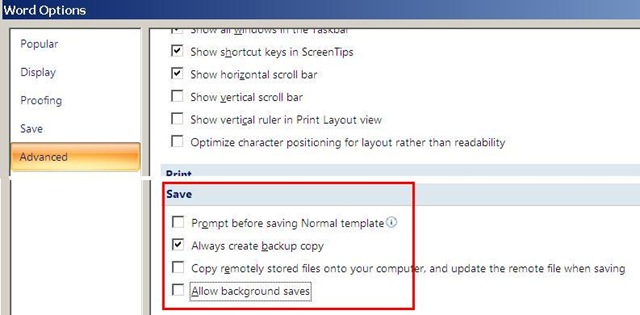
I always have a backup file created on save (in the same folder) and do not allow background saves which helps against file corruptions. I have not tested working with the option of keeping local copies of network share files.
Be aware that you are on your own with this, and that your mileage may vary.


Questions? Read the About. Or just ask me a quick Our Databases: Resources with calendars -- Language learning material Moodle Sites, multimedia files -- films


FAQs for LRC student staff or for students or for teachers. To search our FAQs, in the browser addressbar, add after "https://plagwitz.wordpress.com/feed/?tag=faqs+/" "+TAG1" (from tag cloud below) OR "https://plagwitz.wordpress.com/feed/tag=faqs
&category_name=" "CAT1" (from category hierarchy below). OR search both categories and tags, and multiple TAGs/CATs (connect with "," for OR-search, with "+" for AND-search), like so: https://plagwitz.wordpress.com/feed/?tag=TAG1+TAG2+...TAGn&category_name=CAT1
+CAT2+...CATn"
Other ways to find help
If you cannot find it here, look there: 5,500 Language-Learning Links and Programs for learning or teaching 150 languages
Shortcuts:Our Lists, Our Maps, LRC Staff Moodle Site,LRC Project Moodle Site, 49erexpress, UNCC Moodle, Student Recordings: s:claslcslrcsanakostudent
Learning usage samples: Sanako oral exam, Kaltura webcam presentation, Dictation with speech recognition, Sanako written exam, Chinese and Japanese interactive stroke-order practice
Test the Sanako Installer, Webbrowser Popup Konfigurator for XP, or Windows7, faster LRC TeacherPC Log-in Let MS facilitate diacritics writing by installing for you US-International keyboard layout
This is my personal blog (Google+). The views expressed on these pages are mine alone and not those of my employer. The information in this weblog is provided “AS IS” with no warranties, and confers no rights.
 Thomas' Work Space