Archive
Posts Tagged ‘audio’
No audio on listening stations and group rooms, and workaround
2012/09/26
Leave a comment
- Symptom: Headsets work (test feedback by putting microphone near headset speakers), but audio files from internet do not play with sound.
- Cause: having to support 2 different kinds of headsets (USB with built-in soundcard versus traditional analog) in one PC software image.
- The workaround
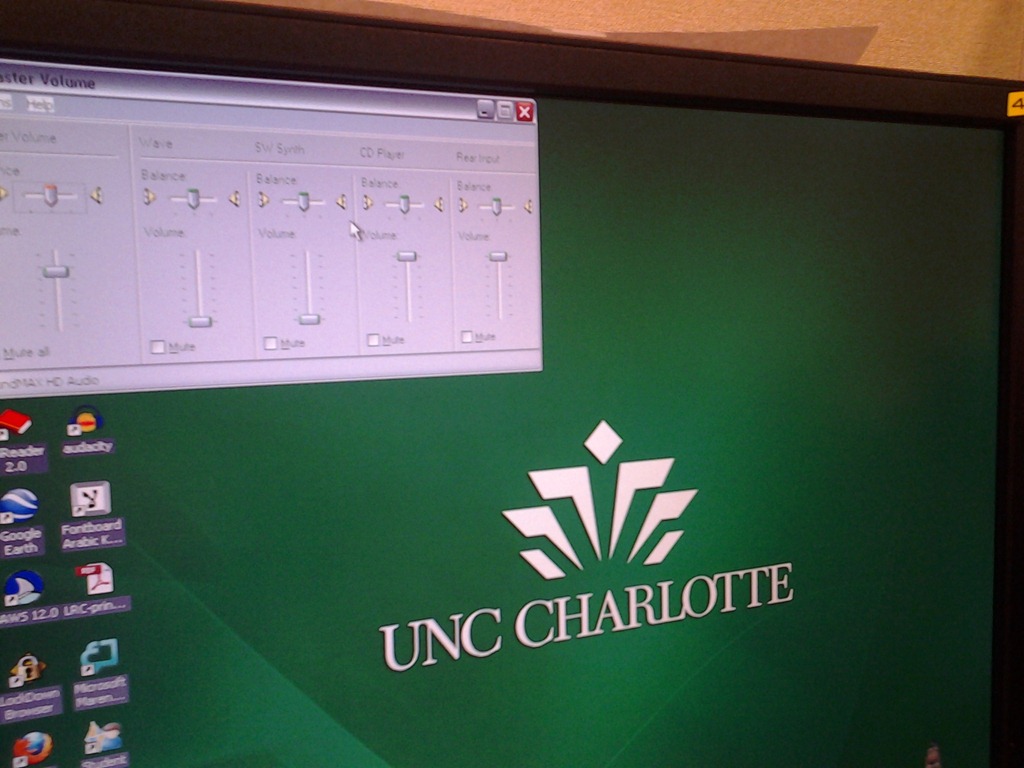
- for temp staff is to start / run / sndvol32.exe and up the low volume sliders here:

- for permanent staff is to unfreeze any computers that have been missed previously
 and put this script into the all users startup folder now: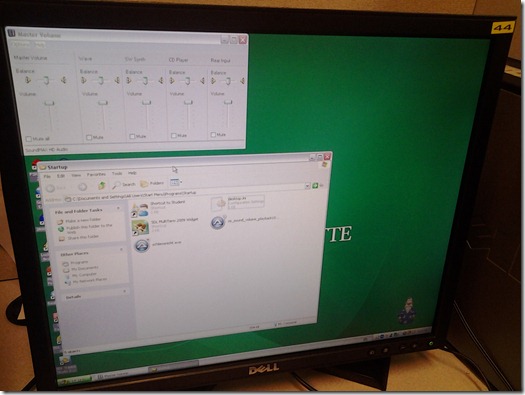
- The solution: standardize on USB headsets when you get a chance.


Categories: audience-is-language-learning-center-staff, audience-is-language-learning-center-temp-staff, e-infrastructure, Institution-is-University-of-North-Carolina-Charlotte, Listening-Stations, service-is-it-managing, service-is-testing-troubleshooting-debugging, small-group-work-spaces
audio, FAQs
How to easily upload, distribute, share and play large multimedia files with Google Apps
2012/05/11
Leave a comment
- Tired of burning, lugging around, inserting, ejecting, or forgetting, losing, scratching and replacing CD- and DVD- media, or hard- and thumb drives to handle your large multimedia files? Do you have internet and web browser where you need to access and play your files? Then you can use UNCC Google Apps instead.
- Go to your UNCC Google Apps (you have to log into UNC)
- Click on the Hard-drive-icon in the upper left
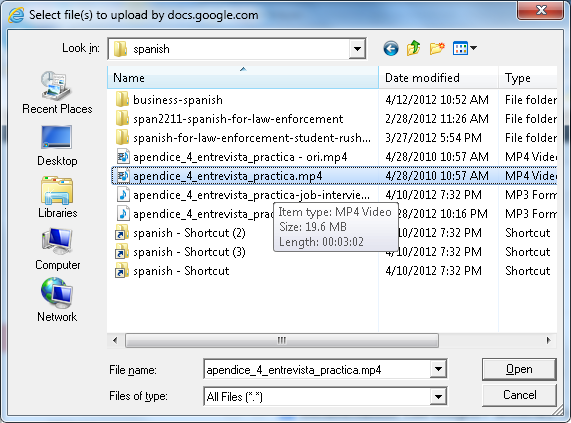
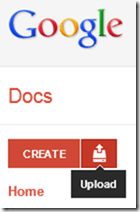 and on “files”, select a video file:
 (many formats and underlying codecs supported, including Flash, MOV, AVI, WMV, MPG. File size limits: currently “every user is given 1GB of free storage space for files” (not enough for much HD footage, but difficult to upload, and didn’t Google Drive just increase this limit to 5GB, or does this not carry over to Google Apps? Stay tuned for updates), click “Start upload”..
- Wait until upload is finished,
 and then, depending:
- if you want to share the file with colleagues, click on “share” (appears after “cancel”) and fill out the dialogue. You can share your file both
- inside the university community and

- inside the university community and
- outside of the university community:
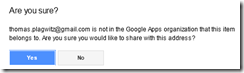

- if you want to share the files with students in your course, there is a better way using Moodle Kaltura video upload;
- if you just want to play the file yourself (including to your students in the classroom), you are already done.
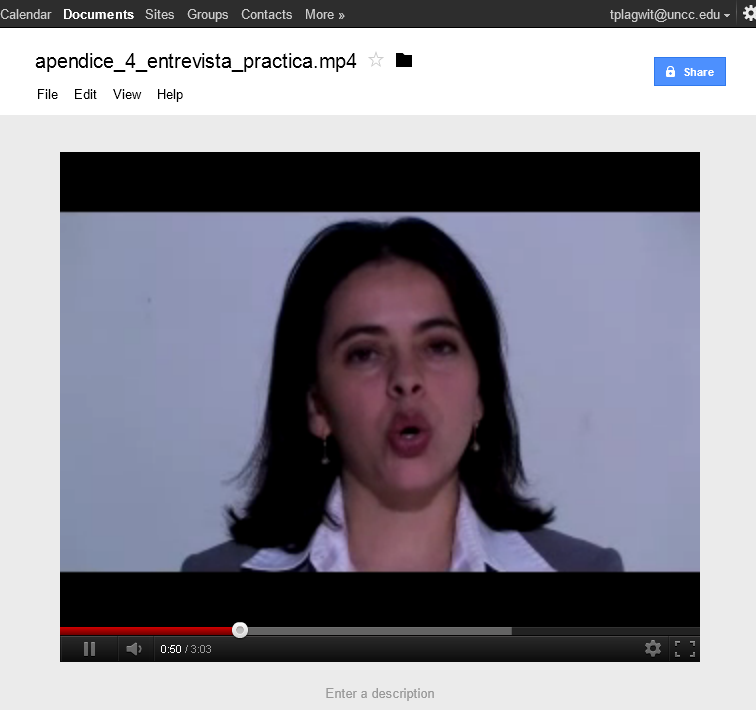
- Go to your files
 and click on the file in the list to play the video: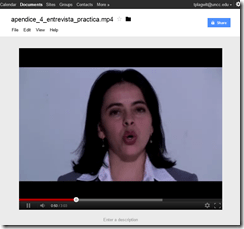
- Also, you can always “get your file back” by “Download”:
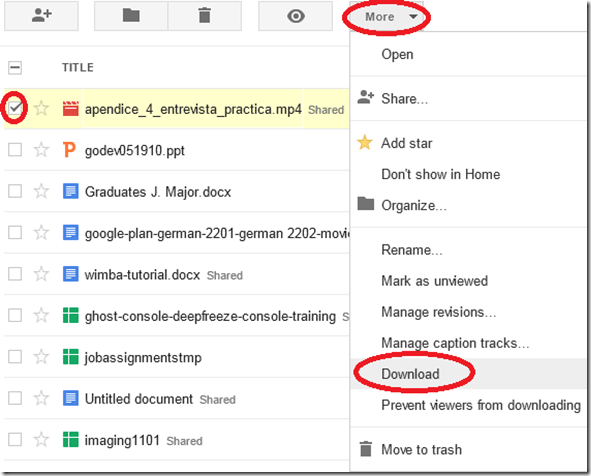 (and note you can also prevent users from downloading the files. This is useful if you only want to temporarily share it, but later revoke permissions).
- if you want to share the file with colleagues, click on “share” (appears after “cancel”) and fill out the dialogue. You can share your file both
- More help is available from the from the source




How to easily merge MP3 files
2012/05/11
Leave a comment
- There are many ways, including many that are easier than doing it manually in Audacity.
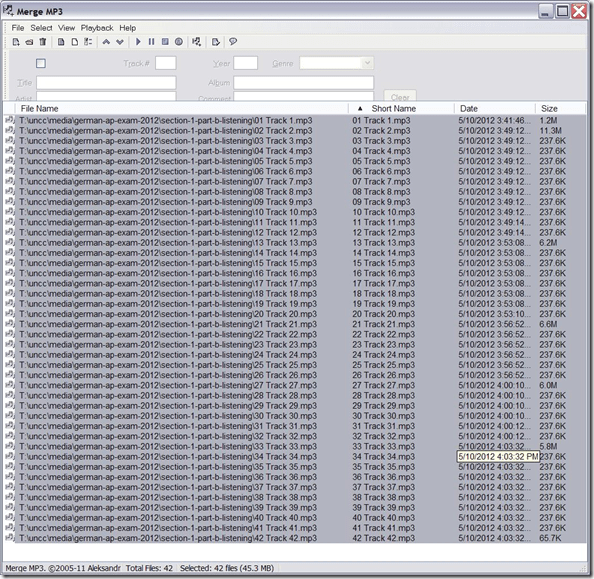
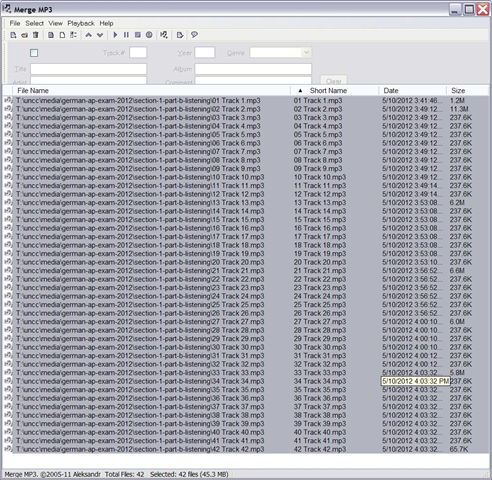
- MergeMP3 is a free and easy one that worked here:
How to get sound on listening station computers by increasing the volume-levels
2012/02/29
Leave a comment
- On the listening stations, if you have the headsets plugged into the connectors on the rear of the computer, and hear no sound, you may have the volume set to too low.
- Go to (1) control panel, (2) icon:sound, (3) tab:audio, (4)button:volume
- in the mixer dialogue, (6) menu:options, make sure that all the (6) volume slider controls are checked, i.e. shown, click “OK”.

- Move the volume sliders up for WAVE and SW SYNTH

How a student uses the Sanako Recorder Voice Insert mode for Moodle comparative recording exercises
2012/01/25
2 comments
- to load a file
- from Moodle:
- Find your assignment with the model audio file, presumably in your Moodle course.
- download the model audio file
- open the Sanako Student Recorder (introduction).
- go to menu: file / open, and open the file you downloaded
- from student recorder playlist: double-click the file.
- from Moodle:
- enable voice insert:
- To activate voice insert (which is a toggle that changes the behavior of the other buttons)
- either go to tools/ voice insert mode
- or click the voice insert button
 (darker shade of brown = OFF; tooltip should say “Toggle Voice Insert OFF”, meaning: it is ON now)
- To activate voice insert (which is a toggle that changes the behavior of the other buttons)
- press the green play button to listen until you reach the point (your teacher may have inserted a pause or aural cue) where you can repeat or respond.
- Then click the red speak-button
 to repeat after/respond to the source/teacher
 - When you are done repeating/responding, press the green play-button.
- At the end, press the blue stop-button.
- Rewind and review your recording (e.g. compare your pronunciation with the teacher’s model).
- When done, click file / save as and save only your, the student track, as mp3 or wma.
- Additional notes:
- TBA: you can overwrite your pronunciation where you deem necessary.
- Fixed in Sanako 7:
you cannot show the voice graph when in Voice insert mode – both are incompatible. - To see in action how to record with voice insert and save the student track, view
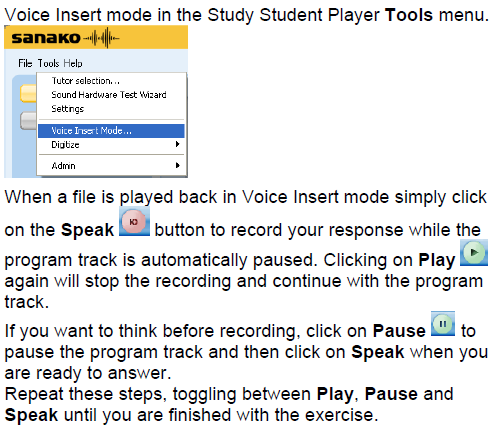
- The previous is just a step-by-step for our environment based on the Sanako Study 1200 documentation which follows here:


How a teacher best adds cues and pauses to an mp3-recording with Audacity to create student language exercises
2012/01/25
1 comment
- The first screencast example uses insert tones and a gut amount of pause, for an interpreting exercise, into an authentic German political speech
- 1:00 search for a break (button: play/stop – pause prevents edits)
- 1:05 move the cursor to the break (mouse left-click on timeline)
- 1:20 insert a pause (menu:Generate / Silence )
- 1:25 zoom in (button:magnifying glass, CTRL + mouse scroll wheel)
- 1:45 generate a tone (menu:Generate / Noise), change the duration
- 2:10 do not replace the selection
- 2:20 use undo, just like in MS-word and other programs
- 2:30 move the cursor to the start of the selection (mouse left-click on timeline)
- 2:40 generate a tone (menu:Generate / Noise)
- don’t forget to review results before distributing to students
- the second screencast example, of post-editing a questions/response exercise in ESL, takes the amount of pause inserted from the recorded teacher instruction for the student, and uses copy/paste to speed things up even more.
- You can also only insert tones and not pauses, as in the 3rd screencast, and allow the students flexible pause lengths, if you can rely on the Sanako Student recorder Voice insert. Or if you must, let students use audacity for recording also, and have them learn how to move the recording cursor around manually, and throw away the source track.
How a teacher creates audio recordings for use with Sanako Student Voice Insert mode
2012/01/24
Leave a comment
- One of the Sanako Student player’s useful features geared toward language learning activities, is that it can save the teacher the time and effort for inserting pauses into their audio recordings, so that students can record responses into them.
- Meaning the teacher can just press the red speak button
 and record through the entire file in one sitting.
 - The teacher can still help students finding their way around the file, especially where to insert their own audio recording responses, by adding aural cues.
- This can be done in minimal time: I once saw a teacher use a bicycle bell – and why not, if it saves time.
- A spoken instruction “Respond”/”Answer in 10 seconds” is not more difficult to spot (unless only the voice graph is being browsed) and might be even better.
- If you have spare time:
- You can post-edit the file with audacity, generating and inserting sinus tones.
- You can use the Sanako player to insert bookmarks instead of cues.
- Meaning the teacher can just press the red speak button
- As long as students have been instructed to how to use voice insert recording mode with the Sanako student recorder.
- This is for self access of students to teacher recorded files – be it during class or homework.
- If you want to record students under exam conditions, a similar insert recording feature is available within the activity: Model imitation, but not with a pre-recorded file, only when the live teacher is the program source students listen to for cues.

Categories: Arabic, audience-is-teachers, documentation, English, Farsi, French, German, Greek (modern), Hindi, Italian, Japanese, Korean, Listening, Mandarin, Polish, Portuguese, presenter-computer, Russian, service-is-learning-materials-creation, software, Spanish, Speaking, Student-Computers, Swahili, Yoruba
audio, recording, sanako-study-1200, student.exe, voice-insert
How to record your speech with Audacity
2012/01/11
Leave a comment
- For a cut-and-dry recording session, the LRC has a simple instruction on
- For more advanced editing with Audacity, I have a detailed screencast here.


Questions? Read the About. Or just ask me a quick Our Databases: Resources with calendars -- Language learning material Moodle Sites, multimedia files -- films


FAQs for LRC student staff or for students or for teachers. To search our FAQs, in the browser addressbar, add after "https://plagwitz.wordpress.com/feed/?tag=faqs+/" "+TAG1" (from tag cloud below) OR "https://plagwitz.wordpress.com/feed/tag=faqs
&category_name=" "CAT1" (from category hierarchy below). OR search both categories and tags, and multiple TAGs/CATs (connect with "," for OR-search, with "+" for AND-search), like so: https://plagwitz.wordpress.com/feed/?tag=TAG1+TAG2+...TAGn&category_name=CAT1
+CAT2+...CATn"
Other ways to find help
If you cannot find it here, look there: 5,500 Language-Learning Links and Programs for learning or teaching 150 languages
Shortcuts:Our Lists, Our Maps, LRC Staff Moodle Site,LRC Project Moodle Site, 49erexpress, UNCC Moodle, Student Recordings: s:claslcslrcsanakostudent
Learning usage samples: Sanako oral exam, Kaltura webcam presentation, Dictation with speech recognition, Sanako written exam, Chinese and Japanese interactive stroke-order practice
Test the Sanako Installer, Webbrowser Popup Konfigurator for XP, or Windows7, faster LRC TeacherPC Log-in Let MS facilitate diacritics writing by installing for you US-International keyboard layout
This is my personal blog (Google+). The views expressed on these pages are mine alone and not those of my employer. The information in this weblog is provided “AS IS” with no warranties, and confers no rights.
 Thomas' Work Space