How a teacher can use Sanako voice insert to easily add spoken comments to students’ Sanako oral proficiency exams- step–by step
2012/11/19
Leave a comment
- Requirements:
- you need access to the network share to open/save student recordings (this works in your office;
I do not know whether there is technology supported on campus thatthis makes this work in your home office also, - you need to have the free Sanako student recorder Lite installed, here is how: Just “Run” the above link.
- Recommended: in the student recorder, from menu: TBA, set your “default save directory” to the current folder with the student recordings – otherwise you have to change the save as dialogue back to this destination for each file you save.
- you UPDATE: DO NOT ANYMORE need to disable the voice graph (
notcompatible with voice-insert recording; you can, however show the voice graph again when done recording and reviewing the file) - you need to save the student recording, updated with your comments, in the same folder with the same file name as the source (when “saving as” and choosing the name, preferably do not type it, but rather select or copy/paste it. The original file will still be preserved since your version will be saved in a a different format and therefore have a different file extension)
- you need access to the network share to open/save student recordings (this works in your office;
- TBA:you can rewind to listen, and re-record to overwrite comments that you want to revise
- More training:
Protected: Update: obsolete, our faculty simply run http://goo.gl/e0ljX instead of needing to know about: Installation options to choose for installing the free “lite” Sanako student recorder….
2012/11/19
Enter your password to view comments.
Sanako Light Recorder insert recording has no teacher track audio, but voice graph?
2012/11/19
Leave a comment
- UPDATE: We reinstalled and this time made sure we restarted the system, and voice-insert is working fine now.
- We are trying to introduce having teachers using the Sanako voice-insert feature to issue spoken feedback into student assessment recordings, since the Sanako Recorder makes voice-insert as easy as
- the (repeated) click of red “speak” button
- and a “save as” (default format MFF preferred).
- On a teacher computer, we recorded and saved as
- either MFF (fast for the teacher to save; we were hoping to have the students download the free Sanako light recorder to be able to play this format;
- or WMA.
- We tested playing back, and hear the student original audio recording, but could not hear the teacher insertion, no matter whether we tried
- in the Sanako light recorder
- or in Windows Media Player.
- Because of the proprietary formats, it is a bit difficult to troubleshoot this. Audacity won’t open either audio format.
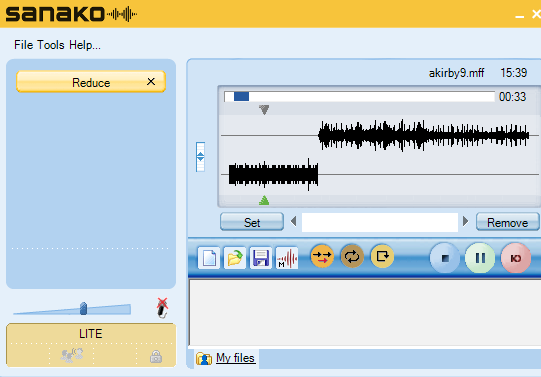
- In the Sanako light recorder, we can see the audio inserted in the 2nd track (lower) in the voice graph:
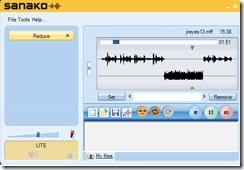

- Is this a licensing restriction? No, even the free light recorder can do this. See here for the installation options to choose when running the studentrecorder.exe on the teacher computer.
- Investigating… Update:
- Must be demonstration effect, as voice insert works fine on my office computer, as expected and it had before.
- Will try the usual suspects when getting my hands on this computer again (refresh, restart, reinstall, replace hardware…)…

Protected: Report on LRC classroom usage for language classes in Fall 2012
2012/11/19
Enter your password to view comments.
How you can resolve Enterprise Library 5 Visual Studio 2012 error: "Could not locate the Enterprise Library binaries required to launch the configuration console"
2012/11/17
3 comments
- When right-clicking on my App.config to access the Enterprise Library configuration tool, I kept getting this error:

- after installing
- VS.net 2012;
- Enterprise library 5.0.414 through nuget (why does nuget install only this older version?);
- the unofficial Enterprise Library Extension vsix updated for VS.net 2012 published by the Enterprise Library team here.
-
What fixed this error for me was (YMMV, November 2012):
- installing Enterprise Library 5.0 optional update 1 (=5.0.515) using this approach:
- msiexec /i "Enterprise Library 5.0.msi" REINSTALLMODE=vomus REINSTALL=ALL
- – Adding to the vs.net 2012 SLN file, at the end of "Global" (immediately before "EndGlobal")
- GlobalSection(ExtensibilityGlobals) = postSolution
EnterpriseLibraryConfigurationToolBinariesPath = C:\Program Files (x86)\Microsoft Enterprise Library 5.0\Bin
EndGlobalSection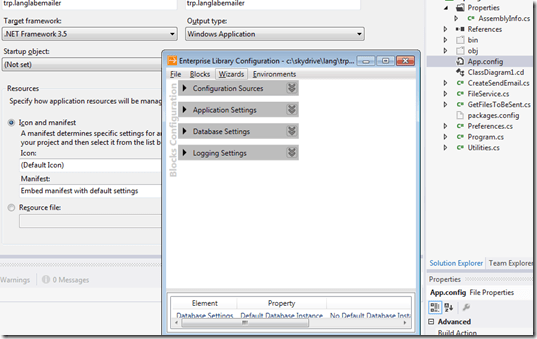

Language Lab Emailer, new software to integrate the digital audio lab and classroom management system into the language teaching and learning workflow
2012/11/15
Leave a comment


How to play Windows media on the MAC OS platform
2012/11/12
Leave a comment
LRC-provided Windows Media encoded audio and video learning materials files can easily also be played on the MAC, since Microsoft supports Windows Media also on the Mac-platform.
Mac users can download wmv/wma support for the Mac OS X version 10.3.9 or later, QuickTime version 7.0 or later) from http://www.microsoft.com/windows/windowsmedia/player/wmcomponents.mspx for free. In this download from Microsoft, Windows Media® Components for QuickTime are now “new & improved”.
Categories: learning-materials, software
apple-Mac-OS, audio, FAQs, windows-media, windows-media-audio, wma


Questions? Read the About. Or just ask me a quick Our Databases: Resources with calendars -- Language learning material Moodle Sites, multimedia files -- films


FAQs for LRC student staff or for students or for teachers. To search our FAQs, in the browser addressbar, add after "https://plagwitz.wordpress.com/feed/?tag=faqs+/" "+TAG1" (from tag cloud below) OR "https://plagwitz.wordpress.com/feed/tag=faqs
&category_name=" "CAT1" (from category hierarchy below). OR search both categories and tags, and multiple TAGs/CATs (connect with "," for OR-search, with "+" for AND-search), like so: https://plagwitz.wordpress.com/feed/?tag=TAG1+TAG2+...TAGn&category_name=CAT1
+CAT2+...CATn"
Other ways to find help
If you cannot find it here, look there: 5,500 Language-Learning Links and Programs for learning or teaching 150 languages
Shortcuts:Our Lists, Our Maps, LRC Staff Moodle Site,LRC Project Moodle Site, 49erexpress, UNCC Moodle, Student Recordings: s:claslcslrcsanakostudent
Learning usage samples: Sanako oral exam, Kaltura webcam presentation, Dictation with speech recognition, Sanako written exam, Chinese and Japanese interactive stroke-order practice
Test the Sanako Installer, Webbrowser Popup Konfigurator for XP, or Windows7, faster LRC TeacherPC Log-in Let MS facilitate diacritics writing by installing for you US-International keyboard layout
This is my personal blog (Google+). The views expressed on these pages are mine alone and not those of my employer. The information in this weblog is provided “AS IS” with no warranties, and confers no rights.

