Archive
Sony Virtuoso Apprentice and Brevi Options Dialogues and Diagnostics
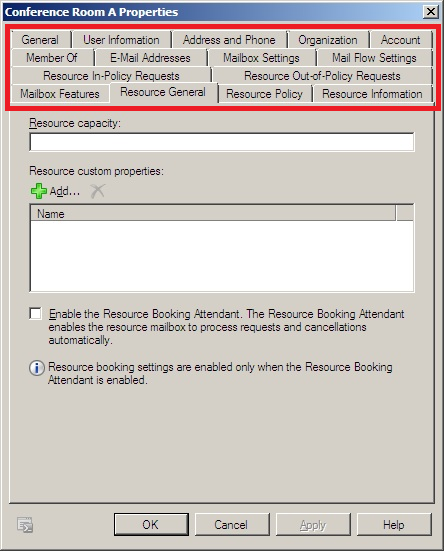
When working on improvements for the room booking and equipment checkout in the LRC, I was recently reminded by the MS-Exchange 2010 room mailbox settings :
 ,
,
how nice it is to have, like a giant tool belt, a reasonably evolved software application with all kinds of knobs and handles (all you can set here can help you, solve a problem for you, relieve you of manual troubleshooting/clerical work).
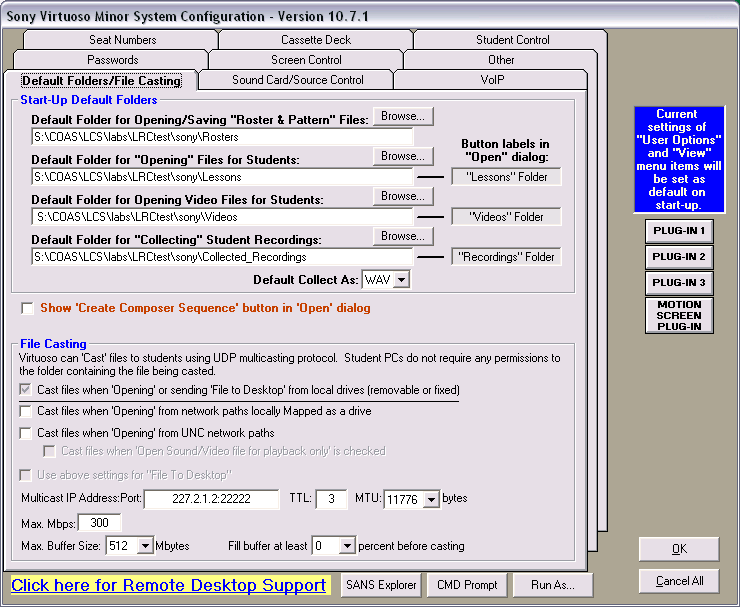
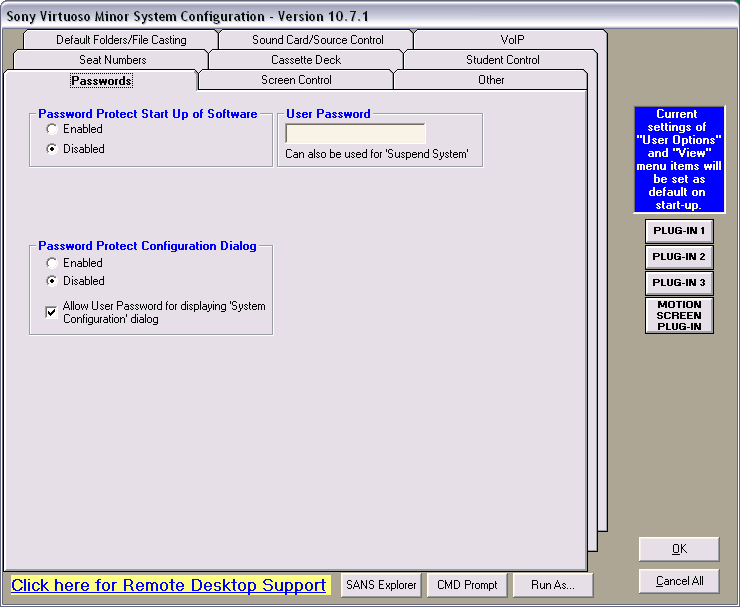
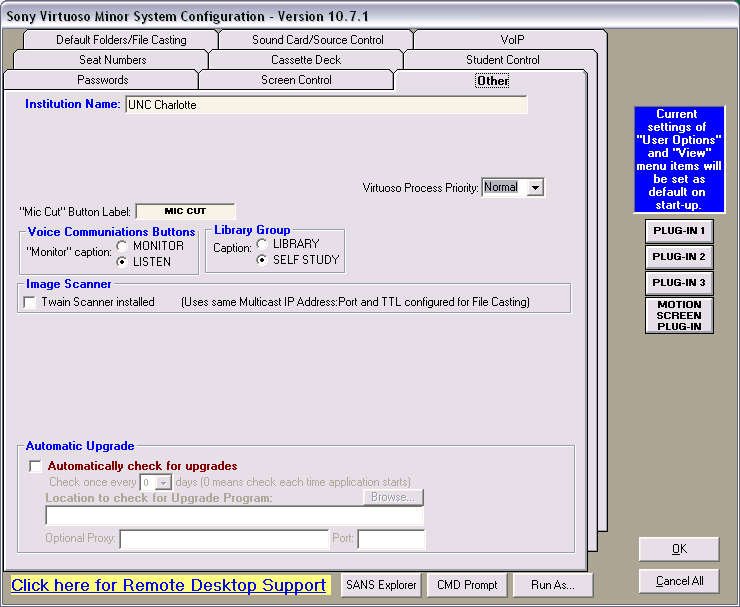
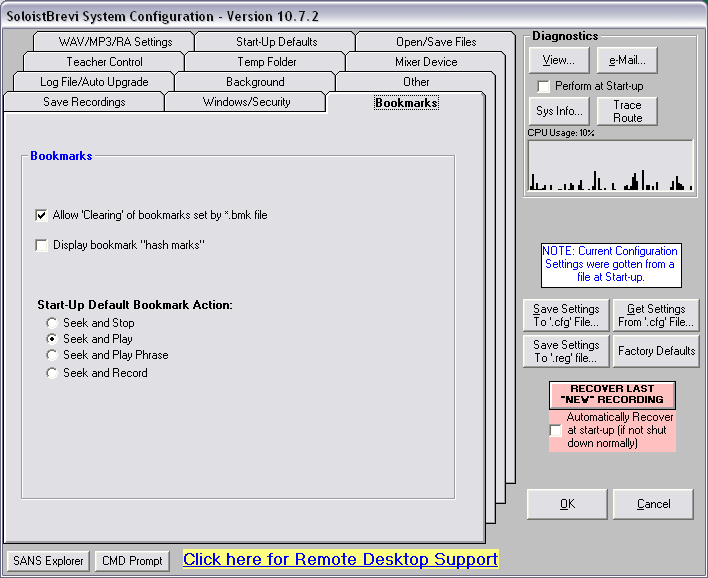
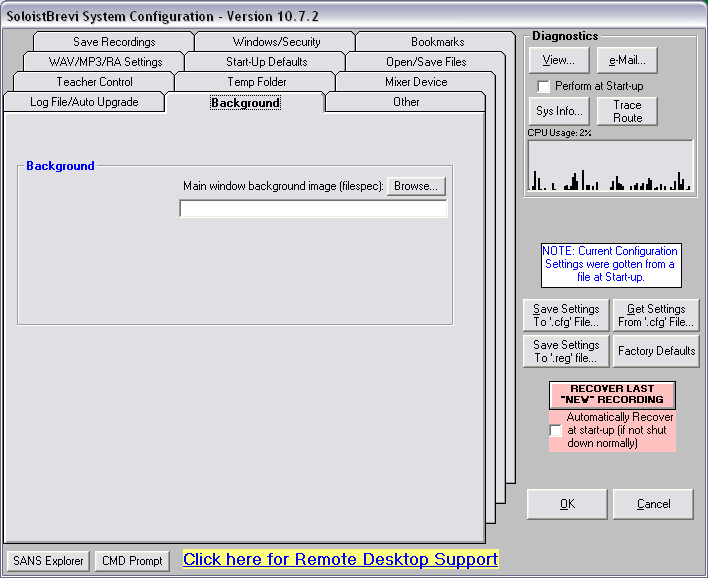
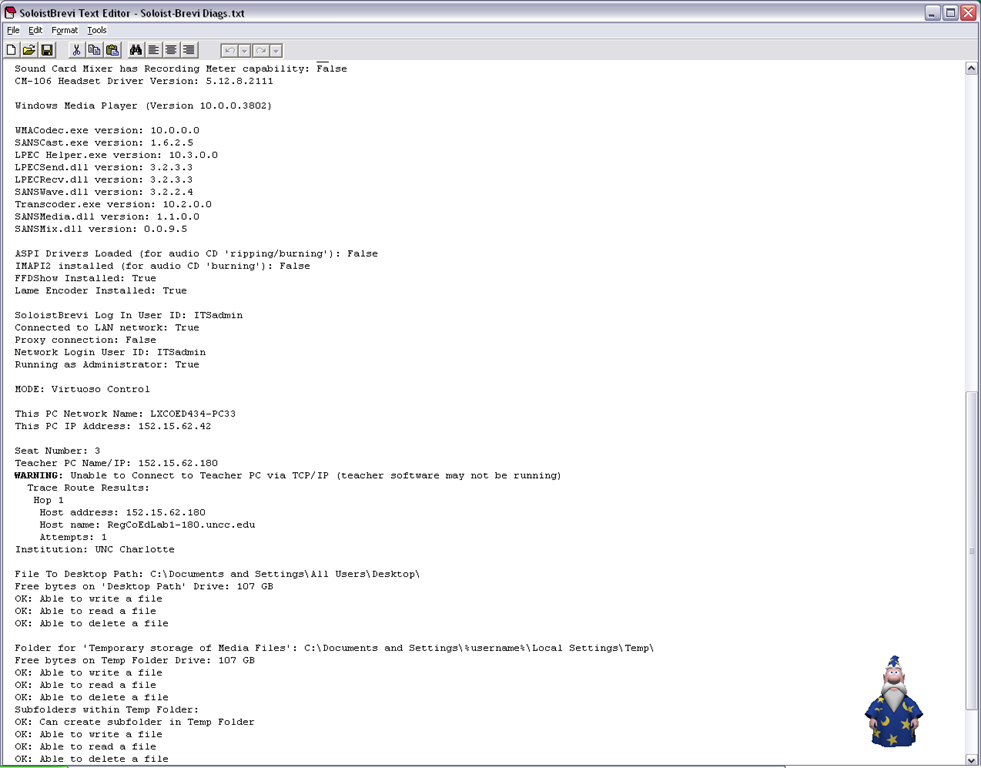
The Sony Virtuoso Apprentice language lab software and the corresponding Sony Soloist Brevi Student Recorder application did not make the cut here for other reasons. But I sure felt intrigued and put in control by its options and settings dialogues:
Virtuoso Dialogues:





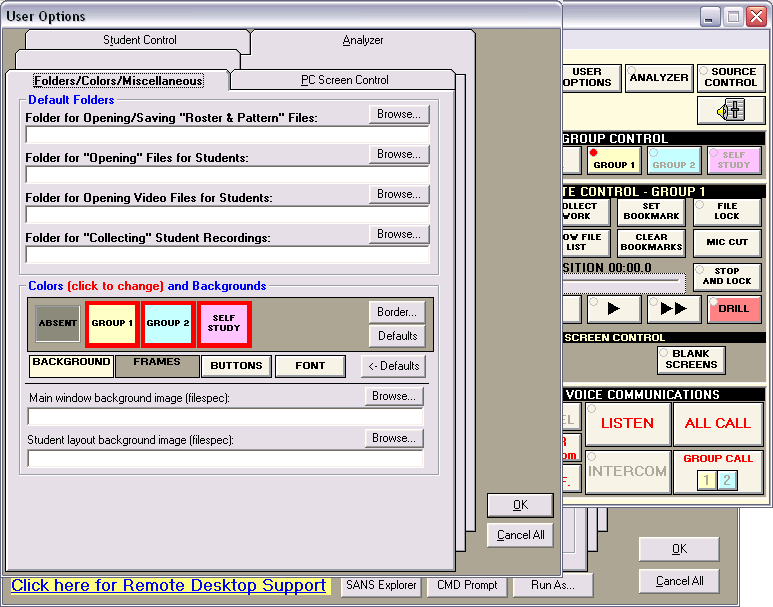


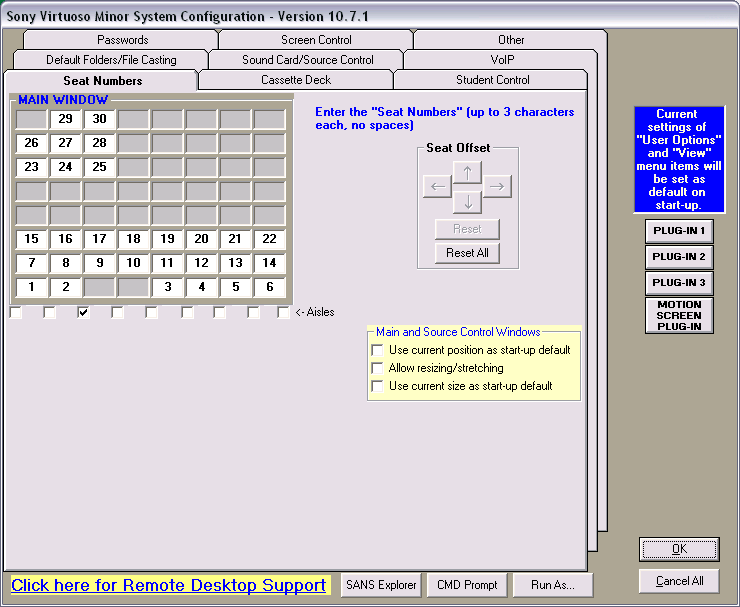


Soloist Dialogues and Diagnostics:

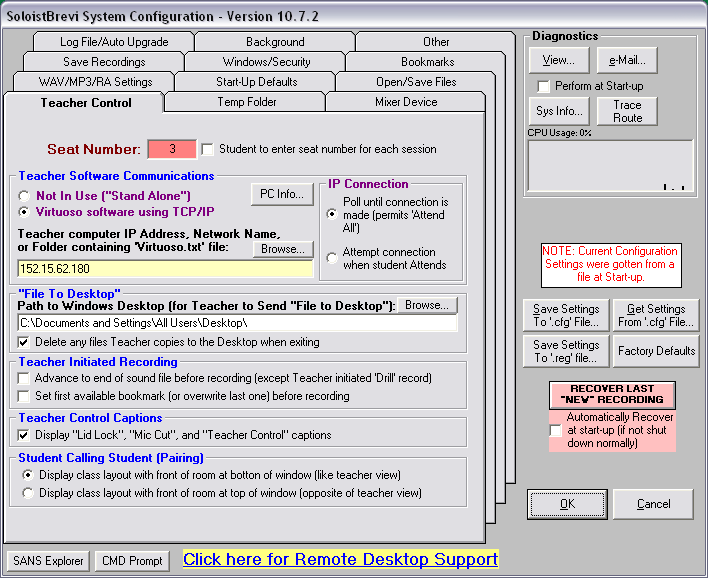


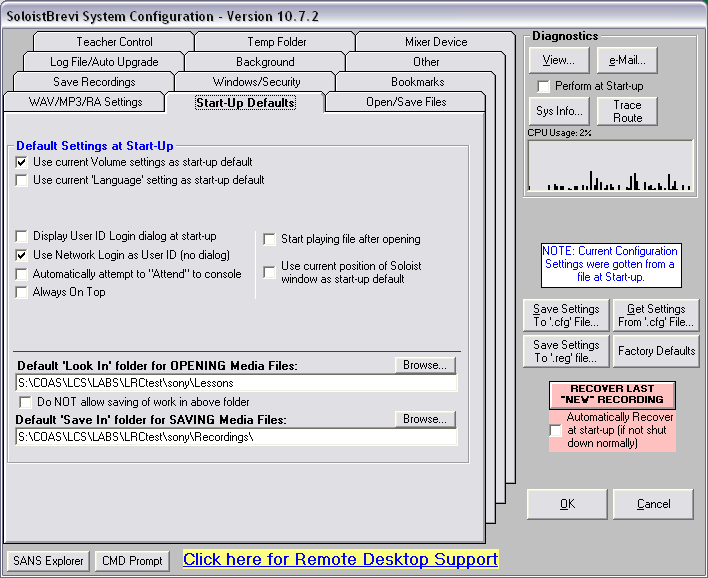





IALLT 2011 Presentation on Batch-produced time-stretched audio for personalized language learning
Batch-produced time-stretched audio for personalized language learning has been accepted for inclusion in the program for IALLT 2011, June 21-25 at the University of California – Irvine and was presented on June 23:
Pervasive networked digital media (both digitized mass media and pod- and tube-casts) and the build-up of higher education technology infrastructure (classroom management systems, eRepositories, ePortfolios) during what might become the next bubble could form much improved learning environments, if it were not for the impedance mismatch of systems integration challenges. The current challenging financial times can remind us of the original promise of e-learning: increased efficiency. Rapidly expanding second language programs (here English, Spanish and Mandarin) need scalability through automation of learning material provision. Smaller or shrinking programs (here German, Russian, Farsi), where widely differing learner proficiency is increasingly becoming a problem when trying to form classes, need to cope with fragmentation of learning material provision in a “long tail”-economy. Both would benefit from a personalization of instruction that takes into account individual skills, needs and interests. This paper’s software can batch-produce from mp3 and wma input files a user-adjustable range of audio output speeds (see options GUI at https://plagwitz.wordpress.com/2010/08/06/language-learning-audio-stretcher/) and – for a more natural sounding output than the time-stretching mechanisms commonly built into current media players – differentiate between language and pause segments in the input when time-stretching (see samples at https://plagwitz.wordpress.com/2010/11/03/language-learning-audio-stretcher-ii-samples/). The paper will demonstrate such time-stretched audio in a variety of languages and from both SLA and authentic materials and its use, as one step towards more comprehensible input of level “i+1” in a more personalized language learning provision.

I am grateful for being able to attend so many interesting workshops, posters and presentations on new developments in teaching material production, online distance education, ePortfolios, learning center design and management.
As well as the booths of professional organizations, educational software and content vendor.`

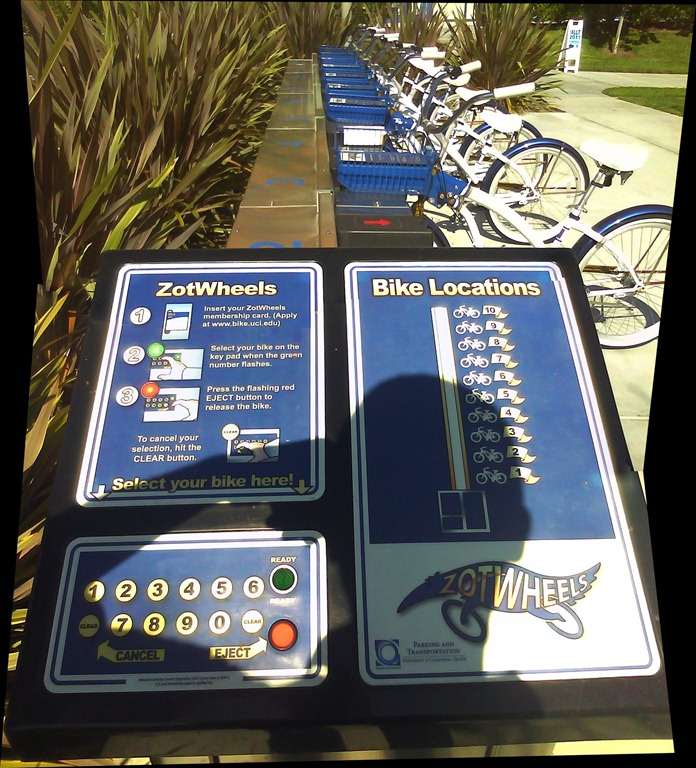
And another idea worth emulating were the ZotWheels bike rent stands  .
.
Moodle Streaming Video Recording Assignment Glitch
Environment: Mac OS 10.6.6, Moodle 1.9, Kaltura TBA, Firefox 3, Flash TBA.
Symptom: As pictured below, when student tries to redo a video assignment submitted previously, by pressing button “resubmit …”, Flash security window pops up, asking for her permission to access the webcam, but won’t accept any input (“pizza of death” spins).

Workaround: Use Safari instead of Firefox.
Lesson to learn: Not only, but especially with computers, be resilient (“Try something else”: modify the sequence of steps, browser version, browser make, operating system, hardware…).
How to enable screen cloning and switching between display modes on the LRC reception desk dual screen Dell OptiPlex 780 with WinXP
Short, non-technical answer: on the keyboards of the reception desk computers, press key combination
- ALT+CTRL+F10 to mirror the same image on both monitors;
- ALT+CTRL+F11 to return to extending the primary screen, i.e. showing something different on the second screen.
- if this stops working, restart the computer.
We do not use any more key combination ALT+CTRL+F10 to cycle through the different desktop configurations, which include cloning/mirroring the same image on both screens (also keep pressing the key combination, in order to get back to extending the image to the 2nd screen, for running an informational display (calendar, PowerPoint) to display on the 2nd screen after mirroring the lab assistant’s screen onto the 2nd screen when interacting with a client on the other side of the help desk counter).
Longer, technical answer: You have to configure this. But the Win XP dialogue: Display Properties / tab: Settings only allows for “extending” the desktop to the secondary screen. However, button: Advanced leads to another dialogue, with a tab: ATI Control Center, by the graphics card manufacturer.
If you also enable the advanced settings in this dialogue, you can get to the hotkey settings where, among other things, you can enter a key combination for cycling through Display Configurations, one of which being cloning.

In addition, you can save this configuration as such:

Why all these minutiae? You cannot have LRC clients and staff at the help desk communicate with the help of a computer (and all the goodies accessible now, from intranet to interwebs) if they cannot easily share the screen (and, in order to both even interact with the screen, share keyboard and mouse, which are easy to duplicate, if you have some spare USB input devices lying around). If you can make them share, you have applied AI to business problems (compare dual screen system in the LLC entrance area here). If calling the after state “AI” sounds too lofty to you, you may call the before state “flying blind” instead: I just care about the delta which remains the same.
How teachers can more quickly open/update/save their Moodle files from MS-Office
MS-Education Labs has published a plugin that speeds up editing MS-Office Files in Moodle.
To use the plugin, download (for 32-bit Office) , run, and from (2007) Office Button or (2010/2003) Menu: “File”, use menu item “Open from Moodle” (and later “Save to Moodle”).

You have to (once) let MS-Office (e.g. MS-Word or Excel) know the URL of Moodle (e.g. http://moodle.uncc.edu),  , then your login credentials:
  .
.
Note that your categorization of Moodle courses (in the tree menu on the left, all courses are filed away in folders called “Training”) prevents an instant load:  .
.
Instead, search for (part of) your course title:  .
.
Select the results you want to add and click button: “Add”: 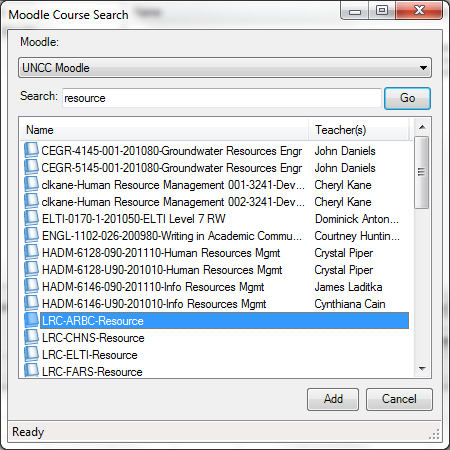 .
.
Wait for the courses to be loaded:  .
.
You can then use the left course tree to browse for matching MS-office files within each of your loaded courses: 
MS-Office files are likely involved in the majority of Moodle edits, so this promises to be a great timesaver.
For more information, see also the CTL’s step-by-step instruction Using the Office Add-in for Moodle.
Successful test of the new streaming video recording assignment for language proficiency assessment in Moodle.
- Video recordings allow for a more authentic assessment of spoken language proficiency. Today, we could test a new Moodle video assignment type for Almut’s Summer II Elementary German II class: Preparing a natural sounding statement on one’s favorite holiday. This Moodle assignment type is an extension to students of the teacher video upload tool using a service Kaltura – we hinted at that earlier.
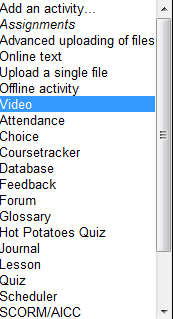
- Teachers, when editing their Moodle course, can find this assignment type in the dropdown: Activity as “Video”.

- The assignment options: Note that creating a video assignment is pretty much the same as creating other assignments in Moodle, and so is grading, except instead of reading, you view the submission, right within the web page.

- An example of guiding questions for a recording assignment is here (topic: holiday, language: German):

- Here is how the teacher sees the student submission in the gradebook.


- Caveat: in Safari, we were not able to close the video popup, after viewing it from the class roster, and could only back out of the entire gradebook. Instead, from the roster, first open the page with the individual student submission, and review the video there on that page:

- For the student experience, see here.
- Further reading: The CTL has a number of step-by-step instructions which we recommend for further reading: Student Video Assignment, and specifically for students: Upload a Video for a Video Assignment; for instructors: Grading Video Assignment Submissions.
- The LRC had originally prepared to record the students with our old, handheld mini-DV cameras, import the movie into iMovie or Windows Movie Maker, then find a way to get the files (with easily identifiable submitter names) to the teachers. Hitherto, our best option was compression of the video to to fit into the Moodle 64MB file upload size limit (which, even if you decide to shoot and produce your video elsewhere and bring it as an uploadable file to the assignment , does not apply to the Video assignment either).
- Preliminary testing seems to indicate that video recording of pairs/dialogues is also possible with the LRC’s webcam setup . However, because of the angle restrictions, capturing such sessions will be less natural.
- Overall, the new Moodle video assignment seems a major improvement for all parties – students, teachers and support –, and can help with more authentic assessment of


Free Farsi Proofing Tools available: VafaSpellchecker
Unfortunately, the VafaSpellchecker Proofing Tools are now not available anymore for Office 2010. The links to the Office 2010 on the website have been broken for a long time, the developer seems to have left the university, the project manager has not answered my inquiry. Here is hoping they will be resurrected.
Even though proofing tools are neither designed for non-native language learners nor, traditionally, used in a pedagogically sound way by language learners without proper guidance, they form one of the greatest opportunities to apply advances in Natural Language Processing (NLP) to second language acquisition (SLA) tasks, given that they are a widely installed and commonly understood artificial intelligence providing automated feedback on natural language issues.
The management and licensing of proofing tools has been much improved since MS-Office 2007 which made it easier (and cheaper) to install modular proofing support for additional languages distributed as Language Packs.
However, in an SLA context, even this may still not be a convincing value proposition, whether for the personal computers of individual student learners, or even – due to apparent the lack of concurrent licensing options within proofing tools – for Less Commonly Taught Languages (LCTL) in an imaged computer lab environment (in our case, we would need to purchase 45 licenses à $25 before tax for a language that may have about half as many learners or less).
All the more welcome are freely downloadable add-ons- – thanks to the MS-Office platform extensibility – the VafaSpellchecker, a Persian Spell&grammar and real-word error checking system by the Natural Language and Text Processing Laboratory in University of Tehran, funded by Iranian Research Institute for ICT, available for both MS-Office 2003 and 2007. A VafaSpellchecker user guide (in Farsi) is also available.

As always with NLP in SLA, caveat emptor, use with a grain of salt, or two.


Questions? Read the About. Or just ask me a quick Our Databases: Resources with calendars -- Language learning material Moodle Sites, multimedia files -- films


FAQs for LRC student staff or for students or for teachers. To search our FAQs, in the browser addressbar, add after "https://plagwitz.wordpress.com/feed/?tag=faqs+/" "+TAG1" (from tag cloud below) OR "https://plagwitz.wordpress.com/feed/tag=faqs
&category_name=" "CAT1" (from category hierarchy below). OR search both categories and tags, and multiple TAGs/CATs (connect with "," for OR-search, with "+" for AND-search), like so: https://plagwitz.wordpress.com/feed/?tag=TAG1+TAG2+...TAGn&category_name=CAT1
+CAT2+...CATn"
Other ways to find help
If you cannot find it here, look there: 5,500 Language-Learning Links and Programs for learning or teaching 150 languages
Shortcuts:Our Lists, Our Maps, LRC Staff Moodle Site,LRC Project Moodle Site, 49erexpress, UNCC Moodle, Student Recordings: s:claslcslrcsanakostudent
Learning usage samples: Sanako oral exam, Kaltura webcam presentation, Dictation with speech recognition, Sanako written exam, Chinese and Japanese interactive stroke-order practice
Test the Sanako Installer, Webbrowser Popup Konfigurator for XP, or Windows7, faster LRC TeacherPC Log-in Let MS facilitate diacritics writing by installing for you US-International keyboard layout
This is my personal blog (Google+). The views expressed on these pages are mine alone and not those of my employer. The information in this weblog is provided “AS IS” with no warranties, and confers no rights.
 Thomas' Work Space