Archive
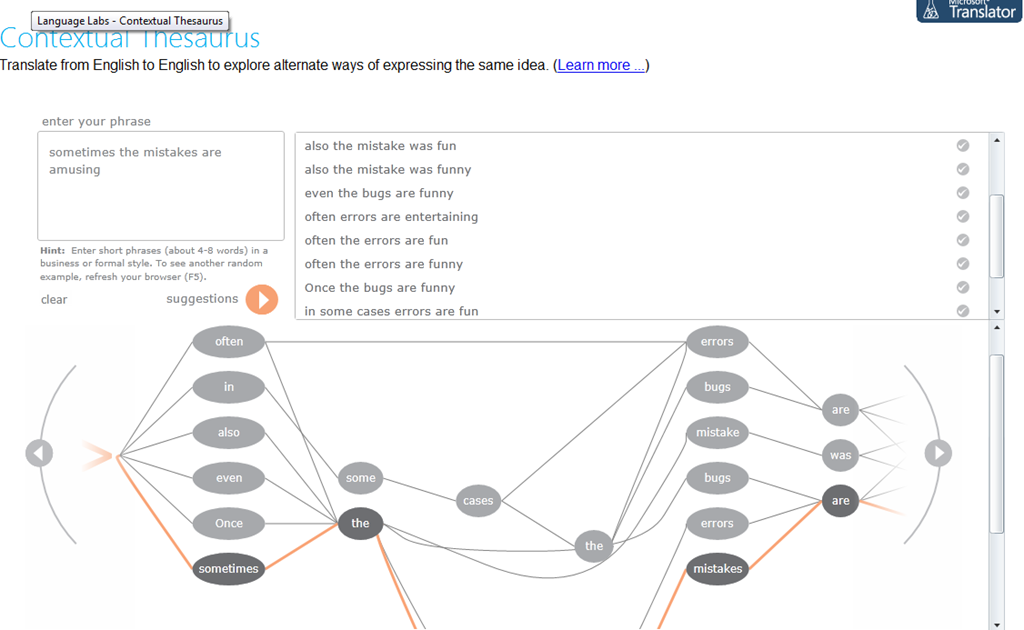
Microsoft Contextual Translator
Certainly an advance over the MS-Word thesaurus (unlike the MS-Word 2007 and up spell check, still not contextual). Does this work at least well enough to serve as a fruitful pedagogical exercise: “Which phrase does not belong in the group?”
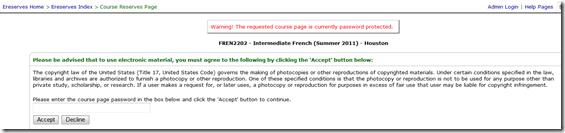
How students access language learning materials on the Library ereserves system
- Note the important update in red below.
- This has been tested at post date with Firefox. ereserves seems to be not compatible with Internet Explorer 8: i

- On the Library home page, from the top menu: “Research & Course Help”, choose menu item: “Course Reserves” (or, if this menu changes again, I have a hunch that deeplinking may be more stable: http://library.uncc.edu/caos/coursereserve, what’s in a URL…),
- sign in with your Ninernet ID,
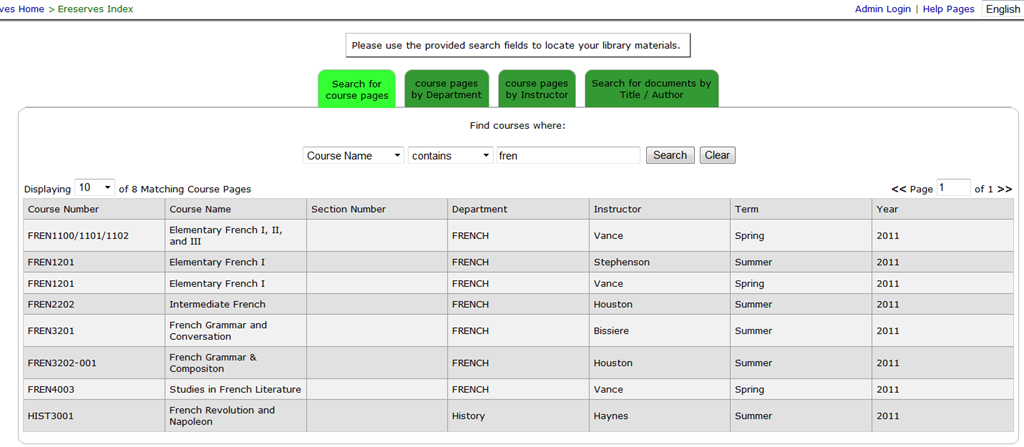
- enter search term
- select from the dropdown “search by name”, an enter part of your course name in the textbox,
- or click on tab:”Course Reserves Pages by Instructor”, and from the dropdown, select your instructor,
- click search,
- then select your course from the results grid.

- Enter the password, which has been given to your by your instructor.
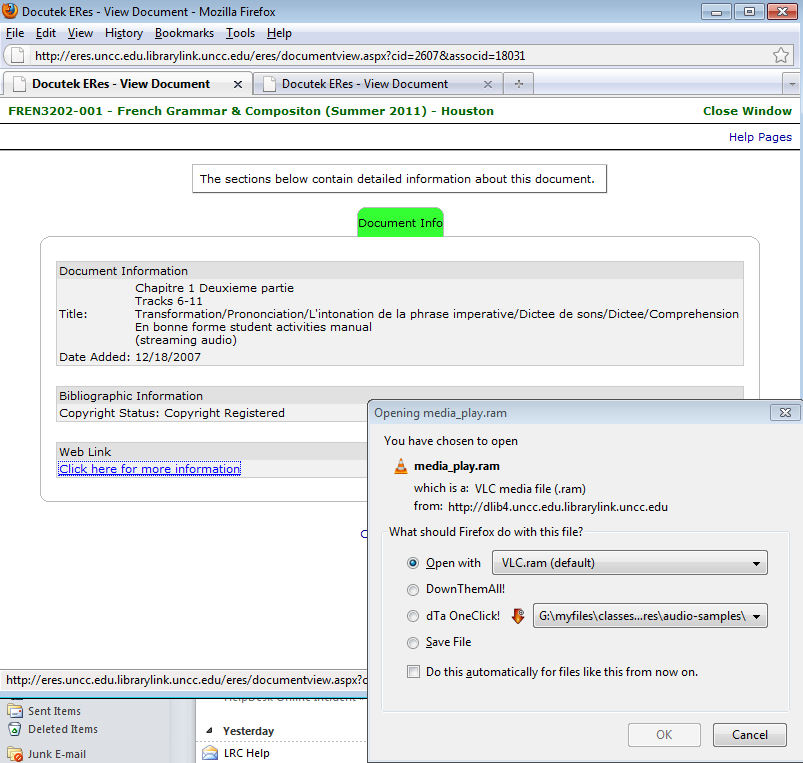
- In the results grid, click on the desired chapter and tracks. Note: You need to disable your web browser”s “popup blocker”.
- In the popup window, click on link: “More information”,
- when offered, , like in this screenshot:
- you cannot save the file, or rather: only a text file with links to the audio which you cannot play, like rtsp://dlib4.uncc.edu:554/e_reserves/CD1bonneforme12-16.rm). That is by design.
- Instead of trying to save, select to “open” the file. You need have a streaming audio playing software installed, like Real Player or the open source VLC-Player.
- instead of VLC, as offered by default, like so :

- choose “Open with”, “Other”, pick “RealPlayer” from the list, like so:

- Here is a more on what does not work with ereserves. The only combination I could get to work with eReserves streaming audio is – see resulting screencast (requires Windows Media Player) of streaming a long file successfully – is RealPlayer 14, Firefox 3.6 on Windows XP3, and that only after resetting the Winsock catalog which I can do for the entire LRC only nownext time the lab is reimaged. For now, use instead audio from Moodle metacourses where possible.



MS Universal Language Input Tool offers correction and transliteration on any web page
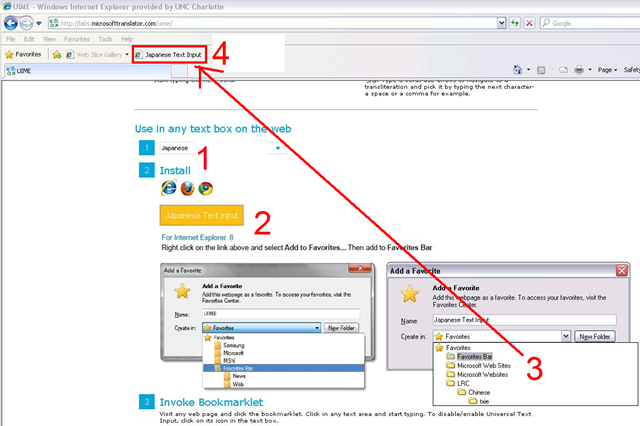
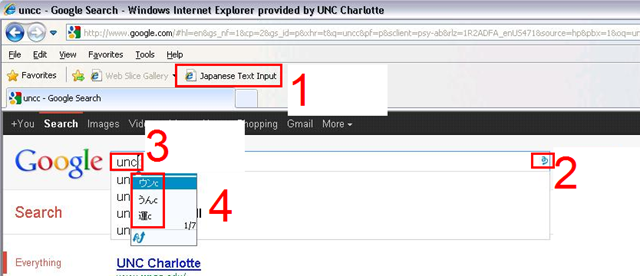
Using the UIME, you can “type any language with any keyboard on any web page, using only the Roman characters present on every keyboard.”

And you can install your favorite input language in your web browser, like so:
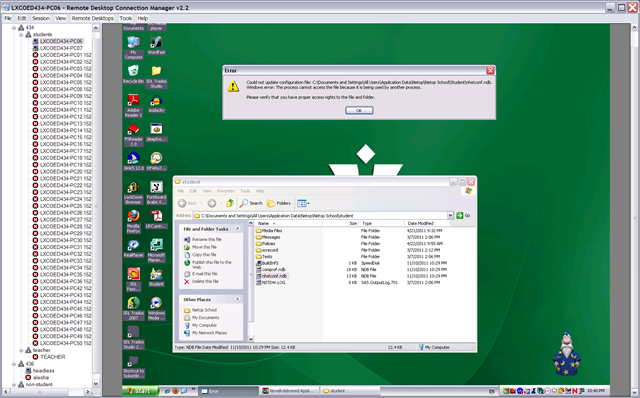
Netop: Nhstconf.ndb update/locking error

Implementing a Deepfreeze upgrade via Symantec-Ghost file operations instead of
• To upgrade from novell to AD I need to implement a deepfreeze maintenance thaw window, to allow updating of the domain machine password on the normally frozen client.
• If you have no other than built-in/FOSS means, you can probably achieve this with RunOnce, AutoAdminLogon, AutoAdminLogonCount, and reading out the client @computername DefaultDomainName with AutoIt. I rather try using Ghost:
• Put files on headless to be able to ghostcast them without access to fileshares
• ghosttask: df6 boot thawed (I need to unfreeze, w/o deepfreeze clients connected to deepfreeze server)
• ghosttask: df6 uninstall:
o ghostcast transfer deepfreeze 7 and 6 installer to c:\
o C:\df6wks.exe /uninstall
o Reboot
• Ghosttask: df7 install
o ghostcast transfer deepfreeze installer to c:\
o C:\dfwks7726.exe /install\
o reboot
o Should be safe to have the installer lie around: While Deepfreeze 6 uninstall does not require a password, it will be history; also, to permanently uninstall, you first need to unfreeze, which requires a password
• ghosttask: df7: boot thawed : Dfc.exe [installs into path] pwd /bootthawed
• ghosttask: winsockreset
o netsh winsock reset or cmd /c netsh winsock reset
• ghosttask:
o ghostcast transfer schliessnicht.exe into C:\Documents and Settings\All Users\Start Menu\Programs\Startup to keep Sanako alive for oral exams (permanently, this should be enabled using this TBA:extension method to do advanced remote control of Sanako study1200 student clients; where is the delete option? can only think of overwriting with an empty file of the same file name)
• ghosttask: df7: boot frozen: Dfc.exe [installs into path] pwd /bootfrozen
• as long as I do not make changes to the default user and to user settings (like what app rm is associated with), I do not need to reimage – BUT: to run acrobat, flash, windows updates, without reimaging, instead of task, I would need to automate gui interaction after autoadminlogon as labadmn, which means
o ghosttask: ghostcast transfer 1 autoit that rewrites registry and reboots to autoadminlogon
o then startup autoit to automate gui interaction with nal?
How LRC assistants can print LRC jobs from the reception desk
- If you have (ONLY! printing is tracked) work-related jobs to print from the reception desk, please use this method:
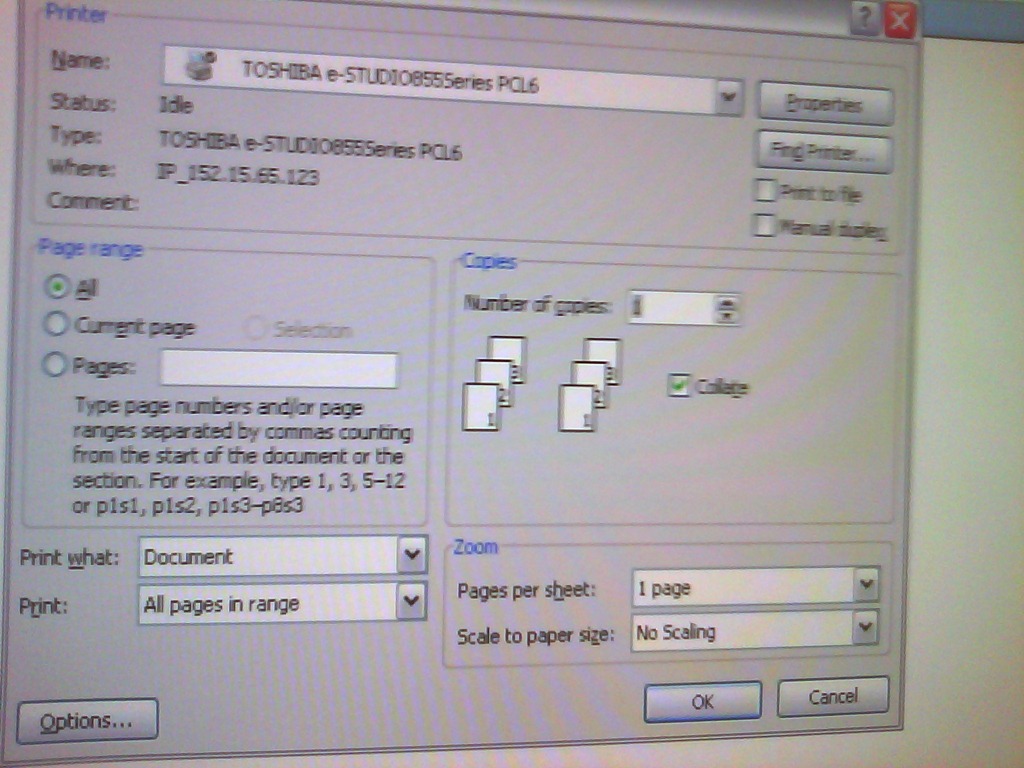
- Choose “print” as normal and then this Toshiba printer driver ONCE I HAVE IT INSTALLED:

- the printer driver will ask you for a code; the code in the LRC Moodle announcement board sticky post, above the threads:
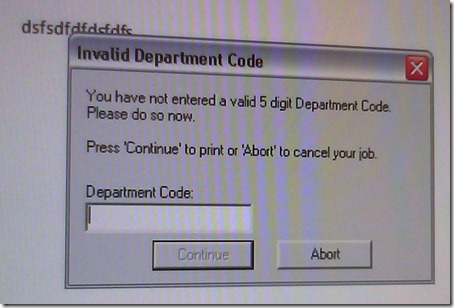
- You can pick up the print outs in the mailroom behind the LCS department’s main office.

How a teacher creates and grades a Moodle streaming video assignment.
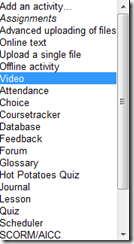
- Click button: “Turn editing on”, from the “add an activity dropdown, choose: “video”, like so:
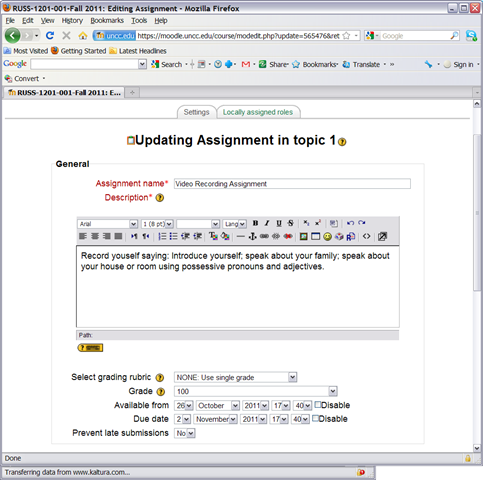
- Edit your assignment, like so:

- using the following options (or else expect problems)
- Due date: not DISABLED (is the default)
- Prevent late submissions: YES (is not the default)
- Allow resubmitting: NO (is the default)
- using the following options (or else expect problems)
- after you post your assignment and your students took it, like so,
- and if you turned notifications (not recommended; rather grade the assignment well after the deadline, or else expect problems) on (if you get already enough email, remember you can turn notifications off, rather send a deadline to the assignments which the students can see in their calendar, and until they get used to it, tell them there will be more video assignments, best: make it a routine and leave 2 for extra credit could be enough to get everybody to catch), you will get an email like this:

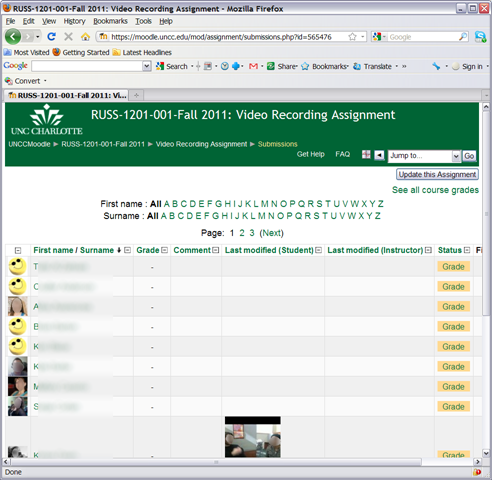
- where you click either on the link (1) to go to the assignment, then click through to the submissions (3)

- or on (2) to go directly to the grade book:

- where you are best advised to click on the button: “grade” to view the video submission, , or else you might run into this bug.
- In the grading window,
 play the video, add helpful comments, if any, add final Grade and click “save and next” (but click “next” if no video submitted yet and you grade before the submission deadline. Better: do not grade before the submission deadline).
 - If video seems unwilling to play (frozen frame), drag the play cursor forward on the timeline underneath the video.
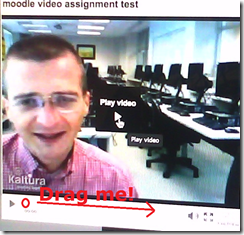 If this does not unfreeze the video, let the timeline run to the end (both workarounds have helped with Kaltura issues we encountered here).





How to access your HTML code in Joomla
- Could have an easier icon in the WYSIWYG editor:




Questions? Read the About. Or just ask me a quick Our Databases: Resources with calendars -- Language learning material Moodle Sites, multimedia files -- films


FAQs for LRC student staff or for students or for teachers. To search our FAQs, in the browser addressbar, add after "https://plagwitz.wordpress.com/feed/?tag=faqs+/" "+TAG1" (from tag cloud below) OR "https://plagwitz.wordpress.com/feed/tag=faqs
&category_name=" "CAT1" (from category hierarchy below). OR search both categories and tags, and multiple TAGs/CATs (connect with "," for OR-search, with "+" for AND-search), like so: https://plagwitz.wordpress.com/feed/?tag=TAG1+TAG2+...TAGn&category_name=CAT1
+CAT2+...CATn"
Other ways to find help
If you cannot find it here, look there: 5,500 Language-Learning Links and Programs for learning or teaching 150 languages
Shortcuts:Our Lists, Our Maps, LRC Staff Moodle Site,LRC Project Moodle Site, 49erexpress, UNCC Moodle, Student Recordings: s:claslcslrcsanakostudent
Learning usage samples: Sanako oral exam, Kaltura webcam presentation, Dictation with speech recognition, Sanako written exam, Chinese and Japanese interactive stroke-order practice
Test the Sanako Installer, Webbrowser Popup Konfigurator for XP, or Windows7, faster LRC TeacherPC Log-in Let MS facilitate diacritics writing by installing for you US-International keyboard layout
This is my personal blog (Google+). The views expressed on these pages are mine alone and not those of my employer. The information in this weblog is provided “AS IS” with no warranties, and confers no rights.
 Thomas' Work Space