Archive
Saville Interpreting Suite layout diagram
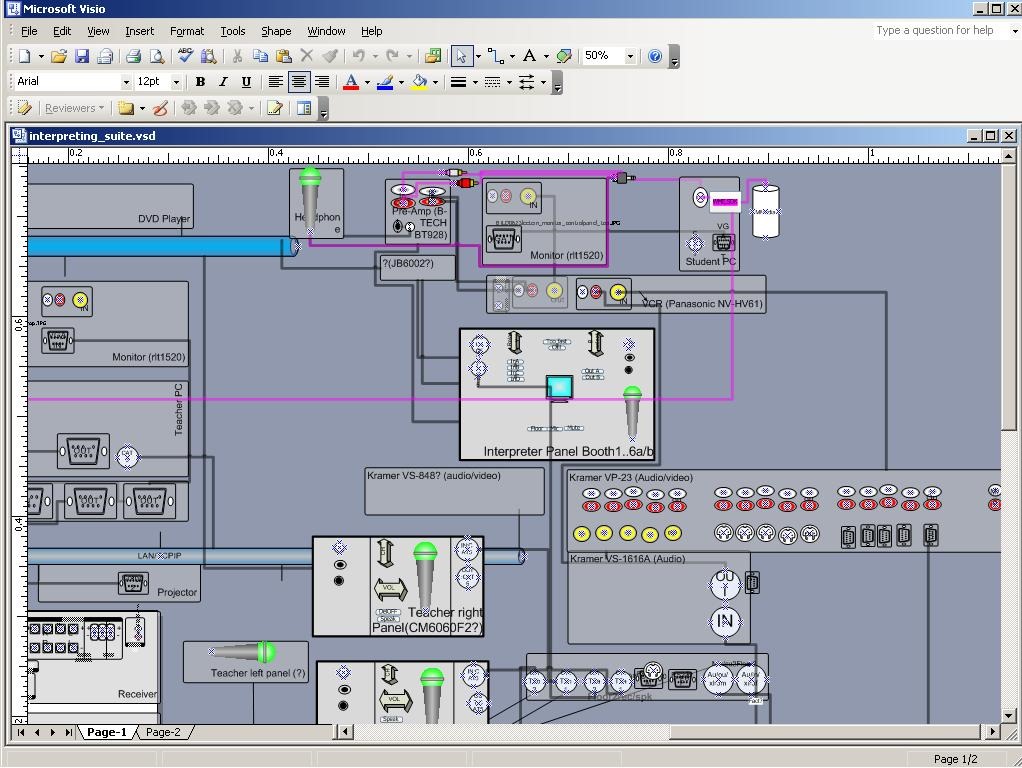
Which I had to derive from photos:
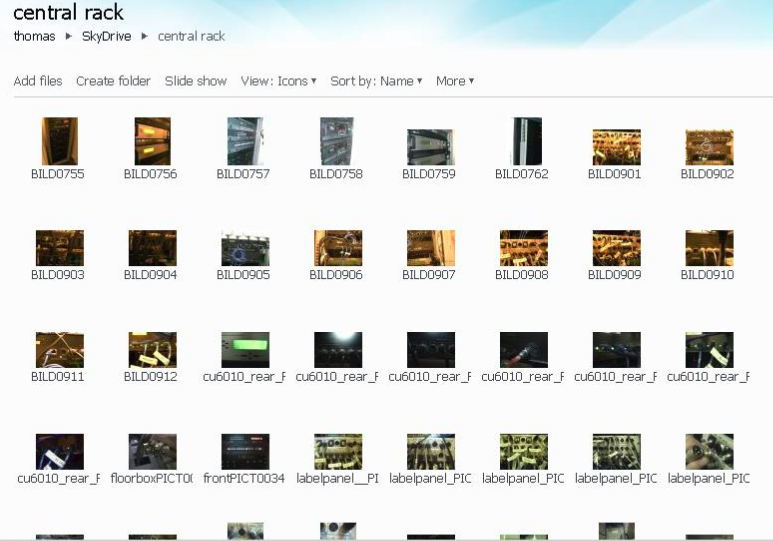
How to work with screenshots in Windows XP or MAC OS X
On your keyboard, press key “Print Screen” to put a picture of the entire screen into the clipboard (for the active window, hold the ALT-key while pressing “Print Screen”).
You can paste this clipboard in any windows application, for example MS-Word or MS-Paint.
In order to use the built-in windows picture editor, click “Start”, click “Run”, type “mspaint” (w/o inverted commas).
In ms-paint, you can edit the picture, using a variety of tools in a menu on the left.
E.g. click on the eraser button to activate this tool, then use the mouse pointer to erase sensitive parts of the picture.

Or select the selection tool and with the mouse pointer, draw a selection frame inside the picture. Then you cut the selection to the clipboard and paste it to a new picture.
Finally, save the result (normally as JPEG, since this results in much smaller file size).

Here is a screencast that shows the entire screenshot cycle.
Using a MAC?
|
Objective |
MAC OS X |
Capture entire screen and copy to the clipboard |
Command+Control+Shift+3 |
Capture a window and copy to the clipboard |
Command+Control+Shift+4 then Space bar, click on the target |
Shared Calendar for Interpreting Suite Bookings on Windows Live: Frequently asked questions
-
Problem: How do I return to “Windows live”?
-
Solution: AFTER you followed the “accept” button in the invitation email, you can return to the calendar by simply going to http://calendar.live.com. Or for easy access to other windows live services like groups, go through http://home.live.com and the top menu “more”/ “calendar”.
-
-
Problem: I seem to have lost access to the calendar?
-
Solution: if you go to http://login.live.com, make sure you are logged in with the windows live account that you gave us for calendar access (if you are logged in under a different name, log out from that account first) . Then go to http://calendar.live.com: you should have access now.
-
-
Problem: My calendar time seems off?
-
Solution: adjust your time zone: after going to http://calendar.live.com, in the upper right hand side, click on options / more options / time zone: change this to “Greenwich mean time [….] LONDON” (do NOT choose GMT UNIVERSAL time”, this has no daylight savings time adjustment!). Then click “save”at the bottom Please let me know of any other issues (please provide OS and browser version and error message).
-
-
Problem: Other users cannot see my calendar appointments.
-
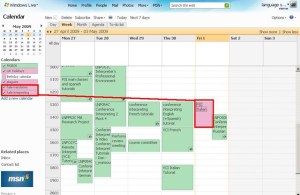
Solution: Make sure you added them to the right calendar, called “MGB-36” (an option when you add an appointment). There are now several calendars for other purposes, but booking of the suite is done in “MGB-36”. You can see something went wrong if your appointment stands out in a different colour (see legend), like here:
-
-
Problem: I would like to book some space (booths) in the suite, but the entire suite seems already booked – what should I do?
-
Solution: The original calendar instructions mentioned to start a booking with your email address under “what” and qualify under “where” if you require only parts of the interpreting suite for your class. If only the latter has been omitted, you can still email the colleague to inquire. If the former has been omitted also, we will have to try tracking down which the information which will take time.
-
-
Problem: There is a (recurring) event which I can not delete (I get the error: “there’s a problem connecting to windows live calendar”).
-
Solution: The error message is misleading. This seems a bug in the software. You can try to work around it like this
: Move one occurrence of the event (drag it with your mouse to a different time). This breaks the recurrence. Now left-click on the moved event to edit it. From the popup, choose to “Edit every occurrence” instead of “Edit this one occurrence”. This should get you to the “Event details” page, where you can delete the entire event from the top menu.
-

How to use language services digital videos
- Language Services produced digital videos
- Are MPEG4-compressed to a size and format and stored in a location to be the most versatile answer to your playing needs
- Play over the network shares not only in the interpreting suite (mgb-36) or the moorgate library language centre (mg4-11)
- But from any computer on the campus network, student or staff computer
- Provided access to network shares, see network shares.
- attempt to ensure widest possible compatibility
- by using widely-used audio and video codecs (Windows Media Video 9, Windows Media Audio3, Windows Media Video Screen , MP3) which MS also supports on the Mac-Platform (free download of wmv/wma support for the Mac OS X version 10.3.9 or later, QuickTime version 7.0 or later) from http://www.microsoft.com/windows/windowsmedia/player/wmcomponents.mspx ).
- Have been tested to work in the HALE interpreting suite (mgb-36) and the moorgate library language centre (mg4-11)
- For playing videos on your PC, staff can get necessary upgrades from x4444.
- For playing videos on your home PC, students can contact the student helpdesk.
- Are MPEG4-compressed to a size and format and stored in a location to be the most versatile answer to your playing needs
Live a little: Get standard software
You make not only your own, but everybody’s life easier if you upgrade to standardized software. The University is now on Win XP Service-Pack 2, with Office 2003 and Internet Explorer 7 and Firefox 3. At work, call x4444 to get upgraded. At home, you can download Internet Explorer 7 or Firefox 3 (also available for MAC OS-X) for free. Plus, as University employee, you can get other Microsoft software “for cheap”, as I explained here.
Staying up-to-date: My home tabs in Internet Explorer 7

By aggregating relevant information, Internet-Explorer-7 Home-page-tabs help me stay up to date in my work areas.
It automatically loads my Windows-live home-page (seems more of a dashboard than merely subscribing to the RSS in my feed reader) as well as the Windows-live groups and resource scheduling calendar which I created for my work departments.
I am still exploring how to best manage my public and private personae, assuming that “filtering is your friend”, and everybody else’s at work.
Network shares: What you need to know
|
NetworkPath |
Mapped as for |
Staff can |
Student can |
Language services use | |||
|
Staff |
Student |
read |
write |
read |
write |
| |
|
\\lgu.ac.uk\lgu$\londonmet departments |
J: |
|
yes |
yes |
no |
no |
\Humanities arts and languages (HAL)\Language_services: documentation for internal use |
|
\\stushare_server\StuShare |
K: |
S: |
|
|
yes |
|
\Humanities, Arts and Languages\Language_Services: public documentation ( including services manual) |
|
\\lgu.ac.uk\lgu$\misres$ |
M: |
|
|
|
|
|
|
|
\\lgu.ac.uk\lgu$\apps07 |
N: |
N: |
|
|
|
|
|
|
\\lgu.ac.uk\lgu$\multimedia student\mmedia\mmedia1 |
O: if requested |
O: if requested |
some(if not, request access) |
some |
Yes |
no |
\Language_services: (large) multimedia files (including teaching materials video clips) |
|
\\lgu.ac.uk\lgu$\multimedia student\mmedia\mmedia2 |
|
|
some |
some |
no |
no |
|
|
\\datacty01\staff$ |
S: |
|
yes |
no: todo |
|
|
TBA |
|
\\venus\homes |
X: |
|
|
|
|
|
|
|
\\misres01\eureka |
Y: |
|
yes |
no |
|
|
|
If mapping failed, from desktop, run  , then click button
Help with playing videos
- Some videos require special codecs to display properly/ at all.
- Here is info on the H.264 codec.
- Often, it is best to try, instead of Windows Media Player (which may be the default player that opens when you (double)click on a video, but not be able to display it without manual configuration),
- the free VLC player which you can download here, if you must, and install, if you are permitted. Then right-click video, “open with”, “VLC media player”, like here:




Questions? Read the About. Or just ask me a quick Our Databases: Resources with calendars -- Language learning material Moodle Sites, multimedia files -- films


FAQs for LRC student staff or for students or for teachers. To search our FAQs, in the browser addressbar, add after "https://plagwitz.wordpress.com/feed/?tag=faqs+/" "+TAG1" (from tag cloud below) OR "https://plagwitz.wordpress.com/feed/tag=faqs
&category_name=" "CAT1" (from category hierarchy below). OR search both categories and tags, and multiple TAGs/CATs (connect with "," for OR-search, with "+" for AND-search), like so: https://plagwitz.wordpress.com/feed/?tag=TAG1+TAG2+...TAGn&category_name=CAT1
+CAT2+...CATn"
Other ways to find help
If you cannot find it here, look there: 5,500 Language-Learning Links and Programs for learning or teaching 150 languages
Shortcuts:Our Lists, Our Maps, LRC Staff Moodle Site,LRC Project Moodle Site, 49erexpress, UNCC Moodle, Student Recordings: s:claslcslrcsanakostudent
Learning usage samples: Sanako oral exam, Kaltura webcam presentation, Dictation with speech recognition, Sanako written exam, Chinese and Japanese interactive stroke-order practice
Test the Sanako Installer, Webbrowser Popup Konfigurator for XP, or Windows7, faster LRC TeacherPC Log-in Let MS facilitate diacritics writing by installing for you US-International keyboard layout
This is my personal blog (Google+). The views expressed on these pages are mine alone and not those of my employer. The information in this weblog is provided “AS IS” with no warranties, and confers no rights.
 Thomas' Work Space