Archive
Archive for the ‘Study-program-is-any’ Category
How a teacher creates audio recordings for use with Sanako Student Voice Insert mode
2012/01/24
Leave a comment
- One of the Sanako Student player’s useful features geared toward language learning activities, is that it can save the teacher the time and effort for inserting pauses into their audio recordings, so that students can record responses into them.
- Meaning the teacher can just press the red speak button
 and record through the entire file in one sitting.
 - The teacher can still help students finding their way around the file, especially where to insert their own audio recording responses, by adding aural cues.
- This can be done in minimal time: I once saw a teacher use a bicycle bell – and why not, if it saves time.
- A spoken instruction “Respond”/”Answer in 10 seconds” is not more difficult to spot (unless only the voice graph is being browsed) and might be even better.
- If you have spare time:
- You can post-edit the file with audacity, generating and inserting sinus tones.
- You can use the Sanako player to insert bookmarks instead of cues.
- Meaning the teacher can just press the red speak button
- As long as students have been instructed to how to use voice insert recording mode with the Sanako student recorder.
- This is for self access of students to teacher recorded files – be it during class or homework.
- If you want to record students under exam conditions, a similar insert recording feature is available within the activity: Model imitation, but not with a pre-recorded file, only when the live teacher is the program source students listen to for cues.

Categories: Arabic, audience-is-teachers, documentation, English, Farsi, French, German, Greek (modern), Hindi, Italian, Japanese, Korean, Listening, Mandarin, Polish, Portuguese, presenter-computer, Russian, service-is-learning-materials-creation, software, Spanish, Speaking, Student-Computers, Swahili, Yoruba
audio, recording, sanako-study-1200, student.exe, voice-insert
Supporting Swahili – A running log
2012/01/18
Leave a comment
- Learned today that we will begin offering Swahili in the Fall. Here is the place to plan how the LRC can better support it.
- For starters, I am thinking of adding to the list of our custom configured languages for
- Windows 7
- Office 2010
- Learning materials?
- Existing?
- FSI, naturally.
- There should be more need for producing learning materials in this LCTL.
- automated?
- Note that the Stuttgart TreeTagger has a Swahili parameter file (gzip compressed, Latin1). The Swahili parameter file was trained on the Helsinki Corpus of Swahili (HCS) and uses a simplified version of the HCS tagset. The HCS was created by Prof. Arvi Hurskainen by means of his Swahili Language Manager (SALAMA) which uses Lingsoft’s TWOL compiler for constructing morphological analysers and Connexor’s CG2 parser for syntactic disambiguation.
- automated?
- Existing?
- Keep an eye on the Swahili Category.
How a student reviews a Moodle MS-Word file upload assignment for writing
2012/01/18
1 comment
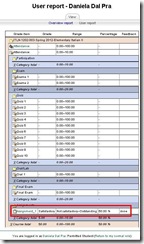
- The student can see the submitted grade in her user report:
- She can view the assignment:

- from where she can open the corrected MS-word file
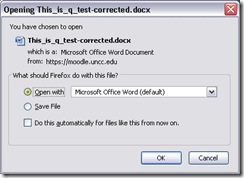
- for more detailed corrective feedback:


Categories: Arabic, audience-is-students, documentation, e-languages, English, Farsi, French, German, Italian, Japanese, Korean, Latin, Mandarin, Polish, Portuguese, Russian, Spanish, Writing, Yoruba
moodle, MS-Word, track-changes
How a teacher grades a Moodle MS-Word file upload assignment for writing
2012/01/18
1 comment
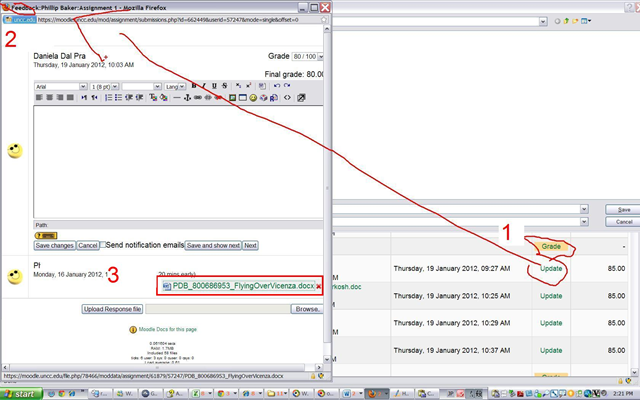
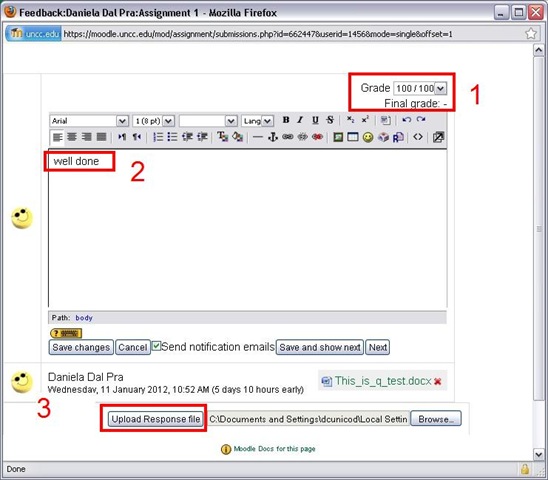
- Where students have submitted MS-Word files in the Gradebook, click (1) button “Grade”:
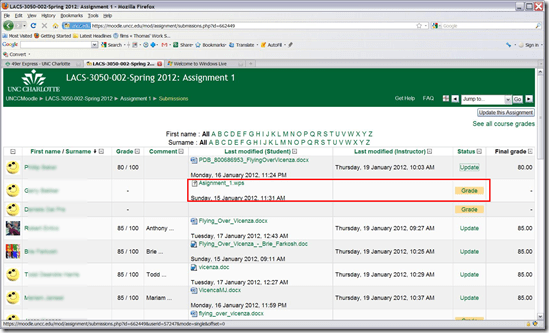
- This opens the (2) Feedback window, with the (3) student MS-Word submission:

- Download the student MS-Word submission by clicking on the link:

- open with MS-Word:

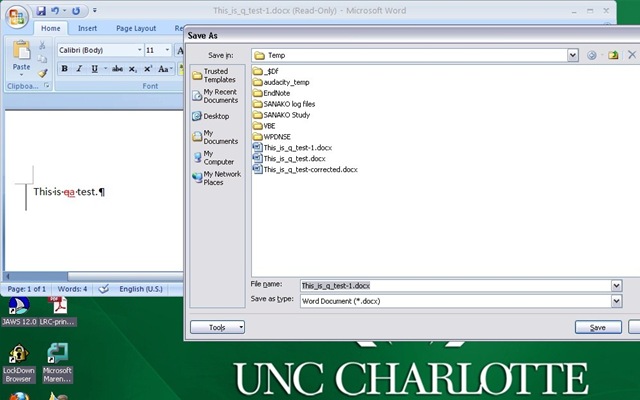
- Correct with track changes turned on (CTRL+SHIFT+E), and save:
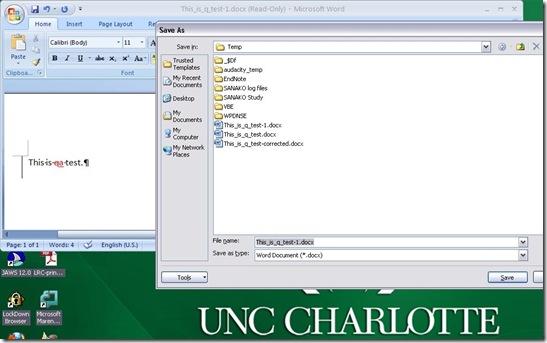
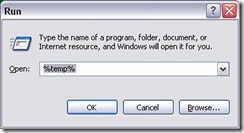
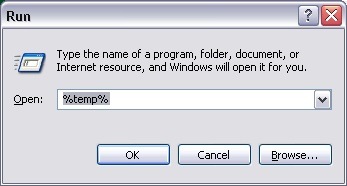
- YOU WILL SAVE under a different filename (suggest adding “_corrected”at the end) INTO YOUR DEFAULT TEMP DIRECTORY, here is a shortcut to get to it: key-combination WIN+R, %temp%, “ “OK”:
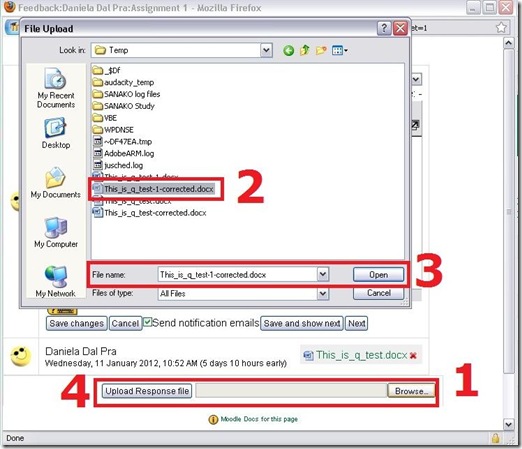
- Back in Moodle, select your response file from the temporary directory:
- Provide (1) Grade and (2) comment, then (3) upload the file:

- Done, you can move to “ Next”

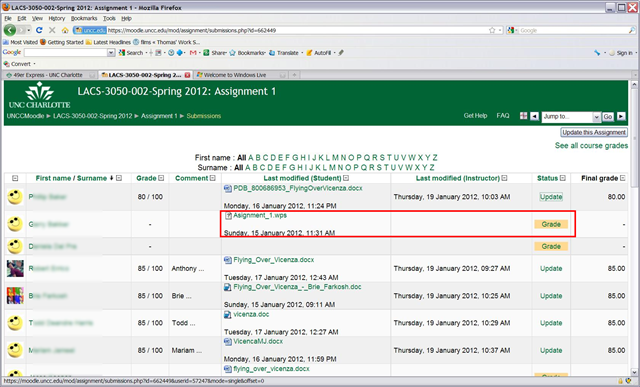
- Which is where you are here: now repeat as above (provided student has submitted his file already)

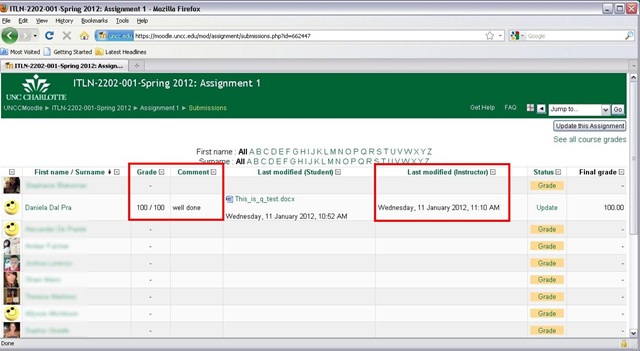
- Or view the gradebook, where your results are visible,

- including to the student.
- Instead of using the Moodle Response File feature, can I just make my corrections in MS-Word and copy/paste the resulting track changes markup into the Moodle Feedback Window Comment textbox? I would not try this. This way, you are not giving the students the full functionality of the track changes feature in MS-Word for them to continue working with the file. Moreover, whether the basic coloring of track MS-Word’s changes get preserved, will likely depend on how the web browser that you (and possibly the student later) uses supports the rich edit control of the comment textbox. If you just want to preserve the colors, I would instead try and Save as PDf from MS-Word 2007 and up, and send the PDF as a Response File.





Categories: all-languages, audience-is-teachers, lms, Writing
moodle, MS-Word, track-changes
Sanako comparative recording exercises using Moodle
2012/01/13
Leave a comment
- Comparative recordings are one of the best-established practices in SLA with technology. We can implement them here using:
- The Sanako Study 1200 language lab software installed in LRCRoomCoed434 facilitates comparative recordings by students, based on a teacher-provided model audio, with its student dual track recorder software.
- Moodle’s Simple file upload assignment aids in managing the workflow,
- from delivering the audio file with the model recording to the student
- to organizing, assessing and grading the student input.
- For the teacher
- to create such an exercise, she
- creates an audio recording that serves as a model for the student pronunciation – a special application of our Audacity recording introduction. It is advised, however, to insert clear cues for the student to start his repetition.
- creates a Moodle’s Simple file upload assignment to which she attaches the audio recording
- continue with How a teacher grades a Moodle simple file upload assignment
- to create such an exercise, she
-
For the students to take such an exercise:
- How a student takes a Moodle Simple file upload assignment
- TBA: Sanako Student Recorder
Categories: Absolute-Beginner, Arabic, audience-is-teachers, Beginner, documentation, e-languages, English, Farsi, French, German, Greek (modern), Intermediate, Italian, Japanese, Korean, Mandarin, Polish, Portuguese, Russian, software, Spanish, Speaking, Student-Computers, Yoruba
moodle, sanako-study-1200, student.exe
How a student takes a Moodle MS-Word file upload assignment for writing
2012/01/12
1 comment
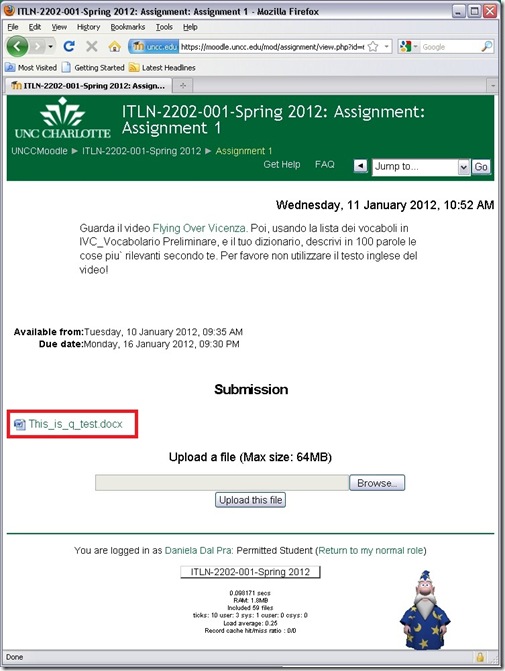
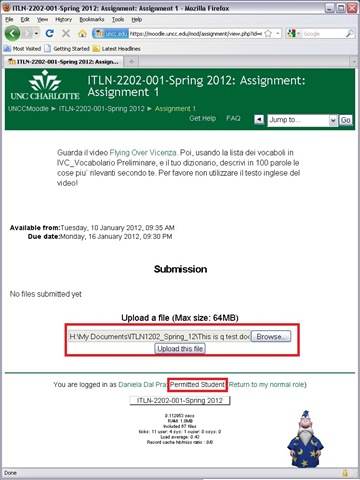
- Find your file upload writing assignment and click on it:

- Read the assignment text, write an MS-Word file (format not required, but your teacher will likely send you MS-Word back if she uses track changes) and attach it, like so:

- If this shows, you have finished the assignment:
- Wait for notification, then go TBA:review your teacher’s comments.


Categories: all-languages, audience-is-students, documentation, e-learning, lms, Uncategorized, Writing
moodle, MS-Word, track-changes
Deutschland Radio
2012/01/12
Leave a comment
On popular request: Deutschland Radio still does live streaming, but their on demand archive is also very good. Unlike Deutsche Welle which has discontinued live streaming geared neither towards expats, nor language learners though.
Categories: audience-is-students, audience-is-teachers, e-languages, German, Media
dradio, links, radio
Treffpunkt Deutsch Companion Website with Online Exercises
2012/01/11
Leave a comment
- This first-year German textbook comes with a Companion Website with free online exercises, organized by chapter, on the publisher’s website (different from the Quia.com –based workbook and lab manual exercises).
- From the instructor guide: “The Companion Website is a robust online resource designed to give students a chance to practice and further explore the vocabulary, structures, and cultural themes introduced in the text. For each chapter, students will find self-grading practice exercises on vocabulary and grammar topics as well as Web-based reading and writing activities. Web links to carefully selected sites in Germany, Austria, Switzerland, Luxemburg, Liechtenstein, and South Tyrol (Italy), accompanied by interesting activities, provide additional interaction with the cultures of these German-speaking areas of Europe. Also available on the Website are the audio components of the Student Text and the SAM, as well as an interactive vocabulary flashcards tool. ”
- These exercises include vocabulary practice, even flash cards.
- The auto-correction feature provides:
- some useful feedback for further study,

- summary grades

- and an email to teacher function that should facilitate Syllabus integration of this useful resource:

- some useful feedback for further study,




Questions? Read the About. Or just ask me a quick Our Databases: Resources with calendars -- Language learning material Moodle Sites, multimedia files -- films


FAQs for LRC student staff or for students or for teachers. To search our FAQs, in the browser addressbar, add after "https://plagwitz.wordpress.com/feed/?tag=faqs+/" "+TAG1" (from tag cloud below) OR "https://plagwitz.wordpress.com/feed/tag=faqs
&category_name=" "CAT1" (from category hierarchy below). OR search both categories and tags, and multiple TAGs/CATs (connect with "," for OR-search, with "+" for AND-search), like so: https://plagwitz.wordpress.com/feed/?tag=TAG1+TAG2+...TAGn&category_name=CAT1
+CAT2+...CATn"
Other ways to find help
If you cannot find it here, look there: 5,500 Language-Learning Links and Programs for learning or teaching 150 languages
Shortcuts:Our Lists, Our Maps, LRC Staff Moodle Site,LRC Project Moodle Site, 49erexpress, UNCC Moodle, Student Recordings: s:claslcslrcsanakostudent
Learning usage samples: Sanako oral exam, Kaltura webcam presentation, Dictation with speech recognition, Sanako written exam, Chinese and Japanese interactive stroke-order practice
Test the Sanako Installer, Webbrowser Popup Konfigurator for XP, or Windows7, faster LRC TeacherPC Log-in Let MS facilitate diacritics writing by installing for you US-International keyboard layout
This is my personal blog (Google+). The views expressed on these pages are mine alone and not those of my employer. The information in this weblog is provided “AS IS” with no warranties, and confers no rights.

