Archive
How to conduct an easy oral exam with Sanako Study-1200 (Model imitation/Question Response) – Part I: The exam administrator’s perspective
This 7-minute screencast explains how to operate the Study-1200 software interface to administer an oral exam, using as audio source the teacher, providing cues live:
- 0:00: from selecting the activity and program source,
- 1:50: over start and use of the autoscan screen control feature to monitor both audio and screen of the examined students
- 3:45: to ending the exam and automatic collection of the exam files.
For an implementation during an actual class-wide oral exam, see Part II of the Study-1200 oral exam.
Protected: How to conduct an easy oral exam with Sanako1200 (Model imitation/Question Response) – Part II: Implementation/instruction of examined students
Webswami, a Moodle-compatible language learning platform for self access (homework, asynchronous distance learning)
What about improving language learning through technology during homework activities?
“The greatest strength of WebSwami lies in the seamless support it provides for doing audio/visual-based tutorial activities within an existing course management system, thus allowing anywhere/anytime access for lesson designers, instructors, and students alike. Its student record keeping system, in particular the integration [duplication] of a grade book with direct access to student responses and the support it provides for multimedia response feedback, far surpasses what is available in any other virtual learning environment. Most important, it manages all of this through well established, reliable, web browser and Flash software coupled with ubiquitous, inexpensive web camera hardware.” (review by Jack Burston for CALICO (pay-link, ask me for access); see also also the freely accessible review by İlhan İnçay).
Authoring and managing authored materials is not an easy task, but gives more flexibility than using textbook provided materials. WebSwami promises the possibility of exchanging learning materials through a materials bank.
View a recording of a recent WebSwami Online Demo.
Foreign Language Character Input on Windows XP in the LRC
The LRC offers the following foreign language characters writing support:
| American English | us international | not needed | us-int |
| Arabic | Google;MS;MS-maren;fontboard | maybe later, now osk | demo |
| British English | us international | not needed | us-int |
| Dutch | us international | not needed | us-int |
| Farsi | Google;MS | maybe later, now osk | demo |
| French | us international | not needed | us-int |
| German | us international | not needed | us-int |
| Greek | Google;MS | maybe later, now osk | demo |
| Italian | us international | not needed | us-int |
| Japanese | MS | not needed | |
| Korean | MS | maybe later, now osk | demo |
| Mandarin | MS;pinyinput | not needed | pinyin |
| Portuguese (Brazilian) | us international | not needed | us-int |
| Russian | Google;MS | maybe later, now osk | demo |
| Spanish | us international | not needed | us-int |
The support is best accessed from the “international toolbar”, like so: 
You can also use the windows on-screen keyboard to input non-Western characters on a computer that has not the corresponding keyboard overlay stickers. In the small-group workspaces, which have writing pads, you can also use the MS-Handwriting IME for East-Asian languages.
How to: Send email with non-western (e.g. Japanese) characters in Outlook Web Access (e.g. 2003, e.g. from Safari)
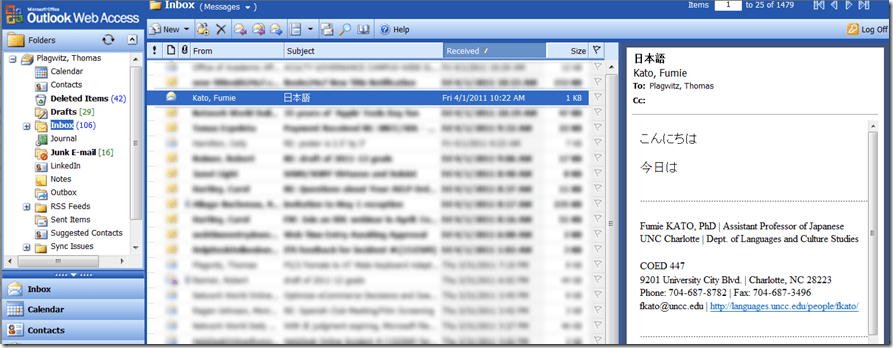
- If your emails with Japanese sent from Safari arrive with unreadable characters (squares or question marks, meaning the recipient’s computer cannot decode how to display the character your computer sent), you may have set your browser to the wrong characterr encoding.
- However, the encoding Unicode (e.g. UTF-8) can handle both western and .
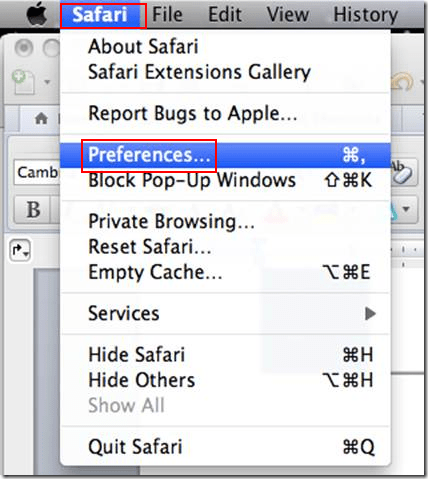
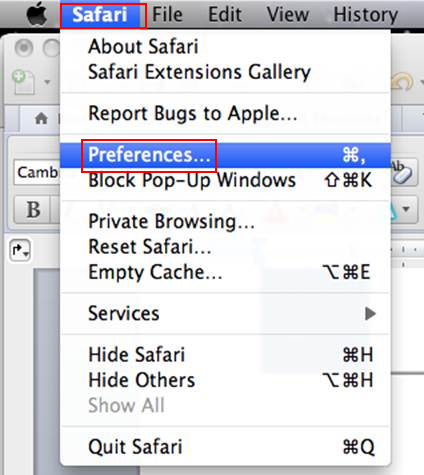
- Simply go to Safari (similarly in other browsers)/ Preferences / Appearances / Default Encoding and change to UTF-8, like so:


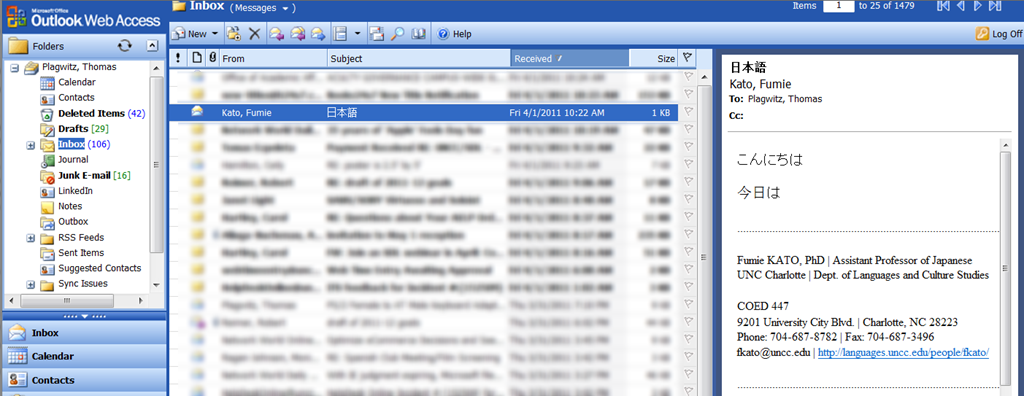
- This has been tested to work already from/to OWA 2003.
- However, for your reference, here a matrix of imminent upgrades of email clients on your computer and the corresponding university server software:


|
When? |
Your office computer |
recommended? |
Any computer (travel, home) |
University server |
|
|
mac |
pc |
|
|||
|
soon |
Outlook 2011 |
Outlook 2010 |
is better than |
Outlook web access 2010 |
Exchange 2010 |
|
recommended? |
is better than |
is better than |
|
is better than |
is better than |
|
now |
Entourage (limited support for Exchange) |
Outlook 2007 |
is better than |
Outlook web access 2003 |
Exchange 2003 |
Calendaring: How students can view the LRC schedules
- As of Fall 2011, this is obsolete. View instead the new and improved procedure.
- Calendars you can subscribe to:
|
Ind.Instr.Spanish |
webcal://calendars.office.microsoft.com/pubcalstorage/6d826ffz2216669/COED_434-Tutoring-Spanish_Calendar.ics |
|
Tutors French |
webcal://calendars.office.microsoft.com/pubcalstorage/6d826ffz2216669/COED_434-Tutoring-French_Calendar(1).ics |
|
Tutors Russian |
webcal://calendars.office.microsoft.com/pubcalstorage/6d826ffz2216669/COED-434-Tutoring-Russian-2_Calendar.ics |
|
Tutors Portuguese |
webcal://calendars.office.microsoft.com/pubcalstorage/m8qcbqfz1289583/COED-434-Tutoring-Portuguese_Calendar.ics |
|
Tutors Japanese |
webcal://calendars.office.microsoft.com/pubcalstorage/m8qcbqfz1289583/COED-434-Tutoring-Japanese_Calendar.ics |
|
Lab Assistants |
webcal://calendars.office.microsoft.com/pubcalstorage/6d826ffz2216669/COED_434-Lab_Assistants_Calendar.ics |
|
Director Free/Busy |
webcal://calendars.office.microsoft.com/pubcalstorage/m8qcbqfz1289583/Plagwitz_Thomas_Calendar.ics |
- How?
“You can subscribe to published calendars if you use a program that supports the WebCal protocol, such as Outlook, Windows Live Calendar, Google Calendar, or Apple iCal” (MS-Office online Help), as well as Yahoo Calendar.
Is Windows Live Calendar available to everyone with a Windows Live ID?
Yes, the Windows Live Calendar is available to all Windows Live ID accounts. To learn more about setting up and maintaining your calendar, open Windows Live Calendar Help. (Microsoft Live Services for Moodle User FAQ)
Windows Live ID = UNCC Live@edu ID
Using the “webcal://”-links (to be posted also on the LRC website), students will be able to view live LRC schedules from live@edu (and many other applications that support the iCalendar format, like listed on
http://blogs.office.com/b/microsoft-outlook/archive/2007/08/08/publishing-a-calendar-using-office-online.aspx or here):
-
Application
Publisher
Open Source Applications Foundation
Novell & GNOME
Facebook.com
Google
iCal and iCal Server
Apple Computer
The Kontact Team
IBM
Microsoft
Microsoft
Microsoft
Microsoft
Sun
Zimbra
-
How to set this up, taken from the Windows Live help:
-
Sign into Windows live (or later live@edu) with your Windows live (or later live@edu) ID.
-
On the toolbar, go to Calendar.
-
Click Subscribe.
-
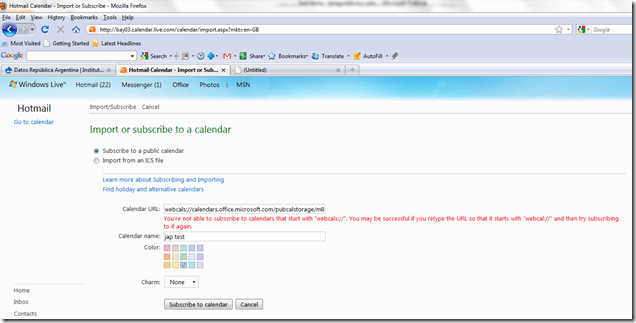
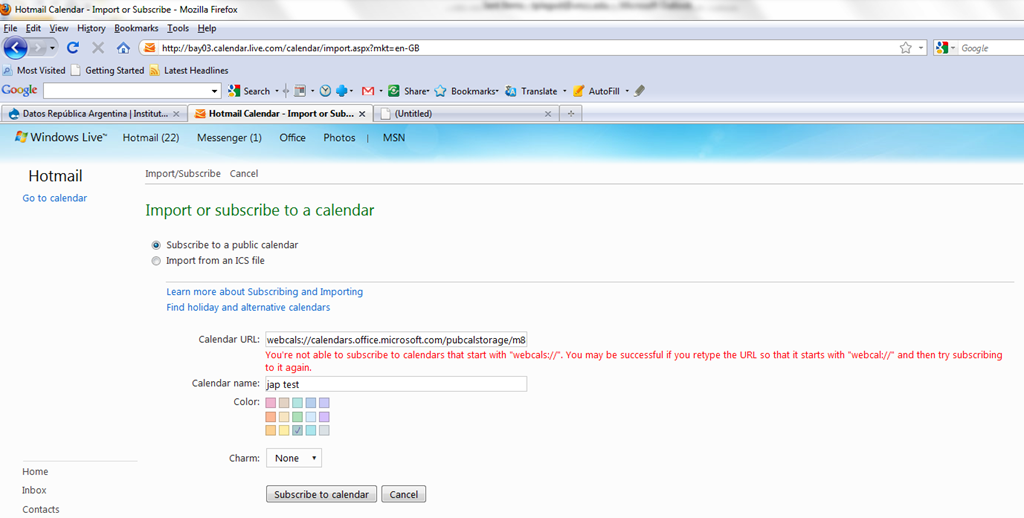
Select Subscribe to a public calendar, and then, in the Calendar URL box, paste the “webcal://” link from the LRC website for the tutoring hours or other LRC schedule that you want to keep an eye on. You begin the link either with “webcal:” or “http:”. Note, however, that trying to subscribe to “webcalS” will result in this error:
-
In the Calendar name box, type a name for the calendar.
-
Next to Color, select a color for the calendar.
-
Click Subscribe to calendar, and then click Done. Result:
-
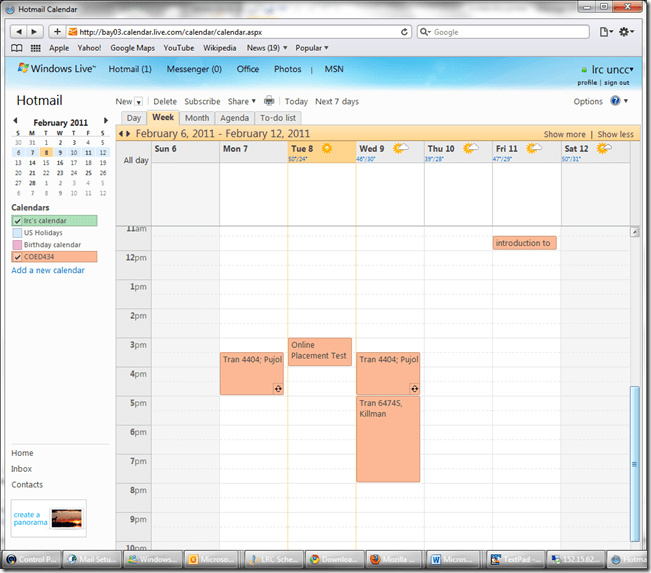
- This calendar will be live, i.e. every subscriber will see any updates the LRC makes (like for late-breaking changes and cancellations of tutoring hours). Note however, that synchronization is not instantaneous. Give it up to 30 minutes, under normal circumstances.

Chinese: Character Input: Stroke order: How to learn
Chinese characters are written in a stroke order (which differs for traditional, simplified, and Kanji). This convention is useful for memorizing characters, but also aids handwriting recognition software, and can be used for looking up Chinese characters.
Some free tools that aid in learning stroke order during SLA:
The tool I remember from supporting my first Chinese program a long time ago in Iowa where also Ted Yao’s Integrated Chinese (Cheng & Tsui) was used, is the Bihua project which lets you search by number of strokes, and displays stroke order animation in the results by means of QuickTime videos. Note that links to the corresponding chapters of Integrated Chinese are included in the results:
`
http://www.csulb.edu/~txie/azi/page1.htm has animated GIFs to teach the stroke order.
http://lost-theory.org/ocrat/chargif/ is also based on animated gif, but the animation is a bit easier to follow since the current stroke gets highlighted, and you can search for characters.
There is some more animated gif material as overview in wikimedia: http://commons.wikimedia.org/wiki/Category:CJK_stroke_order
If you teach simplified, this Taiwanese education ministry website will be of no use to you: http://stroke-order.learningweb.moe.edu.tw/home.do , but maybe the Hong Kong version for primary education is of use for your students, esp since it is partially in bilingual English: http://www.edbchinese.hk/lexlist_en/index.htm
Practice memorization with Google pinyin IME which allows you to look up characters by strokes: “This allows you to input Chinese characters not only by using pinyin but also by using strokes if you do not know how a character is pronounced. First, press “u” to enter the stroke mode. Then use “h” for heng, the horizontal stroke, “s” for shu, the vertical stroke, “p” for pie, the left falling stroke, “n” for na, right falling stroke, “z” for zhe, the turning stroke, and “d” for dian, the dot, to input a Chinese character according to its stroke order. Among these strokes, “n” and “d” are the interchangeable. For example, if you want to input 火, then you press “u” first, and then press “dppn” or “ nppn.” A character often appears before you finish keying in all the strokes. For examples, 煅 appears when you key in “udppdps” without the need to input all the strokes.”
Some non-free tools include the Chinese Character Stroke Order Animator and eStroke (singe license expensive, price comes down to about $35 per seat for a 30 seat site license which may be a good size for a language center)
Animated Gifs and other video-based teaching tools may be a bit to non-interactive, and also too fast (but could be slowed down). Even better would be a pen- or touch-enabled software that allows the learner to practice the stroke, following guiding lines. Unfortunately, pocketChinese which would fit the bill ((on Java enabled phones) seems to not have been updated in almost 3 years.
Swift-TX subtitling with Windows XP Japanese IME
In order to get Swift to work with Japanese , you have to set the font in the swift preferences:

This computer worked –

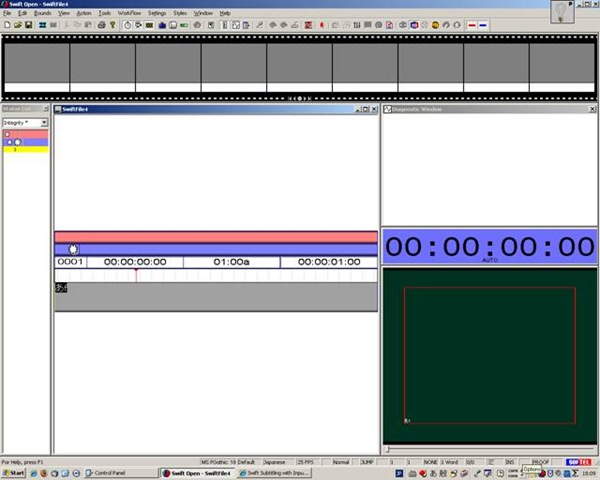
meaning: IME showing up here.

”Input mode” must be set to Hiragana, not “direct input” which (if I recall correctly think) we did in XP/ control panel/ “regional and language settings”.

We could replicate getting it to work on other XP computers:
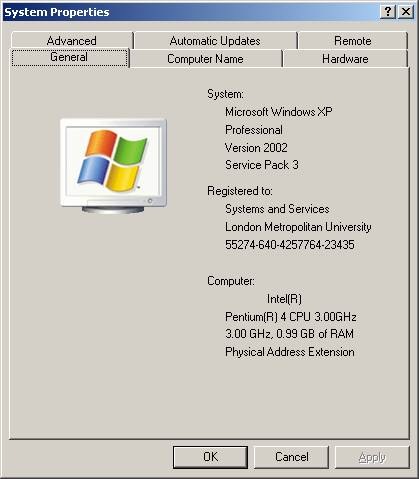
by resetting of the “input mode” from “direct input” to “hiragana”,

AND after a restart of switch and opening a new swift file:


Next problem:
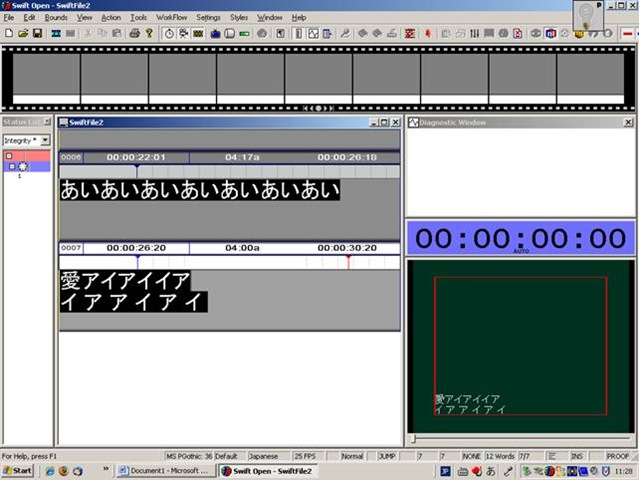
when you use ctrl up/down arrow , spurious spaces appear between letters.


Questions? Read the About. Or just ask me a quick Our Databases: Resources with calendars -- Language learning material Moodle Sites, multimedia files -- films


FAQs for LRC student staff or for students or for teachers. To search our FAQs, in the browser addressbar, add after "https://plagwitz.wordpress.com/feed/?tag=faqs+/" "+TAG1" (from tag cloud below) OR "https://plagwitz.wordpress.com/feed/tag=faqs
&category_name=" "CAT1" (from category hierarchy below). OR search both categories and tags, and multiple TAGs/CATs (connect with "," for OR-search, with "+" for AND-search), like so: https://plagwitz.wordpress.com/feed/?tag=TAG1+TAG2+...TAGn&category_name=CAT1
+CAT2+...CATn"
Other ways to find help
If you cannot find it here, look there: 5,500 Language-Learning Links and Programs for learning or teaching 150 languages
Shortcuts:Our Lists, Our Maps, LRC Staff Moodle Site,LRC Project Moodle Site, 49erexpress, UNCC Moodle, Student Recordings: s:claslcslrcsanakostudent
Learning usage samples: Sanako oral exam, Kaltura webcam presentation, Dictation with speech recognition, Sanako written exam, Chinese and Japanese interactive stroke-order practice
Test the Sanako Installer, Webbrowser Popup Konfigurator for XP, or Windows7, faster LRC TeacherPC Log-in Let MS facilitate diacritics writing by installing for you US-International keyboard layout
This is my personal blog (Google+). The views expressed on these pages are mine alone and not those of my employer. The information in this weblog is provided “AS IS” with no warranties, and confers no rights.
 Thomas' Work Space