Archive
How to add US International keyboard layout in Windows 8
How things have changed in Windows 8:
![image_thumb[5]](https://thomasplagwitz.com/wp-content/uploads/2013/03/image_thumb5.png "image_thumb[5]")
![image_thumb[6]](https://thomasplagwitz.com/wp-content/uploads/2013/03/image_thumb6.png "image_thumb[6]")
However, if you remember Windows 3.1, plus ça change, plus c’est la même chose.
Example 5: Watch how you can dictate to Windows speech-recognition (e.g. in English) and correct results in MS-Word

- Important: Listen carefully: I am not a native speaker, but have a reasonably low amount of errors, because it enunciate, speak clearly and slowly, and separate the words.
- Consider it part of the exercise that you will have to re-read and re-type some your output – use track changes in MS-Word:
- Make it a game: How good can you get?
- If you get really good at it, make a screencast like this one and include it in your Mahara ePortfolio as authentic evidence of your foreign language proficiency.
- Overall, it’s like how I refer to cycling: Beats walking. Anytime.

A first look at the Google Dictionary extension for Chrome
- We
- have not pre-installed in the LRC (for that the extension would need to be more manageable by the teacher during face-to-face classes, which include exams),
- but can (with some reservations) recommend the Google Dictionary extension (even though it is only available for Chrome). Here is why:
- Google dictionary extension provides an interface to Google define and translate
- that is convenient (as quickly accessed like glosses) for reading activities in many languages (Q: is the privileged word sense displayed here intelligently chosen?)
- while (for some languages more than for others) providing access to additional word senses, usage examples and historical background information
- Interface 1: Tooltip,
- for English with audio

- for other languages without audio (even though audio pronunciation may be available in Google translate for that language):

- convenient access (I have been loving the tooltip interface since Google toolbar days)
- limited, but useful information,
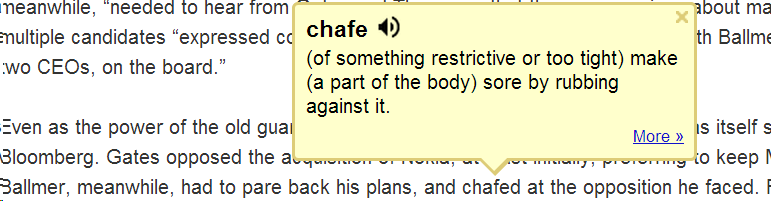
- a word sense – not that this is still not contextually intelligent (Cannot blame them here!) and hence more than one word sense should be offered (here I must blame them: Boo!!): E.g. here “arch” should at show more than the most common word sense:
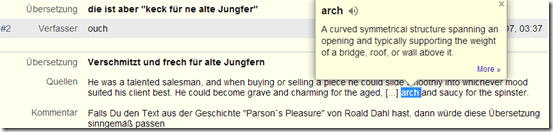
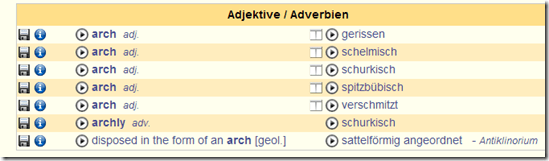
- including pronunciation (not IPA, but audio)
- a word sense – not that this is still not contextually intelligent (Cannot blame them here!) and hence more than one word sense should be offered (here I must blame them: Boo!!): E.g. here “arch” should at show more than the most common word sense:
- Interface 2 (“more”)
- For English, a click on “more” leads to the Google “define”search operator (the related etymology search operator has been reviewed here before):

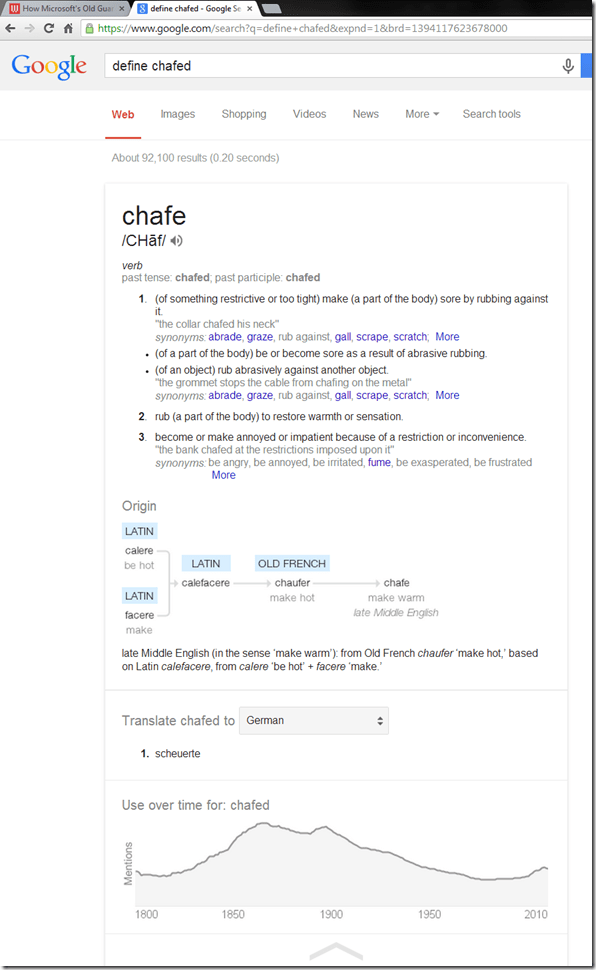
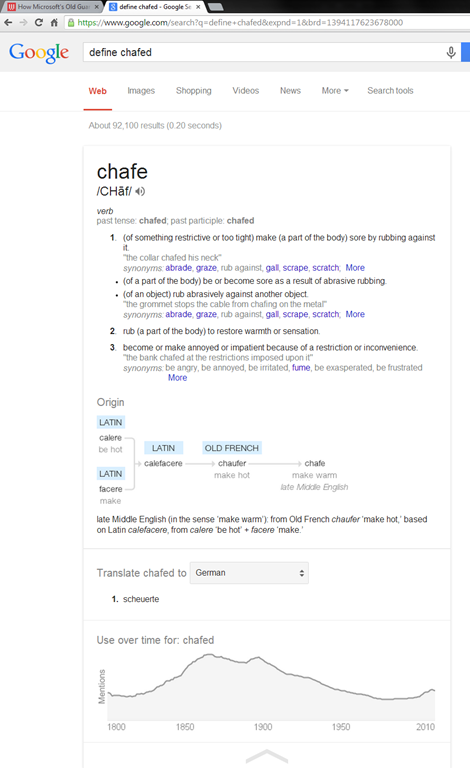
- Interface 3: unfold the search results by clicking on the down arrow at the bottom to access additional information:
 =
=
- additional word sense entries
- historical:
- etymology
- frequency data
- translation/dictionary entry:
- for our learners of languages other than English, the translation appears right in the tool tip, see above;
- for our ESL learners, this seems a few too many steps for accessing this information, although a monolingual dictionary is useful in many instances also.
- For English, a click on “more” leads to the Google “define”search operator (the related etymology search operator has been reviewed here before):
- For languages other than English, a click on more leads to Google translate, which (should get its own article, but for what it is worth) can be
- more limiting than “define”: While you are given multiple word senses for
- Spanish:
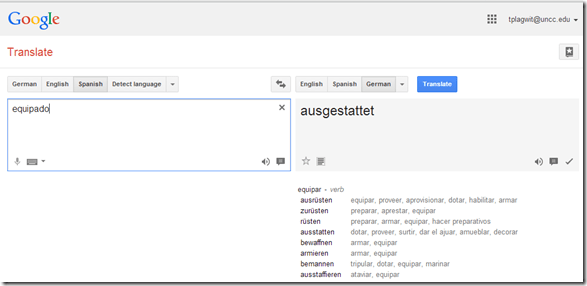
- and to a lesser extent, for
- Arabic:

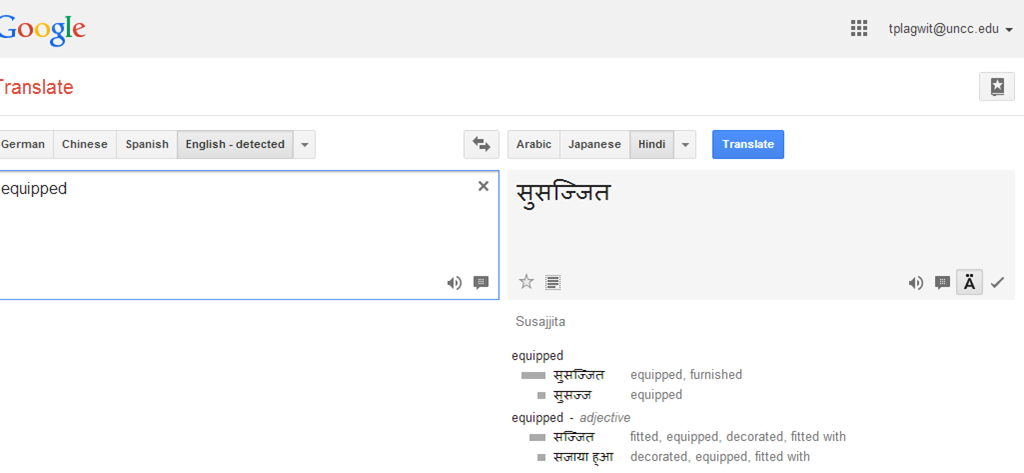
- Hindi:

- Arabic:
- Spanish:
- for many languages the results are much more limiting:
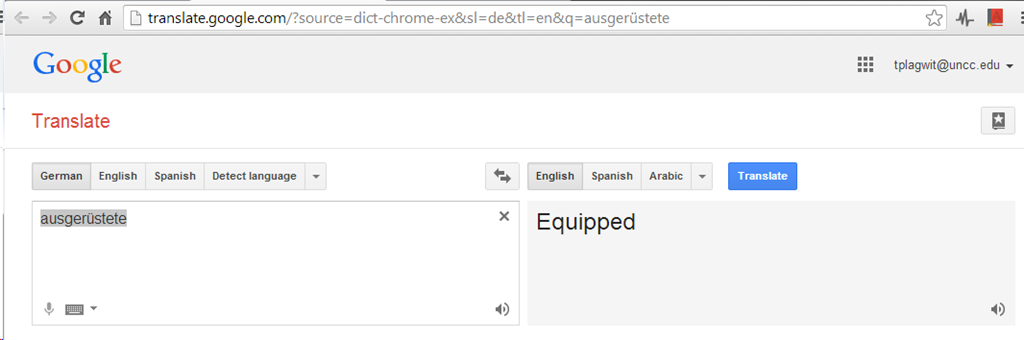
- Even if you look up German or French, you revert back to the (pedagogically terrible) single word-sense original “translation” interface )

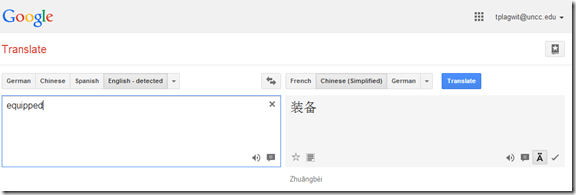
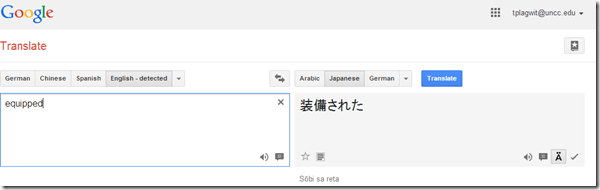
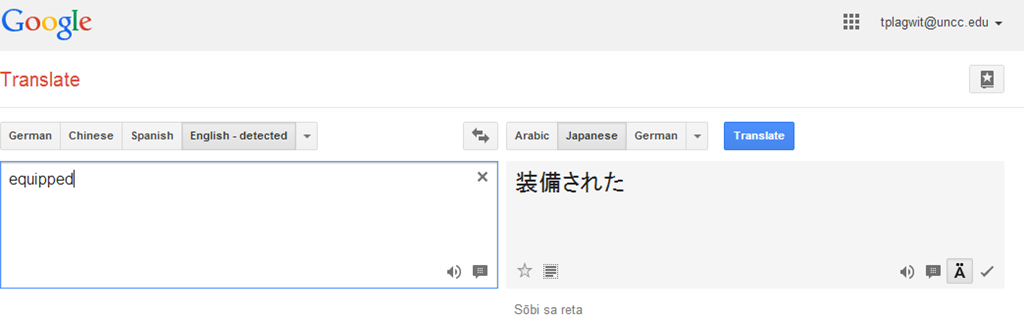
- For East Asian languages, you get Roman alphabet transcriptions
- e.g. Chinese with Pinyin:
- e.g. Japanese:
- e.g. Chinese with Pinyin:
- Even if you look up German or French, you revert back to the (pedagogically terrible) single word-sense original “translation” interface )
- more limiting than “define”: While you are given multiple word senses for
- for English with audio
- Still no per-user tracking? Here it would make sense for the user.





Quizlet.com for Vocabulary learning practice
Neallt 2014 is featuring a presentation on “Using Quizlet.com to generate and share vocabulary activities” (William Price, University of Pittsburgh). I cannot attend, but the program inspired me to hold my own sneak preview:
Quizlet.com is yet another site that provides a variety of flashcard and quiz activities for a given wordlist. A nice example is the “Speller”activity – which proves a text-to-speech generated aural cue for dictation (not included in this video):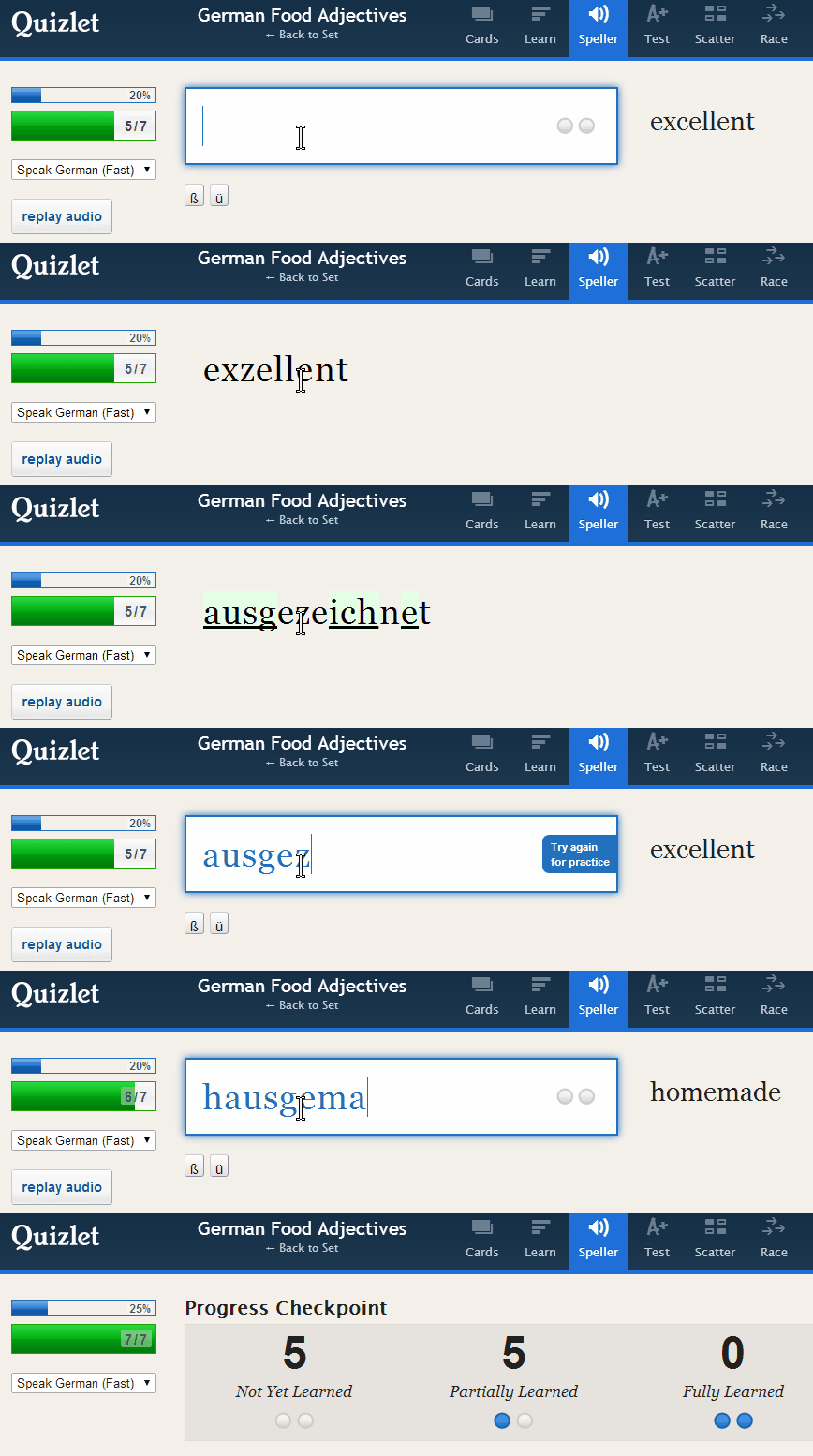
Or step-by-step:
 Unfortunately, the AI seems limited to only 1-1 L1-L2 relationships (which precludes how vocabulary seems to be learnt best: in phrasal contexts):

Feedback on “wrong” user input is color red, aural and visual presentation of the correct form: 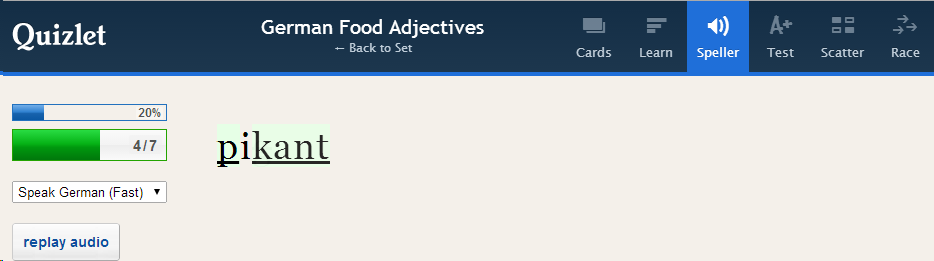
Then the application re-prompts for user input and allows user correction:
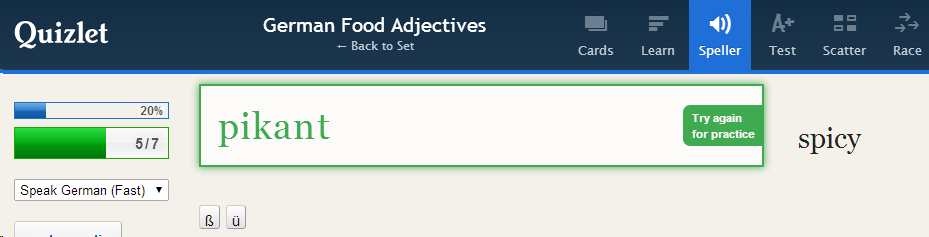
This is a “Test activity. Foreign language character input seems easy (but does beg the question since the inputs appear only when they are needed…)

Mix-and-match is called Scatter:

Here is the activity overview: 
Wait, there is more: 
Quizlet supports many dozen languages, including non-western, including ancient, not differentiating between modern and ancient Greek, but the browsing capabilities – admittedly a hard task – are somewhat flat (search and language)):
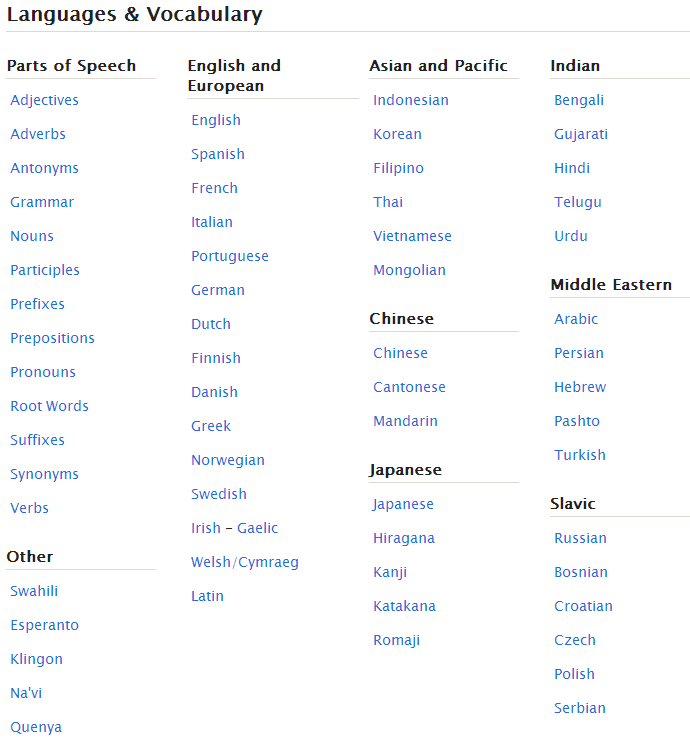
And boasts 20 million sets (as of today – many consisting of 2 terms or few more). As so often, usefulness for class instruction hinges on the availability of textbook-aligned vocabulary lists. However, if you have them with your textbooks, Quizlet makes it automatic to generate uploaded materials into exercises.
However, as said, you may not like how much you have to dumb it down.
Free interactive online learning materials for Heinle Interaction
- Available here – in spite of the prominent user login button, you do not need to sign up.
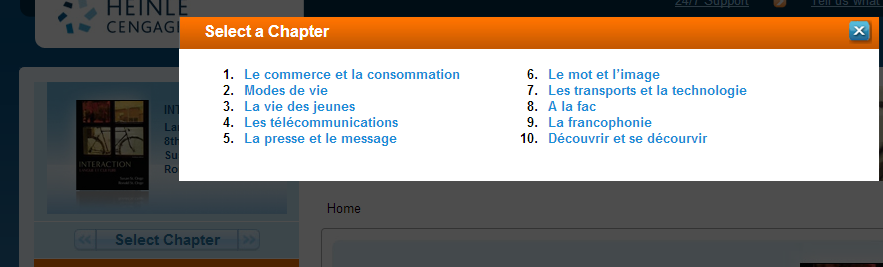
- Rather simply click the “Select Chapter” to get started.

- You then have access to some of these types of exercises, per chapter:

- Free (a (free) account is not needed):
- Tutorial Quiz
- Audio
- Web Search Activities
- Concentration
- Heinle Playlist
- Google Earth Coordinates
- Web Links
- Not free
- Flashcards
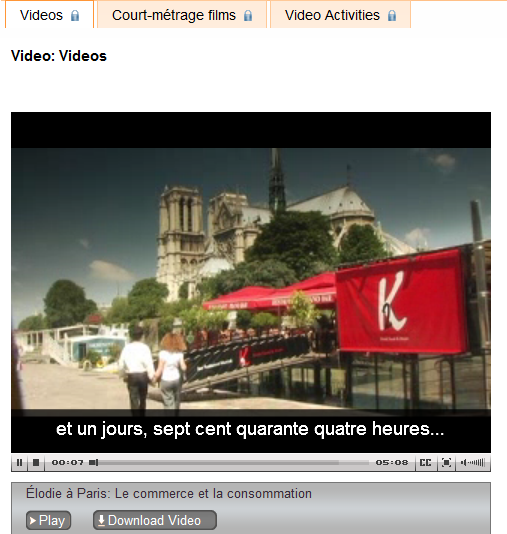
- Video (except for chapter 1 as taster)
- Podcasts
- Crossword
- Chapter Glossary
- What this content is good for:
- Practicing. Including with a tutor, for since this content is not assessed, there is no ethical issue if the tutor helps with these materials.
- It is from edition 8, which is not the current edition – but I expect it to be still reasonably to the current chapters chapter:
- Le commerce et la consommation
- Modes de vie
- La vie des jeunes
- Les télécommunications
- La presse et le message
- Le mot et l’image
- Les transports et la technologie
- A la fac
- La francophonie
- Découvrir et se décourvir

Overview over speech recognition assignment possibilities in the LRC–from beginning to end
- UPDATE: now with more videos to watch.
- First switch languages, once you are in the right language:
- The speech recognition loads at startup with this window:

- or can be started from the desktop shortcut:

- To activate = make it start/stop listening, click on the microphone

- create and save individualized voice training data (only the first time you use speech recognition in the LRC),
- Watch how to train (for English, short 5 minutes);
- Watch how to back up/restore;
- beginner voice training example (long, before/after effect in speech recognition),
- homework assignment exercise design,
- Watch how (for English, with correction in MS-Word)
- dictation example.





Questions? Read the About. Or just ask me a quick Our Databases: Resources with calendars -- Language learning material Moodle Sites, multimedia files -- films


FAQs for LRC student staff or for students or for teachers. To search our FAQs, in the browser addressbar, add after "https://plagwitz.wordpress.com/feed/?tag=faqs+/" "+TAG1" (from tag cloud below) OR "https://plagwitz.wordpress.com/feed/tag=faqs
&category_name=" "CAT1" (from category hierarchy below). OR search both categories and tags, and multiple TAGs/CATs (connect with "," for OR-search, with "+" for AND-search), like so: https://plagwitz.wordpress.com/feed/?tag=TAG1+TAG2+...TAGn&category_name=CAT1
+CAT2+...CATn"
Other ways to find help
If you cannot find it here, look there: 5,500 Language-Learning Links and Programs for learning or teaching 150 languages
Shortcuts:Our Lists, Our Maps, LRC Staff Moodle Site,LRC Project Moodle Site, 49erexpress, UNCC Moodle, Student Recordings: s:claslcslrcsanakostudent
Learning usage samples: Sanako oral exam, Kaltura webcam presentation, Dictation with speech recognition, Sanako written exam, Chinese and Japanese interactive stroke-order practice
Test the Sanako Installer, Webbrowser Popup Konfigurator for XP, or Windows7, faster LRC TeacherPC Log-in Let MS facilitate diacritics writing by installing for you US-International keyboard layout
This is my personal blog (Google+). The views expressed on these pages are mine alone and not those of my employer. The information in this weblog is provided “AS IS” with no warranties, and confers no rights.
 Thomas' Work Space