Archive
Enterprise Library Logging Sample
Using Enterprise Library (still on 5), You can declaratively configure the logger properties (including desired formatting, see Textformatter template below)) in the app.config’s appsettings:
  <loggingConfiguration name="Logging Application Block" tracingEnabled="true"
  defaultCategory="General" logWarningsWhenNoCategoriesMatch="true">   <listeners>    <add name="Event Log Listener" type="Microsoft.Practices.EnterpriseLibrary.Logging.TraceListeners.FormattedEventLogTraceListener, Microsoft.Practices.EnterpriseLibrary.Logging, Version=5.0.505.0, Culture=neutral, PublicKeyToken=31bf3856ad364e35"
    listenerDataType="Microsoft.Practices.EnterpriseLibrary.Logging.Configuration.FormattedEventLogTraceListenerData, Microsoft.Practices.EnterpriseLibrary.Logging, Version=5.0.505.0, Culture=neutral, PublicKeyToken=31bf3856ad364e35"
    source="Enterprise Library Logging" formatter="Text Formatter 2"
    log="" machineName="." traceOutputOptions="None" />    <add name="Rolling Flat File Trace Listener" type="Microsoft.Practices.EnterpriseLibrary.Logging.TraceListeners.RollingFlatFileTraceListener, Microsoft.Practices.EnterpriseLibrary.Logging, Version=5.0.505.0, Culture=neutral, PublicKeyToken=31bf3856ad364e35"
    listenerDataType="Microsoft.Practices.EnterpriseLibrary.Logging.Configuration.RollingFlatFileTraceListenerData, Microsoft.Practices.EnterpriseLibrary.Logging, Version=5.0.505.0, Culture=neutral, PublicKeyToken=31bf3856ad364e35"
    fileName="%AppData%\trpsoft\langlabemailer\trace-rolling.log"
    footer="" formatter="Text Formatter" header="" rollFileExistsBehavior="Increment"
    rollInterval="Day" rollSizeKB="1000" maxArchivedFiles="10" traceOutputOptions="None" />    <add name="Flat File Trace Listener" type="Microsoft.Practices.EnterpriseLibrary.Logging.TraceListeners.FlatFileTraceListener, Microsoft.Practices.EnterpriseLibrary.Logging, Version=5.0.505.0, Culture=neutral, PublicKeyToken=31bf3856ad364e35"
    listenerDataType="Microsoft.Practices.EnterpriseLibrary.Logging.Configuration.FlatFileTraceListenerData, Microsoft.Practices.EnterpriseLibrary.Logging, Version=5.0.505.0, Culture=neutral, PublicKeyToken=31bf3856ad364e35"
    fileName="%AppData%\trpsoft\langlabemailer\exception.log" header=""
    footer="" formatter="Text Formatter" traceOutputOptions="None" />    <add name="Rolling Flat File Trace Listener 2" type="Microsoft.Practices.EnterpriseLibrary.Logging.TraceListeners.RollingFlatFileTraceListener, Microsoft.Practices.EnterpriseLibrary.Logging, Version=5.0.505.0, Culture=neutral, PublicKeyToken=31bf3856ad364e35"
    listenerDataType="Microsoft.Practices.EnterpriseLibrary.Logging.Configuration.RollingFlatFileTraceListenerData, Microsoft.Practices.EnterpriseLibrary.Logging, Version=5.0.505.0, Culture=neutral, PublicKeyToken=31bf3856ad364e35"
    fileName="%AppData%\trpsoft\langlabemailer\exception-rolling.log"
    footer="" formatter="Text Formatter" header="" rollFileExistsBehavior="Increment"
    rollInterval="Hour" rollSizeKB="100" maxArchivedFiles="10" filter="All" />   </listeners>   <formatters>    <add type="Microsoft.Practices.EnterpriseLibrary.Logging.Formatters.TextFormatter, Microsoft.Practices.EnterpriseLibrary.Logging, Version=5.0.505.0, Culture=neutral, PublicKeyToken=31bf3856ad364e35"
    template="Timestamp	 {timestamp}	Message	 {message}	Category	 {category}	Priority	 {priority}	EventId	 {eventid}	Severity	 {severity}	Title	{title}	Machine	 {localMachine}	App Domain	 {localAppDomain}	ProcessId	 {localProcessId}	Process Name	 {localProcessName}	Thread Name	 {threadName}	Win32 ThreadId	{win32ThreadId}	Extended Properties	 {dictionary({key} - {value})}"
    name="Text Formatter" />    <add type="Microsoft.Practices.EnterpriseLibrary.Logging.Formatters.TextFormatter, Microsoft.Practices.EnterpriseLibrary.Logging, Version=5.0.505.0, Culture=neutral, PublicKeyToken=31bf3856ad364e35"
    template="Timestamp: {timestamp}{newline}
Message: {message}{newline}
Category: {category}{newline}
Priority: {priority}{newline}
EventId: {eventid}{newline}
Severity: {severity}{newline}
Title:{title}{newline}
Machine: {localMachine}{newline}
App Domain: {localAppDomain}{newline}
ProcessId: {localProcessId}{newline}
Process Name: {localProcessName}{newline}
Thread Name: {threadName}{newline}
Win32 ThreadId:{win32ThreadId}{newline}
Extended Properties: {dictionary({key} - {value}{newline}
)}"
    name="Text Formatter 2" />   </formatters>
<categorySources> <add switchValue="All" name="General"> <listeners> <add name="Rolling Flat File Trace Listener" /> </listeners> </add> <add switchValue="All" name="Exceptions"> <listeners> <add name="Event Log Listener" /> <add name="Rolling Flat File Trace Listener 2" /> </listeners> </add> </categorySources> <specialSources> <allEvents switchValue="All" name="All Events" /> <notProcessed switchValue="All" name="Unprocessed Category" /> <errors switchValue="All" name="Logging Errors & Warnings"> <listeners> <add name="Event Log Listener" /> </listeners> </errors> </specialSources> </loggingConfiguration> <exceptionHandling> <exceptionPolicies> <add name="Log and Rethrow"> <exceptionTypes> <add name="All Exceptions" type="System.Exception, mscorlib, Version=2.0.0.0, Culture=neutral, PublicKeyToken=b77a5c561934e089"
postHandlingAction="NotifyRethrow"> <exceptionHandlers> <add name="Logging Exception Handler" type="Microsoft.Practices.EnterpriseLibrary.ExceptionHandling.Logging.LoggingExceptionHandler, Microsoft.Practices.EnterpriseLibrary.ExceptionHandling.Logging, Version=5.0.505.0, Culture=neutral, PublicKeyToken=31bf3856ad364e35"
logCategory="Exceptions" eventId="100" severity="Error" title="Enterprise Library Exception Handling"
formatterType="Microsoft.Practices.EnterpriseLibrary.ExceptionHandling.TextExceptionFormatter, Microsoft.Practices.EnterpriseLibrary.ExceptionHandling"
priority="0" /> </exceptionHandlers> </add> </exceptionTypes> </add> </exceptionPolicies> </exceptionHandling> <appSettings>
Import and call the logger like so:
using Microsoft.Practices.EnterpriseLibrary.ExceptionHandling.Logging;

using Microsoft.Practices.EnterpriseLibrary.Logging;

Logger.Write("regex:RegExRecordingFileGroup - target:" + "\t" + _filenamenoext + "\t" + strGroups);
Which outputs: 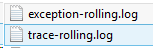 and
and
 ,
,
the latter can be easily imported and analyzed in MS-Excel:

These are obviously only the simplest examples, study the Enterprise Library documentation for more customization
Manage some of your teacher computer settings per logged in user
- Another day, another hack, and inconsequential, unless of course you are in my situation:
- If you need a simple way to change some of your Sanako settings per logged in user
- but cannot use the logged-in user system built into Sanako Study 1200:
$path = "C:\ProgramData\Sanako\Study\Tutor\"If (@UserName = "PRTOTECTTHEINNOCENT") Then; change the sanako default save to dual track supporting mff; prereq: customized settings files in the folder ready to renameFileCopy($path & "mffTutor.Settings", $path & "Tutor.Settings", 1)ElseIf (@UserName = "tplagwit") Then; change the sanako default save to dual track supporting wma, for testingFileCopy($path & "wmaTutor.Settings", $path & "Tutor.Settings", 1)Else; keep the default mp3, but we may have to reset the tutorsettings on this unfrozen computerFileCopy($path & "mp3Tutor.Settings", $path & "Tutor.Settings", 1)EndIf; tutor.exe could be hardcoded to (re)load hereIf ProcessExists("Tutor.exe") Then; determine: we could kill tutor to reload it, but that could be disruptive of a classElseRun("C:\Program Files (x86)\SANAKO\Study\Tutor\Tutor.exe")EndIfExit
Code documentation for a quiz template based on MS-Word
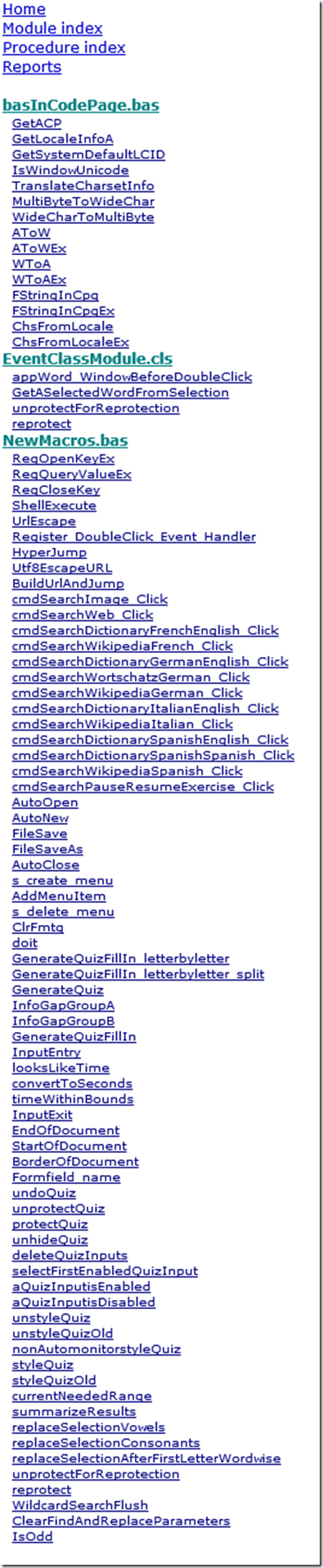
- trpQuizGenerator allows for using simple markup (view training here) to produce cloze quizzes in large fonts, for easy screen sharing through the face-to-face classroom management system (see samples of quizzes based on this template here.)
- Click the table of contents below to browse the VBA documentation built with Aivosto.
Sanakoaudioconfigonthefly software utilities updated for Vista/Windows7
- (Shortcut to download – now fixed) The reason why a colleague’s signature reads: “Worrying about a large institution, especially when it has computers, is like worrying about a large gorilla, especially when it’s on fire" (Bruce Sterling) might just be that a multimedia-capable fully computerized classroom – think 30 PCs and 30 students trying not only to listen to, but record responses to exam audio – is a notoriously difficult beast to control, and all too easily spins out of the same (a classroom humming in an endless audio feedback loop is neither a pleasant nor an unfamiliar sight).
- The Sanako Study 1200 is a digital audio lab software that facilitates the use of personal computers in face-to-face class settings. However, while the Sanako Study 1200 features many ways for the teacher to control and manage the student PCs, the students’ audio settings cannot be controlled on the fly.
- Enter these little sanakoaudioconfigonthefly utilities (written in AutoIt) for Windows 7 and Vista (old Windows PX version still available here) that extend the Sanako Study 1200.
- We now use (as it is completely adequate and actually superior to to the seemingly more applicable PC control / Launch programs features which is requires the program executable to reside under the same path on student and tutor computer) Playlist / copy and launch (folder icon) and the Sanako grouping feature to send a program with your choice of action to the student PCs of your choice. In this example,
- click playlist,

- and in the window that opens, click (1) to send to “all”, then click (2) to select which program to send:
![image_thumb[3]](https://thomasplagwitz.com/wp-content/uploads/2013/12/image_thumb3_thumb.png?w=341&h=244 "image_thumb[3]")
- Files included in this release (each for 64-bit, and as source code, so that you can compile your own if you are still on MS-Vista/MS-Windows-732-bit platform):
- Change student recording levels (microphone sensitivity).
- Toggle student sidetone ( in Sanako = “listen” to this device in Windows)
- Control student playback level (headphone volume).
- Likely these programs can be adapted beyond Sanako Study 1200, but I do not remember (helpful comments appreciated)
-
- whether other digital audio lab platforms (Sony Virtuoso, Robotel SmartClass) allow for changing the student audio config on the fly
- and what mechanism (if any – but likely) they (and Sanako Lab300) provide to launch programs on the students’ computers
- Prerequisites:
- None other than your digital audio lab software and the utilities you can download below. In particular, it is not required to install AutoIt on teacher or student computers.
- However, there should be only 1 microphone/speaker per student computer in the digital audio lab. If you have more, you likely have bigger problems to solve first, but you also need to alter the source code (included) to select the microphone you want to work with (should be easy; note however, that I have not tested this scenario, for: “There should be only 1 microphone/speaker per student computer in the digital audio lab”

- Request here to download these utilities.

![image_thumb[3]](https://thomasplagwitz.com/wp-content/uploads/2013/12/image_thumb31.png "image_thumb[3]")
Request to download the digital audio lab classroom audio configuration on the fly, program and source for Windows 7


What to do if university websites seem to be not working, nothing happens when you click?
- Try and get the popup blocker on your office or lab PC fixed here (if you are on Windows 7 here, you need to use the 64-bit version): choose "Run" – preferable to “Download” and "Open".
- Then use Internet Explorer to try again what you were trying to do on one of our websites.
- Background:
- My users have been reporting for a while problems getting simple things done on campus websites. Last week I observed a few in their office and in the LRC being stalled by mis- or non-configured popup blocker, and not noticing the cause, being flummoxed.
- The above little program configures the built-in internet explorer popup blocker to allow popups from websites that are part of our infrastructure.
- It does not attempt to configure other popup blockers, whether inside or outside of this web browser.
- The end user could also try
- (holding the key:) CTRL-click on the link where your web browsing fails.
- Or configure the popup blocker manually.
- However, it would likely be best if this were done via GPO…
Possible example what’s wrong with the Winforms application deployment experience?
Heh heh, slightly embarrassing, ain’t it, if it trips up a Wintel coding price winner.
“UltraDynamo’s last major hitch revolved around the MSI installer required for submission to the Intel AppUp® center. Originally, Auld intended to generate the package from the InstallShield* Lite tool that comes bundled with Microsoft Visual Studio 2012. However, no amount of banging his head against the application helped him understand how to generate an MSI package directly. No matter what he tried, all he could get from the program was an .EXE installer, which the Intel AppUp® center wouldn’t accept. Finally, Auld did find a way to “double-install” into an MSI package, but the Intel AppUp center wouldn’t accept that either. Apparently, examination by Intel techs in a test environment revealed that “the shortcuts that the application installed weren’t announced shortcuts.”
“To this day, I haven’t got a Scooby what that means,” admitted Auld.
Fortunately, Intel came to Auld’s rescue. Tech support staff sent him an alpha version of a tool they used internally for app store packaging that relied on WIX* as its underlying toolset for generating installer packages.
“After working out how the Intel-provided app ran a couple of the WIX underlying commands to generate the MSI package, I took the XML file that the tool had created and used it as a foundation. I tweaked the internal XML nodes, got my shortcuts displayed on the screen, and then manually ran the WIX underlying commands to generate the MSI package. This then went through verification at Intel without any issue.””


Questions? Read the About. Or just ask me a quick Our Databases: Resources with calendars -- Language learning material Moodle Sites, multimedia files -- films
FAQs for LRC student staff or for students or for teachers. To search our FAQs, in the browser addressbar, add after "https://plagwitz.wordpress.com/feed/?tag=faqs+/" "+TAG1" (from tag cloud below) OR "https://plagwitz.wordpress.com/feed/tag=faqs
&category_name=" "CAT1" (from category hierarchy below). OR search both categories and tags, and multiple TAGs/CATs (connect with "," for OR-search, with "+" for AND-search), like so: https://plagwitz.wordpress.com/feed/?tag=TAG1+TAG2+...TAGn&category_name=CAT1
+CAT2+...CATn"
Other ways to find help
If you cannot find it here, look there: 5,500 Language-Learning Links and Programs for learning or teaching 150 languages
Shortcuts:Our Lists, Our Maps, LRC Staff Moodle Site,LRC Project Moodle Site, 49erexpress, UNCC Moodle, Student Recordings: s:claslcslrcsanakostudent
Learning usage samples: Sanako oral exam, Kaltura webcam presentation, Dictation with speech recognition, Sanako written exam, Chinese and Japanese interactive stroke-order practice
Test the Sanako Installer, Webbrowser Popup Konfigurator for XP, or Windows7, faster LRC TeacherPC Log-in Let MS facilitate diacritics writing by installing for you US-International keyboard layout
This is my personal blog (Google+). The views expressed on these pages are mine alone and not those of my employer. The information in this weblog is provided “AS IS” with no warranties, and confers no rights.
 Thomas' Work Space