Archive
Archive for the ‘service-is-library’ Category


Checklist for Rebel cameras (17/18/19/20)
2013/12/23
1 comment
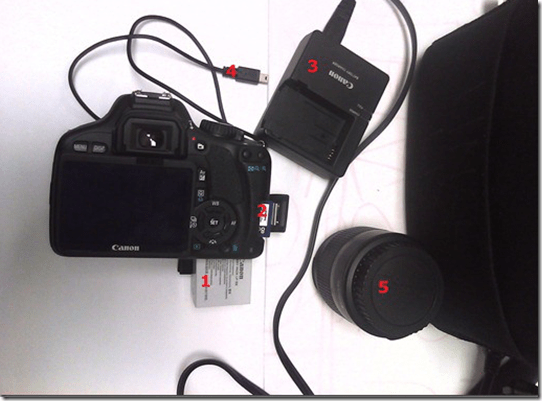
- Parts
- Battery
- SD Memory Card
- Battery Charger
- USB cable
- Lens
- Test the Functionality
- Turn camera on
- Set to video
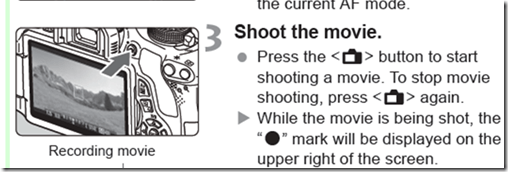
- Take a 5sec video

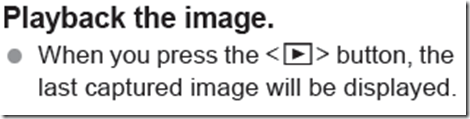
- Playback
- Maintenance
- Charge battery
- Initialize sd card like so.


Checklist for microphone booms
2013/12/23
Leave a comment
- Model:

- Parts:

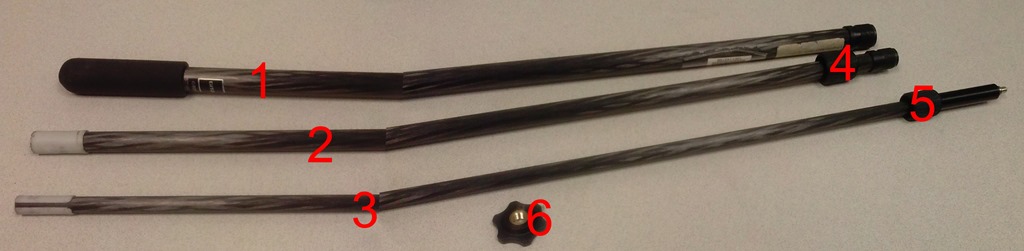
- 3 segments (1,2,3),
- 2 segment connecting screws (4,5)
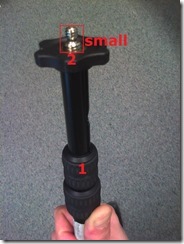
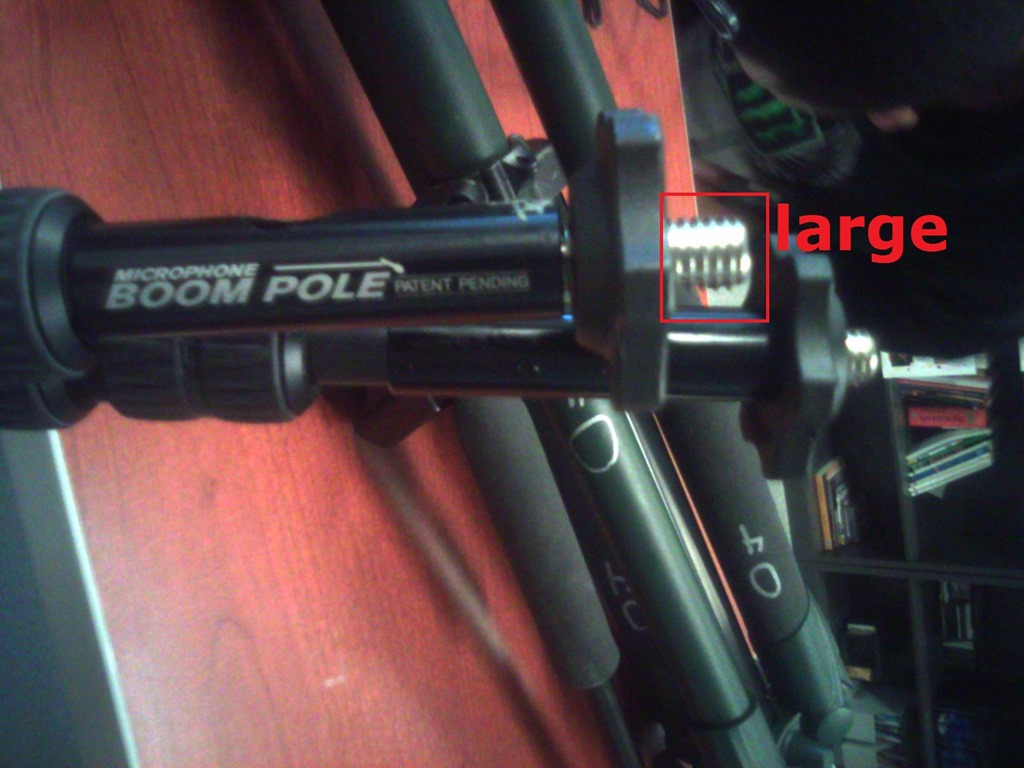
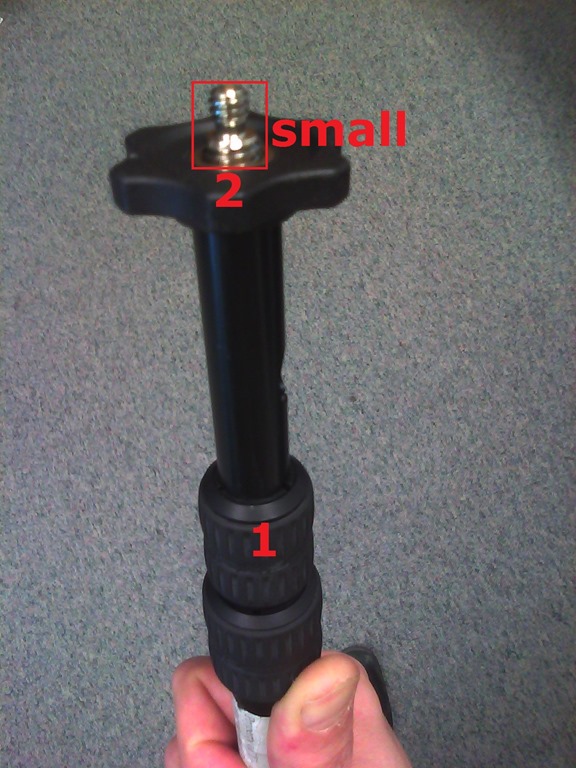
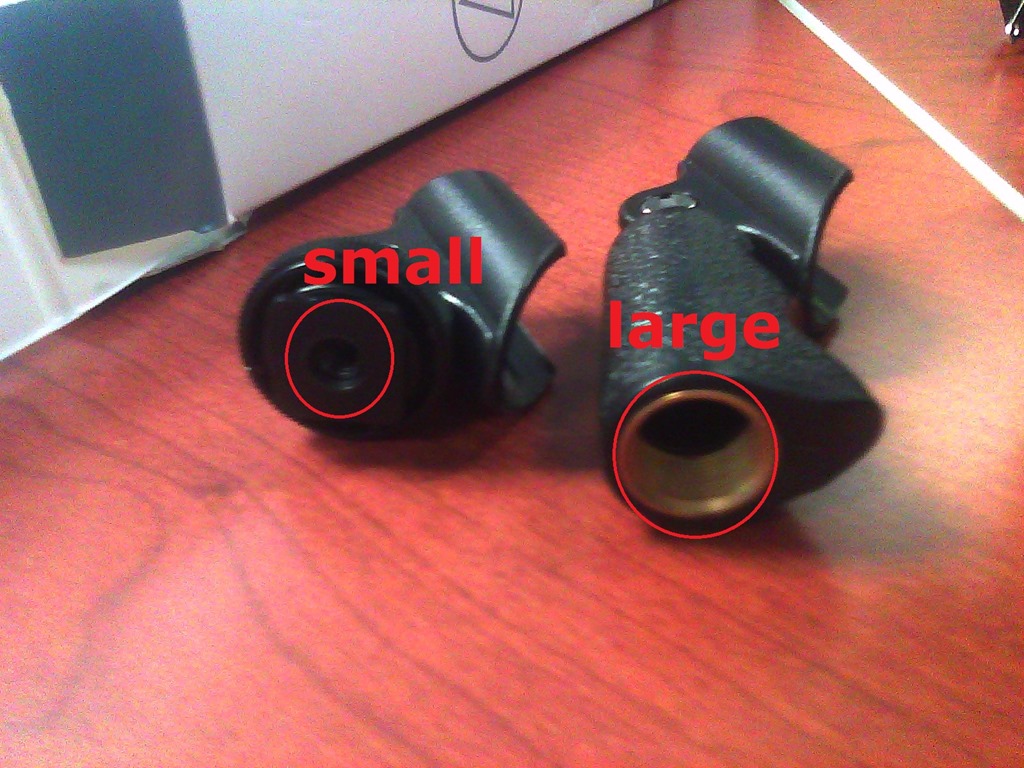
- 1 top screw (6) allows for attaching part “small”from shotgun mics (but “large” does not fit):


- 1 top screw plastic cap(not pictured)
- Functionality:
- Note that these parts are supposed to be assembled,
- and the plastic rings to be loosened,
- for the boom to extend, like so:



Checklist for light-kits
2013/12/11
Leave a comment
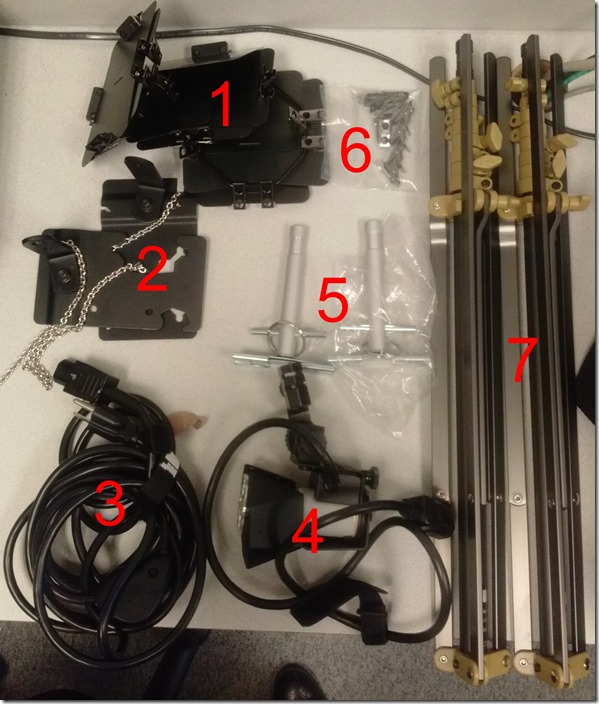
- Parts: 25 each, .i.e.:
- 4 plates (1)
- 2 more plates (2)
- 3 extension power cables (3)
- 3 lamps (4), containing 3 bulbs (not pictured)
- 2 thingamabobs (5)
- 8 clamps (6)
- 2 stands (7)
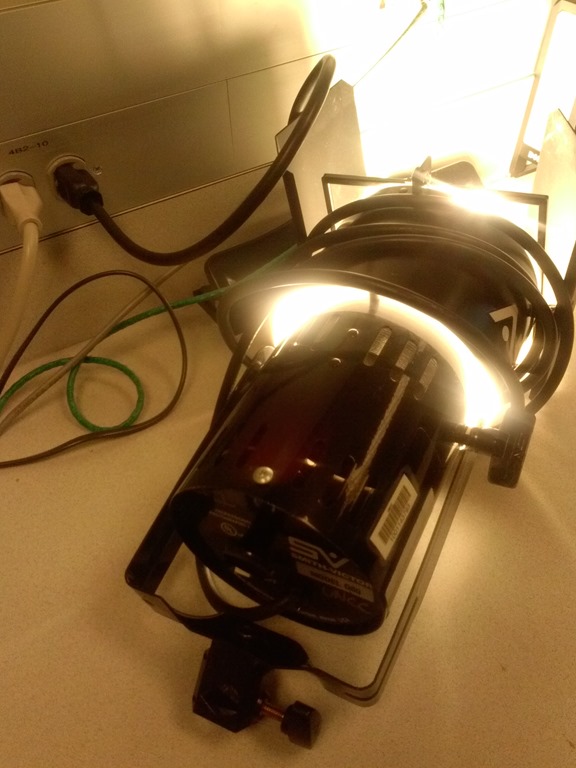
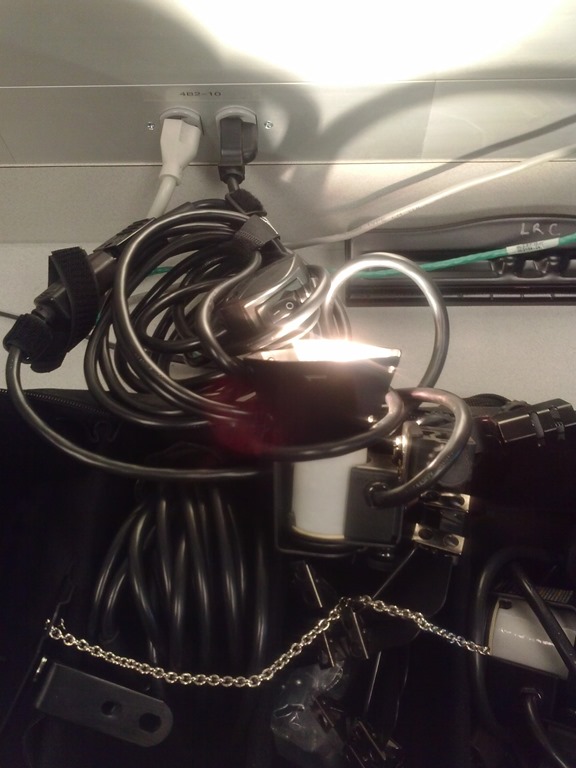
- Functionality: plug them in and turn them on, like so:


Use CTRL+TAB to switch between tabs in Chrome kiosk fullscreen mode
2013/11/15
Leave a comment
- On the reception desk, when you open the NINERMAIL after logging into 49erexpress, Chrome opens NINERMAIL in another full screen tab (which hides the 49erexpress tab) – unlike full screen Internet Explorer, which opened NINERMAIL in a new window, but which we had to abandon with the introduction of offfice365.
- The 49erepxress tab is hidden, but still there, and you can switch between full screen tabs wit hthe keyboard shortcut CTRL+TAB (hold CTRL and pressing TAB repeatedly will cycle through all open Chrome tabs).
- So when a client is finished with NINEMAIL (meeting request), have them not only log out of NINERMAIL, but also CTRL+TAB back to the 49erexpress tab to log them out of 49express (and browse from the result window to the Sign-in link to be ready for the next client).
- No need to close the NINERMAIL tab. Next time somebody logs in to 49erexpress tab, Chrome will recycle the previous NINERMAIL tab.
How to book a resource in Office365–the ultimate training…
2013/10/14
Leave a comment

Protected: A checklist for our regular equipment inventories
2013/10/10
Enter your password to view comments.
Student users in the wrong time zone still cause problems with our equipment circulation system
2013/09/30
Leave a comment
- Imagine you are trying to pick up an item on local time, but the previous users will return it on Japan time – or (like in the example below)`vice versa. It happens all the time here …
- We can see the misconfiguration when opening the meeting in Outlook (Desktop), but we rarely do this.

- What gets routinely done here is opening the meeting in the OWA of the organizer:
- is there an obvious way to see the time zone for the organizer?
- The best I have found is this, and it is anything but obvious, deeply hidden in the OWA settings dialogues. Any change with Office365?



Questions? Read the About. Or just ask me a quick Our Databases: Resources with calendars -- Language learning material Moodle Sites, multimedia files -- films


FAQs for LRC student staff or for students or for teachers. To search our FAQs, in the browser addressbar, add after "https://plagwitz.wordpress.com/feed/?tag=faqs+/" "+TAG1" (from tag cloud below) OR "https://plagwitz.wordpress.com/feed/tag=faqs
&category_name=" "CAT1" (from category hierarchy below). OR search both categories and tags, and multiple TAGs/CATs (connect with "," for OR-search, with "+" for AND-search), like so: https://plagwitz.wordpress.com/feed/?tag=TAG1+TAG2+...TAGn&category_name=CAT1
+CAT2+...CATn"
Other ways to find help
If you cannot find it here, look there: 5,500 Language-Learning Links and Programs for learning or teaching 150 languages
Shortcuts:Our Lists, Our Maps, LRC Staff Moodle Site,LRC Project Moodle Site, 49erexpress, UNCC Moodle, Student Recordings: s:claslcslrcsanakostudent
Learning usage samples: Sanako oral exam, Kaltura webcam presentation, Dictation with speech recognition, Sanako written exam, Chinese and Japanese interactive stroke-order practice
Test the Sanako Installer, Webbrowser Popup Konfigurator for XP, or Windows7, faster LRC TeacherPC Log-in Let MS facilitate diacritics writing by installing for you US-International keyboard layout
This is my personal blog (Google+). The views expressed on these pages are mine alone and not those of my employer. The information in this weblog is provided “AS IS” with no warranties, and confers no rights.
 Thomas' Work Space