Archive
LLC Catalogue: Video-Reserves.xlsm, Reserve desk, Schedule, using Blackboard Content System WebDAV
For a LLC video schedule, we came up with the following repurposing of existing infrastructure:
- MS-Excel: still the “Swiss army knife” of choice for the middle manager. Allows for: semi-automatic creation of reserve date sequences (insert series), given a start and end date; data validation during data entry, and, based on that, sorting and filtering and, based on that, finding.
- Blackboard Content management system (WebDAV) to manage reading and writing (editing) permissions.

- Staff can use MS-Excel to request videos – preferably at start of term – to be put on reserve within a start and end date, during which they will be periodically shown, by opening the spreadsheet from MS-Excel and filling in the green cells in the first empty row at the bottom.

- Lab Staff can use MS-Excel to periodically transfer video reserve requests into video showings.
- Lab Assistants can use MS-Excel to daily maintain video reserve desk and video showings.
- Students can use a web browser to preview video showing times during the remainder of the term.
- To open the video schedule for read-only, Loyola students and staff can simply click this link in their browser: https://blackboard.loyola.edu/bbcswebdav/users/trplagwitz/llc-pfiles/video/video-reserves.xslm. Even read-only access includes the capability to search, sort and filter the schedule data, but you cannot save back.
- To open the video schedule for editing, LLC and Modern Languages staff can start MS-Excel, click menu: File / Open, and copy/paste this link: https://blackboard.loyola.edu/bbcswebdav/users/trplagwitz/llc-pfiles/video/video-reserves.xslm, then click open.
- All users will have to authenticate with their institutional account info:


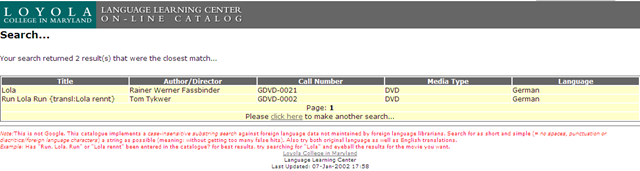
LLC Catalogue: This is not Google!
-
I have been given access to the online catalogue program, learned that VS.net 2008 still supports classic ASP, and managed to make a couple of changes to the catalogue home and search result and pages which will hopefully make your learning material searches more successful.


Video Library: Scheduling for Reserve Desk and Viewings
Lab staff instruction for editing the video-reserves spreadsheet H:\LLC\scheduling\video-reserves&mh441b-showing\video-reserves.xls:
- Lab supervisors build the spreadsheet for the reserve desk and viewing: video-reserves-reservedonthisday-unfold-schedule-viewing.wmv, video-reserves-viewing-selecting-timeslots&venues.wmv
- Lab assistants read the spreadsheet and handle the actual media (i.e. update the reserve desk and show the videos): video-reserves-reservedonthisday-filter-viewing-or-reserve.wmv
Conference Interpreting Videos on Intranet
On campus, students can click  , click
  , paste “\\lgu.ac.uk\lgu$\multimedia student\mmedia\mmedia1\language_services\teaching_materials\online_resources.xls”, click
  . Click a cell with a hyperlinked video to play the video in Windows Media Player.
In Windows Media Player, you can access (right-click on top window frame if menus are hidden) the menu: “File”/”Save” to save the video on a flash memory drive and take if off campus. You can play back the videos on MS-Windows and MAC computers (you may first have to install the support for the Windows Media Video format on the MAC from Microsoft). More help.
Learning materials management: Offline resources (2005-2006)
AKA books, shiny disks, VHS and – oh my! – cassette tapes. All come with shelves. Yuck! Where is Google Books, when you need it?
The media library I had to work with had, as I found it, a content specific labeling system and a language specific sort order on the shelves. This seems an anti-pattern in many modern languages departments: try to avoid complexity by isolating yourself. 1st degree: each language program on its own; 2nd degree: each instructor on his/her own. Atomization leads to idiosyncrasies and duplication of efforts (which must result in lowering of standards, despite, no doubt, individual toiling).

Trying to find an easy answer for complexity: I am afraid I quickly had to throw overboard the suggestion to implement the Library of Congress labeling scheme. I also abandoned trying to represent in one physical order what has to be viewed under multiple perspectives. I introduced a unique id labeling scheme based on a a simple numerical counter, where each new item would be added to the end of the stacks with a label equaling max(counter) + 1, and as a new row at the bottom of an Excel spreadsheet, which supported all discovery and lending with sort, filter, search.
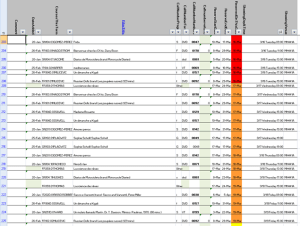
And here is a partial screenshot of the offline_resources.xls:

Way too much complexity still remained: too many fields, all types of resources had to be coerced into records of the same format (hand-coded an access database for records to avoid this requirement – don’t go there!). Should have relied more on full text search, even with the simple regular expressions that come with Excel.
However, the sheet was open all day on the lab assistant’s computer behind the reference desk and worked pretty well, or was at least a major improvement. Remaining issues: speed of spreadsheet (too many complex ISBN validating formulas), lab staff training, more so instructor training (if they did not want to rely on lab staff entirely or on trying to browse the physical stacks looking for a physical order where there was no such system any more: change management problems).
Learning materials management: Online_resources.xls II: E-repository (2006-7)
I participated in the implementation of a “ learning object” repository – is there such a thing as a learning “object” in a progression-oriented field like SLA? Anyhow, the software of choice was Equella which, as I read on the listservs, is favored by Blackboard Admins for its Blackboard module and is supposed to provide the primary interface to the equella for instructors in their Blackboard course websites.
Since this did not get implemented during my time, we used what seems primarily the admin-interface and, since equella does not come with one, attempted to implement a metadata schema, based on the prior work of an LLAS-sponsored group. We also soon found that despite complexity, the metadata schema was still lacking (E.g. you won’t get through French 101 without several sections on “Negation”. nor German, nor Spanish etc.).

Excel to the rescue once more: Here is a spreadsheet in action that not only allows adding, tagging, searching and filtering links to, once more – easier than to make your own – web-based exercises, but now also allows the collaborative building of a metadata schema. But alas, the number of fields is growing again.
Learning materials management: Online_resources.xls I: Intranet (2003-2009)
Language labs tend to have many multimedia files (audio and video) on network shares – still more flexible than the web-based interfaces we are given (1 user operation does a batch on many files versus multiple clicks are needed for an operation on 1 file).
As a variation on the spreadsheet for multimedia file collections, I created a cataloging spreadsheet that imports lists of audio and video files, including metadata which gets preserved when windows media center records commercial digital TV, from a language center network share – you can find sample code on MS-Excel lists. You can see the import code in action in this screen cast.
Unfortunately, no recursion into subfolders and once more meant to move the files off the network and store on DVDs, for lack of space. Here at least the fields are less and the search relies more on regular expressions.
The current quick and dirty incarnation of self-made source material for interpreting exercises is here: 


Questions? Read the About. Or just ask me a quick Our Databases: Resources with calendars -- Language learning material Moodle Sites, multimedia files -- films


FAQs for LRC student staff or for students or for teachers. To search our FAQs, in the browser addressbar, add after "https://plagwitz.wordpress.com/feed/?tag=faqs+/" "+TAG1" (from tag cloud below) OR "https://plagwitz.wordpress.com/feed/tag=faqs
&category_name=" "CAT1" (from category hierarchy below). OR search both categories and tags, and multiple TAGs/CATs (connect with "," for OR-search, with "+" for AND-search), like so: https://plagwitz.wordpress.com/feed/?tag=TAG1+TAG2+...TAGn&category_name=CAT1
+CAT2+...CATn"
Other ways to find help
If you cannot find it here, look there: 5,500 Language-Learning Links and Programs for learning or teaching 150 languages
Shortcuts:Our Lists, Our Maps, LRC Staff Moodle Site,LRC Project Moodle Site, 49erexpress, UNCC Moodle, Student Recordings: s:claslcslrcsanakostudent
Learning usage samples: Sanako oral exam, Kaltura webcam presentation, Dictation with speech recognition, Sanako written exam, Chinese and Japanese interactive stroke-order practice
Test the Sanako Installer, Webbrowser Popup Konfigurator for XP, or Windows7, faster LRC TeacherPC Log-in Let MS facilitate diacritics writing by installing for you US-International keyboard layout
This is my personal blog (Google+). The views expressed on these pages are mine alone and not those of my employer. The information in this weblog is provided “AS IS” with no warranties, and confers no rights.
 Thomas' Work Space