Archive
New keyboard shortcuts for diacritics on LRC Teacher PC
- The US international keyboard layout that has come with MS-Windows for many years (though – except in the LRC – not set as default, you need to enable it in the control panel) greatly facilitates typing of characters for most languages that use Roman script with common diacritical marks, but does not cover Pinyin and similar diacritical marks.
- Carly from Carleton, as avid a language teacher as a technologist, had the great idea to extend Microsoft’s US-international keyboard so as to include all the Pinyin tone marks (and other accents useful for linguists). Here is the upshot, extracted from her instructions, but excluding what (either shortcut or (use of common accents within Pinyin is now covered also below) purpose) has not changed from the shortcuts of the non-extended US-international keyboard that used to be the default in the LRC:
-
What you want Which keys you press (before comma is “dead” key = no result until after next key) Example acute accent, pinyin 2nd tone
‘(=apostrophe), vowel
á é í ó ú
grave accent, pinyin 4th tone
`(=grave), vowel
à è ì ò ù
macron accent, pinyin 1st tone
hyphen, vowel
ā ē ī ō ū
pinyin 3rd tone
%(=shift+5), vowel
e.g. ǎ ě ǐ ǒ ǔ
ü with pinyin tones
Accent, double-quote
e.g. ǖ ǘ ǚ ǜ
letter with dot below
; (=shift+period), letter
e.g.

letter with double acute
: (=shift+;) , o or u
ő, ű, Ő, Ű
- We are offering the extended US-international keyboard this as an optional keyboard on the teacher and student PCs with Windows 7.
- To select the new keyboard layout, use the language toolbar, click on 2nd option:
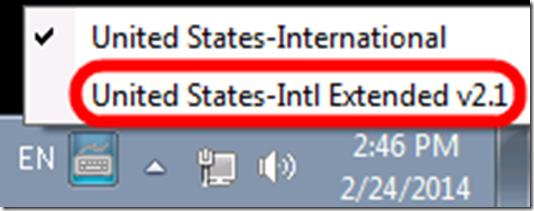
- To explore the new keyboard layout use the Windows On-screen keyboard which will let you peek ahead after your pressed a dead key.
- To bypass a special dead key (= get the normal behavior of the key), press SPACE after it.

How to install the Sanako Lite Recorder without it auto-starting and auto-restarting
- Problem:
- For a personal installation, but especially for a faculty-wide deploy, the default installation of the Sanako Lite Recorder seems to have too much of a footprint: Sanako Lite Recorder not only auto-starts (see e.g. the student icon in the notification area) with Windows, but also auto-restarts when exited –
- a useful feature of the classroom recorder from which the standalone recorder is derived, but not so much for a standalone recorder rollout. The feature is achieved by installing a service (helper.exe) that itself is during installation set to SERVICE_AUTO_START (0x00000002).
- This architecture also makes the installation option to “associate media files” with the Sanako Lite Recorder too greedy, even though it could be useful during the actual work of faculty with the Recorder.
- Workaround (for either manual reconfiguration after the install or to be integrated into the automated deployment):
- Can one set the underlying helper.exe service that gets installed during the Sanako Lite install to SERVICE_DEMAND_START (0x00000003)? Not tested. At best, this would help between computer restarts, but not when a teacher is done with editing the study recorder and tries to exit it (helper.exe, if itself started, will restarts the student.exe).
- Can one entirely disable this helper.exe service from services.msc, will the recorder still start? Testing with starting the student.exe and playing audio files did work. So one should try also during a deploy, use value SERVICE_DISABLED (0x00000004) for keys HKLM\SYSTEM\CurrentControlSet\Services\Sanako Helper\Start (and, in case something goes wrong later: HKLM\SYSTEM\ControlSet001\Services\Sanako Helper\Start).
What is “Content location” in Sanako Study Student Recorder (including Lite) for?


- While working on rolling out the free Sanako Light recorder to all faculty computers in a more systematic, automated way, the question has come up:
- What is “Content location” in Sanako Study Student Recorder (Ver 6, including Lite) “Administrative Settings” for, and how can it accept a URL?
- No such field in Ver 5.51; no mention in the help file; no manual this new (free) version would help seems included with the download.
- I am trying to point the “My files” to a more shared and LRC-accessible location on our SANAKO network share. Should I try the same with “Content Location”, or is this (defaults to “Application Data”) a strictly temporary location for during authoring?
- Answer: Sanako seems to be planning using this for distributing their own learning materials, esp. for ESL.
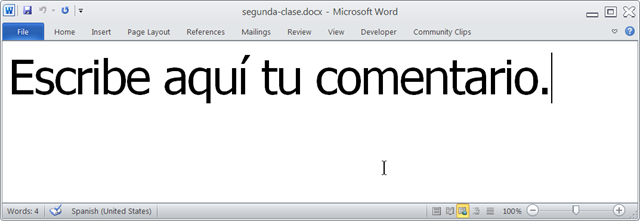
Announcing new MS-Word templates for writing assignments during face-to-face-classes in the LRC
- Benefits
- MS-Word is technology that has become “transparent”for most users:
- Have teachers focus on assignment pedagogy, not authoring technology.
- Have students focus on the target language, not authoring technology.
- Document is protected (for restricting formatting to predefined Word-styles):
- Have students focus on form or content, but not on distracting formatting issues.
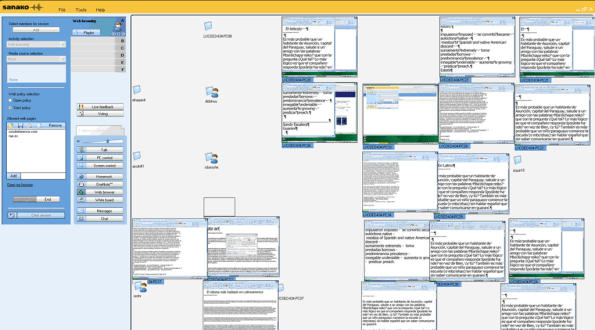
- Styles are designed to facilitate teacher monitoring students’ work using Sanako screensharing, like so:
- Take advantage of MS-Office Proofing tools (templates are preset for your target language).
- Take advantage of easy assignment file management with Sanako homework activity.
- Take advantage of internet lookup process, especially pedagogical if you combine with Sanako controlled-web-browsing activity
- MS-Word is technology that has become “transparent”for most users:
- Requirements:
- Teacher
- The easiest is to save the writing template for your language in C:\Program Files\Microsoft Office\Templates\1033 (or if your run 32-bit MS-Word on a 64-bit Windows, C:\Program Files (x86)\Microsoft Office\Templates\1033)
- Then base your writing assignment document on the template (e.g. by double-clicking the template in the folder you saved it to).
- Then save your writing assignment to your class material folder on the Sanako network share (from the office or in the LRC).
- In class, launch the Sanako homework activity.
- Student: none other than downloading and submitting the Sanako homework.

- Teacher
Example 7: Exercise dictating in German to an LRC Windows 7 computer
How can we get language students more speaking practice with qualified, but affordable feedback ? Native speaker contact remains difficult to organize even in the days of online conferencing. The LRC hosts language tutoring, but numbers are limited. Enter speech recognition, the holy grail of iCALL, much easier for learners to relate to than the voice graph that digital audio can be broken down to, and thus for a long time a standout feature of costly second-language-acquisition packages like Auralog Tell-me-More (speech recognition in English tested here) – but now the LRC has Windows 7 Enterprise (and its free add-on language packs), and another crucial prerequisite: headphones with excellent microphones.
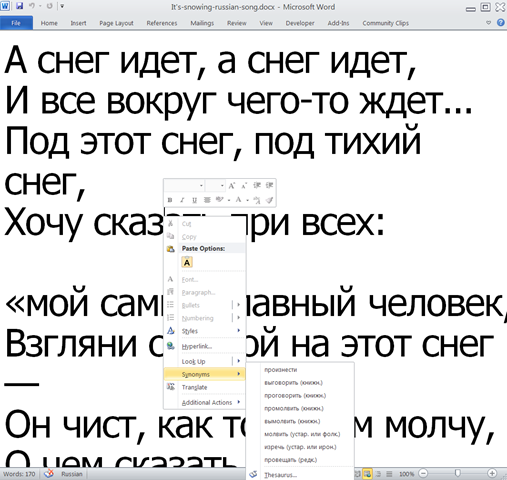
We are setting up the new Windows 7 computers in the LRC to allow for speech recognition in Chinese, English, French, German, Japanese and Spanish. Here is an example of me using this facility for a practicing my German during a dictation exercise:
Granted, German is my native tongue; but the example text is from the online component for the final chapter of the “Treffpunkt Deutsch” 1st-year textbook in use here, which sends the readers to the website of the Swiss (-German) employment agency.
Apart from infrequent words ("Archiven") and Lehnwörtern ("Bachelor" etc.), Windows 7 speech recognition accuracy seems quite impressive. The above example was actually my first dictation, except that immediately beforehand, I invested a few minutes into the standard Windows 7 speech recognition training (aimed at training the user, although may behind the scenes teach the computer a few things about the speaker already also) and a few more minutes of voice training (this one is meant exclusively for the computer, but the user can also see it fail and why). The – rather simple trick to boost speech recognition results – certainly accessible to our students – seems to be to speak not only clearly, but also slowly, with short pauses between most words.
Speech recognition in these languages is a feature of the Windows 7 (Enterprise/Ultimate version) “language packs” that we installed and switched to – that is why the entire computer interface appears in German. Practicing the L2 with (computer—operating) “voice commands” (instead of with a mouse) is also possible, simpler than replacing the keyboard (mostly) by voice, but not as easy to devise homework exercises for.
Tips for designing exercises using speech recognition: As the example shows ("Archiven") , doing all corrections by voice can quickly become tedious. But there is no pedagogical need to have your students’ bang their heads against this wall. Instead, just ask your students to correct their automatically recognized words manually at the end of their video, after their dictation. This way both you and your students get a clear summary of what they achieved – even clearer if they dictate in MS-Word with the spell and grammar check for the language (automatic with the switch to the language pack for the language) and (using key combination CTRL+SHIFT+E) track changes. We will show you later TBA:how we now enable students to easily record their screen and TBA:upload their screencast into Moodle Kaltura.
Windows 7 US-English with German language pack

Just to make sure, we are still in EDT…  (and the date and other formats do not get changed with the display language either, but so does help and feedback).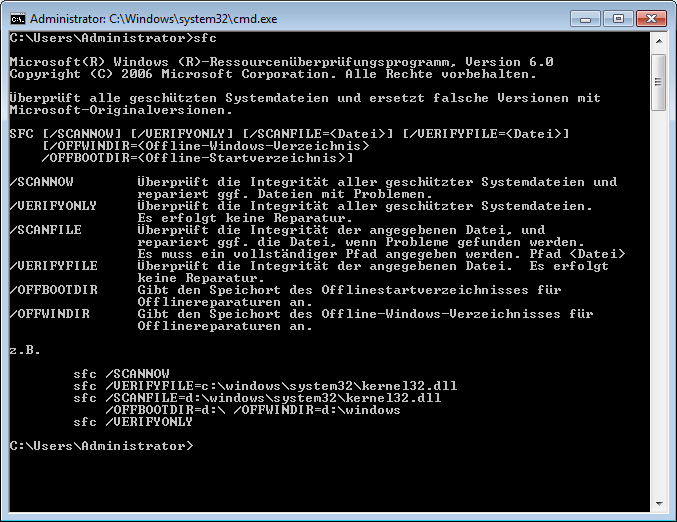
Can you find the error in Microsoft’s German localization in the command line window? Post it below.


Questions? Read the About. Or just ask me a quick Our Databases: Resources with calendars -- Language learning material Moodle Sites, multimedia files -- films


FAQs for LRC student staff or for students or for teachers. To search our FAQs, in the browser addressbar, add after "https://plagwitz.wordpress.com/feed/?tag=faqs+/" "+TAG1" (from tag cloud below) OR "https://plagwitz.wordpress.com/feed/tag=faqs
&category_name=" "CAT1" (from category hierarchy below). OR search both categories and tags, and multiple TAGs/CATs (connect with "," for OR-search, with "+" for AND-search), like so: https://plagwitz.wordpress.com/feed/?tag=TAG1+TAG2+...TAGn&category_name=CAT1
+CAT2+...CATn"
Other ways to find help
If you cannot find it here, look there: 5,500 Language-Learning Links and Programs for learning or teaching 150 languages
Shortcuts:Our Lists, Our Maps, LRC Staff Moodle Site,LRC Project Moodle Site, 49erexpress, UNCC Moodle, Student Recordings: s:claslcslrcsanakostudent
Learning usage samples: Sanako oral exam, Kaltura webcam presentation, Dictation with speech recognition, Sanako written exam, Chinese and Japanese interactive stroke-order practice
Test the Sanako Installer, Webbrowser Popup Konfigurator for XP, or Windows7, faster LRC TeacherPC Log-in Let MS facilitate diacritics writing by installing for you US-International keyboard layout
This is my personal blog (Google+). The views expressed on these pages are mine alone and not those of my employer. The information in this weblog is provided “AS IS” with no warranties, and confers no rights.
 Thomas' Work Space