Archive
An outline of the MS-Word Cloze Quiz, MS-PowerPoint Multiple Choice Quiz and Internet Lookup tools for
- To facilitate lesson delivery and student interaction in our language lab and computerized classrooms, I am programming two MS-Office templates with interactive lookup and quiz functions and create new/convert traditional language teaching materials in French, German and Spanish with them.
- These templates support the learner by strengthening learner autonomy and providing immediate corrective feedback and – in conjunction with the grouping facilities of the centre’s infrastructure – allow for custom-tailored instruction based on the immediately available outcome of formative assessments.
- MS-Word-Template
- The student can be given additional hints when tabbing into a form entry field.
- The student can easily look up words and terms in internet-based reference works and collections.
- Double clicking on a word opens a browser window with the corresponding entry in a dictionary of the corresponding foreign language.
- Selecting a word or phrase and clicking on a menu item in the lookup menu a browser window with the corresponding entry of various reference works and databases (Figure 3: Look up Internet Reference Works, Figure 4: Look up Internet Illustrations).
- The student will receive instant feedback when tabbing out of an entry field.
- During quiz-taking, the screen will be formatted (font face, size, spacing, colors) so that the teacher keeps easily informed, whether through a computer lab management system / screen monitoring tool or by a more “pedestrian” approach for student monitoring.
- After collection and before correction by the teacher and reviewing by the student, the screen will be re-formatted to facilitate reading outside of the classroom setting.
- The template can be used for a wide variety of typical foreign language teaching exercises:
- Instructors have requested fuzzy matching for fill-in-the-blank exercises, which I am planning to implement by integrating an existing COM add-in that can make available the Levenshtein Distance Metric to MS-Word.
- Upgrade of Templates from Sanako Lab300 to better integrate with the new Sanako Study1200 software features.
- Teaching Content Creation:
- Making subtitles for foreign language movie digitally available;
- Programming regular expressions ins VS.Net that match function words (example: demonstrative pronouns in Spanish) to run over these templates in order to batch create fill-in-the-blank exercises;
- Importing them into the templates and creating grammar and listening comprehension exercises
- Support: Implementing an Error Logging Application
- MS-PowerPoint-Template
- The teacher can easily lookup words and terms in internet-based reference works and collections
- Currently implementing additional lookup options (NLP and Corpus Linguistics (ACORN, BNC, Sketchup), Dictionaries (Visurwords, Wiktionary, Google Define).
- A number of templated custom-animated exercises can be used for
- presenting students with guiding questions before watching/listening to a target language segment
- Revealing correct answers after the segment.
- A number of templated interactive exercises can be used for revealing correct answers (word lists) depending on students’ responses.
- The templates support typical activities in the digital language lab (interactive presentations with multimedia, listening comprehensions, speaking and dialoguing activities for language learning, view usage examples in my Templates Eurocall Presentation video of September 2007). Teachers can use them as exercise-generating engines: they allow copy/paste of their own exercises into these templates. These templates have the advantage of being able to hook into the rich infrastructure that MS-Office provides for language teaching; they work with all Western Languages (but have been thoroughly tested only with ESL, French, German, Italian and Spanish so far). These templates that are better geared than VLE and other CALL resources for daily use in a computerized classroom environment: easy to author, take and monitor and either multimedia-heavy or focused on human interaction. These templates support the instructor by relieving of routine tasks in favor of well-informed, well-focused non-routine intervention, and extend the centre’s screen-sharing and VOIP infrastructure to provide the instructor with an unprecedented control of the learning of an entire class.
- APP delivery format:
- MS-PowerPoint: 1 template-file (.pot) and 1 addin (.ppa)
- MS-Word: 1 template (.dot – incorporates Lookup application) and 1 COM application (fuzzy matching)
- Apart from the templates themselves, there is
- Explanation: documentation of the tool
- see Figure 4: Template Documentation,
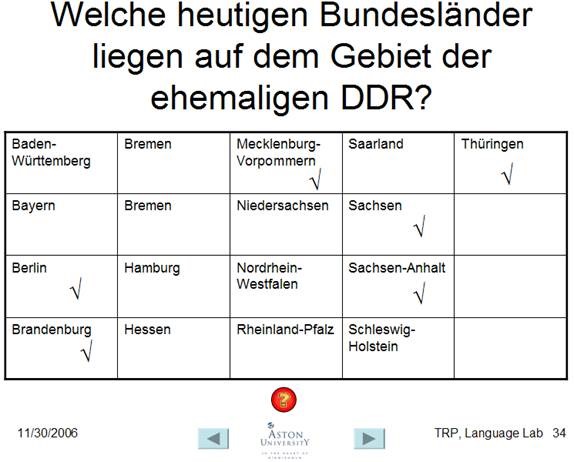
- Figure 8: PowerPoint Exercise Templates,
- sample materials which illustrate the practical exploitation of a tool the development of a skill or the response to an issue
- see Figure 3: Quiz Template with Chanson Lyrics
- Figure 9: PowerPoint-Exercises for German History Documentary,
- Sample Exercise material: hands-on activities for materials development, skills training or discussion
- Figure 9: PowerPoint-Exercises for German History Documentary)
- Explanation: documentation of the tool
- Since January 2008, the templates have been adapted for use in the Aston university Study1200 lab and a series of 3 teacher training workshops has been delivered in May/June of 2008. During that time, the implementation of the distance metrics within the templates has been started also which is currently still in the debugging state (see following slide below.)

Figure 1: Look up Internet Reference Works
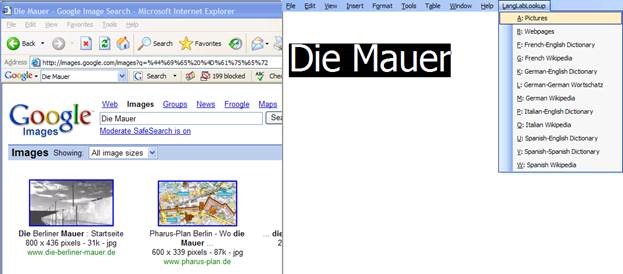
Figure 2: Look up Internet Illustrations
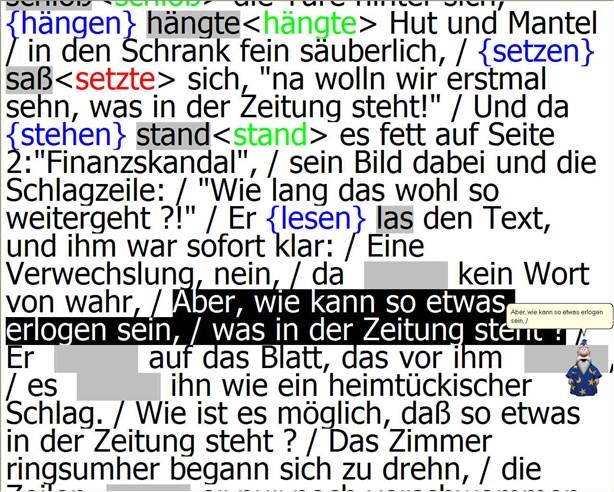
Figure 3: Quiz Template with Chanson Lyrics
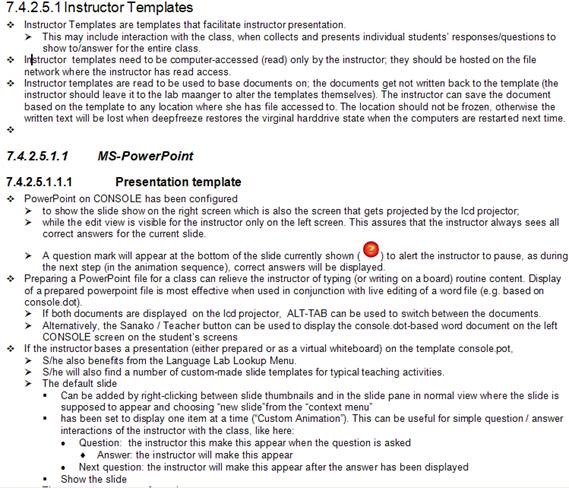
Figure 4: Template Documentation

Figure 5: Quiz Result Summary

Figure 6: Spanish Movie Subtitling Exercise Creation

Figure 7: Information Gap Dialogues (Language Lab Example)

Figure 8: PowerPoint Exercise Templates
Demoing a requirements gathering template for IT project management
Designed for SME focus group meeting capture when upgrading the City-of-London conference interpreting facility at London Metropolitan University. Querying users for business requirements in use case form. Watch a demo: 
to generate functional requirements:

and to generate technical requirements (and questions for vendors):
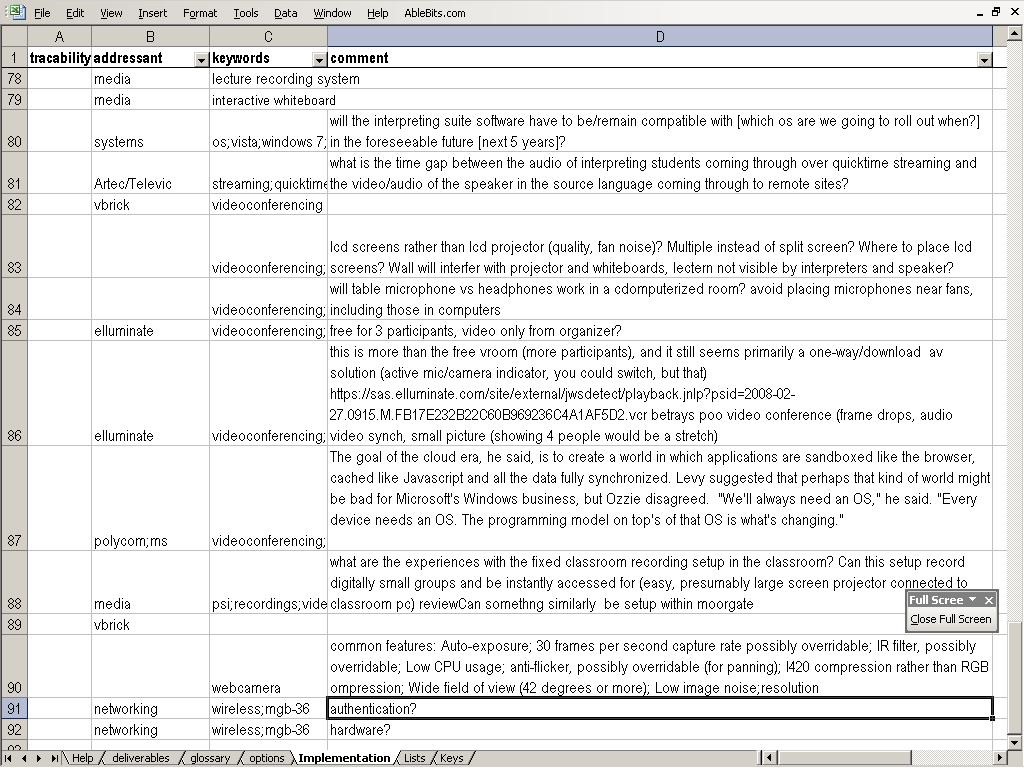
While keeping an eye on requirements metrics (what is important, contentious, unclear):

B-languages for Relay interpreting in European Parliament Plenary Video (2009)
You can do relay interpreting from European parliament plenary videos by selecting one of the b-languages which the parliament interpreters provide.
The (3) video download control for videos older than 20080711 allows for the recording of only one language-track in the video. You can download, from a link emailed to you, either the a- (e.g. (1) Italian here) or one b-language (e.g. (2) German here), as you can see below:

Given that software tends to always get impoved, is is rather surprising that one does not seem to have a similar choice in the new video downloader – however, the improvement is just a bit hidden.
For Videos newer than 20080710, all language-tracks are automatically contained within the downloaded (how? see here) video file. To switch between a- and b-language or between b-languages, in Windows Media Player, go to menu (if the menu does not show, right-click left from the “Now playing”button””: file / play / audio and language tracks / [now choose your language].
E.g. if you do not want to listen to Ferrero-Waldner not speaking her native tongue, choose like pictured below:

And she does not really speak “Zulu” which seems to have been chosen by the European Parliament technicians as the designator of the original a-language, there being no such concept in windows media player. Çan’t have it all. Pretty close, though.
Passing around European Parliament Plenary Video Clips & Transcripts
-
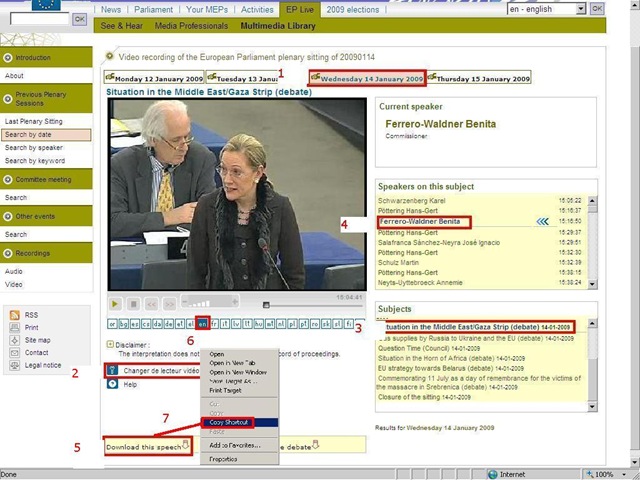
European parliament video clips are quite big and it would be easier not to have to pass them around. But how to communicate to somebody else which video clip to watch if the clip selected is not reflected in the browser address bar? The flash application unfortunately forces you to provide the “bibliographic” information in pieces (start url, date, possibly video format, debate title, speaker name). But in the end you get a direct link which you can pass on to save others from having to jump through the same hoops: If you just need the direct link, skip to step 7. Otherwise: Start with the calendar interface: http://www.europarl.europa.eu/wps-europarl-internet/frd/vod/research-by-date?language=en, find your (1) date, e.g. “Wednesday 14 January 2009”,
-
The window with the recording of that date will come up; now you CAN (2) change the video format – wmv (should work on most Windows PCs, free upgrade for MACs here:http://www.microsoft.com/windows/windowsmedia/player/wmcomponents.mspx) or mp4 -, an option that will show in the browser address bar. If you must, change format this first, as it seems to rewind the video to the beginning of the session.
-
Click on your (3) debate, e.g. “Situation in the Middle East/Gaza Strip (debate) 14-01-2009”.
-
Click on your (4) speaker, e.g. “ 15:16:50 Benita Ferrero-Waldner 00:13:12 15:30:02”
-
Instead of watching online (e.g. if you find the stream quality lacking), you can (5) download the video (in the format you have chosen, either wmv or mp4). UPDATE: The web site added a disclaimer that you have to 1.read, 2.check before you can 3. download, as illustrated below:

-
Note: you can (6) change the b-language (for relay interpreting) when streaming. Plus, when you download the video, all the b-languages are downloaded together with the a-language. See here how to select the desired b-language when playing the downloaded file.

-
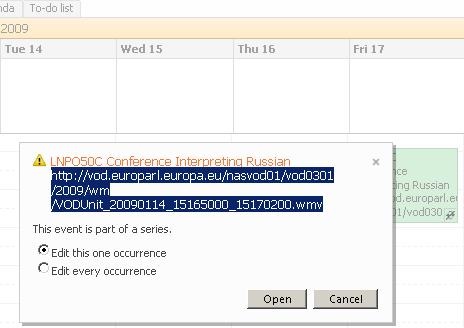
Easier than providing all bibliographical information (calendar URL, date, debate and speaker) is the direct URL of the download clip. Right click on “Download this Speech”, select (7) “Copy shortcut” from the context menu. Then paste this, e.g. http://vod.europarl.europa.eu/nasvod01/vod0301/2009/wm/VODUnit_20090114_15165000_15300200.wmv or if you chose mp4 format: http://vod.europarl.europa.eu/nasvod02/vod0301/2009/isma/VODUnit_20090114_15165000_15300200.mp4, into the calendar event for the exam – completes your checklist for the exam, and at the beginning of the exam, you can download the link from here onto the students’ computer. Or, for assigning materials to students or passing them to external examiners, email this direct link.
-
Unfortunately, it appears that the transcripts, unlike the audio channels, do not include the relay languages and have to be accessed from a different (calendar-)interface here: http://www.europarl.europa.eu/activities/plenary/cre/calendar.do?language=EN: “The verbatim report of proceedings of each sitting (often referred to by its French abbreviation, CRE) is published (Rule 173 of the Rules of Procedure) and contains the speeches made in plenary, in the original language.”

Appendix: The file size of these videos is about 10MB per minute. If you feel you need to save the videos locally, use an appropriate location (where you have sufficient space, the file will not be erased, only appropriate users have access – consider this before using a public network share, personal drive). Not really more “local” is saving the video clip on the http://hale-interpreting.groups.live.com Skydrive which can also hold clips larger than 50MB[ doubled to 100MB on June 20,2011] if you pre-process them like described in the zipping instruction.
Watch a 5-minute narrated video-clip that demonstrates the above steps.
Saville Interpreting Suite layout diagram
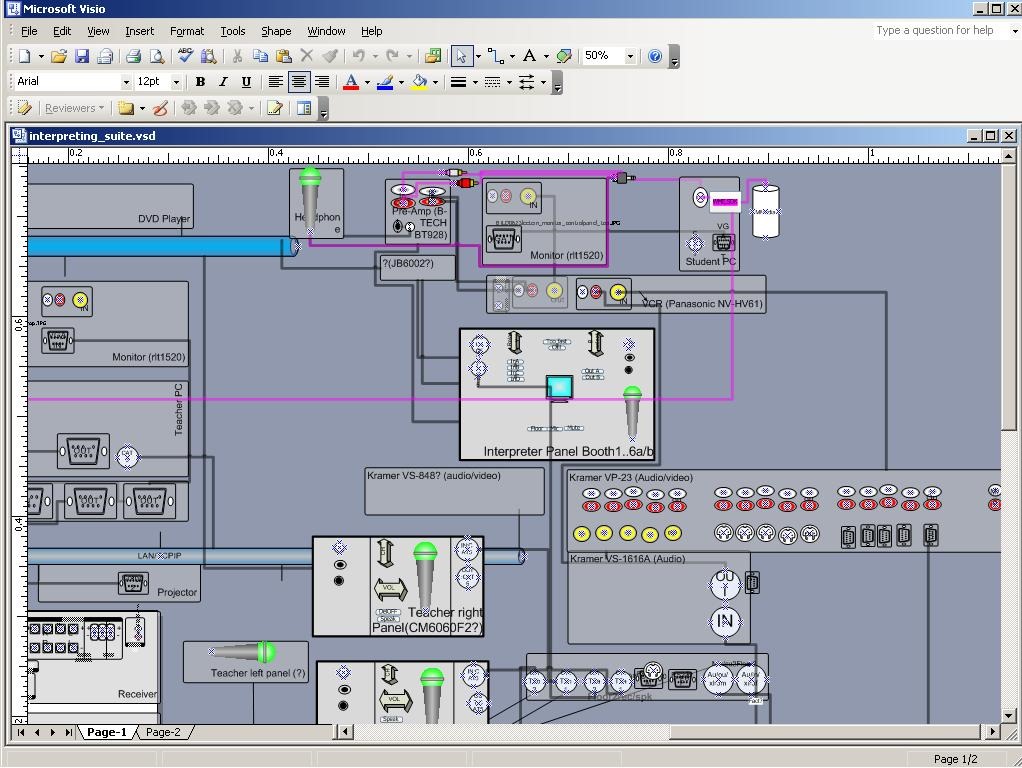
Which I had to derive from photos:
Learning materials management: Offline resources (2005-2006)
AKA books, shiny disks, VHS and – oh my! – cassette tapes. All come with shelves. Yuck! Where is Google Books, when you need it?
The media library I had to work with had, as I found it, a content specific labeling system and a language specific sort order on the shelves. This seems an anti-pattern in many modern languages departments: try to avoid complexity by isolating yourself. 1st degree: each language program on its own; 2nd degree: each instructor on his/her own. Atomization leads to idiosyncrasies and duplication of efforts (which must result in lowering of standards, despite, no doubt, individual toiling).

Trying to find an easy answer for complexity: I am afraid I quickly had to throw overboard the suggestion to implement the Library of Congress labeling scheme. I also abandoned trying to represent in one physical order what has to be viewed under multiple perspectives. I introduced a unique id labeling scheme based on a a simple numerical counter, where each new item would be added to the end of the stacks with a label equaling max(counter) + 1, and as a new row at the bottom of an Excel spreadsheet, which supported all discovery and lending with sort, filter, search.
And here is a partial screenshot of the offline_resources.xls:

Way too much complexity still remained: too many fields, all types of resources had to be coerced into records of the same format (hand-coded an access database for records to avoid this requirement – don’t go there!). Should have relied more on full text search, even with the simple regular expressions that come with Excel.
However, the sheet was open all day on the lab assistant’s computer behind the reference desk and worked pretty well, or was at least a major improvement. Remaining issues: speed of spreadsheet (too many complex ISBN validating formulas), lab staff training, more so instructor training (if they did not want to rely on lab staff entirely or on trying to browse the physical stacks looking for a physical order where there was no such system any more: change management problems).
Learning materials management: Online_resources.xls II: E-repository (2006-7)
I participated in the implementation of a “ learning object” repository – is there such a thing as a learning “object” in a progression-oriented field like SLA? Anyhow, the software of choice was Equella which, as I read on the listservs, is favored by Blackboard Admins for its Blackboard module and is supposed to provide the primary interface to the equella for instructors in their Blackboard course websites.
Since this did not get implemented during my time, we used what seems primarily the admin-interface and, since equella does not come with one, attempted to implement a metadata schema, based on the prior work of an LLAS-sponsored group. We also soon found that despite complexity, the metadata schema was still lacking (E.g. you won’t get through French 101 without several sections on “Negation”. nor German, nor Spanish etc.).

Excel to the rescue once more: Here is a spreadsheet in action that not only allows adding, tagging, searching and filtering links to, once more – easier than to make your own – web-based exercises, but now also allows the collaborative building of a metadata schema. But alas, the number of fields is growing again.


Questions? Read the About. Or just ask me a quick Our Databases: Resources with calendars -- Language learning material Moodle Sites, multimedia files -- films


FAQs for LRC student staff or for students or for teachers. To search our FAQs, in the browser addressbar, add after "https://plagwitz.wordpress.com/feed/?tag=faqs+/" "+TAG1" (from tag cloud below) OR "https://plagwitz.wordpress.com/feed/tag=faqs
&category_name=" "CAT1" (from category hierarchy below). OR search both categories and tags, and multiple TAGs/CATs (connect with "," for OR-search, with "+" for AND-search), like so: https://plagwitz.wordpress.com/feed/?tag=TAG1+TAG2+...TAGn&category_name=CAT1
+CAT2+...CATn"
Other ways to find help
If you cannot find it here, look there: 5,500 Language-Learning Links and Programs for learning or teaching 150 languages
Shortcuts:Our Lists, Our Maps, LRC Staff Moodle Site,LRC Project Moodle Site, 49erexpress, UNCC Moodle, Student Recordings: s:claslcslrcsanakostudent
Learning usage samples: Sanako oral exam, Kaltura webcam presentation, Dictation with speech recognition, Sanako written exam, Chinese and Japanese interactive stroke-order practice
Test the Sanako Installer, Webbrowser Popup Konfigurator for XP, or Windows7, faster LRC TeacherPC Log-in Let MS facilitate diacritics writing by installing for you US-International keyboard layout
This is my personal blog (Google+). The views expressed on these pages are mine alone and not those of my employer. The information in this weblog is provided “AS IS” with no warranties, and confers no rights.

