Archive
How to install and use a free dictionary/encyclopedia app in MS-Word 2013
Installing is easy (our example is Wikipedia): Right-click a word, pick “define” from the context menu, the click download in the side pane for the app you choose.

Usage is also easy: To look up phrases, select, right-click and choose define: 
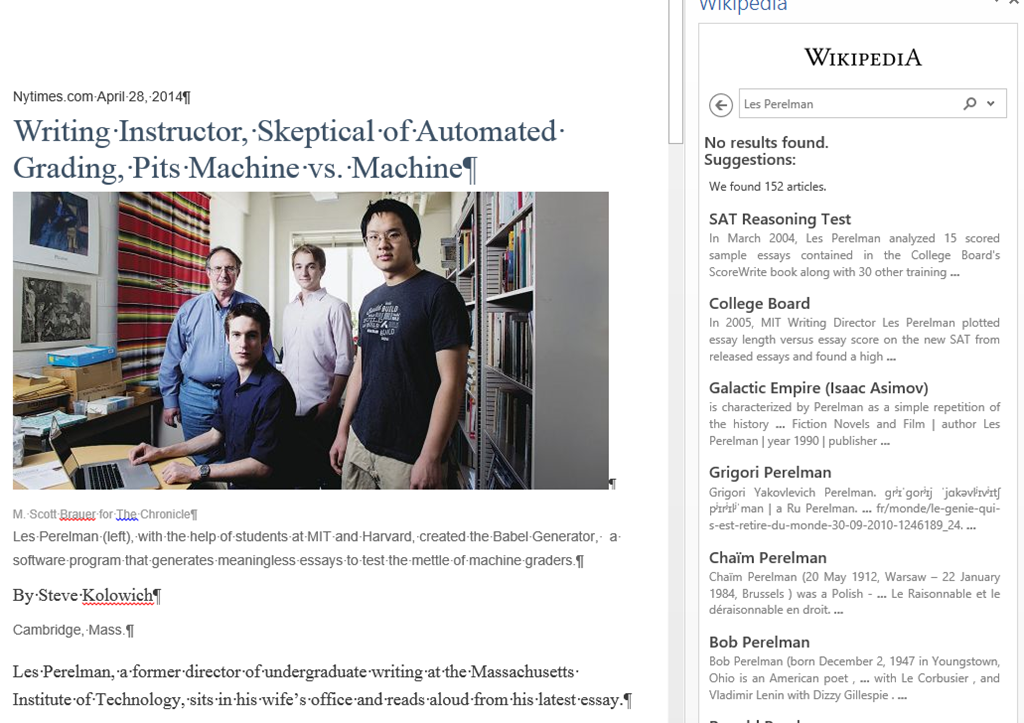
To look up individual words, you can also just double-click the word: 
You can also click “Expand”: 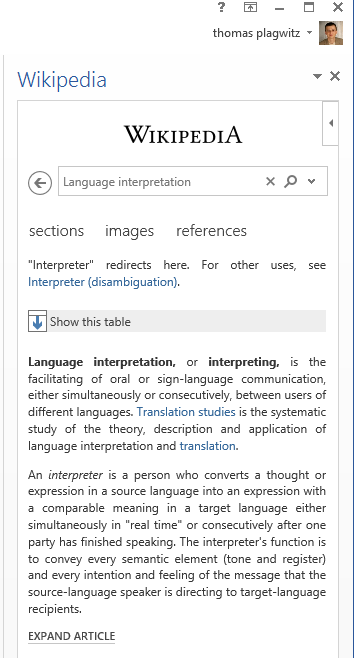
To install more dictionaries after the first one, click Insert / Apps for Office. 

You can search for your L2 (too many to list): 
It works for base forms: 
But I cannot lemmatize (ouch): 
I found out that when I go to Insert/ My Apps/ See all :  , I can show more than one app in the side pane.
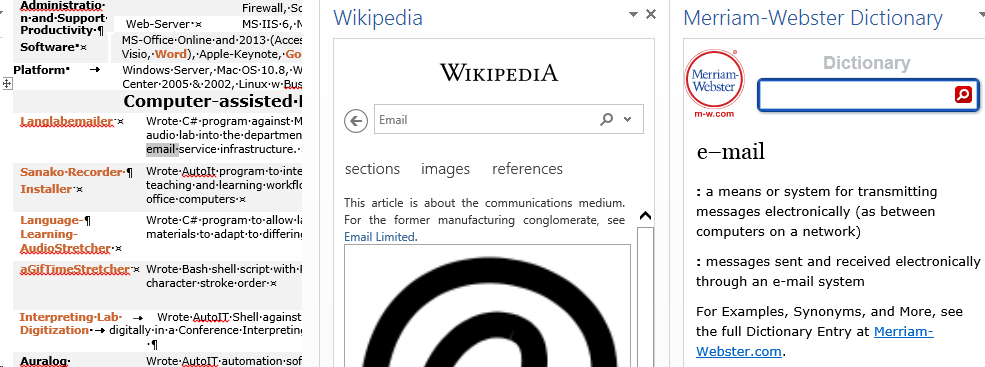
However,how o I change the default lookup that happens on double click on a word?
Interpreting against audio files sources with live feedback in Sanako Study 1200
- How will we be recording
- Individual recording
- Voice insert: student control how much time they have interpreting
- students can stop the source where they want, they can rewind and review the source, they can overwrite their initial interpretation, they can interpret at the speed they want.
- We could insert cues at sentence ends in the source; and also (but little need,) slow the source down or insert pauses
- Student track
- students have to follow along at the speed of the source can stop the source where they want, they can rewind and review the source; they can with some difficulty overwrite their initial interpretation/
- More difficult: We likely should slow the source down or insert pauses
- Voice insert: student control how much time they have interpreting
- Model imitation: like an exam,
- students all speak in parallel, without individual control
- Most difficult: We most likely need to slow the source audio down, including inserting pauses as "breathers")
- Individual recording
- What audio track will we be collecting?
- If student saves manually, student can save either or both tracks , but need to be taught.
- If model imitation, we collect only student recording.
- If lock player/collect buffer, we collect both source and student track
- Listener can focus on one track by controlling the balance during playback: https://thomasplagwitz.com/2014/03/31/how-to-manage-balance-on-stereo-audio-using-audacity-sanako-student-recorder-or-any-audio-player-on-windows/
- Listener can also split the audio tracks (= delete the source track),
- more easily (file / save as) in the sanako recorder
- More
- Teacher listening in
- Is always possible,
- just click the student icon in the classroom layout
- or use screen control / autoscan: the audio switches with the screen, this has a bit of overhead, and our computers are network are not the fastest, but we made some changes to optimize speed; best reserved for when you also need to see the student’s screen.
- Is always possible,
- Teacher speaking: Teacher providing on-the-fly feedback via "Discuss":
- Playlist Launch and open (goo.gl/2awRG/): then you can stop each individual student (students do not work in sync, remote-controlled) .
- Model imitation (goo.gl/ZL7DG/) : then you cannot talk to one (all students record in sync).
- Teacher providing non-live feedback :
- Teacher can provide aural feedback later when grading the student submissions from your office pc:
- How a teacher can use Sanako voice insert to easily add spoken comments to students’ Sanako oral proficiency exams- step–by step
- We recorded here how it is being done for Business Spanish: Protected: How a teacher can give students aural feedback on oral exams using the Sanako Study 1200 Lite Recorder
- For that voice-insert, you need to install the Sanako Recorder on your office PC.
- Teacher can provide aural feedback later when grading the student submissions from your office pc:
Slowing source audio for interpreting classes in the digital audio lab
- To judge from listening to Simult. Lesson 1, text 2 on Acebo Interpreter’s Edge (ISBN 1880594323), I am wondering whether some of our students (= personalization) would need this audio to be simplified, to gain the benefit of a well-adjusted i+1? I can pre-process the audio :
- Where the flatlines = natural pauses are in above graph, insert a audio signal as where students can press voice insert recording, Example:

- We can also insert a pause and a cue at the beginning and end to set students a limit how long they can interpret, but if students operate the player manually, there is no teacher control and no exam condition, and the students having to manage the technology tends to distract from the language practice.
- Slow down the audio without changing the pitch (just have to make sure not to overdo it, else will sound like drunken speech – my time stretching software would be able to avoid “drunken speech” syndrome, but I have not been able to work on it since briefly for IALLT in Summer 2011 for 3 years now…)
- We can use this adjusted with the Sanako grouping feature to personalize instruction (find the right i+1 for each of your student, useful if there are considerable variations in their proficiency): How to group students into sessions (in 3 different ways) goo.gl/JgXUP/.
- Where the flatlines = natural pauses are in above graph, insert a audio signal as where students can press voice insert recording, Example:

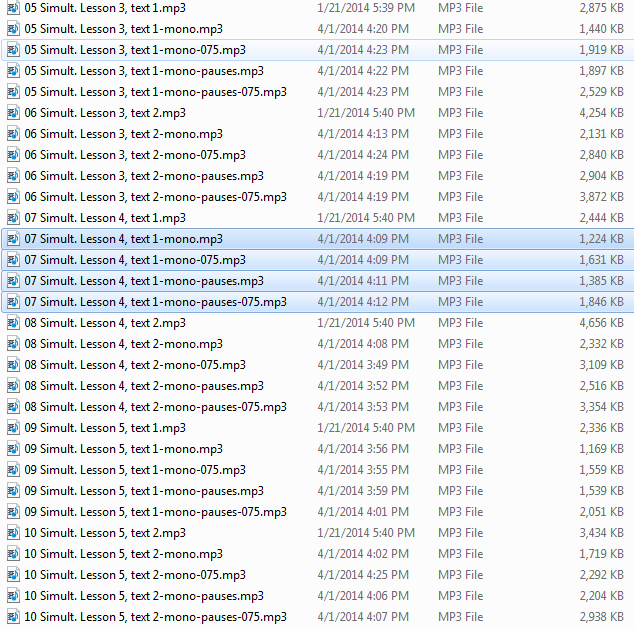

Protected: Elti0162 Syllabus with learning materials for listening and speaking
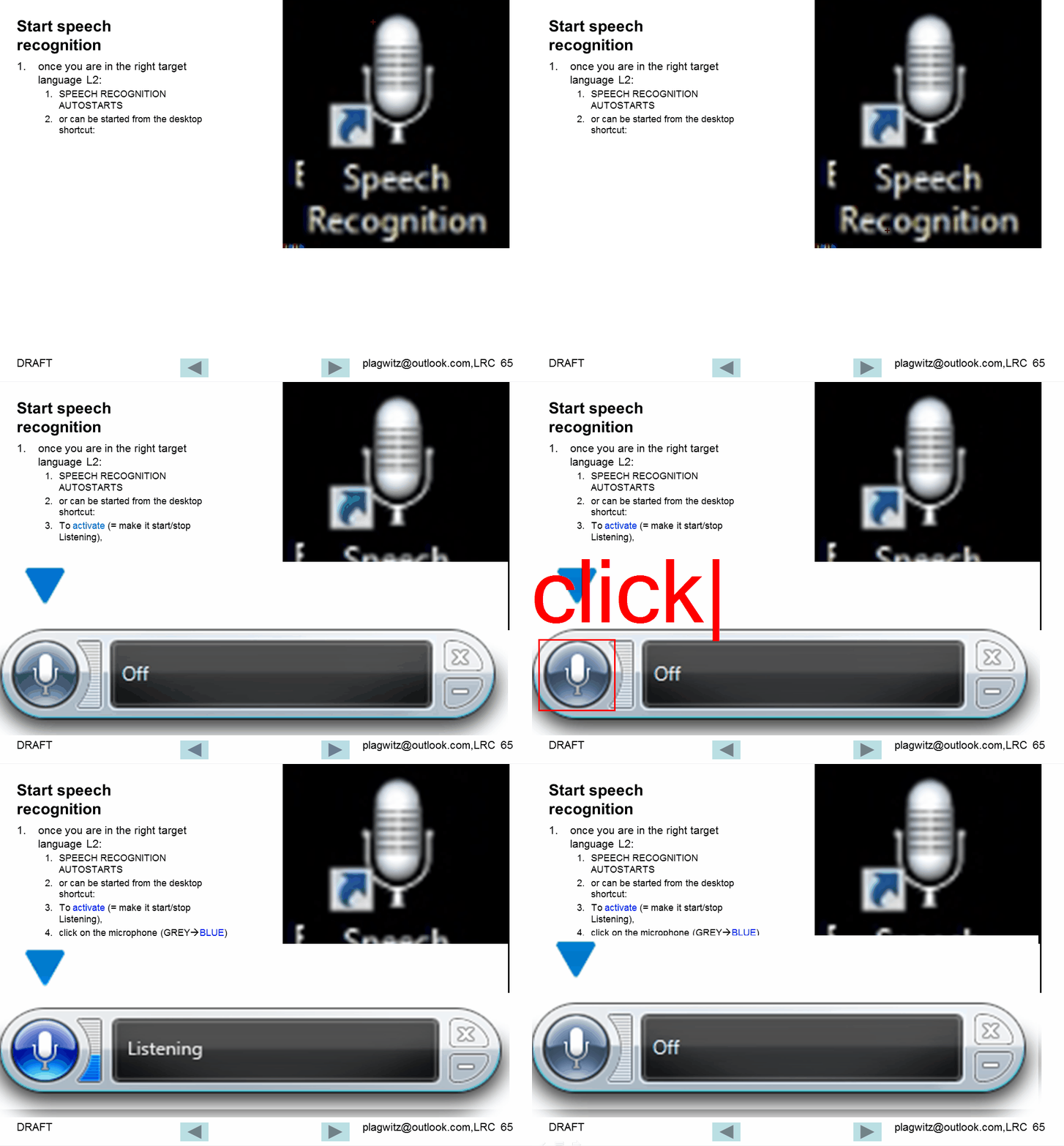
Watch how to start and activate speech recognition from the desktop
Watch how to configure the speech recognition wizard on Windows 7
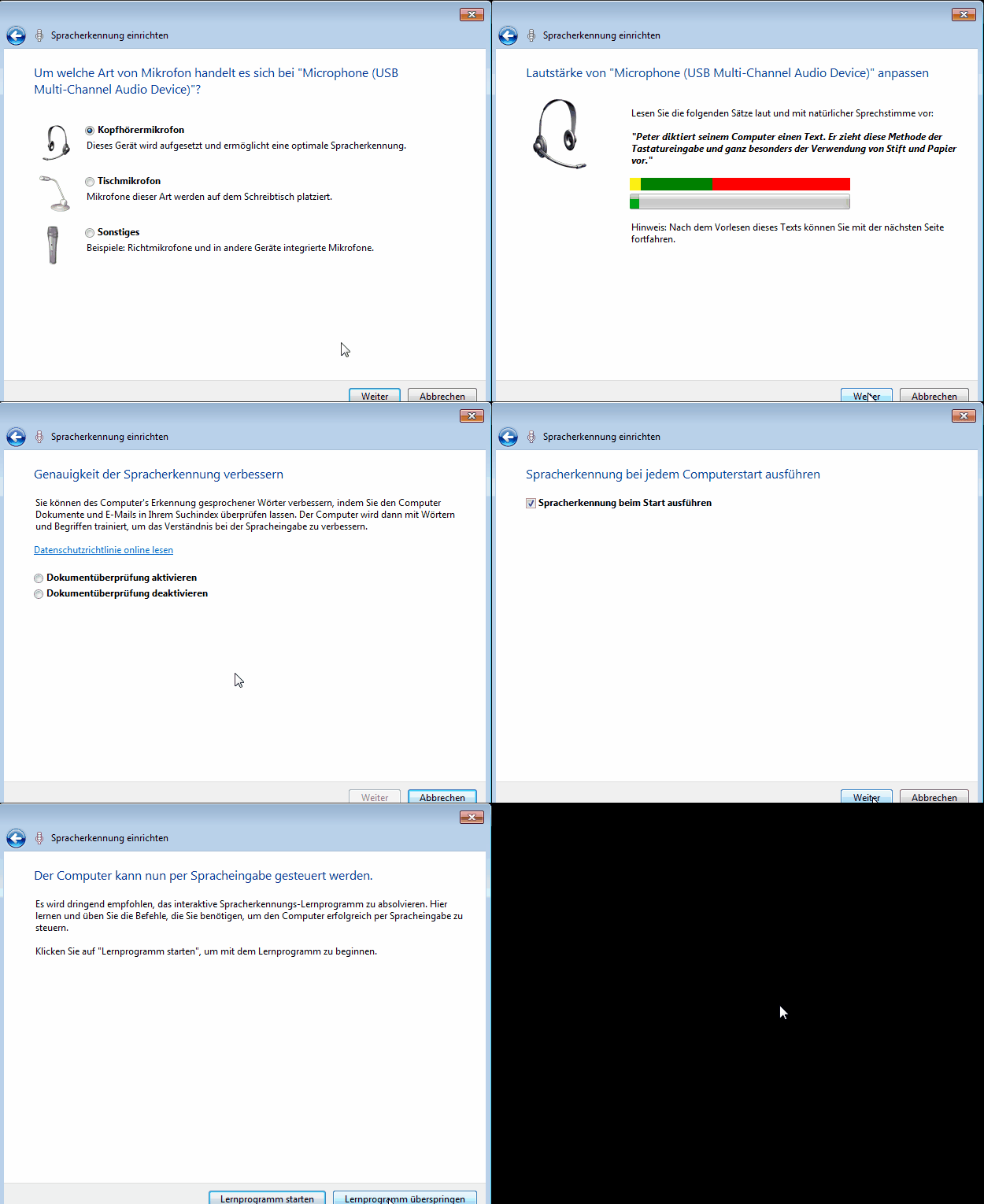
Choose the same options in your language (every time you log in, until we find a way to set these options on a per-machine level).
Learn and teach writing in your second language on Lang-8.com

Improving language learning with technology for me seems to have 2 avenues: AI and human intelligence. Automated feedback on writing provided by proofing tools – even if they have become smarter and more contextual to spot (in MS-Word 2007 and up) common errors like your/you’re or their/there – makes one wonder about the feasibility of the former. But that automated essay-scoring tools which have been developed and deployed (at least for ESL) claim to score similarly as teachers makes one wonder about much more… Correcting writing remains expensive!
So may be we should look into crowd-sourced writing correction which needs no cutting edge NLP, only well-understood WWW-infrastructural technology to connect interested parties, but requires social engineering to attract and keep good contributors (and a viable business model to stay afloat: This site seems freemium).
Reading online comments and postings in your native language makes one wonder: can language teachers be replaced by crowdsourcing? I became aware of this the language learning website that offers peer correction of writing input by native-speaker through a language learner corpus. I have not thoroughly evaluated the site, but the fact that its data is being used by SLA researchers here (http://cl.naist.jp/nldata/lang-8/) seems a strong indicator that the work done on the website is of value.
To judge by the numbers accompanying the corpus (it is a snapshot from 2010, a newer version is available however on request), these are the most-represented L2 on lang-8.com: 
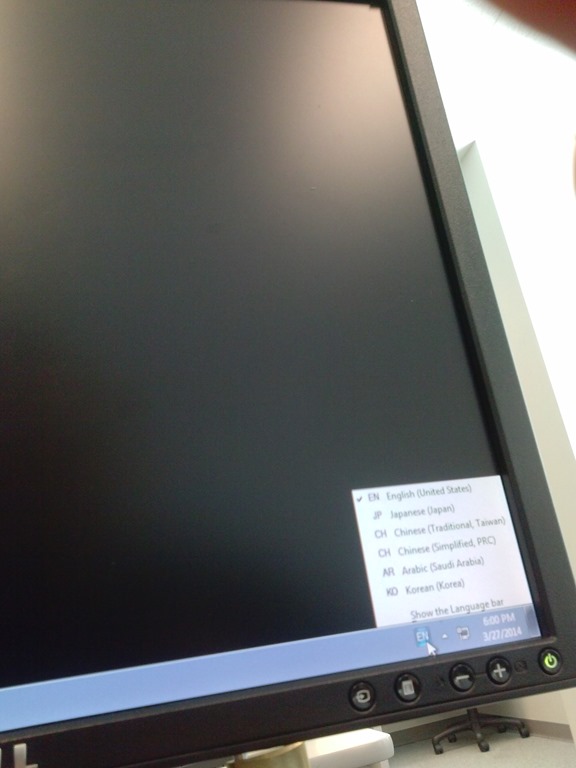
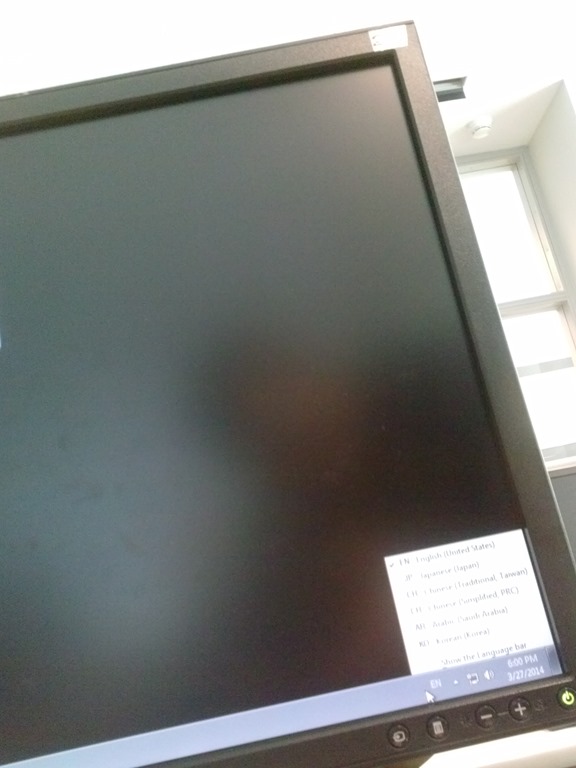
Input languages missing on PC21 to PC31
- I only had a chance to check the PC’s in the title.
- This is the size of a good language bar:

- These PCs are missing input languages when I am logged in:
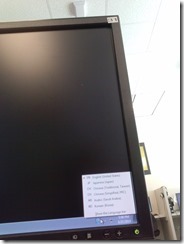
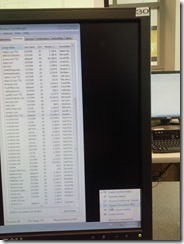


- my phone has a poor camera, so this needs double checking:
- looks like pc29:
- unclear which, but appears to be in 2nd row:

- looks like pc29:


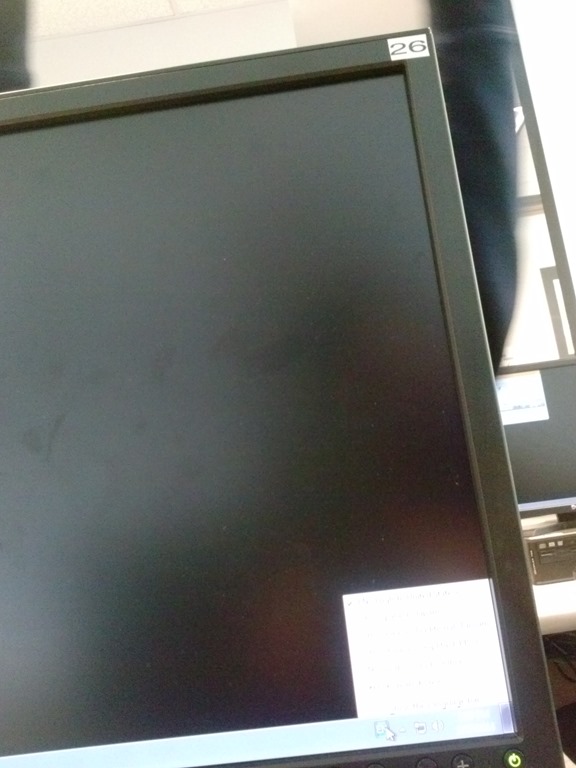
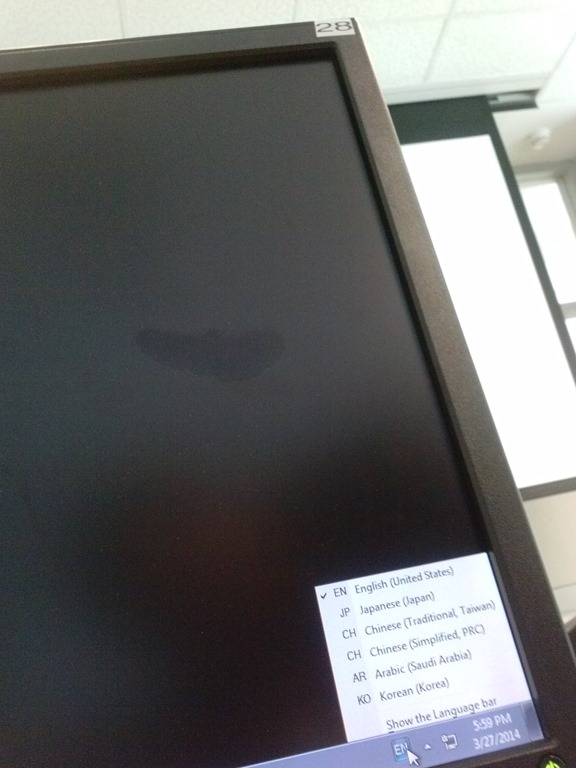


Questions? Read the About. Or just ask me a quick Our Databases: Resources with calendars -- Language learning material Moodle Sites, multimedia files -- films


FAQs for LRC student staff or for students or for teachers. To search our FAQs, in the browser addressbar, add after "https://plagwitz.wordpress.com/feed/?tag=faqs+/" "+TAG1" (from tag cloud below) OR "https://plagwitz.wordpress.com/feed/tag=faqs
&category_name=" "CAT1" (from category hierarchy below). OR search both categories and tags, and multiple TAGs/CATs (connect with "," for OR-search, with "+" for AND-search), like so: https://plagwitz.wordpress.com/feed/?tag=TAG1+TAG2+...TAGn&category_name=CAT1
+CAT2+...CATn"
Other ways to find help
If you cannot find it here, look there: 5,500 Language-Learning Links and Programs for learning or teaching 150 languages
Shortcuts:Our Lists, Our Maps, LRC Staff Moodle Site,LRC Project Moodle Site, 49erexpress, UNCC Moodle, Student Recordings: s:claslcslrcsanakostudent
Learning usage samples: Sanako oral exam, Kaltura webcam presentation, Dictation with speech recognition, Sanako written exam, Chinese and Japanese interactive stroke-order practice
Test the Sanako Installer, Webbrowser Popup Konfigurator for XP, or Windows7, faster LRC TeacherPC Log-in Let MS facilitate diacritics writing by installing for you US-International keyboard layout
This is my personal blog (Google+). The views expressed on these pages are mine alone and not those of my employer. The information in this weblog is provided “AS IS” with no warranties, and confers no rights.
 Thomas' Work Space