Archive
Meta-search many historical German dictionaries and encyclopedias using Woerterbuchnetz.de
A meta-search by the University of Trier Center for Digital Humanities may not teach you much German – you need to know it already –, but help prevent you remaining a “one-dimensional man”.
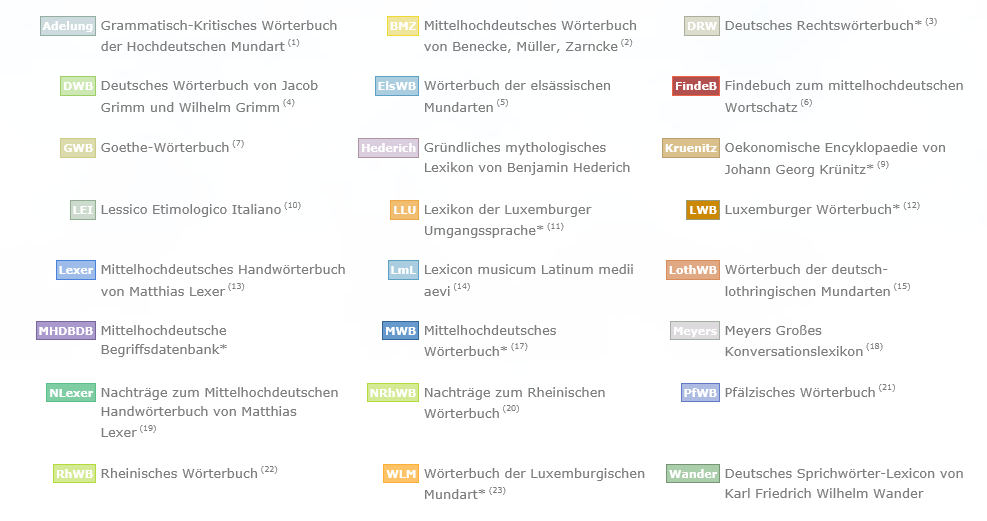
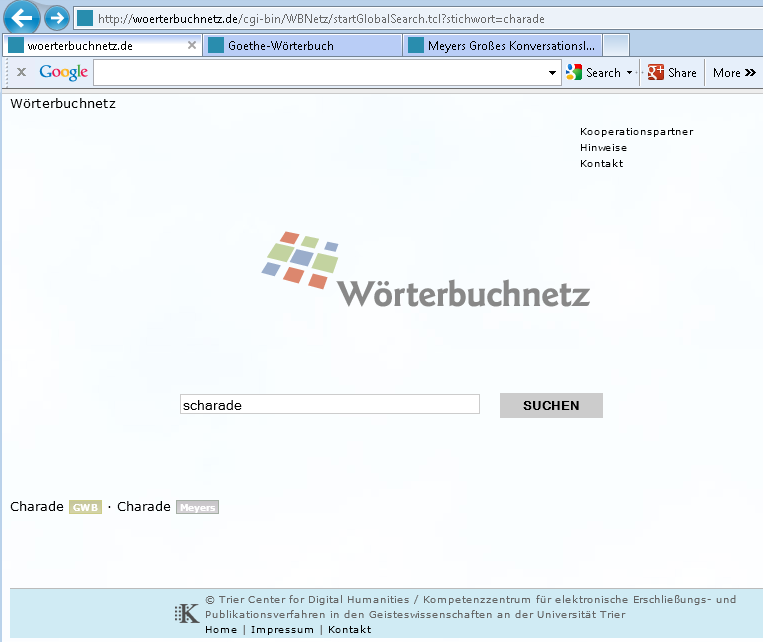
I came to know a lot of those during my own German and history studies a long time ago – – when they still only existed on paper, if not parchment  . Gotta love Digital Humanities, and find other activities for physical exercise. Her is an example search result:
How to download Centro Spanish Textbook audio
The audio is in (compressed) mp3 format. Just right-click on any audio link and choose save target/link as (or similar, depending on browser), like so: 
Example from Centro – Puntos de partida: Online Laboratory Manual, 8th Edition (you need access privileges to follow this link, but you can send links around, users can open them, provided their webbrowser is already logged into the centro site – getting access and finding you way around the website is the real issue. Webspiders are prohibited, though – and even Downthemall saves only files without extensions: rename them to .mp3 or save them manually as .mp3 in the first place, as shown above. Does not work as above? Try a different web browser.

Phonetic Russian character input on US-keyboards with Google IME in the LRC
- To write Russian phonetically in Cyrillic:
- Since “input methods”are specific to each window (and automatically switch to that of the window you make active), first open the application you want to write in, preferably MS-Word (has proofing tools for Russian).
- In the language bar on the lower right, click on “EN”, select “Russian” instead

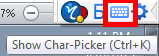
- Click on the keyboard symbol and select “Google”:

- You first may have to right-click on the language bar on the lower right of your desktop and select “Adjust” to show the keyboard symbol:
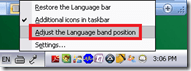
- You first may have to right-click on the language bar on the lower right of your desktop and select “Adjust” to show the keyboard symbol:
- If you now type in MS-Word Russian (your selection did not “stick” in MS-Word? do the above steps again, eventually it will…) phonetically on a US-keyboard, you will be able to select from suggestions in Cyrillic:

- Click the desired suggestion to have it entered into MS-Word:

- To go back to writing temporarily in English (without changing the entire input method back to English), click the (Cyrillic/Latin) letter symbol on the Google Russian IME menu:
 and you can enter English (Latin alphabet) without the popup suggesting you Russian equivalents:
- To switch from the phonetic input to a floating Cyrillic keyboard,
- click on the keyboard symbol in the Google Russian IME.

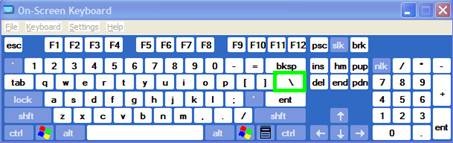
- Or from the Language bar, switch to the other (Microsoft) keyboard layout for "Russian" (see #4 above), and go to "Start" / "Run" / type OSK, click "OK".
- click on the keyboard symbol in the Google Russian IME.





Character Input Methods for SLA (Western)
For studying (typing) Western Languages (= need for diacritics only; whether you have a US keyboard hardware or UK which is pretty similar), we recommend the MS Windows US International Keyboard layout which is based on “dead keys”.
Currently installed in the LLC are the Language Bar (floating on top of screen or accessible from the taskbar) with these keyboard layouts:
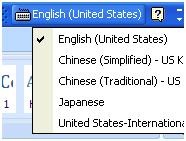
Keyboard layout settings are application/window specific, and “US” (non-international) is still the default for new applications/windows, so prepare to switch after you start a new application;
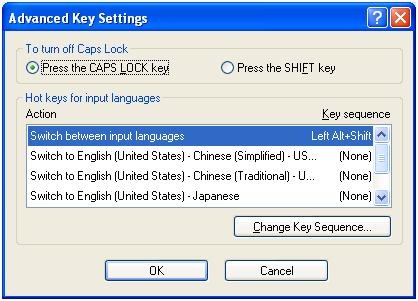
There are keyboard shortcuts for switching, however, “Key settings”: “switch between input languages” , using LEFT ALT + SHIFT, does not work. Workaround: use the language bar for switching:
Windows keyboard layout settings can be temperamental – if you find you cannot switch to a certain layout anymore, you may have to restart the computer.
Use the following keyboard shortcuts to enter diacritics more easily:
|
Press (together, then release) |
then press |
Example Result |
|
` (accent grave) |
any letter that can have this accent, e.g. "a”, also cedilla ç |
à |
|
‘ (apostrophe) |
á |
|
|
^ (caret)- |
â |
|
|
~ (tilde) |
ã |
|
|
” (double quotation marks) |
ä |
|
|
CTRL+& |
Z or z |
æ |
|
rightALT+ |
X or x |
œ |
|
rightAlt+n |
|
ñ |
|
ALT+CTRL+? |
|
¿ |
|
rightAlt+? |
|
|
|
ALT+CTRL+! |
|
¡ |
|
rightAlt+1 |
|
|
|
rightAlt+s |
S |
ß |
To access the original, now dead keys, press space bar after pressing the dead key.
|
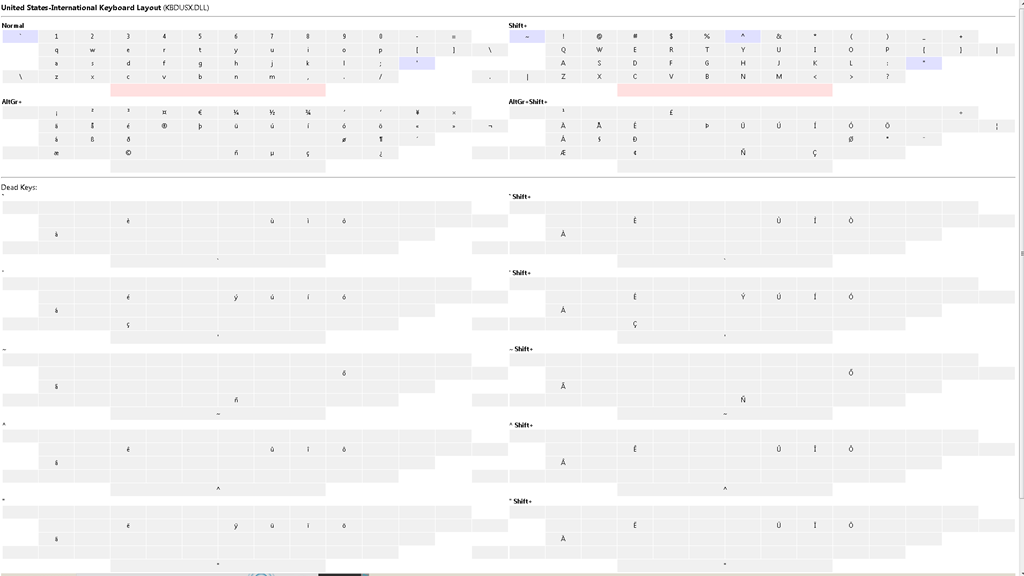
Modifiers(blue)/Layout |
Note the new modifier = “dead” keys, indicated by light blue color (click to enlarge) |
|
Normal |
|
|
|
|
|
Shift |
|
|
|
US International |
|
|
|
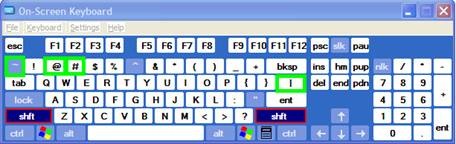
Screencast of US International in action here: deadkeys.wmv
Interactive Demo of installation procedure (personal computers outside of the LLC) here: keyboard_usinternational.swf
Planned improvements:
- Use LEFT ALT+Shift to switch to (Software) “Keyboard Layout” “United-States International”.
- Use other keyboard short cuts to access a desired keyboard layout directly
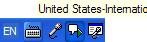
- Dock the “Language Bar” in the Taskbar, then hover over it to make sure you selected the proper “Keyboard Layout”.
· 
Query treebanks with Fangorn for English SLA?
To provide inductive empirical examples, SLA classes have benefitted from query interfaces to target language text corpora in SLA. But corpora are usually POS-tagged – and queried – at best, which constitutes a certain “impedance mismatch” to what SLA classes actually teach. The Fangorn very large treebank query language beta demonstration page

looks already interesting for analyzing English in SLA (hover over tree elements to highlight the corresponding text), including, thanks to its capability of editing and refining queries graphically from the search results, for demonstrations during face-to-face classes. Wondering whether other corpora than Penn Treebank, Wikipedia (5k and 5000k sentences) will be made available online, and other languages but English will be supported.


Questions? Read the About. Or just ask me a quick Our Databases: Resources with calendars -- Language learning material Moodle Sites, multimedia files -- films


FAQs for LRC student staff or for students or for teachers. To search our FAQs, in the browser addressbar, add after "https://plagwitz.wordpress.com/feed/?tag=faqs+/" "+TAG1" (from tag cloud below) OR "https://plagwitz.wordpress.com/feed/tag=faqs
&category_name=" "CAT1" (from category hierarchy below). OR search both categories and tags, and multiple TAGs/CATs (connect with "," for OR-search, with "+" for AND-search), like so: https://plagwitz.wordpress.com/feed/?tag=TAG1+TAG2+...TAGn&category_name=CAT1
+CAT2+...CATn"
Other ways to find help
If you cannot find it here, look there: 5,500 Language-Learning Links and Programs for learning or teaching 150 languages
Shortcuts:Our Lists, Our Maps, LRC Staff Moodle Site,LRC Project Moodle Site, 49erexpress, UNCC Moodle, Student Recordings: s:claslcslrcsanakostudent
Learning usage samples: Sanako oral exam, Kaltura webcam presentation, Dictation with speech recognition, Sanako written exam, Chinese and Japanese interactive stroke-order practice
Test the Sanako Installer, Webbrowser Popup Konfigurator for XP, or Windows7, faster LRC TeacherPC Log-in Let MS facilitate diacritics writing by installing for you US-International keyboard layout
This is my personal blog (Google+). The views expressed on these pages are mine alone and not those of my employer. The information in this weblog is provided “AS IS” with no warranties, and confers no rights.
 Thomas' Work Space