Archive
Archive for the ‘Speaking’ Category
Wacom Bamboo Tablet enables Teacher to draw characters for class
2013/09/03
Leave a comment
- We set up one of the Wacom Tablets which we have used for Hanzi/Kanji/Hanja practice in our student group rooms, at the LRC teacher station. Benefit:
- drawing characters where typing (including with IMEs) is not a satisfactory option. This includes
- IPA
- I noticed phonetics teachers making heavy use of the whiteboard and document camera/projector to transcribe.
- We tested a Phonetics keyboard, but remembering your keyboard shortcuts has a learning curve;
- Besides, the keyboard is currently not user-switchable.
- stroke-order demonstration for East-Asian languages.
- IPA
- Unlike the document camera, the Wacom could be set up at the teacher station – no need to move to the other end of the room, and works without need for the video switch we consider replacing.
- To use, you can
- e.g. start MS-paint (click start-button, “Run”, type “mspaint”, click “OK”)),
- select the “pencil” menu icon to the right of the center here:
 ,
, - remove the pen from pouch on the side of the wacom tablet next to the keyboard,
- draw digitally with the pen tip (soft),
- select the “eraser”menu icon to the right of the center here:

- turn the pen and rub to digitally erase (or “select all”and press the “del” key),
- finally save the drawing, if you want to reuse it or share it with students (e.g. using the Sanako playlist ).
- To change settings, go to the control panel (click start-button, “Run”, type “control”, click “OK”and start the Wacom Bamboo Control Panel Applet,
- if you do not like the Wacom tablet input panel being set to represent the entire left screen that is visible to students on the projector.
- if you are not right-handed,
- etc.
- drawing characters where typing (including with IMEs) is not a satisfactory option. This includes


Categories: audience-is-teachers, French, Japanese, Korean, Mandarin, Speaking, Writing
character-input, graphics-tablets, phonetics
LRC Fall 2013 announcements
2013/08/16
Leave a comment
- The LRC has upgraded to Windows 7 and Office 2010.
- Benefits:
- Your students can use the computer interface from the default English to about 20 languages, including non-Western.
- Your students can also use speech recognition (in English, French, German, Japanese, Mandarin, and Spanish), e.g. for dictation exercises (Example videos: very bad French, decent German). Students can train the computers to their voice and take their training data with them. I’d love to explore with you possibilities for pronunciation practice with automated intelligent feedback .
- Your students can use old and new MS-Office Proofing tools.
- Caveat: W are still trying to restore some former functionality (e.g. no Google Arabic, Farsi and Russian IME etc.). Please bear with us while we deal with the new college tech infrastructure.
- Benefits:
- The LRC has upgraded its Sanako digital audio lab software.
- Because of budgetary constraints, our software agreement had to end with version 5 . This summer, the vendor presented us with a free upgrade to version 7, with compliments for my blog posts about using the Sanako.
- Benefits: We decided to implement the upgrade lest you and your students need relearn in the middle of the academic year and since Version 7 adds valuable language learning : which I would love to explore with you: Vocabulary exercises and Pronunciation exercises which make use of the computerized text-to-speech capabilities we just implemented with windows 7
- Caveats:
- We are still trying to restore the old Sanako configuration. E.g. Pairing recording is not working currently.
- I hope to upgrade my LanglabEmailer software to support the new version after the term is underway.
- For students attending distance classes with Saba Centra in the LRC, microphone audio on listening stations fixed, no more 30 minute delay when joining class.
- UNCC is upgrading to Moodle 2. The CTL is investigating how the LRC Metacourses for audio materials I created can be converted to Moodle 2. If you need the audio materials from the metacourses, we can help you upload them into your individual courses temporarily.
- Classroom AV: We found a temporary workaround for the projector image quality and are investigating permanent solutions. Currently no VHS video and doc cam display during classes (we would love to scan your text anyway and distribute them digitally).
- LRC Calendars and Booking:
- In the LRC Room and Equipment List, your will notice some new film studies equipment (calendars requested from ITS).
- We added new calendars to the Quicklinks on LRC home page : Tutors and LRC assistants. Please keep checking how we fill these open positions over the next few weeks, and use the help they can offer you.
- When booking, you can
- get help at the LRC reception desk;
- book yourself from anywhere,
- or have your “delegate” book (planned; setup requested from ITS).
- I will continue next week with the biweekly Sanako Clinic to aid teachers with their LRC class preparation. Please consult the LRC calendar if you want to drop in, or reschedule one with me for your needs.
- I am also offering LRC introductions for your class during the week 2 and 3 on a “first-come, first-served” basis, and à la carte (I suggest consulting a one-sheet menu with an overview of LRC facilities that I am preparing.) Please let me know if you are interested.
Example 6: How even a false beginner can work with foreign language Speech recognition on Windows 7 Enterprise
2013/08/14
Leave a comment
- Executive summary: Don’t let initial poor speech recognition results discourage your from using this feature. Results will much improve if you go through a few minutes of the built-in voice training for speech recognition. Like in the last 30 seconds of this video.
- With the upgrade to Windows 7 Enterprise in the LRC – and the continued availability of high-quality Sanako headphones on the majority of LRC PCs – , we can now offer speech recognition in a number of foreign languages – including French.
- This feature can be used for language learning exercises, including dictation, like in this example. How robust is windows 7 speech recognition?
- You can expose yourself to some embarrassingly bad French in this screencast – and that is the point. (My French is limited to a mere 2 high school years of 3-hour per week voluntary French studies, more than 30 years ago, no practice since).
- The screencast shows how even a (false) beginner can,
- 0:00-1:00: from terrible initial results,
- 11:45-12:10: considerably improve (not make perfect!) the foreign language (here French) speech recognition on Windows 7,
- 1:00-10:40: by going through the built-in voice training.
- The LRC computers are “frozen”between reboots, but students still need to train them only once, since they can back up and restore their training data easily.

- (This is not proof of the overall validity of the recognition – for that, you are better off watching this screencast with Windows 7 Enterprise speech recognition in German).
Protected: How to configure the LangLabEmailer for your school, and share back
2013/06/07
Enter your password to view comments.
Categories: Arabic, assessments, assignments, audience-is-language-learning-center-manager, compiledcode, digital-audio-lab, e-languages, English, Farsi, French, German, Greek (modern), Hebrew, Hindi, Italian, Japanese, Latin, Mandarin, Polish, Portuguese, Russian, service-is-programming, Spanish, Speaking, Swahili, Writing, Yoruba
configuring, langlabemailer
Introducing the LangLabEmailer
2013/06/04
Leave a comment
- The LangLabEmailer helps integrating the digital audio lab (still widely operating based on files and network shares) into the departmental language teaching and learning process by automatically forwarding (audio, text) assessments and assignments collected in the digital audio lab to teachers and students via campus mail (using MS-Exchange automation).
- Easy on the Language Lab Manager who can "set up and forget": 1000s of assessment files will reach their originating students and teachers in near real time without you lifting a finger.
- To earn "extra credit", show your teachers how they can override the default LangLabEmailer behavior by adding “_noemailing” or “_nostudentemailing” to the folder name when saving their digital audio lab collections.
- Status of the language lab and purpose of the software
- Features
- Prerequisites
- Downloading
- Installing
- Configuring (and sharing back)
- Running or scheduling
- End User options
- Troubleshooting
- Requesting features
- Getting Updates
- Uninstalling
- Samples & questions at my IALLT 2013 session.
How to provide students with blended human/computer-automated feedback on their speaking using a dictation with speech recognition assignment screencast
2013/05/08
Leave a comment
- Teachers often feel there is never enough time for grading students’ speaking proficiency. Fortunately, we can now automate feedback on pronunciation using Windows 7 dictation with speech recognition.
- This feature will be available for 7 languages on Windows 7 in the LRC, here is a demo for a reading exercise dictating German.
- An assignment step-by-step could look like this: Students
- record a screencast of their dictation,
- read a text to the computer in MS-Word,
- turn track changes on in MS-Word and correct the text (immediately or after dictation) where the computer could not recognize their speech,
- upload their screencast to Kaltura in Moodle.
- To grade the performance, the teacher has to review only at the very end of the screencast to see how many corrections the student needed to make (when it doubtabout the speech recognition validiiy, the teacher can easily jump to the screencast segment in question and, if necessary, override the speech recognition).
- This could be a regular assignment type since it provides the following benefits:
- immediate automated intelligent feedback for the student
- little grading overhead for the teacher, so that the teacher can concentrate her work on providing aural feedback on student recorded speech as a highlight maybe twice per term, maybe after mock exams before a midterm and final exam
- some multimedia pieces demonstrating language proficiency for the student’s ePortfolio.
- Requirements:
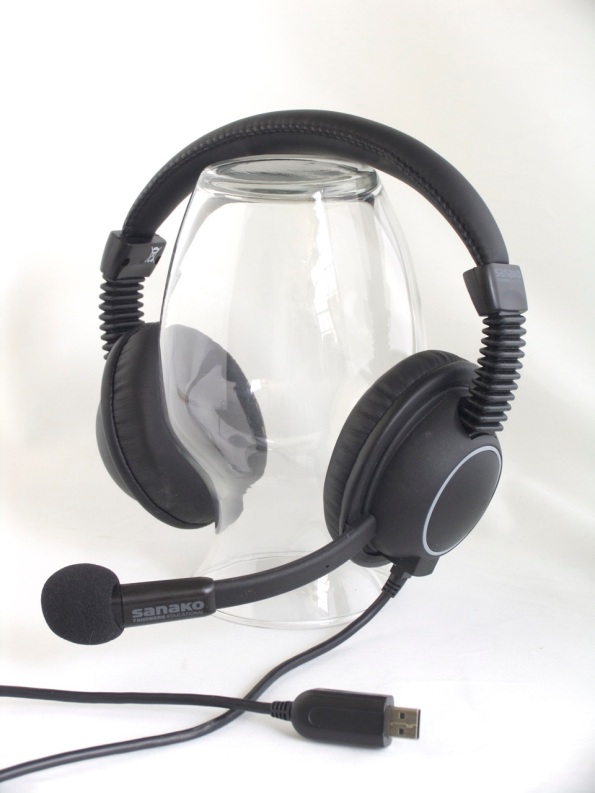
- a quality headset (we use Sanako SLH-07
 )
) - Windows 7 Enterprise/Ultimate with Language Packs,
- knowing how to switch the display language, (optional/recommended:) TBA:a simplified language switching facility,
- individual voice training data: speech recognition users have to train the computer – once, even in a deepfrozen computer enviroinment, since we enabled you to save this data to and restore it from a flash drive or personal network share space,
- a reading text (often authentic texts can be taken straight from the textbook, to fit in with the syllabus, like in this example from Treffpunkt-Deutsch 1st-year German),
- MS-Word with track changes
- screencast software (we use MS community clips)
- a way to submit the results to the teacher (we use Moodle with Kaltura video uploading (example for teachers, students do it similarly), but email could be sufficient depending on screencast length and attachment size allowance).
- a quality headset (we use Sanako SLH-07

How not to have to join a Saba Centra online class from the LRC late, for lack of speaking capabilities
2013/05/06
Leave a comment
- Problem: We continue getting reports from teachers that students who try to participate in a Saba Centra online class from the LRC listening station computers (with analogue headphones) experience a considerable delay in joining and cause disruption to online classes since they have to troubleshoot their microphones, for lack of being audible online.
- Root cause: Saba Centra on startup automatically selects the “microphone” as recording device…
- Workaround:
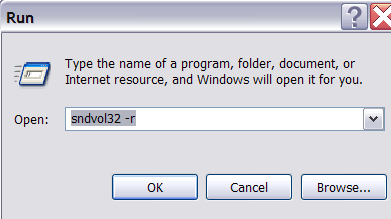
- On XP, click “Start”, click “Run”, type (without quotes) “SndVol32 –R” (meaning: “SoundVolume for Recording”), click “OK” which opens the volume mixer for recording devices. The radio button selected will be “Rear input”.

- Start Saba Centra.
- Switch back to the volume mixer you opened in step 1. Note that the radio button now selected is “Microphone”. This is wrong for the listening stations (and the teacher station) in the LRC. Switch it back to “Rear input” (you know that your headset is supposed to be plugged into the rear).

- And off you go… Plus note: There is no need for “expensive” workarounds like:
- haphazardly trying to replug headphones,
- purchasing your own USB headphones,
- hogging the main classroom with its USB headphones.
- On XP, click “Start”, click “Run”, type (without quotes) “SndVol32 –R” (meaning: “SoundVolume for Recording”), click “OK” which opens the volume mixer for recording devices. The radio button selected will be “Rear input”.

Categories: audience-is-language-learning-center-staff, audience-is-language-learning-center-temp-staff, audience-is-students, audience-is-teachers, Distance-education-format-is-Synchronous, e-learning, Listening-Stations, Presenter-Computer, presenter-computer, service-is-configuring-learning-tools, service-is-testing-troubleshooting-debugging, Speaking
audio, FAQs, saba-centra
Saba Centra on startup automatically selects the "microphone" as recording device…
2013/05/03
Leave a comment
- … But we in the language lab use the (dual function microphone/line-in) "rear input" for our headsets (for ergonomic, health&safety and security reasons). Workaround here.
- Apparently this startup behavior cannot be changed within Saba Centra:
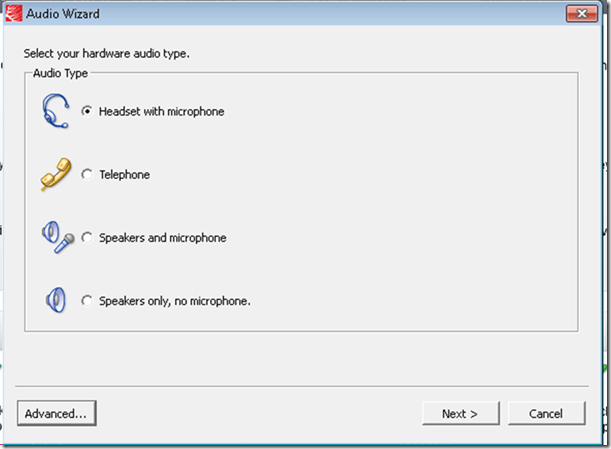
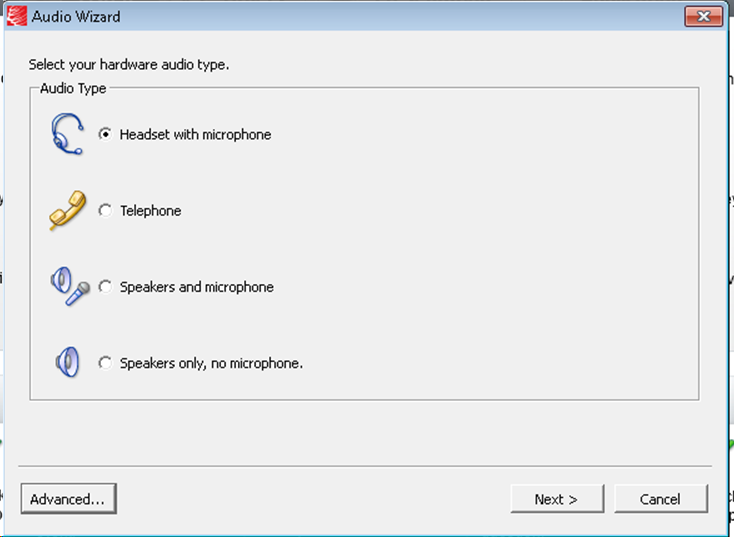
- Any startup will bring up the “Audio Wizard” asking users, even in a controlled lab environment, to configure their audio devices,
- and if users do (and choose what they have: headset), make wrong assumptions which audio plug to enable (“Microphone” front panel, even if your headset is plugged into the rear panel dual “line-in/microphone”)
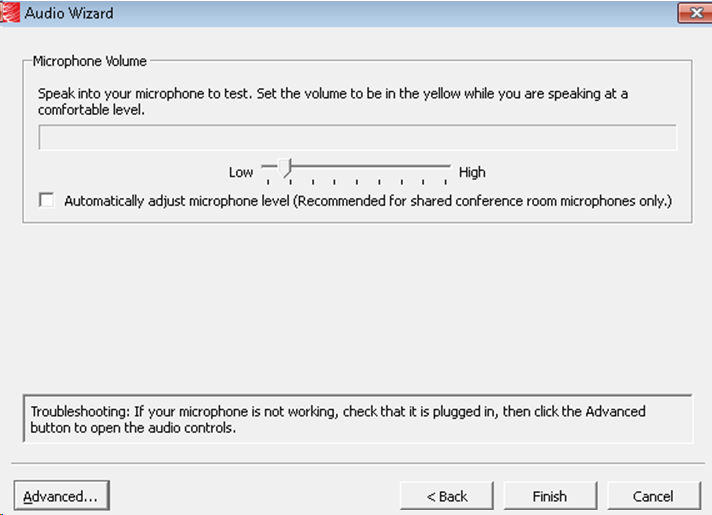
- The workaround according to these easily Googled instructions is using the “Advanced” audio wizard options to override this “Audio Wizard” error, like so:
- “Re-open the Audio Wizard, go to the third screen and change your recording device in your “Recording Device” menu. Advance two slides and determine if you can hear your recorded voice. ”
- 1st screen:
- 3rd screen:
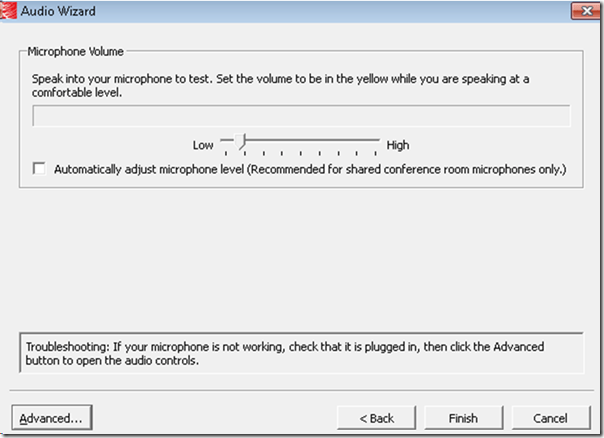
- note the instructions – Click “Advanced”. But it is easier to just use from the start our Workaround here.
- 1st screen:
- “Re-open the Audio Wizard, go to the third screen and change your recording device in your “Recording Device” menu. Advance two slides and determine if you can hear your recorded voice. ”
- The long-term solution is reconfigure your hardware and disable the front panel audio – but will Saba Centra understand you? Stay tuned…


Questions? Read the About. Or just ask me a quick Our Databases: Resources with calendars -- Language learning material Moodle Sites, multimedia files -- films


FAQs for LRC student staff or for students or for teachers. To search our FAQs, in the browser addressbar, add after "https://plagwitz.wordpress.com/feed/?tag=faqs+/" "+TAG1" (from tag cloud below) OR "https://plagwitz.wordpress.com/feed/tag=faqs
&category_name=" "CAT1" (from category hierarchy below). OR search both categories and tags, and multiple TAGs/CATs (connect with "," for OR-search, with "+" for AND-search), like so: https://plagwitz.wordpress.com/feed/?tag=TAG1+TAG2+...TAGn&category_name=CAT1
+CAT2+...CATn"
Other ways to find help
If you cannot find it here, look there: 5,500 Language-Learning Links and Programs for learning or teaching 150 languages
Shortcuts:Our Lists, Our Maps, LRC Staff Moodle Site,LRC Project Moodle Site, 49erexpress, UNCC Moodle, Student Recordings: s:claslcslrcsanakostudent
Learning usage samples: Sanako oral exam, Kaltura webcam presentation, Dictation with speech recognition, Sanako written exam, Chinese and Japanese interactive stroke-order practice
Test the Sanako Installer, Webbrowser Popup Konfigurator for XP, or Windows7, faster LRC TeacherPC Log-in Let MS facilitate diacritics writing by installing for you US-International keyboard layout
This is my personal blog (Google+). The views expressed on these pages are mine alone and not those of my employer. The information in this weblog is provided “AS IS” with no warranties, and confers no rights.
 Thomas' Work Space