Archive
Protected: Example 2 of Speech recognition dictation exercise in Spanish on Windows 7
How to add US International keyboard layout in Windows 8
How things have changed in Windows 8:
![image_thumb[5]](https://thomasplagwitz.com/wp-content/uploads/2013/03/image_thumb5.png "image_thumb[5]")
![image_thumb[6]](https://thomasplagwitz.com/wp-content/uploads/2013/03/image_thumb6.png "image_thumb[6]")
However, if you remember Windows 3.1, plus ça change, plus c’est la même chose.
Bad audio quality in Moodle Kaltura recordings on iMacs under ambient sound conditions. A running log (closed)
- Symptom: See title.
- Cause: While speakers of the 3.5 mm headset take over from the iMac speakers, when plugged in, the 3.5 mm headset micro does not disable the webcam micro. The webcam micro remains the recording source for Moodle Kaltura (mac os x.6, safari 6, flash 10).
- Possible solutions:
1st choice: is there a way for the admin to override this permanently?2nd choice: is there a way for the end user to override this on a case-by-case basis?- "The Califone 3066AV is compatible with both Windows and Mac audio outputs (but is not compatible with iMacs)." ("The Wow starts now!").. Do we have to tie up our boom and lavalier microphones for this?
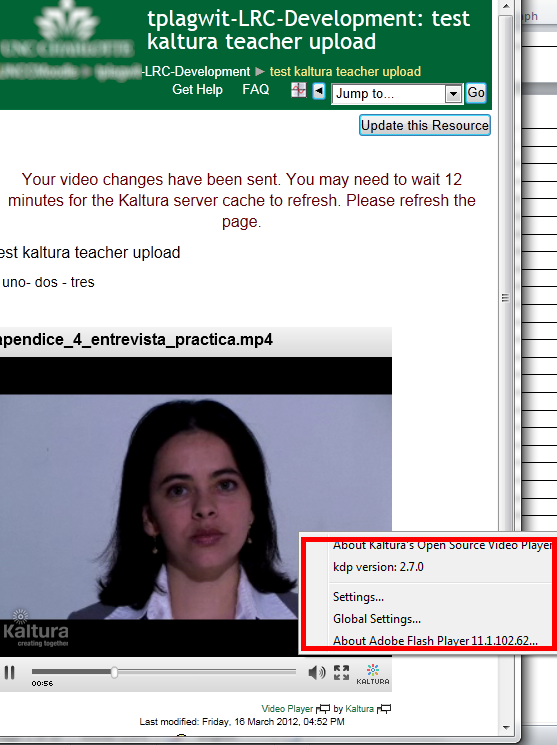
- Try the flash settings by right clicking in the video window, selecting the microphone icon, then choosing the external (= non-webcam) microphone for input.
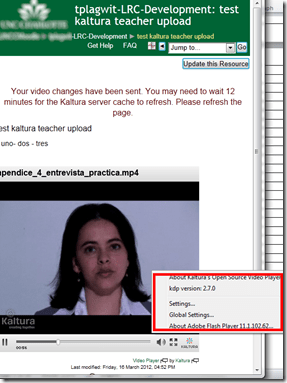
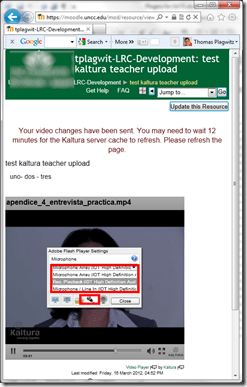
- Fail. The real culprit is the iMacs line-in audio-in for which you need a preamp to get it to work with analog microphones. Preamps seem to start at $40, but for that I can get a PC webcam (Microphone included).

Practice Chinese Stroke Order at varying speeds
Here we are providing over 80,000 animated GIF files for you to practice Chinese Stroke Order at varying (hopefully increasing) speeds of your choice (millisecs denotes the time you have for each stroke): strip, 1010millisecs, 1000millisecs, 990millisecs, 980millisecs, 970millisecs, 960millisecs, 950millisecs, 940millisecs, 930millisecs, 920millisecs, 910millisecs, 900millisecs, 890millisecs, 880millisecs, 870millisecs, 860millisecs, 850millisecs, 840millisecs, 830millisecs, 820millisecs, 810millisecs, 800millisecs, 790millisecs, 780millisecs, 770millisecs, 760millisecs, 750millisecs, 740millisecs, 730millisecs, 720millisecs, 710millisecs, 700millisecs, 690millisecs, 680millisecs, 670millisecs, 660millisecs, 650millisecs, 640millisecs, 630millisecs, 620millisecs, 610millisecs, 600millisecs, 590millisecs, 580millisecs, 570millisecs, 560millisecs, 550millisecs, 540millisecs, 530millisecs, 520millisecs, 510millisecs, 500millisecs, 490millisecs, 480millisecs, 470millisecs, 460millisecs, 450millisecs, 440millisecs, 430millisecs, 420millisecs, 410millisecs, 400millisecs, 390millisecs, 380millisecs, 370millisecs, 360millisecs, 350millisecs, 340millisecs, 330millisecs, 320millisecs, 310millisecs, 300millisecs, 290millisecs, 280millisecs, 270millisecs, 260millisecs, 250millisecs, 240millisecs, 230millisecs, 220millisecs, 210millisecs, 200millisecs, 190millisecs, 180millisecs, 170millisecs, 160millisecs, 150millisecs, 140millisecs, 130millisecs, 120millisecs, 110millisecs, 100millisecs, 090millisecs, 080millisecs, 070millisecs, 060millisecs, 050millisecs, 040millisecs, 030millisecs, 020millisecs, 010millisecs. 
Downloading the originals from the most helpful site (also available by direct download) created by Tim Xie for the California State University, Long Beach, and applying my bash shell script from here, then generating your own speed-differentiated versions, seems to difficult for most users. Even better, instead of perusing the above links, you could just hit my server once and download the whole lot of post-processed animated Gif files with different speeds from here.
Advanced language learners can test their English, German or Spanish proficiency in 3.5 minutes here using Exhale
Update: A new version of the Spanish vocabulary test is here, and the English vocabulary test has been updated here.
Go here and click English or German, or (also requiring only 3.5 minutes to take, but more for manually grading your test with this answer key) go here for Spanish, if you want to to take a simple quick vocabulary test that has been shown to correlate well with general proficiency. You can find more info here on English and German, and here on Spanish.
How to install and use a free dictionary/encyclopedia app in MS-Word 2013
Installing is easy (our example is Wikipedia): Right-click a word, pick “define” from the context menu, the click download in the side pane for the app you choose.

Usage is also easy: To look up phrases, select, right-click and choose define: 
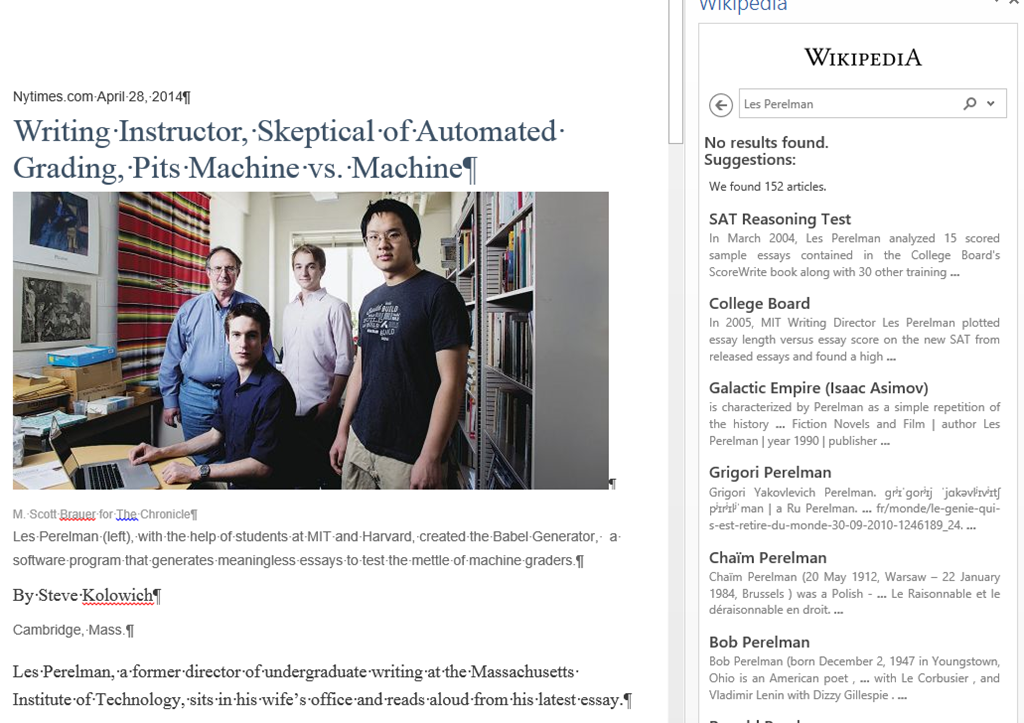
To look up individual words, you can also just double-click the word: 
You can also click “Expand”: 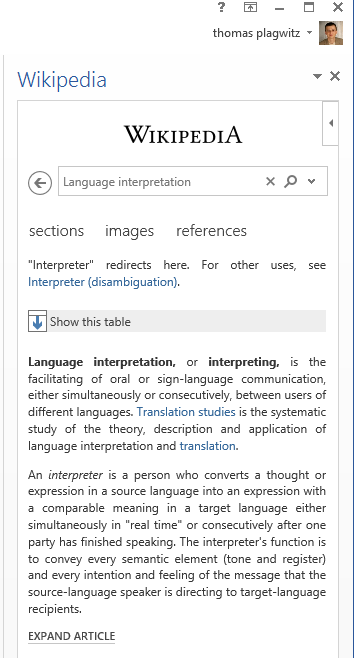
To install more dictionaries after the first one, click Insert / Apps for Office. 

You can search for your L2 (too many to list): 
It works for base forms: 
But I cannot lemmatize (ouch): 
I found out that when I go to Insert/ My Apps/ See all :  , I can show more than one app in the side pane.
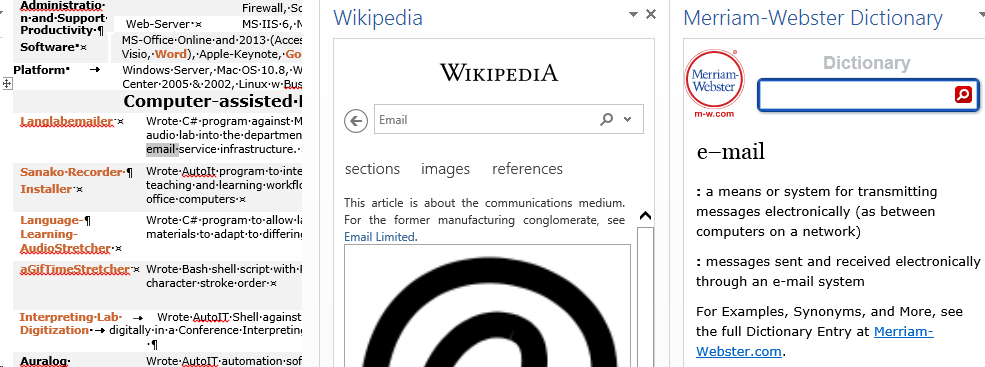
However,how o I change the default lookup that happens on double click on a word?
Interpreting against audio files sources with live feedback in Sanako Study 1200
- How will we be recording
- Individual recording
- Voice insert: student control how much time they have interpreting
- students can stop the source where they want, they can rewind and review the source, they can overwrite their initial interpretation, they can interpret at the speed they want.
- We could insert cues at sentence ends in the source; and also (but little need,) slow the source down or insert pauses
- Student track
- students have to follow along at the speed of the source can stop the source where they want, they can rewind and review the source; they can with some difficulty overwrite their initial interpretation/
- More difficult: We likely should slow the source down or insert pauses
- Voice insert: student control how much time they have interpreting
- Model imitation: like an exam,
- students all speak in parallel, without individual control
- Most difficult: We most likely need to slow the source audio down, including inserting pauses as "breathers")
- Individual recording
- What audio track will we be collecting?
- If student saves manually, student can save either or both tracks , but need to be taught.
- If model imitation, we collect only student recording.
- If lock player/collect buffer, we collect both source and student track
- Listener can focus on one track by controlling the balance during playback: https://thomasplagwitz.com/2014/03/31/how-to-manage-balance-on-stereo-audio-using-audacity-sanako-student-recorder-or-any-audio-player-on-windows/
- Listener can also split the audio tracks (= delete the source track),
- more easily (file / save as) in the sanako recorder
- More
- Teacher listening in
- Is always possible,
- just click the student icon in the classroom layout
- or use screen control / autoscan: the audio switches with the screen, this has a bit of overhead, and our computers are network are not the fastest, but we made some changes to optimize speed; best reserved for when you also need to see the student’s screen.
- Is always possible,
- Teacher speaking: Teacher providing on-the-fly feedback via "Discuss":
- Playlist Launch and open (goo.gl/2awRG/): then you can stop each individual student (students do not work in sync, remote-controlled) .
- Model imitation (goo.gl/ZL7DG/) : then you cannot talk to one (all students record in sync).
- Teacher providing non-live feedback :
- Teacher can provide aural feedback later when grading the student submissions from your office pc:
- How a teacher can use Sanako voice insert to easily add spoken comments to students’ Sanako oral proficiency exams- step–by step
- We recorded here how it is being done for Business Spanish: Protected: How a teacher can give students aural feedback on oral exams using the Sanako Study 1200 Lite Recorder
- For that voice-insert, you need to install the Sanako Recorder on your office PC.
- Teacher can provide aural feedback later when grading the student submissions from your office pc:


Questions? Read the About. Or just ask me a quick Our Databases: Resources with calendars -- Language learning material Moodle Sites, multimedia files -- films


FAQs for LRC student staff or for students or for teachers. To search our FAQs, in the browser addressbar, add after "https://plagwitz.wordpress.com/feed/?tag=faqs+/" "+TAG1" (from tag cloud below) OR "https://plagwitz.wordpress.com/feed/tag=faqs
&category_name=" "CAT1" (from category hierarchy below). OR search both categories and tags, and multiple TAGs/CATs (connect with "," for OR-search, with "+" for AND-search), like so: https://plagwitz.wordpress.com/feed/?tag=TAG1+TAG2+...TAGn&category_name=CAT1
+CAT2+...CATn"
Other ways to find help
If you cannot find it here, look there: 5,500 Language-Learning Links and Programs for learning or teaching 150 languages
Shortcuts:Our Lists, Our Maps, LRC Staff Moodle Site,LRC Project Moodle Site, 49erexpress, UNCC Moodle, Student Recordings: s:claslcslrcsanakostudent
Learning usage samples: Sanako oral exam, Kaltura webcam presentation, Dictation with speech recognition, Sanako written exam, Chinese and Japanese interactive stroke-order practice
Test the Sanako Installer, Webbrowser Popup Konfigurator for XP, or Windows7, faster LRC TeacherPC Log-in Let MS facilitate diacritics writing by installing for you US-International keyboard layout
This is my personal blog (Google+). The views expressed on these pages are mine alone and not those of my employer. The information in this weblog is provided “AS IS” with no warranties, and confers no rights.
 Thomas' Work Space