Archive
LRC Calendars setup, documentation and training
I have written dozens of posts on the MS-Exchange/Outlook/OWA/Ninermail calendaring system that I set up for room reservation, equipment circulation, and staff timetabling in the LRC, the most recent 50 of which you also can view here – which should display like below in Firefox feed display. If you use Internet Explorer which has a nicer RSS feed display, you get to a list of articles where you cannot only browse, but search within the search results:

How to record your speech with Audacity
- For a cut-and-dry recording session, the LRC has a simple instruction on
- For more advanced editing with Audacity, I have a detailed screencast here.
Calendaring: How to view all your Moodle course assignments in Ninermail, OWA or MS-Outlook – Shortest

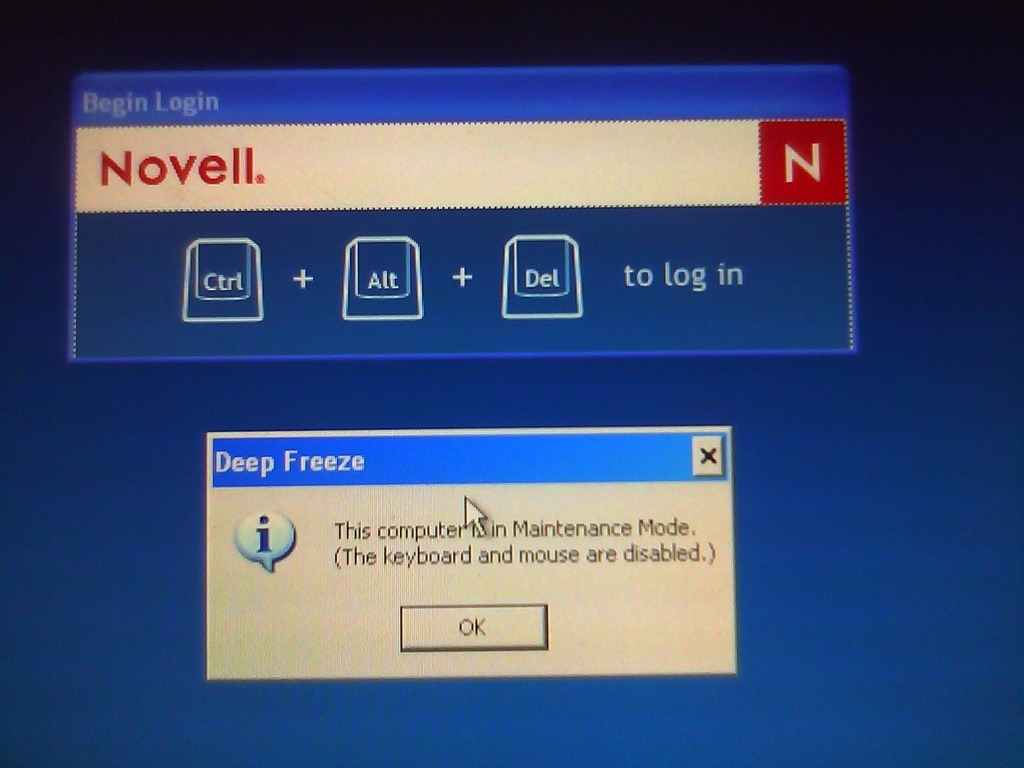
How to set up a Deepfreeze scheduled maintenance window using Embedded Events

Embedded events are stored on the clients, so do not require the server to run and be able to communicate with the clients to run the event. Don’t forget to select the clients you want to send the embedded event to. Result: 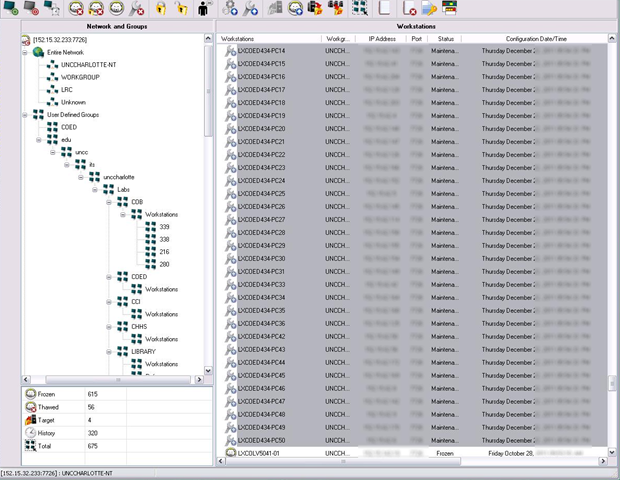
How to book LRC resources – explained in one screenshot
You can come to the LRC reception desk to book an item (you will still need to log into your NINERMAIL). But you can also self-help, and get immediate confirmation, from any device with access to your NINERMAIL:
If you have a basic LRC classroom booking scenario, send to the room lrcroomcoed434@uncc.edu what looks like “an email that includes times”: Go to your Ninermail inbox. Using the little triangle icon, unfold the “New” menu. Click menu item “Meeting request”. In the window, that opens, in the “Resources:” field, put lrcroomcoed434@uncc.edu. In the “Subject:”, put your course number. Enter start and end times of your classes visit. In the upper left, Click “Send”. Within a few seconds you receive a response email from the room in OWA: If you did not check the “Scheduling Assistant” tab, you may be asked to reschedule because of a conflict. If you fail to get a response, something went wrong, did you mistype the address? OWA remembers and suggests it after first use, but the first time you need to get it right.
For more advanced scenarios (beyond #3 below), first find the email address of our bookable resources, then book it like so:

More on repeating/recurrence here.
How to subscribe to an LRC calendar – in one screenshot
Subscribing to LRC calendars, e.g. for tutoring, will give you access from your Ninermail/OWA and always keep you updated of late-breaking changes. Here is how, starting from our list of bookable resources:

Sanako Study 1200: Student Basics I: The Screenshots


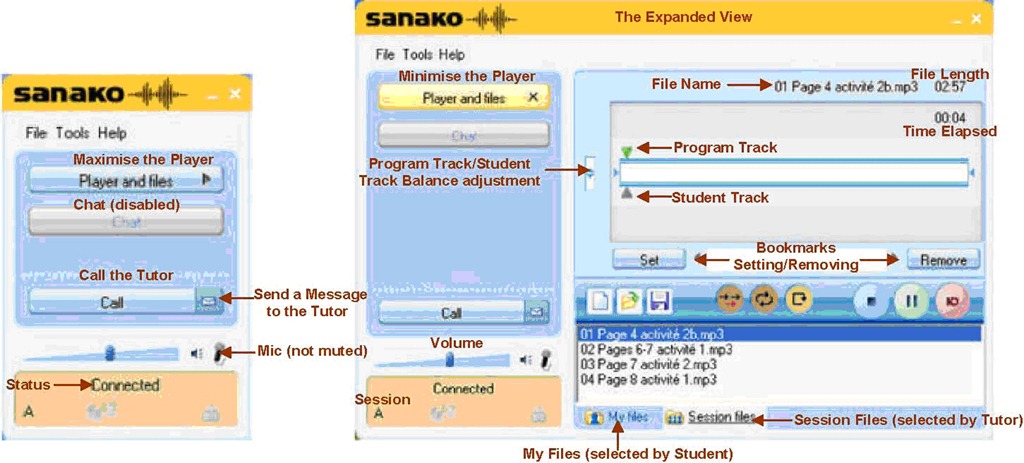
The basics, as found in the Sanako documentation. For a 5-minute student orientation, see: Student Basics II: The Screencast. For the teacher, see teacher cheat sheet.


Questions? Read the About. Or just ask me a quick Our Databases: Resources with calendars -- Language learning material Moodle Sites, multimedia files -- films


FAQs for LRC student staff or for students or for teachers. To search our FAQs, in the browser addressbar, add after "https://plagwitz.wordpress.com/feed/?tag=faqs+/" "+TAG1" (from tag cloud below) OR "https://plagwitz.wordpress.com/feed/tag=faqs
&category_name=" "CAT1" (from category hierarchy below). OR search both categories and tags, and multiple TAGs/CATs (connect with "," for OR-search, with "+" for AND-search), like so: https://plagwitz.wordpress.com/feed/?tag=TAG1+TAG2+...TAGn&category_name=CAT1
+CAT2+...CATn"
Other ways to find help
If you cannot find it here, look there: 5,500 Language-Learning Links and Programs for learning or teaching 150 languages
Shortcuts:Our Lists, Our Maps, LRC Staff Moodle Site,LRC Project Moodle Site, 49erexpress, UNCC Moodle, Student Recordings: s:claslcslrcsanakostudent
Learning usage samples: Sanako oral exam, Kaltura webcam presentation, Dictation with speech recognition, Sanako written exam, Chinese and Japanese interactive stroke-order practice
Test the Sanako Installer, Webbrowser Popup Konfigurator for XP, or Windows7, faster LRC TeacherPC Log-in Let MS facilitate diacritics writing by installing for you US-International keyboard layout
This is my personal blog (Google+). The views expressed on these pages are mine alone and not those of my employer. The information in this weblog is provided “AS IS” with no warranties, and confers no rights.
 Thomas' Work Space