Archive
Language Lab Techniques for (Self-)Evaluation and Grading of Student Recordings with Audacity
This quick and dirty (not narrated and uncut: time is money, and storage cheap…) video  demonstrates a technique in (the free audio editor) Audacity with which instructors and students can more easily (self-)evaluate parallel recordings from (be it model imitation, question-response, or consecutive interpreting exercises in) the language lab (in this case the output of a Sanako Study1200, which automatically gets stored in a folder on network share):
|
When? |
What? |
|
0,00 |
how to load 10 student files à 5mb = 2:30min (but as a batch, allowing you do something else in the foreground instead of waiting) |
|
2,50 |
how to select a part of the timeline to play |
|
3,00 |
how to move tracks up to more easily work with them and the menu |
|
3,30 |
how to play all tracks simultaneously (choir, normally not very useful for evaluation) |
|
3,40 |
how to play only one track (solo): evaluate & compare |
Do more with LLAS. Aston e-Learning Centre Year 1.
Presentation given at the CETL Symposium – Digital Language Labs: exploring good practice, March 15, 2007. SOAS, London, UK.

How to enable your SMEs to collaboratively define and add metadata to learning materials
- We have been asked to manage digital assets (including web links) and enabling incorporating them as learning materials within a series of study programs.
- We researched a number of metadata schemas and controlled vocabularies that have been applied to language and social sciences learning materials before,
- and incorporated those into the below MS-Excel application, to allow for easy marking up of existing assets by SMEs – using collaborative tagging instead of the more familiar, but more easily conflicting, since mutually exclusive folder hierarchy (unidirectional-tree structure).
- In addition, SMEs can expand and develop the controlled vocabulary, by adding tags of their own, as you can see at the end of this demo:

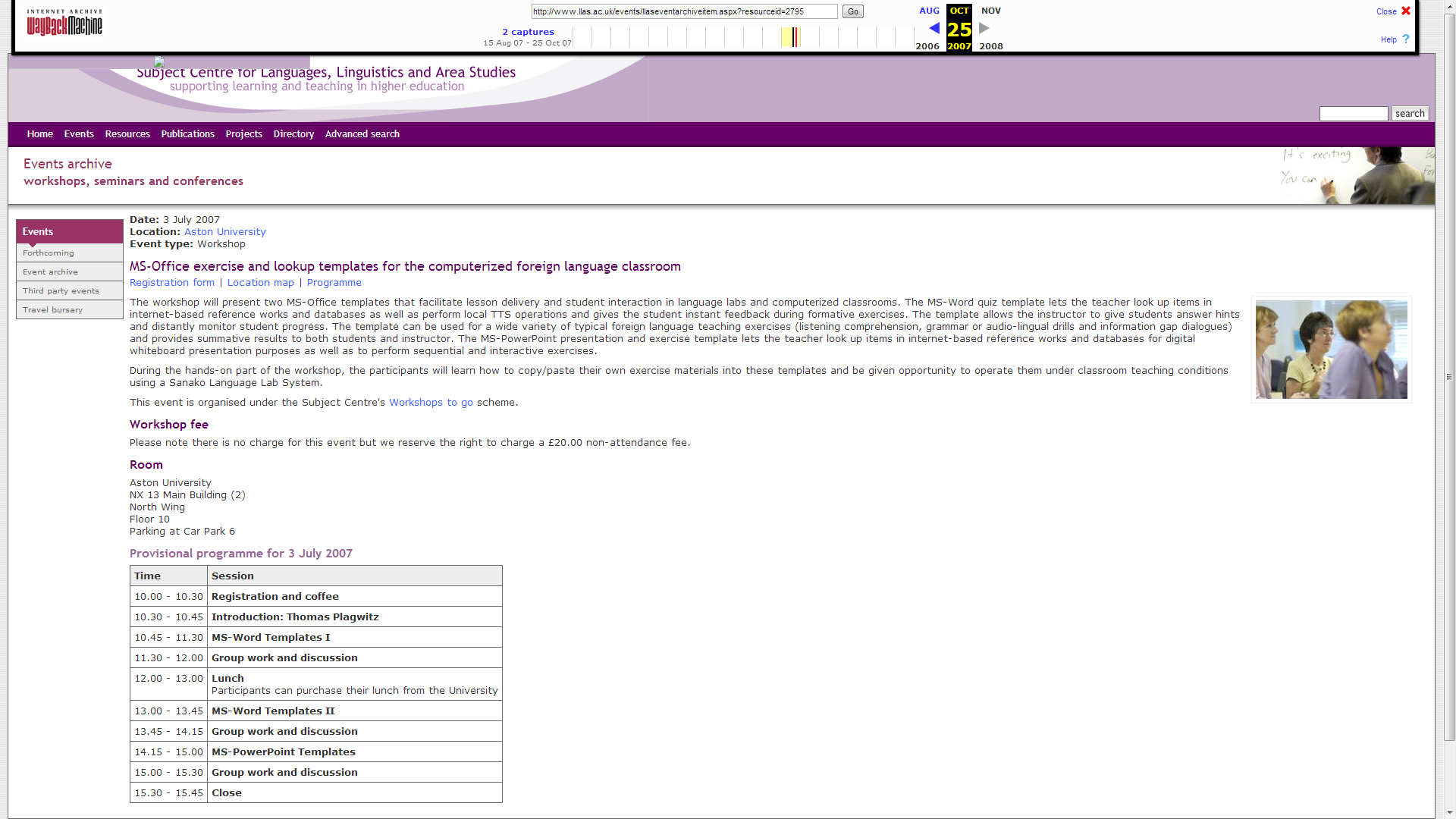
MS-Office Templates for the computerized Foreign Language Classroom. LLAS-sponsored Workshop2Go.

An LLAS-sponsored workshop held at Aston University in Birmingham and University of Nottingham. This is a raw unedited screencast of the former from the presenter screen (sorry, the video of demonstration screencasts played during this screencast do not get recorded due to hardware acceleration – I’ll insert them if I get around to cut this screencast).
MS Project training notes

- Course is about setting up a project, not tracking (but beginnings will be covered)
- file menu
- save as: e.g. webpage
- edit
- undo: only 1 undo level
- tasks
- split
- view
- calendar
- :base calendar: tools / options
- tools / change calendar [how does this relate?]
- these are company holidays
- can it load holidays like outlook – yes, from project central server
- attach the calendar to the project: project / project information
- many projects are built from finish date, but that leaves no slack time
- tasks pane
- used only with project central server?
- tool bars
- standard
- format
- ask pane
- project: quicker ways than that
- insert subtasks
- simply press insert key to insert rows
- 0 duration = milestone (can also have a milestone with a duration)
- constraints
- difference between a deadline and a constraint: deadline is less important
- review
- start
- project start date: menu / project:
- calendars:
- base calendar = tools / options / calendar
- project calendar = tools / change working time / new
- assign / attach that project calendar to the project: menu: project: project information
- show holidays on Gantt chart: context menu: Gantt chart: nonworking time (option: in front of the taskbars: interrupts the taskbars)
- recurring tasks: menu: insert: recurring task
- set duration: d = day, m = minute, mo = month, w = week
- creating link relation ships
- visually by dragging tasks onto each other in the Gantt chart
- writing in field predecessors (sf is default, s=stat, f=finish, relation ship), -lag and +lead time
- constraints and deadlines
- resources
- types
- WORK: REUSABLE
- MATERIAL: CONSUMABLE
- groups
- teams
- internal or external
- suppliers
- max units
- e.g. FULL TIME OR HALF TIME PERSON
- types
- start
- last hour
- resources – critical (overrun) tasks
- reallocating resources to reduce slack and slippage
- baseline
- set: menu: tools / tracking / baseline
- in the Gantt chart, the blackline is the baseline
- tracking
- recommended to always display the tracking toolbar
- reports
- menu: view / reports
- resources – critical (overrun) tasks
- Outlook: level 2 training
- tracking
- split task
- update task
- customization (views, reports, filters)
- master projects
- resource pools
- tracking
Sanako Lab300 Final exam: Movie listening comprehension with grammar, vocabulary cloze
Here is a raw (unedited) video of a final exam in a German 202 class.
It was delivered with Sanako Lab 300 in a synchronous face-to-face teaching environment.
Students (re)viewed a movie (Lola rennt), while doing target language subtitle-based with self-developed (MS-Word templates using VBA) fill-in-the-gap exercises on grammar and vocabulary – listening comprehension.
Apart from the teacher managing the exam distribution on the Sanako Lab 300 Teacher computer, you can see the teacher watching the students taking the exams – each thumbnail with subtitle text in the Sanako Mosaic window represents one student computer.
The students get the benefit of AI: lookup of internet resources (which is enabled through VBA with double-click on words in a subtitle which leads to the default dictionary, in this case set to http://dict.leo.org), as well as a dropdown menu with more advanced Dictionaries and Encyclopedia.
The students also get the benefit of immediate AI feedback to their input – better basis for learning than receiving a corrected homework or exam in a, time-wise, complete disconnect from the learning activity (and the feedback is faster than if it were web-based, since it is local to the client computer).
The teacher gets the benefit of an easy overview of students learning, of routine corrections being performed by AI in the exercise template, and, where s/he finds additional guidance is needed – even if not in this outcome exam situation, then during similar preparatory face-to-face activities – , can – with the help of the Sanako audio and student computer remote control system – immediately connect to a student for additional instruction at “teachable moments” (Example here).


Questions? Read the About. Or just ask me a quick Our Databases: Resources with calendars -- Language learning material Moodle Sites, multimedia files -- films


FAQs for LRC student staff or for students or for teachers. To search our FAQs, in the browser addressbar, add after "https://plagwitz.wordpress.com/feed/?tag=faqs+/" "+TAG1" (from tag cloud below) OR "https://plagwitz.wordpress.com/feed/tag=faqs
&category_name=" "CAT1" (from category hierarchy below). OR search both categories and tags, and multiple TAGs/CATs (connect with "," for OR-search, with "+" for AND-search), like so: https://plagwitz.wordpress.com/feed/?tag=TAG1+TAG2+...TAGn&category_name=CAT1
+CAT2+...CATn"
Other ways to find help
If you cannot find it here, look there: 5,500 Language-Learning Links and Programs for learning or teaching 150 languages
Shortcuts:Our Lists, Our Maps, LRC Staff Moodle Site,LRC Project Moodle Site, 49erexpress, UNCC Moodle, Student Recordings: s:claslcslrcsanakostudent
Learning usage samples: Sanako oral exam, Kaltura webcam presentation, Dictation with speech recognition, Sanako written exam, Chinese and Japanese interactive stroke-order practice
Test the Sanako Installer, Webbrowser Popup Konfigurator for XP, or Windows7, faster LRC TeacherPC Log-in Let MS facilitate diacritics writing by installing for you US-International keyboard layout
This is my personal blog (Google+). The views expressed on these pages are mine alone and not those of my employer. The information in this weblog is provided “AS IS” with no warranties, and confers no rights.
 Thomas' Work Space