Archive
QuickNotes: For ELTI 201/202/501 Student Recordings with Sanako Study1200
- This is 20 students class doing a model imitation for English phonetics and grammar – use right half of classroom plus 2 rightmost columns of left half.
- Have a couple of spare student computers logged in as labadmn (not as presenter: has no permissions to s-drive to save recordings) for emergencies.
- Your students will log in, then take their break. Wait until entire class shows up in the Sanako Classroom layout. Then you can lock their keyboard and mouse – but remember when computers go into locked mode, Sanako cannot control them
- See http://plagwitz.org, upper right corner “Quick links” for the path to copy/paste. Or, on the teacher computer in LRC 434, in folder C:\Temp, you can find a shortcut to the Sanako folders
- “media” with teacher audio (to be prepared with pauses and beeps once it has been recorded and sent; you can easily prepare it yourself: download and view how with Windows Media Player);
- “student” with student recordings
- You can download and view with Windows Media Player the (unedited) screencast of our summative walkthrough here.
Sanako Study 1200: Student Basics I: The Screenshots


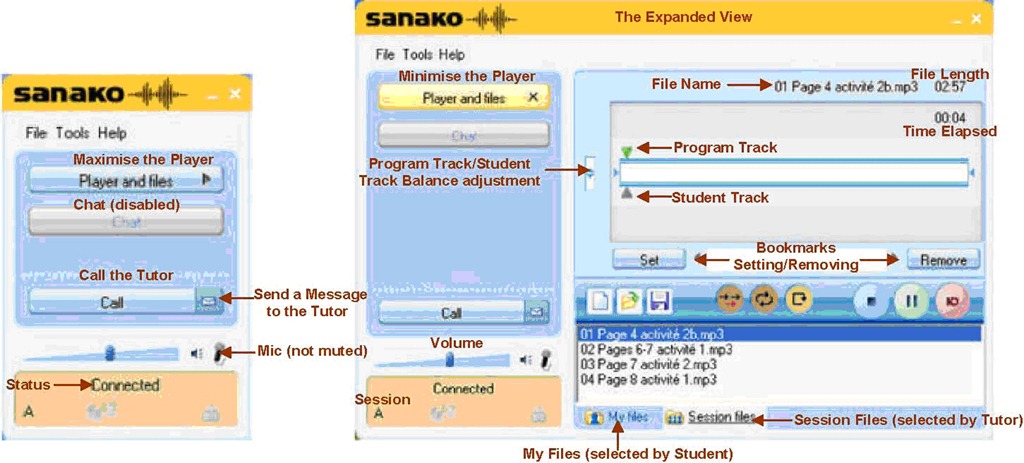
The basics, as found in the Sanako documentation. For a 5-minute student orientation, see: Student Basics II: The Screencast. For the teacher, see teacher cheat sheet.
Sanako Study 1200: Student Basics II: The Screencast
This screencast covers the basics of Study 1200 for students
For a quick guide to the Student interface, see Student Basics I: The Screenshots
Language Learning Links of Lore: A Links Management System around Y2K
Based on GossamerThreads’ Links Management systems (one of the best open source PERL-CGI resource web database systems of its era), this language learning links system that I first implemented in Canada in the late 90s and took with me to the US.
Benefits: The system went beyond the usual “visit a website” foreign language elearning exercise of this pre-LMS day by allowing students to publish online, thus introducing a Web 2.0 collaboration element that shared meaningful exercises in the German learning community. We had contributions from Kingston, Toronto, Detroit and Des Moines.

The system was both reasonably easy to use for teachers (How_to_add_a_links_assignment_in_90secs) and productive for students who could improve their language skills by interacting with, reviewing and presenting authentic target language websites, while having quick access to other computerized language learning resources, like fledgling online dictionaries (also stored in and searchable from the same interface).
Example output:


Highlights included reviews of websites dedicated to online shopping, travel booking, mapping, live webcams, and much more…
See here is an example of an Yippee! assignment conducted during one of the face-to-face classes in the language center:
Limitations: All links needed to fit into a pre-tagging strictly hierarchical categorization tree. A GUI, but no batches – I preferred to write myself PERL scripts to batch update the underlying database files.
How to self-enroll in a Moodle course
If a Moodle course is set to allow for self-enrolment (both regular and Project courses here can be), if you go for the first time to this such a course – e.g. by clicking on a link to the course (which we don’t show you here, since we want to give only a select user group to self-enroll in our course) – you will be taken to a logon page (if not already logged into Moodle), and, upon successful login, be immediately offered to self-enroll. Click the “Yes” button and you are taken to your course, like is done in this screencast on self-enrolling in Moodle.
How to manually add a user to your course.
Less than intuitive, but you have to go via “Assign roles”. Here are the steps:
- Go to “Assign Roles” in your bottom left hand course menu
- Choose a role you want to assign
- Search, add and assign the role to a user. This will also add the user to the course.
- Check results by going to “Participants” in your bottom left hand course menu
Here is the screencast of adding users to your Moodle course.
Digital language lab audio configuration: Using the Sanako Study 1200 Sound Device Wizard on student computers
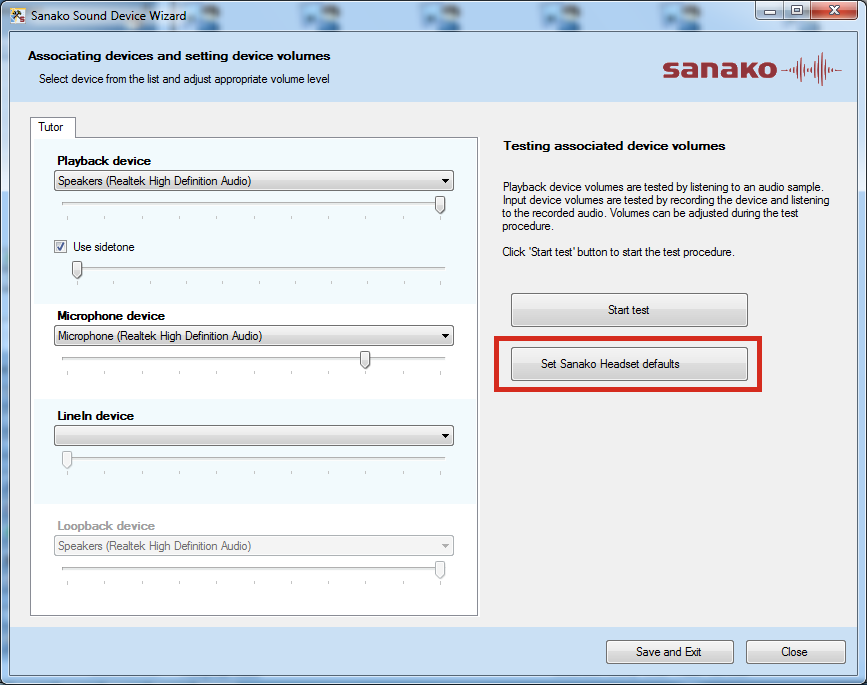
Watch a screencast of operating the Sanako Study 1200 Student Sound Wizard from menu: Tools / Sound Settings – using an analog headset. However, “If you are using Sanako SLH07 USB headsets, Study has inbuilt default audio settings that you can easily apply. Simply click on Set Sanako Headset defaults to employ audio settings that have been preconfigured for use with a Sanako headset“, like shown here:


Questions? Read the About. Or just ask me a quick Our Databases: Resources with calendars -- Language learning material Moodle Sites, multimedia files -- films


FAQs for LRC student staff or for students or for teachers. To search our FAQs, in the browser addressbar, add after "https://plagwitz.wordpress.com/feed/?tag=faqs+/" "+TAG1" (from tag cloud below) OR "https://plagwitz.wordpress.com/feed/tag=faqs
&category_name=" "CAT1" (from category hierarchy below). OR search both categories and tags, and multiple TAGs/CATs (connect with "," for OR-search, with "+" for AND-search), like so: https://plagwitz.wordpress.com/feed/?tag=TAG1+TAG2+...TAGn&category_name=CAT1
+CAT2+...CATn"
Other ways to find help
If you cannot find it here, look there: 5,500 Language-Learning Links and Programs for learning or teaching 150 languages
Shortcuts:Our Lists, Our Maps, LRC Staff Moodle Site,LRC Project Moodle Site, 49erexpress, UNCC Moodle, Student Recordings: s:claslcslrcsanakostudent
Learning usage samples: Sanako oral exam, Kaltura webcam presentation, Dictation with speech recognition, Sanako written exam, Chinese and Japanese interactive stroke-order practice
Test the Sanako Installer, Webbrowser Popup Konfigurator for XP, or Windows7, faster LRC TeacherPC Log-in Let MS facilitate diacritics writing by installing for you US-International keyboard layout
This is my personal blog (Google+). The views expressed on these pages are mine alone and not those of my employer. The information in this weblog is provided “AS IS” with no warranties, and confers no rights.
 Thomas' Work Space