Archive
Archive for the ‘lms’ Category
How a teacher can organize a student-controlled high-stakes assessment recording session using the Sanako in the LRC
2013/03/12
Leave a comment
- How:
- An initial central microphone and speaker test (animated step-by-step) is recommended. Clear the session afterwards.
- Recording: Have the student operate the Sanako recorder to individually record (like during a self-access assignment)
- For starters, teacher can display this narrated individual recordings with the Sanako Student Recorder training screencast, it auto-starts and auto-cycles):
- And/or explain:
- Red Record Button to record;
- Blue Stop button to stop recording
- Green Play Button to play their assignment for review (also use the recap button to jump back)
- Menu: “File / New”, if they want to redo the assignment.
- Button: call/envelope to call the teacher on the teacher station for help (an audio connection between student and teacher should pause the recorder automatically)
- Submitting:
- Individually by students:
- Menu “File” / “Save” (opt to save as student track mp3), to save locally, once student is happy to submit.
- (recommended:) upload the save file to a Moodle single-file upload assignment. Requires the teacher to create a Moodle Single file upload assignment, with optional attached file first.
- From the Sanako tutor at the teacher station:
- For entire class (If you do not need the flexibility to have students end at different times). TBA
- Group-wise (varying (staggered) recording times): TBA
- Individually by students:
- Pro’s:
- Less distraction from language learning by having to operate technology (editing audio rather then practicing L2) and more language-learning-specific features (sidetone, recap) than if using Audacity.
- Works with the Sanako Study 1200 teacher stations (e.g. automatic pause of recorder when remote connecting to student during monitoring of recording task).
- Con’s:
- noise interference with dozens of student speaking in a confined space simultaneously. Nobody wants to return to the language lab station of yore, i.e. in a cubicle. However, a teacher-controlled oral exam (sample video, step-by-step video),
- can play a soothing background sound to students over the headphones which insulates them from their neighbors (prevents both distraction and cheating);
- there is no room for distracting unrelated chit-chat;
- there is no need for distracting conversation when students do technical troubleshooting, during highly structured question/response exams.
- More user flexibility/control is achieved by more individual distracting operation of computer technology, which always implies more opportunity for user error. To reduce (not eliminate!) the error ratio:
- Students
- have to have received the general digital audio lab introduction for students.
- have to double-check their recordings for quality before submitting.
- Teachers
- have to monitor students’ recording progress closely
- which the Sanako Study 1200 teacher station (link cannot replace hands-on training) greatly facilitates (provided Students use the Sanako Student Recorder, as described above).
- however, even with a classroom management system like Sanako Study 1200, it is impossible to completely monitor a class size of students operating computers. Therefore teachers
- have to check the validity of submissions before students leave.
- If you use submission through Moodle, here are 2 tips how to do this quicker:
- Whether you use submission through Moodle or collection through Sanako tutor:
- view end of this video for how to quickly check validity of all file submissions in a folder using Audacity
- are advised to have a make-up assessment plan not only for those students missing the exam, but also for those that miss to complete the computerized multimedia assessment correctly.
- have to monitor students’ recording progress closely
- Students
- noise interference with dozens of student speaking in a confined space simultaneously. Nobody wants to return to the language lab station of yore, i.e. in a cubicle. However, a teacher-controlled oral exam (sample video, step-by-step video),
How to batch download all submissions as a zip file from a Moodle: Gradebook File-upload assignment column.
2013/03/01
Leave a comment
- I have no file upload assignment with submissions handy in my own Moodle course, so I am patching this together from other universities (thanks, umass.edu, cotc.edu).
- “ Another time saver you can use is the Download all assignments as a zip link. This will package all uploaded documents from any submissions in the assignment into
a zipped folder that you can download. Once downloaded, you can unzip the file and access each paper. This can be a real time saver!”. Image: 
- Extra: This procedure will add the student’s name to the file. No more wading through submitted audio files named by students trying to identify submitters.
Categories: e-learning, grading, lms
automation, batches, file-upload, files, gradebook, moodle
Which browser and operating system we could get which Moodle Kaltura webcam assignments to work in
2013/02/14
Leave a comment
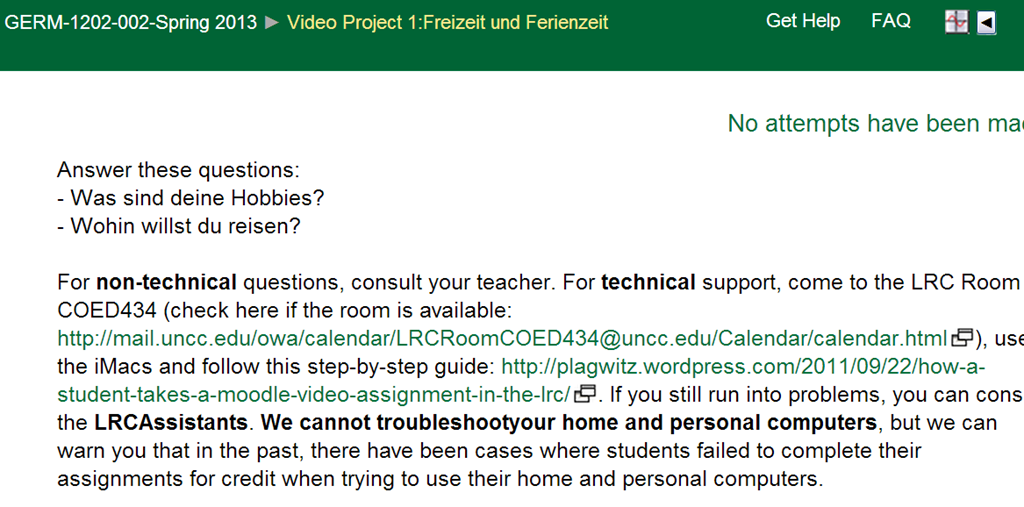
Below please find our current (work in progress) test matrix. Use one of the combinations that worked (“YES”) to avoid problems when taking or grading webcam assignments (or come to the LRC where we set up a working combination). You can view your version of the Kaltura video player and of Adobe Flash by right-clicking on the Kaltura video window.
Kaltura Webcam assignment GRMN1201 example
2012/12/13
Leave a comment
Categories: e-languages, German, learning-usage-samples, lms, Speaking
kaltura, moodle
ICS corruption in Moodle calendar events?
2012/11/28
Leave a comment
- I am seeing once again a large number of events loaded as internet calendar into MS-Outlook via an iCal link default to the same day:

- This time the iCal sources is Moodle, but it also displays the iCal feed internally so:

- I observed a similar issue when loading certain Drupal calendars into MS-Outlook, only that
- it seems to have affected only certain sites on the same (?) Drupal instance (is this user input error?)
- Events defaulted to the current day in MS-Outlook – the Moodle issue does not.
- All events were effected – not so in this Moodle issue.


Categories: documentation, Glitches&Errors, lms
calendaring, drupal, ical, moodle, ms-outlook
How to switch the input language in Respondus Lockdown browser, e.g. to Arabic
2012/10/23
Leave a comment
- Short answer:
- Right-click the Language bar on the taskbar and choose “Restore the Language bar”, like so:

- This makes the language bar a floating toolbar on top of the screen, like here:
 . This floating toolbar you can still access when in Lockdown browser.
 - The language bar can be temperamental, you may need to bring it up again, try switching back and forth between input fields.
- Long Answer:
- Respondus Lockdown browser blocks many functionalities, including the shortcut combination to change input languages (usually LEFT ALT + SHIFT) and access to the Language bar on the task bar.
- This is not an issue when your quiz is in a western language and you have US- international keyboard layout configured as your default (which lets you type most Western diacritics without need for keys blocked by Respondus Lockdown browser )
- It is an issue with e.g. Arabic. You cannot even temporarily set Arabic to your default input language before starting lockdown browser, since then you cannot log in (with MS Maren IME, you can override the Arabic default to enter your username in western characters, but not the password. Respondus Lockdown Browser is built on Internet Explorer, but it does not share the cookies, so being logged into your LMS in Internet Explorer does not carry over to your Lockdown Browser session).
- Workaround: See above.


How teachers can use MS-Word Mail merge with filtering and if-then-else to quickly provide personalized feedback based to students depending on grade
2012/10/18
Leave a comment
- Intelligence is adaptation to feedback. Providing personalized feedback to students depending on their performance could make student development much more successful.
- Intelligence is expensive. How can the teacher provide personalized feedback time-efficiently? Likely by blending artificial intelligence with her own.
- Sounds like Sci-fi? A great practical example, using existing familiar IT infrastructure, you can find here: MS-Word’s (2010; 2007 works the same) mail merge feature, on the basis of a downloaded Moodle gradebook with student results, can customize semi-automatically your reusable feedback email message template to individual recipient’s performance and needs:
- Step-by-step instructions: http://teaching.uncc.edu/moodle/grade-book/how-to/using-mail-merge-grade-book.
- Screencast of the webinar instruction: http://mt202.sabameeting.com/SiteRoots/main/User/GuestAttend.jhtml?pb=true&s_guid=0000018151460000013a0a22cfb39443&domain=/Customers/uncc&domain=/
Categories: audience-is-teachers, e-learning, grading, lms, office-software, Screencasts, step-by-step-guides
MS-Word


Questions? Read the About. Or just ask me a quick Our Databases: Resources with calendars -- Language learning material Moodle Sites, multimedia files -- films


FAQs for LRC student staff or for students or for teachers. To search our FAQs, in the browser addressbar, add after "https://plagwitz.wordpress.com/feed/?tag=faqs+/" "+TAG1" (from tag cloud below) OR "https://plagwitz.wordpress.com/feed/tag=faqs
&category_name=" "CAT1" (from category hierarchy below). OR search both categories and tags, and multiple TAGs/CATs (connect with "," for OR-search, with "+" for AND-search), like so: https://plagwitz.wordpress.com/feed/?tag=TAG1+TAG2+...TAGn&category_name=CAT1
+CAT2+...CATn"
Other ways to find help
If you cannot find it here, look there: 5,500 Language-Learning Links and Programs for learning or teaching 150 languages
Shortcuts:Our Lists, Our Maps, LRC Staff Moodle Site,LRC Project Moodle Site, 49erexpress, UNCC Moodle, Student Recordings: s:claslcslrcsanakostudent
Learning usage samples: Sanako oral exam, Kaltura webcam presentation, Dictation with speech recognition, Sanako written exam, Chinese and Japanese interactive stroke-order practice
Test the Sanako Installer, Webbrowser Popup Konfigurator for XP, or Windows7, faster LRC TeacherPC Log-in Let MS facilitate diacritics writing by installing for you US-International keyboard layout
This is my personal blog (Google+). The views expressed on these pages are mine alone and not those of my employer. The information in this weblog is provided “AS IS” with no warranties, and confers no rights.
 Thomas' Work Space