Archive
Exam integrity considerations during mock and proctored written exams in the LRC
The easiest way to hold a mock or proctor a written exam in the LRC is provide the students a printout of the exam. For larger classes preparing, and under some circumstances (writing impediment due to injury), providing the MS-Word file on a computer to the student would seem a more convenient solution.
However, the LRC prides itself in the large collection of MS-Office proofing tools it has installed and preconfigured – accessing which from within MS-Word could be construed as cheating during a writing exam. As a matter of fact, since MS-Word auto-detects language, under-waving of misspelled words and incorrect Grammar provides unsolicited and unavoidable extra help.
MS-Office proofing tools could be turned off by using a special MS-word template as the basis for the exam. Easier and quicker is using the SANAKO which can not only block internet access of the examined students, but also block use of entire applications like MS-Word.
Instead of in MS-Word, your students could write their responses in an application that is not part of the proofing tools infrastructure, like Notepad. Western language diacritics can easily be written in any application on LRC PCs thanks to US-International keyboard layout, and non-Western characters even easier than on paper.
For full security, the best environment for exams we can offer remains Respondus lockdown browser, integrated with Moodle, but this requires converting the exam to into a Moodle quiz (which Respondus has tools to facilitate). In certain cases, it might be easiest to create a “dummy” quiz with one long text input field, which your students could type everything in, without having access to any other resources (internet, proofing tools, chat, what not…). However, this quiz still would have to be in your Moodle course so that your students can access access, and their results get put into your gradebook.
Outside of Moodle – if you do not want to go down the Respondus-path – , you can rely on the SANAKO homework collection feature and my langlabemailer to receive the results.
Proposing for a free Moodle audio recorder: Technical options and faculty needs survey results
- Current popular options for a free Moodle audio recorder:
- Nanogong is a popular, feature-rich and simple recorder that go entangled in the recent java politics and security scares. Since the company has a non-free offering, chances are higher it will get updated to address these security warnings. It seems the long-term outlook for java in the enterprise is excellent, but i cannot judge the long term outlook for java as a client/in-browse solution.
- Poodle which played the 2nd fiddle to Nanogong for most of the time, seems to have caught up to Nanogong based on the above. that it is "server based" – but on theirs, not ours – Poodle has a freemium business model (could be an issue). Does this include the audio compression load? Does this have FERPA implications (and can they be resolved like with Kaltura)?
- Paul Nicholls has a number of flash-based popular audio recorder plugins , where record assignment submission seems to have superseded record assignment type for newer versions of Moodle, and assignment type offers student recording, while Record Audio repository complements this with teacher recording (and the same interface; i am not sure i understand which end user setup is required for repository).
- In the results of faculty survey on learning needs (sum of 0-centered Likert-scale), I find notable
- that teacher recording is considered almost as vital as student recording, and
- that most faculty even would be willing to deal with some complexity for the additional learning features that some of these recorders offer (Nanogong especially).
|
Question_text |
Rank |
|
It is important that my students can record their speech in my Moodle course (without need for separate software and file upload). |
14 |
|
It is important that the setup work that the teacher has to do before being able to assign audio recorder is minimal. |
13 |
|
It is that the teacher can record her voice in Moodle (without need for separate software and file upload), providing oral instead of written cues or feedback. |
11 |
|
Simplicity is more important to me than feature richness (controlling volume, limiting the amount of time a student can record, maximum number of recordings, Recordings can be slowed down or sped up , Peer review of recordings). |
7 |
|
I expect my students to have a microphone connected to or built-in to their home computer. |
5 |
|
It is important that other media than audio can be "recorded" (video (outside of Kaltura), webcam snapshots, whiteboard drawings). |
5 |
How to work around “You do not have the permission to view discussions in this forum” in Moodle 2
- Problem: My student staff (not sure which subset, but more than 1) gets this error in a development course that I use as a groupware when they access a news forum (that they are even force-subscribed to).
![image_thumb[12]](https://thomasplagwitz.com/wp-content/uploads/2013/10/image_thumb12_thumb1.png?w=600&h=451 "image_thumb[12]")
![CAM03124_thumb[4]](https://thomasplagwitz.com/wp-content/uploads/2013/10/cam03124_thumb4_thumb.jpg?w=600&h=451 "CAM03124_thumb[4]")
- The answers for “you do not have the permission to view discussions in this forum moodle” can be found here: I actually had to deal with this issue within the last few months. I found that to allow users to see the “News” section on the front page, you must override the role to allow: mod/forum:viewdiscussion
- Do not seem to apply here: In https://moodle2.uncc.edu/admin/roles/permissions.php?contextid=466096, Permitted students are already allowed to “View discussionsmod/forum:viewdiscussion”
- Permitted students should probably have permissions also to “Reply to newsmod/forum:replynews”
![image_thumb[10]](https://thomasplagwitz.com/wp-content/uploads/2013/10/image_thumb10_thumb1.png?w=546&h=1389 "image_thumb[10]")
- Also for one of the student in question (I have spotchecked only 2), I can see no suspicious activity missing:
![image_thumb[7]](https://thomasplagwitz.com/wp-content/uploads/2013/10/image_thumb7_thumb.png?w=375&h=554 "image_thumb[7]")
- Root cause:
- Students have no role in a Moodle2 Development type course .
- Workarounds:
- Assign students a role manually (tedious, and you can only assign “course manager”.
- Change the course type to Project (but then you cannot quiz students).
- Solution: a more flexible design of Project and Development courses in a future version of Moodle?
![image_thumb[12]](https://thomasplagwitz.com/wp-content/uploads/2013/10/image_thumb122.png "image_thumb[12]")
![CAM03124_thumb[4]](https://thomasplagwitz.com/wp-content/uploads/2013/10/cam03124_thumb4.jpg "CAM03124_thumb[4]")
![image_thumb[10]](https://thomasplagwitz.com/wp-content/uploads/2013/10/image_thumb102.png "image_thumb[10]")
![image_thumb[7]](https://thomasplagwitz.com/wp-content/uploads/2013/10/image_thumb71.png "image_thumb[7]")
How to upload a folder with many files in Moodle 2–the ultimate training
- …using animated .gifs. Different speed? 0.25sec,0.5sec, 0.75sec, 1sec, , 2sec, 3sec, 4sec, 5sec, 6sec, 7sec, 8sec, 9sec, 10sec. 1.5sec

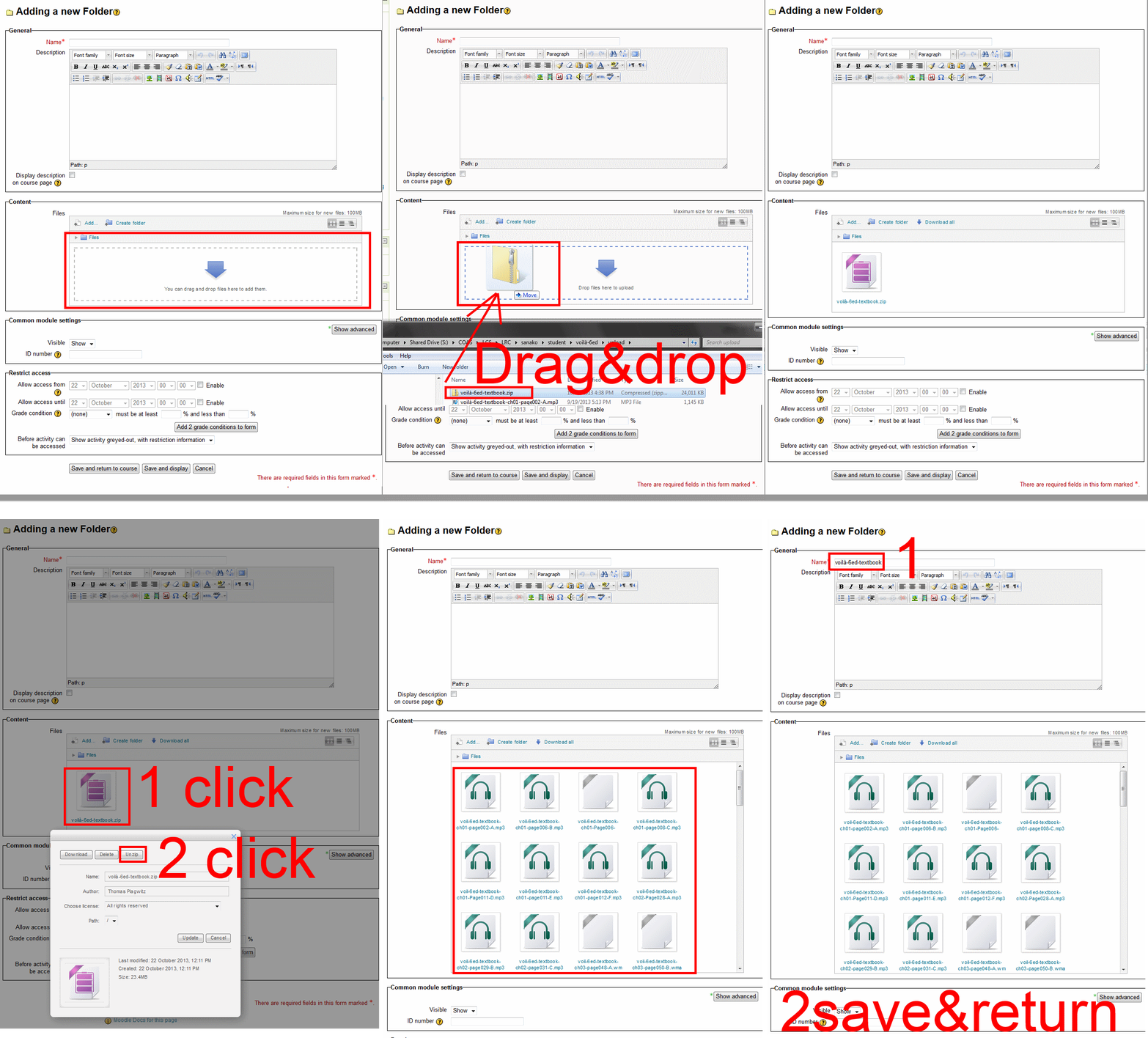
- And the answer is: You now can simply drag-and-drop a zip file (provided you are using a recent web browser). Start with “Turn editing on”, “Add resource”, “Folder”, and then proceed like so:
- Easy enough, but you can still save time: If your folder is reusable not only between terms, but also teachers (sections etc.), I suggest doing this in our Moodle metacourses (once).
- If you want to use an existing instead of adding a new folder, a slightly different way to manage your multiple files upload in Moodle 2 is described here.
How teachers can include a link to their metacourse content in their Moodle course
- How teachers get the metacourse link:
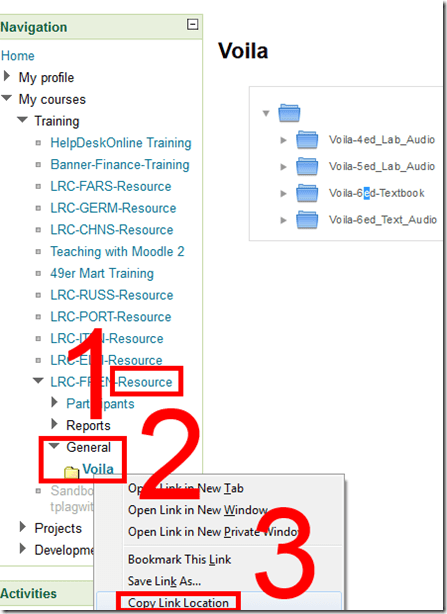
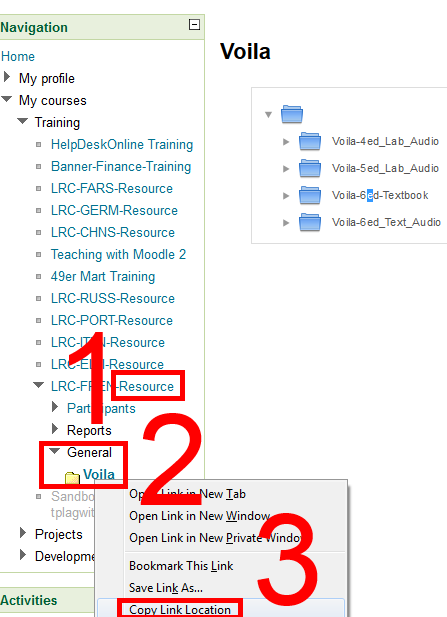
- Find your metacourse and expand (1).
- find your resource (the textbook is actually “Voilà”, but we want to make extra sure there are no non-ASCII compatibility issues) and right-click (2).
- Click “copy link location” (3).
- How to use the metacourse link in your actual course:
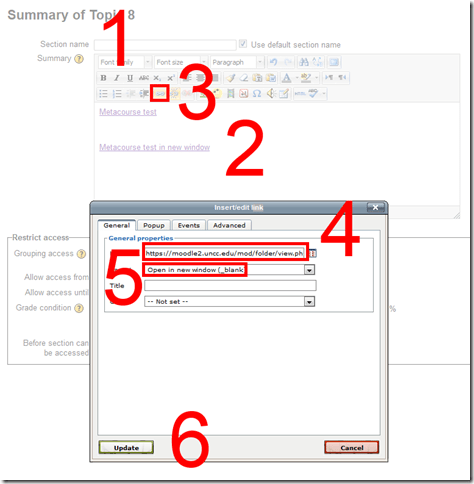
- You can e.g. start a new topic (0).
- Add title (1).
- Add text (2).
- Add link to text (3).
- Paste link from clipboard. (4)
- I you choose open in new window (5), following the link will not navigate the student away from your actual course in the main web browser window.
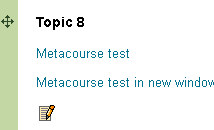
- Result:
 Caveats:
 - FireFox opens in a new tab, even if you in Moodle request to open in a new window.
- You can only link to the root folder of a Moodle Metacourse. If there are multiple content sets within your textbook folder, please advise your student of the name.

How a teacher can easily grade a NanoGong audio recording assignment in Moodle
- Similar to grading video recording assignments with Moodle Kaltura, You can enter in 2 ways:
- By clicking on the assignment like your students:
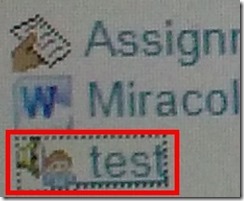
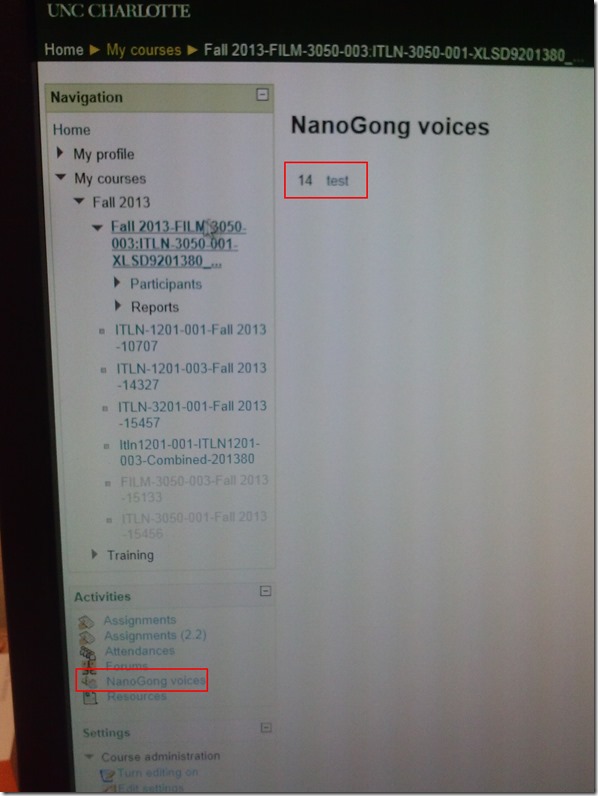
- Or by clicking on Activities: NanoGong Voices
- By clicking on the assignment like your students:
- Before you make it to the assignment page and can see the NanoGong plugin, you may have to bypass some Java warning dialogues.
- On the assignment page:
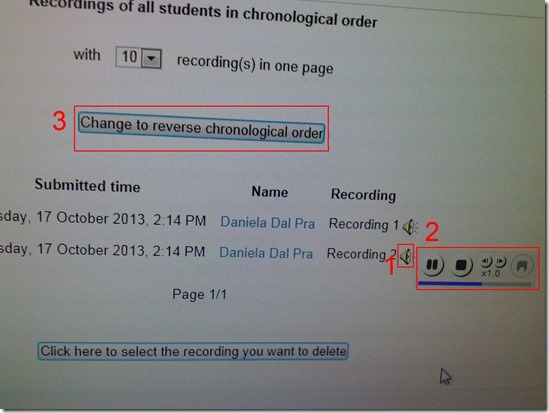
- Click (1) speaker symbol for the recorder control to show up.
- You can also
- enter (1) feedback
- or (2) re-sort the submissions – we had to click this once for the recordings to actually shows up (seems to refresh the page).

- I have not had the chance to see the results in the Gradebook, but here are some screenshots from blogs of users that have:

- Click (1) speaker symbol for the recorder control to show up.


How a teacher can use NanoGong’s plugin for the HTML editor to easily send their own audio to students
- The rich HTML editor recorder plug-in is supposed to make it easier for the teacher (than other recorders that require the teacher to save to file and upload the file to a Moodle activity). Here is how it can work:
- Add an activity which includes the rich HTML editor plugin, e.g. a page.
- Click on the loudspeaker icon denotes NanoGong among the editor tools.
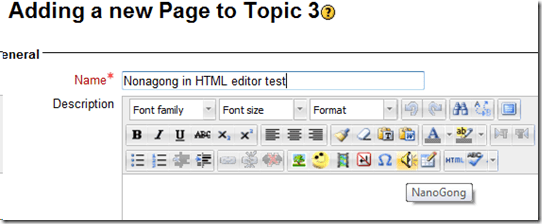
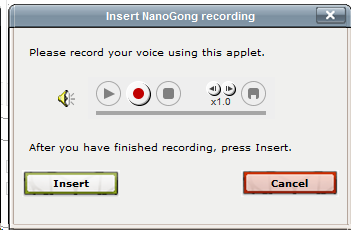
- A window will open that includes the recorder JAVA applet (you may have to bypass Java warnings):

- Click the red record button and speak.
- When done, click insert.
- Result:
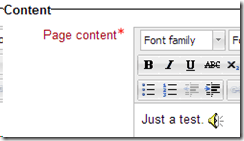
- Note, however, that so far I have run into issues actually displaying this teacher-added NanoGong recorder content.


Troubleshooting NanoGong recorder assignments for students and rich HTML editor content creation by teachers
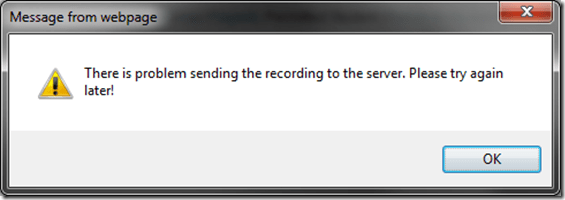
- Once, when submitting, I got this error? But other teachers managed to test the NanoGong recording assignment application successfully when working as a “permitted student”? That may be related to using a project site.
- If you try to use NanoGong in a browser not fully supportive of Java, you can get easily stuck:
- Firefox which has not been explicitly configured to allow JAVA applets – you will get stuck w/o the option to bypass warning dialogues.

- Chrome is not very forgiving either (here for the HTML editor plug-in):
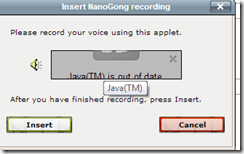 , but you can get past it:
  .
. - I am running into more problems using the rich HTML editor recorder plug-in which I supposed to make it easier for the teacher to provide their own audio to their students:
- IE8 does not display the content at all.
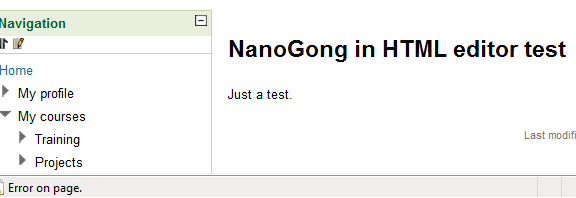
- Chrome 30 spits out raw code, and when you locate and click on the loudspeaker icon, I only get this :
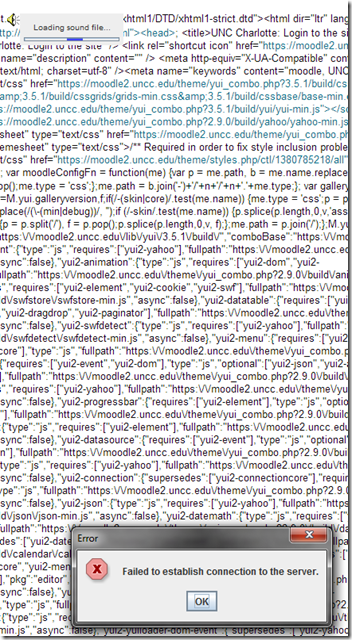 .
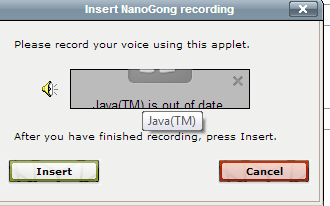
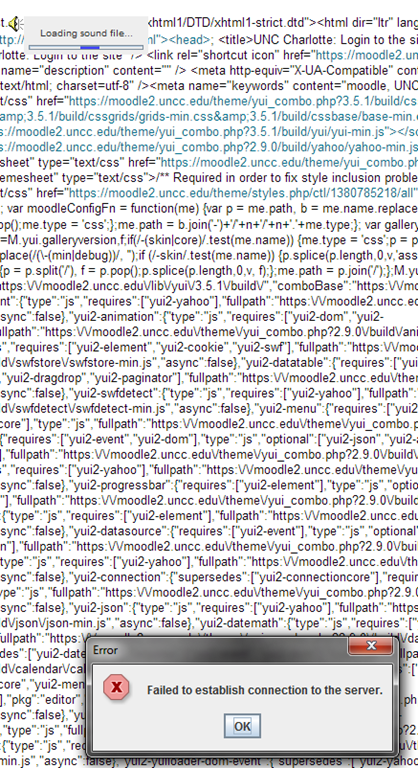
. - IE8, on the other hand, draws a blank:





Questions? Read the About. Or just ask me a quick Our Databases: Resources with calendars -- Language learning material Moodle Sites, multimedia files -- films


FAQs for LRC student staff or for students or for teachers. To search our FAQs, in the browser addressbar, add after "https://plagwitz.wordpress.com/feed/?tag=faqs+/" "+TAG1" (from tag cloud below) OR "https://plagwitz.wordpress.com/feed/tag=faqs
&category_name=" "CAT1" (from category hierarchy below). OR search both categories and tags, and multiple TAGs/CATs (connect with "," for OR-search, with "+" for AND-search), like so: https://plagwitz.wordpress.com/feed/?tag=TAG1+TAG2+...TAGn&category_name=CAT1
+CAT2+...CATn"
Other ways to find help
If you cannot find it here, look there: 5,500 Language-Learning Links and Programs for learning or teaching 150 languages
Shortcuts:Our Lists, Our Maps, LRC Staff Moodle Site,LRC Project Moodle Site, 49erexpress, UNCC Moodle, Student Recordings: s:claslcslrcsanakostudent
Learning usage samples: Sanako oral exam, Kaltura webcam presentation, Dictation with speech recognition, Sanako written exam, Chinese and Japanese interactive stroke-order practice
Test the Sanako Installer, Webbrowser Popup Konfigurator for XP, or Windows7, faster LRC TeacherPC Log-in Let MS facilitate diacritics writing by installing for you US-International keyboard layout
This is my personal blog (Google+). The views expressed on these pages are mine alone and not those of my employer. The information in this weblog is provided “AS IS” with no warranties, and confers no rights.
 Thomas' Work Space