Archive
Archive for the ‘software’ Category
How students can record their picture or photo presentations with PowerPoint 2007
2013/01/22
Leave a comment

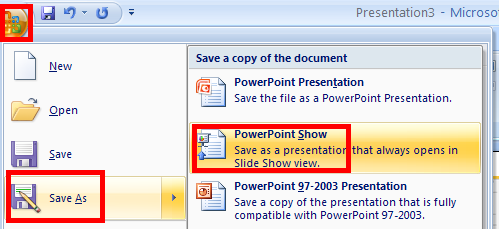
- On the ribbon:slideshow, click “record narration”,
- click “Change quality”,
- change the quality to 16Kbit from the default of 8kbit (which caused audio break-ups when I tested),
- click OK and present, using the headphones,
- then Save As / Show.
- You can easily use the saved file to e.g. upload the assignment to your teacher’s Moodle / File Upload Assignment.
Categories: audience-is-teachers, multimedia-recording, office-software
2007, ms-powerpoint
How students can record their picture or photo presentations with PowerPoint 2010
2013/01/17
Leave a comment
- The screencast shows the necessary steps:

- inserting a photo album,
- presenting while recording the presentation with narration
- saving as a show (.ppsx) – make sure you have ribbon:”Slide show”/ “Play narrations” checked:

- to prepare an assignment for a Moodle single-file-upload (How a student takes a Moodle Simple file upload assignment).

Categories: Arabic, assignments, audience-is-students, documentation, e-languages, English, Farsi, French, German, Greek (modern), Hebrew, Hindi, Italian, Japanese, Korean, Latin, Mandarin, multimedia-recording, office-software, Polish, Portuguese, recording-software, Russian, Screencasts, service-is-applying-learning-tools, Spanish, Speaking, Swahili, Yoruba
2010, ms-powerpoint, narration
A comparison of options for student oral photo presentation assignment
2013/01/15
Leave a comment
- Objective: Student presents personal photos in target language (e.g. home). b
- Contenders for Tools:
- Voicethread (free version)
- University-environment
- For Multimedia authoring:
- MS-PowerPoint
- not yet contenders
- MS-Community Clips (screen capture recording, to be installed)
- benefit: single purpose, record yourself talking while flipping through the images on your computer
- cost: new tool to learn, and no long term perspective
- Sanako Student Recorder: not a contender, it has subtitling options, but cannot author multimedia presentations (teachers used to with the Sanako authoring tool, but this is not longer supported).
- MS-Community Clips (screen capture recording, to be installed)
- As LMS: Moodle.
- For Multimedia authoring:
- Comparison:
- Student
- Authoring:
- (PowerPoint ties:) Image upload is easy in Voicethread (including batches):
 , but PowerPoints Insert / Photo album is as fast (if you have digital photos).
 - Image narration:
- (PowerPoint ties:) Image upload is easy in Voicethread (including batches):
-
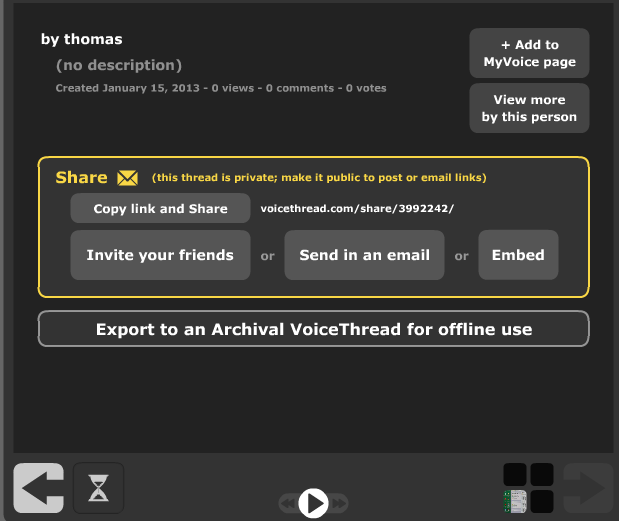
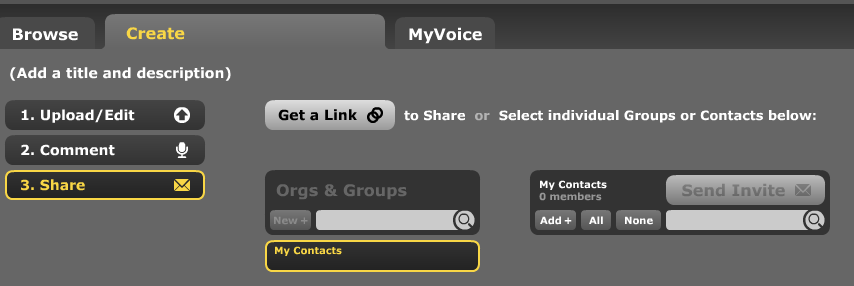
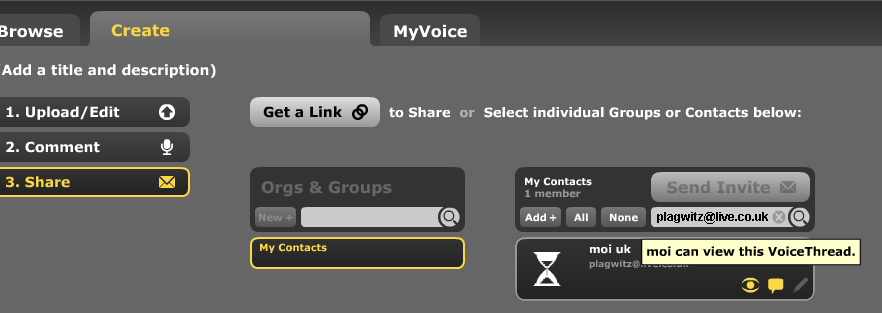
Assignment submission: Voicethread (free) has no support for assignments, only for sharing. Students have to find a way to submit their Voicethread,
- either by email or invitation to pre-created contacts:

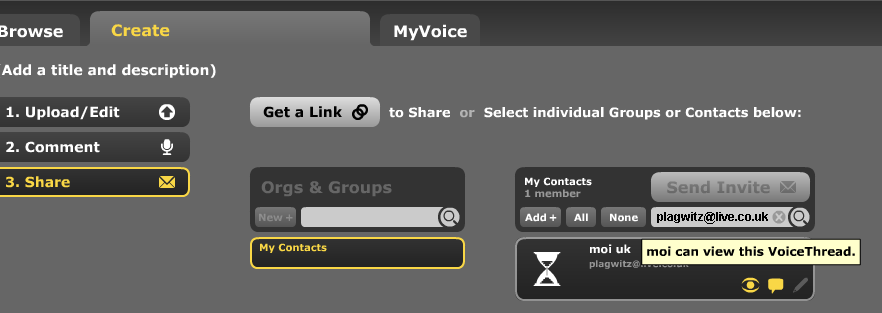
- or, – with higher initial setup cost, but greater reusability benefit – by invitation to a pre-created contact:
 ,
, 

- either by email or invitation to pre-created contacts:
- Sharing/peer-editing/grading:
- (Moodle would win where it has peer-grading options. YMMV:) Sharing within the class is possible, but sharing with "anyone" is a privacy (possibly FERPA) issue, and sharing with a handmade class list (no import) is tedious.
- Authoring:
- Teacher: grading
- Managing submissions
- (LMS wins?:) Voicethread (free) does not allow an export that could be uploaded to the LMS.
 Student can email links or invitations like these:
 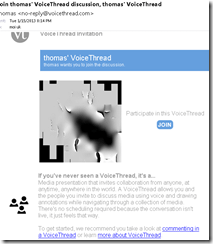 . It is up to you managing them, and completion of assignment and grading for the class. This is no LMS gradebook.
 - (Voicethread wins:) PowerPoint can be saved as a slideshow that starts on click (save as .ppsx) (including with narration). But opening and listening, without the need for saving to a local file, remains easier in Voicethread.
- (LMS wins?:) Voicethread (free) does not allow an export that could be uploaded to the LMS.
- (Voicethread wins:) Providing feedback is possible,
 including oral
  – but is this insert recording? And providing editing access is not the default: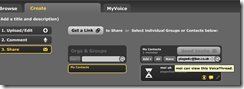
- Record-keeping:
- (Moodle wins:) Voicethread: Uh.. oh..?! I see no retention story, especially not in the free version. With Moodle, you can leave all that to the institutional support.
- Managing submissions
- Student: receiving feedback
- (A tie:) Voicethread’s audio feedback versus Moodle/PowerPoints gradebook access.
- Learning curve:
- Voicethread has the advantage of being a specialized tool (relatively few options, still relatively simple interface – few distractions).
- Other tools have the advantage of greater familiarity in the long run and reusability. Of course it depends also where you are working: stable positions get greater benefit from embarking on the institutional environment.
- Student
-
Summary: PowerPoint/Moodle remains the solution for the pedagogical task at hand that the LRC currently supports. Fortunately
- a narration of a picture presentation using PowerPoint and
- its submission by the student and grading by the teacher on the basis of a Moodle single file upload assignment are not too difficult.




How you can share MS-Office files via MS-OneNote instead of directly through MS-SkyDrive
2013/01/02
Leave a comment
- Simple steps:
- Drag and drop your MS-Office File to your MS-OneNote page.
- When prompted, choose to “insert a copy” (rather than merely linking the original file).

- This puts a copy of the file in the MS-OneNote folder on your local drive,
- which (file and folder) gets synched with your online (MS-SkyDrive) version,
- which, if you shared it, gets synched with the MS-OneNote folder on the local drive of the PC of the person you are sharing with,
- who, by double-clicking, can open and edit his synched local version of MS-Office file in the corresponding MS-Office application.
- Stepping back:
- Benefit: If you have a working MS-OneNote-based workflow, embedding MS-Office file can quickly extend this workflow.
- Risk: If you do not share the MS-OneNote with other editors, you should have no problem. Be aware, though, that concurrency is limited. Unlike accessing the MS-Office file in MS-Office through Office Web apps from MS-SkyDrive directly, editing the MS-Office file from MS-OneNote does not block updating the MS-Office file on remote computers – so expect synching conflicts later if you do not manage concurrency (e.g. by limiting editing sessions).

Categories: e-infrastructure, office-software
2010, MS-Excel, ms-o, ms-office, ms-onenote, MS-Word
The big LRC SANAKO “How do I…?”
2012/12/05
Leave a comment
(Work in progress).
View larger Word version than this embed:
Categories: all-languages, animated-GIFs, audience-is-students, audience-is-teachers, classroom-management-system, digital-audio-lab, documentation, e-languages, Institution-is-University-of-North-Carolina-Charlotte, learning-usage-samples, Listening, LRCRoomCoed434, Presenter-Computer, Reading, recording-software, Screencasts, screenshot-albums, service-is-documenting, service-is-training, Speaking, Student-Computers, training, Writing
sanako-study-1200
Protected: Update: obsolete, our faculty simply run http://goo.gl/e0ljX instead of needing to know about: Installation options to choose for installing the free “lite” Sanako student recorder….
2012/11/19
Enter your password to view comments.


Questions? Read the About. Or just ask me a quick Our Databases: Resources with calendars -- Language learning material Moodle Sites, multimedia files -- films


FAQs for LRC student staff or for students or for teachers. To search our FAQs, in the browser addressbar, add after "https://plagwitz.wordpress.com/feed/?tag=faqs+/" "+TAG1" (from tag cloud below) OR "https://plagwitz.wordpress.com/feed/tag=faqs
&category_name=" "CAT1" (from category hierarchy below). OR search both categories and tags, and multiple TAGs/CATs (connect with "," for OR-search, with "+" for AND-search), like so: https://plagwitz.wordpress.com/feed/?tag=TAG1+TAG2+...TAGn&category_name=CAT1
+CAT2+...CATn"
Other ways to find help
If you cannot find it here, look there: 5,500 Language-Learning Links and Programs for learning or teaching 150 languages
Shortcuts:Our Lists, Our Maps, LRC Staff Moodle Site,LRC Project Moodle Site, 49erexpress, UNCC Moodle, Student Recordings: s:claslcslrcsanakostudent
Learning usage samples: Sanako oral exam, Kaltura webcam presentation, Dictation with speech recognition, Sanako written exam, Chinese and Japanese interactive stroke-order practice
Test the Sanako Installer, Webbrowser Popup Konfigurator for XP, or Windows7, faster LRC TeacherPC Log-in Let MS facilitate diacritics writing by installing for you US-International keyboard layout
This is my personal blog (Google+). The views expressed on these pages are mine alone and not those of my employer. The information in this weblog is provided “AS IS” with no warranties, and confers no rights.
 Thomas' Work Space