Archive
Can we get rid of Adobe Acrobat Reader’s Accessibility Setup Assistant dialogue?

For users not registered in AD as needing Accessibility this is distracting.
example os from the teacher station, assumed that is the same in the base image.
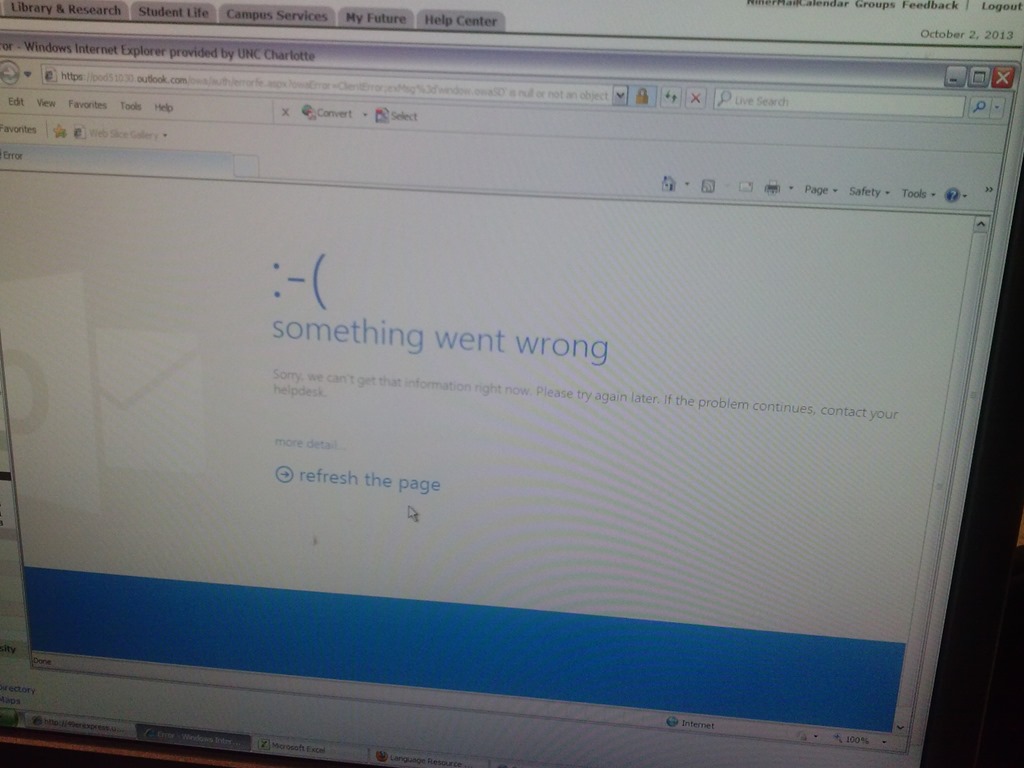
Some users cannot check out LRC items since they cannot log into their NINERMAIL Office365 Outlook

- This seems to have been going on for a while. We have no good way to use another browser on the computers that we use for our room booking and equipment circulation system. Besides,
- IE8 is the default browser on campus.
- Microsoft seems to say it not deprecate it without notice. Rather, pasted from http://community.office365.com/en-us/wikis/manage/office-365-and-internet-explorer-8.aspx states the following (they do not mention XP though, but that is also supported until April 2014):
- Why is Office 365 ending support for Internet Explorer 8? [in short, html5]
-
Why 8 April 2014? Office 365 provides customers 12 months’ notice of disruptive change under our Online Services Support Lifecycle. We announced Office 365 is ending support for Internet Explorer 8 on the System Requirements Wiki on 9 April 2013.
-
Will Internet Explorer 8 users be blocked from connecting to Office 365 after 8 April 2014? No, Office 365 will not deliberately block Internet Explorer 8 users from accessing the service after 8 April 2014. But after that date, users connecting to Outlook Web App will only be able to use Outlook Web App Light.
- ITS says Microsoft told them IE8 is not supported.
- The following change does not fix it here on XP SP3:
-
Windows Registry Editor Version 5.00
-
[HKLM and HKCU\SOFTWARE\Microsoft\Internet Explorer\Main]
“XMLHTTP”=dword:00000001
-
- Go figure.
How to move an invisible window back onto the screen in Windows
- Normally you would drag the window by its title bar into its position with the mouse – but if the window is off the screen, the mouse cannot access it.
- Here is how to use the keyboard arrow-keys to do the same, after right-clicking the window’s task bar icon:

- This example is with our Sanako student (a bug or misconfiguration we are investigating), but works with most windows on most versions of MS-Windows.

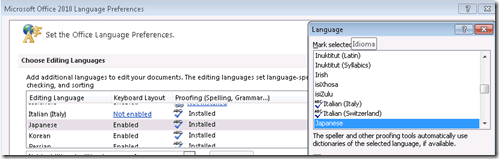
Japanese Language Tools (Proofing, dictionary, furigana) in the LRC MS-Office 2010 installation
- Even if not showing in MS-Word’s Language selector),
-
-

-
Even though there is no Japanese Thesaurus:

-
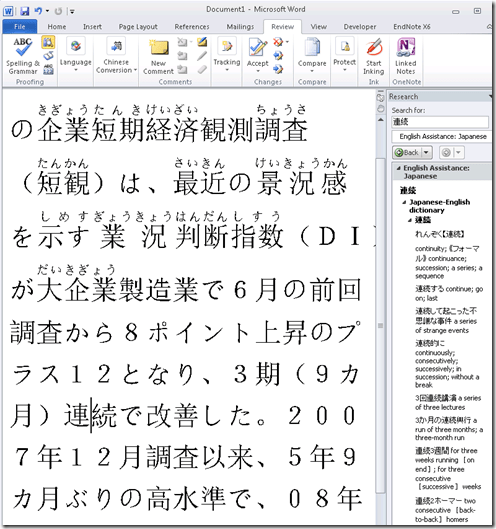
There are these tools:
-
In the Research pane, "English Assistance: Japanese" (in the ribbon / "Review" tab, Proofing section, press the
 , then ALT-Click a character to start a lookup:
 -
-
a Japanese Consistency Checker:

-
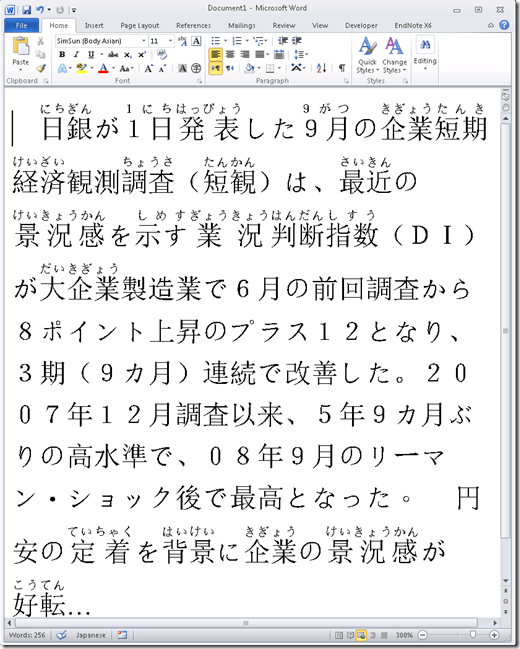
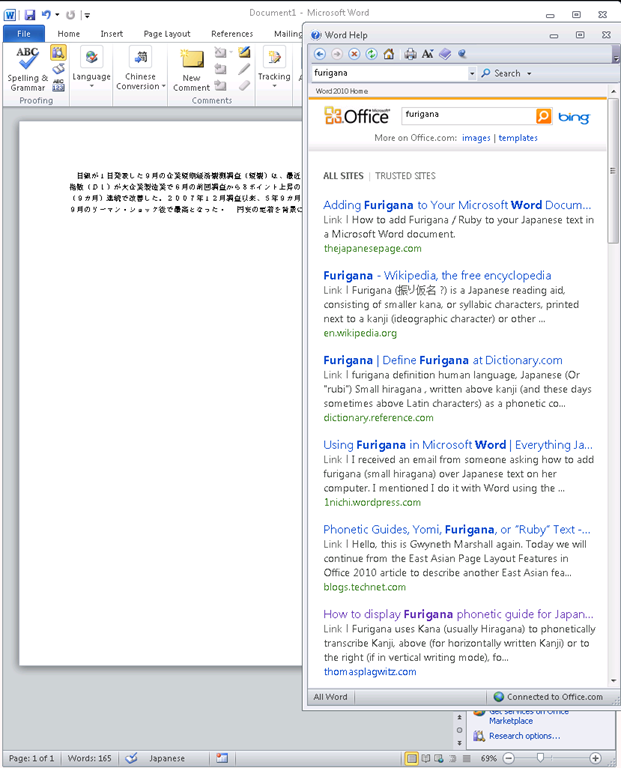
Furigana:
-
To enable:

-
Result (in view / Web layout):
-
Incidentally, my blog has not quite made it into the TOP 5 of MSW-Office help content:

-
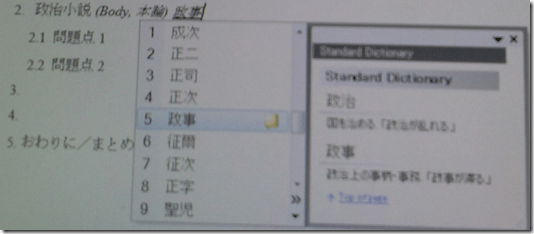
In addition, for Office, but also beyond, there are the tools of the MS-Office Input method editor (which include dictionary help when you write):



Changes in how to make a meeting request to resource mailboxes after students’ mid-term upgrade to Office365
- Update: We made a brief summary which you can read instead here.
- The interface has changed quite a bit, but don’t worry: the basic processes are still the same. Here is a very quick rundown:
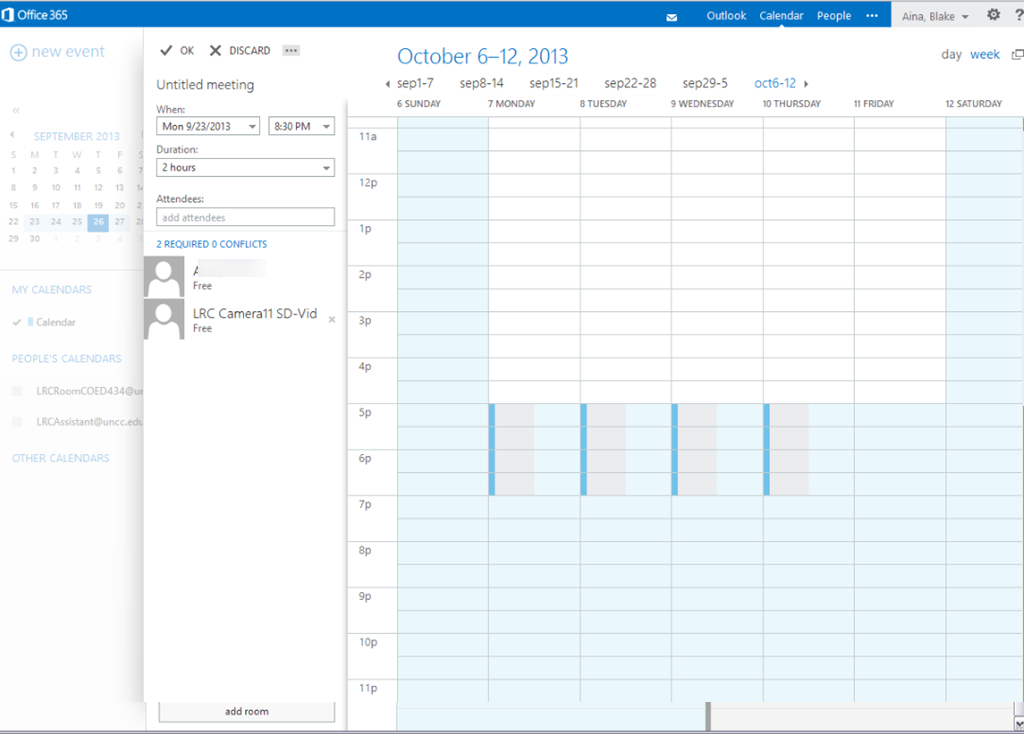
- You now have to start from the Calendar / + new Event, like so:
 and
and 
- To add resources
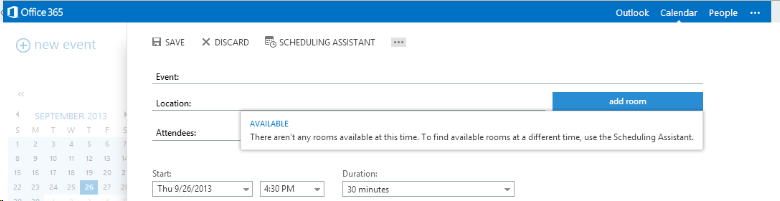
- Don’t try the “button:add room”, you will get this error:

- instead, either type the resource email address

- or click the + next to “Attendees’

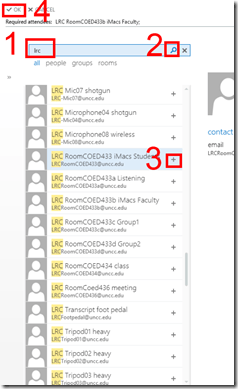
- and search the database for the “LRC[whatever]” resource,
- note: no need for a new window anymore
- and by double-clicking or clicking the + , from the search results, add the desired resources to the “Attendees”, finally click top menu: “OK”
- or to remove spurious ”Attendees”, right-click them:

- and search the database for the “LRC[whatever]” resource,
- to preview the availability, you can still click top menu: “Scheduling assistant”.
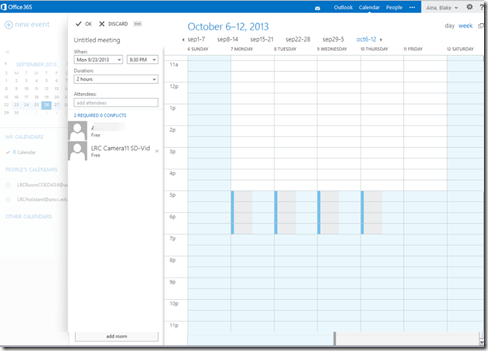
- Note that the “Scheduling Assistant”looks very different, not like a parallel timeline, more like a parallel calendars, you can choose form thee upper right
- either day view:

- or week view:
- either day view:
- Note that the “Scheduling Assistant”looks very different, not like a parallel timeline, more like a parallel calendars, you can choose form thee upper right
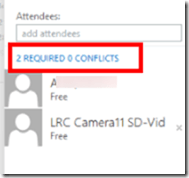
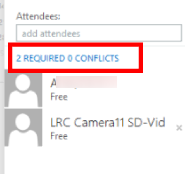
- and it tries to help you by giving more explicit information about conflicts:
- when happy with how you scheduled your “event”, click top menu: “send”
- read the response
- unfortunately, there seems to be no “toast” (tested in Chrome on Windows 7 and Firefox on Window XP)
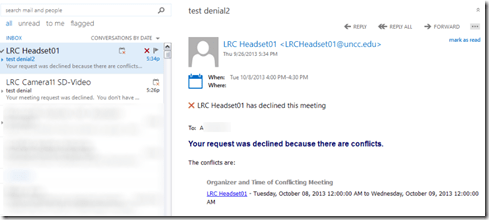
- there is, however, still a response
- “accept”
- or,”with explanation, “declined”:

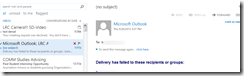
- there seems to be also a bug that you cannot send messages to yourself (huh? investigating), ignore for the time being:
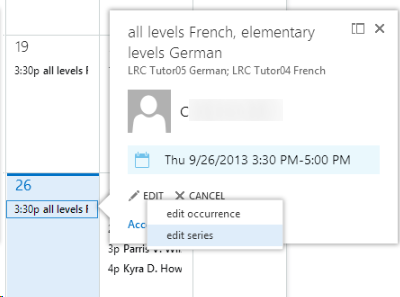
- from the “Event” in your calendar, you can still
- edit (including, for repeating events, single occurrence or series :

- right-click the “Event” from the calendar and choose “cancel”, which still brings up a popup window where you have to “send”:

- edit (including, for repeating events, single occurrence or series :
- Don’t try the “button:add room”, you will get this error:







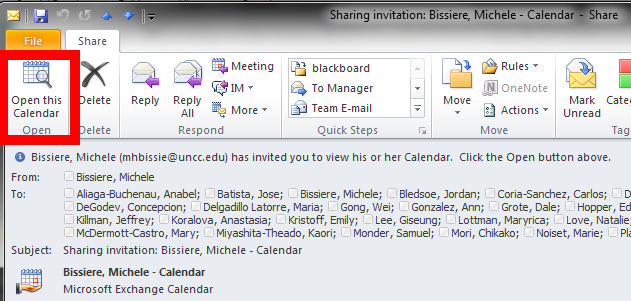
If you receive a calendar sharing invitation, click “Open the calendar”
- In Outlook (Desktop), like it says in the first item on the upper left:

- This will add the calendar to the list of calendars on the left of your Outlook, like so

- That is, if you do a calendar overlay, like so.

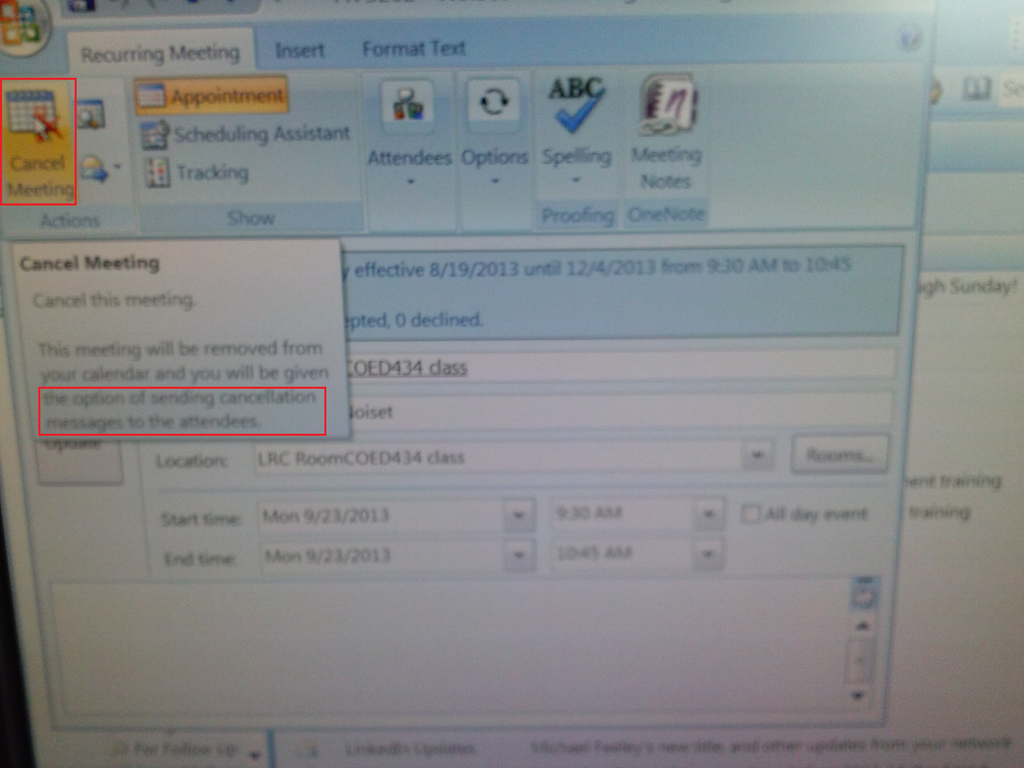
Cancelling a meeting request in Outlook 2007
- Do not merely delete the meeting from your calendar;
- rather: open it and use the button: cancel meeting, like so:



Questions? Read the About. Or just ask me a quick Our Databases: Resources with calendars -- Language learning material Moodle Sites, multimedia files -- films


FAQs for LRC student staff or for students or for teachers. To search our FAQs, in the browser addressbar, add after "https://plagwitz.wordpress.com/feed/?tag=faqs+/" "+TAG1" (from tag cloud below) OR "https://plagwitz.wordpress.com/feed/tag=faqs
&category_name=" "CAT1" (from category hierarchy below). OR search both categories and tags, and multiple TAGs/CATs (connect with "," for OR-search, with "+" for AND-search), like so: https://plagwitz.wordpress.com/feed/?tag=TAG1+TAG2+...TAGn&category_name=CAT1
+CAT2+...CATn"
Other ways to find help
If you cannot find it here, look there: 5,500 Language-Learning Links and Programs for learning or teaching 150 languages
Shortcuts:Our Lists, Our Maps, LRC Staff Moodle Site,LRC Project Moodle Site, 49erexpress, UNCC Moodle, Student Recordings: s:claslcslrcsanakostudent
Learning usage samples: Sanako oral exam, Kaltura webcam presentation, Dictation with speech recognition, Sanako written exam, Chinese and Japanese interactive stroke-order practice
Test the Sanako Installer, Webbrowser Popup Konfigurator for XP, or Windows7, faster LRC TeacherPC Log-in Let MS facilitate diacritics writing by installing for you US-International keyboard layout
This is my personal blog (Google+). The views expressed on these pages are mine alone and not those of my employer. The information in this weblog is provided “AS IS” with no warranties, and confers no rights.
 Thomas' Work Space