Archive
How to download videos from YouTube.com, and other video sites
- Don’t know what this institution recommends – here is a list of software that I have accumulated over time – I stopped a while ago, since there is always something newer coming out - try googling what is currently most popular.
- http://www.viloader.net/addon.htm: You have to click on download, and save the file with the name you want and in the end you have to add .flv that its the video format. Then when the video has been saved to your PC you have to convert the video in a comercial format like wmv, mpg, etc. or download a flv player to be able to see the videos.
- Youtube Catcher can download videos from Youtube, Google Video, Myspace Video, Yahoo video Dailymotion Stage6 Veoh. The downloaded videos can be exported to various formats like MPG,AVI, MP4,3GP, 3G2, WMV, PSP, MOV, FLV with the quality you choose: http://www.teknobites.com/2007/08/23/youtube-catcher-youtube-and-other-video-downloader-tool/
- zamzar.com
- http://userscripts.org/scripts/show/25105,
- http://www.googlewatchblog.de/2008/04/13/youtube-video-als-mp4-herunterladen/
- MPEG Streamclip can download YouTube files. They are always opened or downloaded in MP4 (MPEG-4) format, so they can be used in MPEG Streamclip.
- this works well as of 8/17/2009 1.Go to http://edtech.nwresd.org/?q=node/157 . You will see the words ""download script"" (in blue – a hyperlink). Right click on that text and then on ""Bookmark this link"" (at least that’s what it says using Mozilla Firefox as a browser). You can move this bookmark within your Bookmarks or Favorites Folder wherever you want. 2.Go to YouTube and locate a video you want to save. While the video is actually playing, go to your Bookmarks Folder and click on the ""download script"" link you saved there.3.Next look in the right hand column on the screen – to the right of the video playing. Just below the section that says URL, and EMBED (right below URL) you will see a text that says download as MP4. 4.Right click on that text and then click on SAVE LINK AS. You can choose where you want the file to be saved and you can even rename the file (for me the default name is ""video""). Just to be sure I’d let the video play to the end before checking to see if it actually where you put it.
-
if (document.getElementById(‘download-youtube-video’)==null && !!(document.location.href.match(/http:\/\/[a-zA-Z\.]*youtube\.com\/watch/))) {var yt_mp4_path=’http://www.youtube.com/get_video?fmt=18&video_id=’+swfArgs%5B‘video_id’%5D+’&t=’+swfArgs%5B‘t’%5D; var div_embed=document.getElementById(‘watch-embed-div’);if(div_embed){var div_download=document.createElement(‘div’);div_download.innerHTML=’ <br /><span id="\’download-youtube-video\’"><a href="\”+yt_mp4_path+’\’">Download as MP4</a> ‘+ ((navigator.userAgent.indexOf(‘Safari’)!=-1)?'(control-click and select <i>Download linked file as</i>)’:(‘(right-click and select <i>Save ‘+ (navigator.appName==’Microsoft Internet Explorer’?’target’:’link’) +’ as)</i>’))+’</span>’;div_embed.appendChild(div_download);}}void(0)
-
- Updates for the the 2013/4 academic year:
- YouTube Center, includes download functionality, more on YouTube center here.
- Orbit downloader:
- Claims to be a generic downloader, and looks complicated enough to convince me of that
 .
. - However, I did not have any luck here, at least I did not find a practical (=automated) way to cobbling these clips together (are media outlets, even if they are under non-US legislation and trying so hard, still bound by the fair use legislation?):
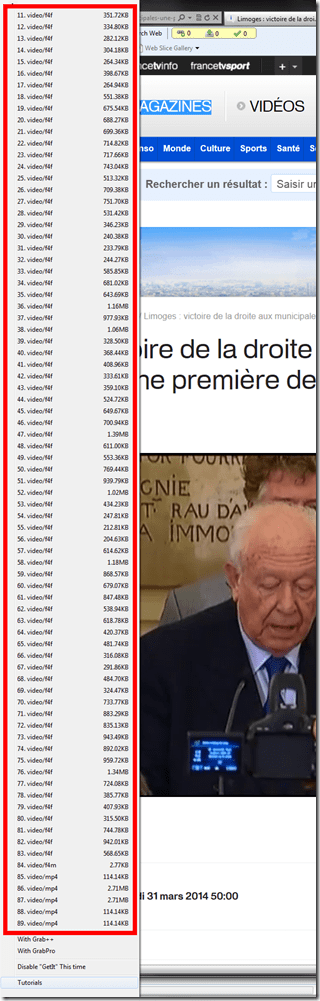
- Also changes your browser home page without asking – I can’t say I like the territory I get myself into with these teacher download requests.
- Claims to be a generic downloader, and looks complicated enough to convince me of that

News TV on the internet: Politics and Legislatures
http://en.wikipedia.org/wiki/Template:Parliamentary_broadcasters
http://en.wikipedia.org/wiki/Category:Legislature_broadcasters
http://ec.europa.eu/avservices/about/activities_en.cfm
”On-demand consultation of any event or subject during the week following its transmission on satellite. All products become accessible to any connected media or individual anywhere in the world through the Internet portal of the audiovisual service. On the site you will find EbS permanently updated transmission schedule, as well as shotlists detailing the content of pictures and links to complementary information sources and photos. Pictures and sound may be downloaded in broadcast quality formats: MPEG2 for video, MP3 for sound and JPEG for photos. This news material is published during or soon after the events, remains available *for at least one month* and is easy to download, process and file.”
German public TV on the internet
French TV on the internet
TV5 seems still in the satellite/per-per-view phase. But it offers free video learning resources: http://www.tv5.org/TV5Site/enseigner-apprendre-francais/accueil_enseigner.php
International TV on the Internet
http://wwitv.com/portal.htm, lists 2244 online TV stations, by topic and “country” (note that this does not equal “language”).
How we provide more computer support for walk-up clients at the LRC reception desk
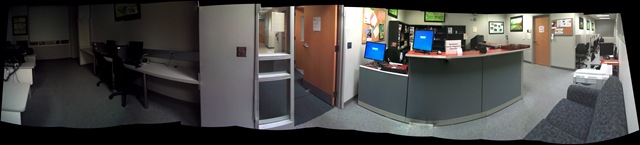
- We have set up 3 PCs at the reception desk. They all contain an exactly identical software configuration (based on Symantec Ghost imaging and Faronics Deepfreeze).
- Except that two (we could not get hold of another monitor) have a secondary screen connected that can extend the Windows Desktop, or mirror it (use CTRL-ALT-F11 and CTRL-ALT-F10 to switch between the modes of the )
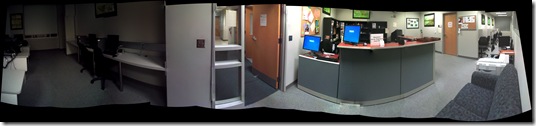

- To aid in this communication over the counter, press CTRL-2 to freeze and on the screen (uses MS-ZoomIt) which helps when pointing out screen elements.
- So that LRC staff and clients can both use the university’s most important web applications, the computers have been configured to automatically launch a number of web browsers on startup, and within each browser, open a number of home pages with(LRC website, Moodle, NINERNET, faculty&staff Mail, WordPress, Excel Web App with he LRC databases for hardware, software, media and learning materials inventories). (When done, instead of closing the browser, use the “sign out” link of each web application).
- As a reminder, the most basic instructions (with keyboard shortcuts) have been posted on both primary and secondary monitor.
- Can we also implement a screen sharing solution allowing for MS-remote assistance, to enable reception desk LRC staff to escalate client questions they cannot resolve, like our IT department?

Moodle Https Warnings
This now appears in every page I load in Moodle (in Internet-Explorer-8). I realize that client-wise this warning should not be suppressed globally. If this cannot be updated server-side, is it possible to blacklist individual websites? 
How teachers can grade student recordings done with the LRC Sanako Study-1200 in their Office
-
Teacher on their office PC (MAC users talk to http://helpdesk.uncc.edu) can press
 windows-key+e, and in the window, that opens,
 -
browse to the student mp3 recordings with date and time in the folder name on s:\coas\lcs\labs\lrctest\sanako\student (no S: drive on office PC? talk to http://helpdesk.uncc.edu, but in the meantime, trywindows-key+r, paste = \\DATASERV1\DVOL1\coas\lcs\labs\lrctest\sanako\student”, click “OK”),
-
open the student recording file, either by double-clicking to, presumably, open it in Windows Media Player, or, preferably, by selecting multiple files, right-clicking and choosing “Open with” to open them for comparative grading (read some tips) in Audacity.


Questions? Read the About. Or just ask me a quick Our Databases: Resources with calendars -- Language learning material Moodle Sites, multimedia files -- films


FAQs for LRC student staff or for students or for teachers. To search our FAQs, in the browser addressbar, add after "https://plagwitz.wordpress.com/feed/?tag=faqs+/" "+TAG1" (from tag cloud below) OR "https://plagwitz.wordpress.com/feed/tag=faqs
&category_name=" "CAT1" (from category hierarchy below). OR search both categories and tags, and multiple TAGs/CATs (connect with "," for OR-search, with "+" for AND-search), like so: https://plagwitz.wordpress.com/feed/?tag=TAG1+TAG2+...TAGn&category_name=CAT1
+CAT2+...CATn"
Other ways to find help
If you cannot find it here, look there: 5,500 Language-Learning Links and Programs for learning or teaching 150 languages
Shortcuts:Our Lists, Our Maps, LRC Staff Moodle Site,LRC Project Moodle Site, 49erexpress, UNCC Moodle, Student Recordings: s:claslcslrcsanakostudent
Learning usage samples: Sanako oral exam, Kaltura webcam presentation, Dictation with speech recognition, Sanako written exam, Chinese and Japanese interactive stroke-order practice
Test the Sanako Installer, Webbrowser Popup Konfigurator for XP, or Windows7, faster LRC TeacherPC Log-in Let MS facilitate diacritics writing by installing for you US-International keyboard layout
This is my personal blog (Google+). The views expressed on these pages are mine alone and not those of my employer. The information in this weblog is provided “AS IS” with no warranties, and confers no rights.

