Archive
How to start YouTube videos from the middle
- To avoid having to manually find a segment of a YouTube video clip during presentations, or worse, downloading the video clips from YouTube before the presentation, to edit them into shape,
- try using the “&t=”(for “time(line)”, I presume) query parameter, followed by “#m” (for minutes) and "##s” (for seconds) where the segment you want to show starts.
- Example links that you can try inserting into your PowerPoint Slide deck:
- http://www.youtube.com/watch?v=tDngRk5vImU starts the movie clip Aicha part 1/10 from the beginning;
- http://www.youtube.com/watch?v=tDngRk5vImU&t=1m10s starts Aicha at 1 minute and 10 seconds;
- http://www.youtube.com/watch?v=tDngRk5vImU&t=5m10s starts Aicha at 5 minutes and 10 seconds.
How to download Centro Spanish Textbook audio
The audio is in (compressed) mp3 format. Just right-click on any audio link and choose save target/link as (or similar, depending on browser), like so: 
Example from Centro – Puntos de partida: Online Laboratory Manual, 8th Edition (you need access privileges to follow this link, but you can send links around, users can open them, provided their webbrowser is already logged into the centro site – getting access and finding you way around the website is the real issue. Webspiders are prohibited, though – and even Downthemall saves only files without extensions: rename them to .mp3 or save them manually as .mp3 in the first place, as shown above. Does not work as above? Try a different web browser.
LRC Workshop Demand Survey Results
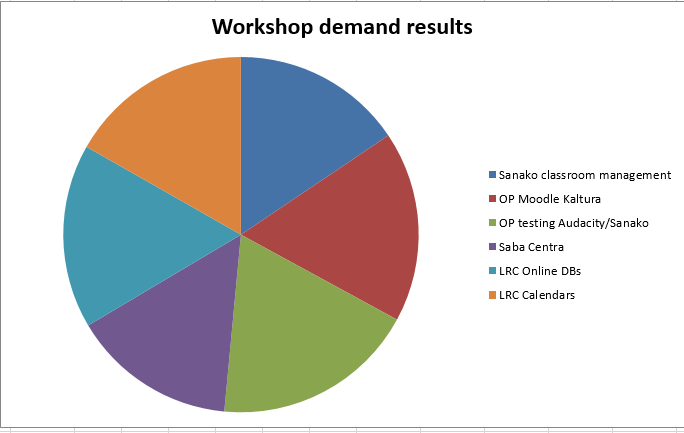
7 responded, 1 commented. OP=Oral Proficiency.
Things you can try when having trouble playing video from the internet
There are several things you can try when having trouble playing video from the internet. I made a list here (less would be more, but hey, it’s computers, right?):
- Refresh the web page (f5 or ctrl-f5).
- Can you see an error message on the page itself? some video services prevent you from watching video abroad BBC iPlayer used to do this, since it is financed by fees of a local audience – so are ARD and ZDF, but they do not bother restricting by viewer location. However, they assume you are in Germany, and in their time zone, so they restrict you from watching the equivalent of R-rated content during daytime in Germany.
- Restart the web browser.
- Can your web browser play a video from a different website. Good candidates are Youtube.com (may be HTML5 delivered by now), hulu.com, ARD Mediathek if trying ZDF Mediathek or vice versa). Maybe your plug-in has crashed – try restarting your computer.
- Try a different web bowser (chrome, internet explorer, Firefox, safari, opera are all free downloads).
- Can you discern a notification bar on top of your web browser window telling you of an error or asking you to upgrade something?
- At this point it might be easier to come to the LRC and use what we maintain for you there, or, if you are trying to use your office computer, alter the helpdesk.
- Do you have to upgrade your video-plugin? Currently (before HTML5 delivered plug-in free video), most videos are plug-in based. search for adobe flash and MS-Silverlight upgrades.
- Do you have to upgrade your browser?
- Do you have to upgrade your operating system? your computer hardware? Let’s hope you do not get to here in this list…
How a teacher best adds cues and pauses to an mp3-recording with Audacity to create student language exercises
- The first screencast example uses insert tones and a gut amount of pause, for an interpreting exercise, into an authentic German political speech
- 1:00 search for a break (button: play/stop – pause prevents edits)
- 1:05 move the cursor to the break (mouse left-click on timeline)
- 1:20 insert a pause (menu:Generate / Silence )
- 1:25 zoom in (button:magnifying glass, CTRL + mouse scroll wheel)
- 1:45 generate a tone (menu:Generate / Noise), change the duration
- 2:10 do not replace the selection
- 2:20 use undo, just like in MS-word and other programs
- 2:30 move the cursor to the start of the selection (mouse left-click on timeline)
- 2:40 generate a tone (menu:Generate / Noise)
- don’t forget to review results before distributing to students
- the second screencast example, of post-editing a questions/response exercise in ESL, takes the amount of pause inserted from the recorded teacher instruction for the student, and uses copy/paste to speed things up even more.
- You can also only insert tones and not pauses, as in the 3rd screencast, and allow the students flexible pause lengths, if you can rely on the Sanako Student recorder Voice insert. Or if you must, let students use audacity for recording also, and have them learn how to move the recording cursor around manually, and throw away the source track.
Deutschland Radio
On popular request: Deutschland Radio still does live streaming, but their on demand archive is also very good. Unlike Deutsche Welle which has discontinued live streaming geared neither towards expats, nor language learners though.
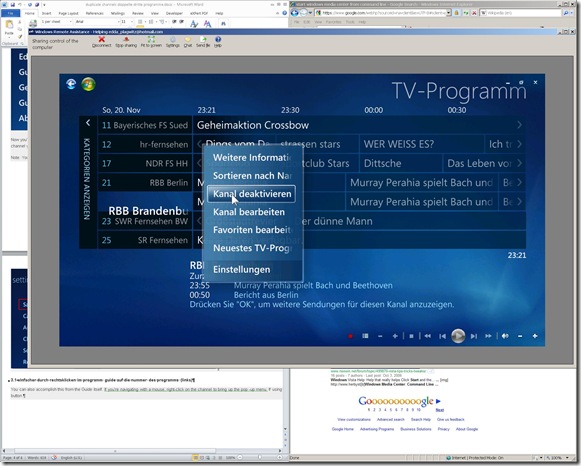
How to run Windows Media Center during a Remote Assistance Session
-
The /gdi switch for Windows Media Center allows for operating Windows Media Center full screen during
-
Windows Live Messenger Remote Assistance sessions if you have to help a relative over the internet.
-
Should also work in MSTSC Remote Desktop sessions if you manage media with Windows Media Center on your work network.
-
-
You can combine the above switch e.g. with the program guide shortcut to go directly there: /homepage:VideoGuide.xml /PushStartPage:True
-
Put the following in the “Target” field of your shortcut that you start on the remote computer (running Windows7 32-but here) during your remote assistance session:
-
%windir%\ehome\ehshell.exe /nostartupanimation /gdi /homepage:VideoGuide.xml /PushStartPage
- Voilà, or rather: “Dem Inschenör ist nichts zu schwör”.



Questions? Read the About. Or just ask me a quick Our Databases: Resources with calendars -- Language learning material Moodle Sites, multimedia files -- films


FAQs for LRC student staff or for students or for teachers. To search our FAQs, in the browser addressbar, add after "https://plagwitz.wordpress.com/feed/?tag=faqs+/" "+TAG1" (from tag cloud below) OR "https://plagwitz.wordpress.com/feed/tag=faqs
&category_name=" "CAT1" (from category hierarchy below). OR search both categories and tags, and multiple TAGs/CATs (connect with "," for OR-search, with "+" for AND-search), like so: https://plagwitz.wordpress.com/feed/?tag=TAG1+TAG2+...TAGn&category_name=CAT1
+CAT2+...CATn"
Other ways to find help
If you cannot find it here, look there: 5,500 Language-Learning Links and Programs for learning or teaching 150 languages
Shortcuts:Our Lists, Our Maps, LRC Staff Moodle Site,LRC Project Moodle Site, 49erexpress, UNCC Moodle, Student Recordings: s:claslcslrcsanakostudent
Learning usage samples: Sanako oral exam, Kaltura webcam presentation, Dictation with speech recognition, Sanako written exam, Chinese and Japanese interactive stroke-order practice
Test the Sanako Installer, Webbrowser Popup Konfigurator for XP, or Windows7, faster LRC TeacherPC Log-in Let MS facilitate diacritics writing by installing for you US-International keyboard layout
This is my personal blog (Google+). The views expressed on these pages are mine alone and not those of my employer. The information in this weblog is provided “AS IS” with no warranties, and confers no rights.
 Thomas' Work Space