Archive
Archive for the ‘Classroom-technology’ Category
The Sanako student recorder play list always shows hidden files…
2014/04/02
Leave a comment
… not honoring the folder options in windows Explorer. Those and to manage (delete to remove from list) hidden files in the playlist window, you have to disable the hide in windows Explorer first.
Before unhiding os files:

After unhiding:

Categories: digital-audio-lab, e-languages, Glitches&Errors
playlist, sanako-study-1200, student.exe
How to manage balance on stereo audio using Audacity, Sanako student recorder, or any audio player on Windows
2014/03/31
Leave a comment
- For language lab use, stereo is more important than usual, since the channels may carry source versus translation/interpretation, L1 versus L2, teacher versus student, model versus imitation and so forth.
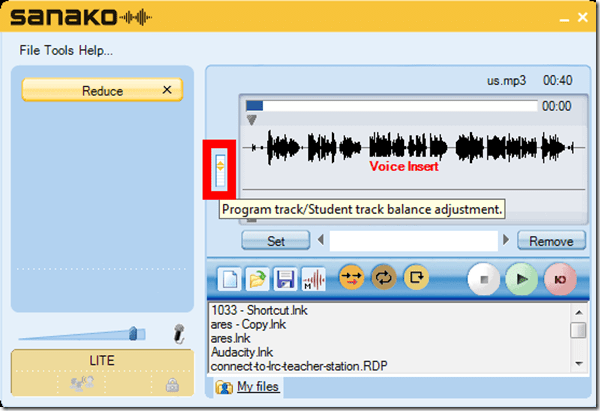
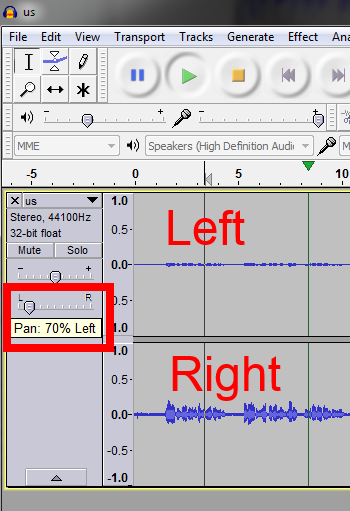
- You can choose which channel to listen to by adjusting the balance for stereo playback.
- In the Sanako Student recorder (free for all), click here:
- In Audacity, click here::

- From any other player on Windows, hold Win-key and press R, type mmsys.cpl, on tab playback, double click the speaker you are outputting to, and on tab levels, change “Balance”:



Categories: audience-is-students, audience-is-teachers, digital-audio-lab
7, audacity, audio, balance, grading, sanako-study-1200, stereo, student.exe, windows
First steps with the teacher-training-setup for Sanako Study 1200 v7 in a deepfrozen computer lab environment
2014/03/31
Leave a comment
- I remember a time when the vendor travelled onsite to provide faculty induction into the Sanako Lab300, they set up the student PCs with a special version of the tutor software that multiple faculty could gain hands-on experience during a workshop.
- I have sorely missed this facility during my own 8 years’ of experience training faculty in using the successor product, Sanako Study 1200. No longer: With Sanako 7, Sanako provides to the digital audio lab manager an installer that sets up a similar environment for faculty in a Sanako Study 1200 lab. Below are some observations how to get this to run what should be a fairly typical HE language lab environment
- Install, in frozen state, as admin:
- Uninstall Sanako student recorder from appwiz.cpl
- Install "S:\COAS\LCS\MYDEPT\LRC\Secure\software\Sanako\7\TeacherTrainingSETUP.EXE" (right-click, run as admin)
- Is mostly hands-free, but I’d prefer an MSI with a /quiet install option, then I could automate that.
- One could write AutoIt script compiled to .exe that uninstalls student recorder? Need to know the msicache location ?
- Neither Uninstall of student recorder nor install of teacher-training-setup require a restart - is suitable for installation on otherwise frozen lab installation
- Additional setup required:
- I got an error about corrupt student settings file, but it worked.
- Loading students from "corridor"
- On unfrozen office computer, I got an error about student settings corrupt, but teacher could load students
- On frozen lab computer, I get no error, but teacher does not see students, although 5 have been started – Is an original student settings hanging around?
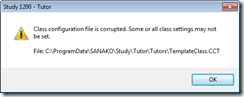
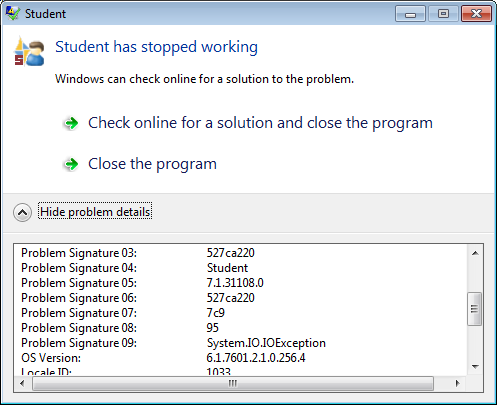
- After tutor setup (do not require tutor login) and restart, I get this error on the tutor:
- And this crash of the student:

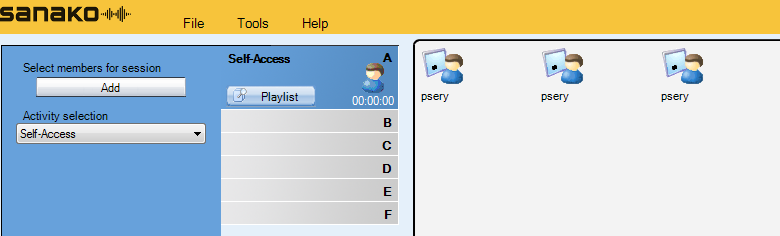
- But now is see these signs of success :
- on student t

- on tutor this :

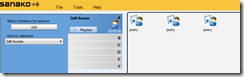
- And it works:
- on student t
- We have to unblock tutor in firewall twice:
- Initiate a screen sharing , then unblock :

- For audio: initiate a model imitation with collect, then unblock.
- Initiate a screen sharing , then unblock :
- Set Collection path:
- Initiate a homework collection , set collect path to a suitable folder (here S:\COAS\LCS\LRC\sanako\student).
- Not needed for audio collection.
- Other observations:
- Uses file download, not stream audio, to students: You can see the tutor and the student applications at the same time, monitoring the effects your tutor operations would have in the classroom
- Why at first 2 students and then 3?

- Why at first 2 students and then 3?
- Remote control:
- Note that screen sharing will switch aero off on your computer
- Note that button:"collaborate" does weird things to your mouse, make sure you can even get back to the button:"monitor" to turn it off.
- Uses file download, not stream audio, to students: You can see the tutor and the student applications at the same time, monitoring the effects your tutor operations would have in the classroom
- Setup TeacherTrainingSETUP for each workshop participant.
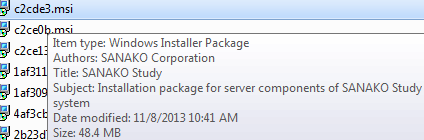
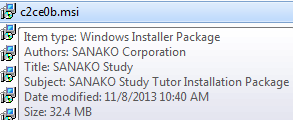
- The msi packages contained in teacher training setup as of Fall 2013, in case you ever get around automating the installer using AutoIt that you can deploy it from teacher station instead of having to touch each machine, please share:
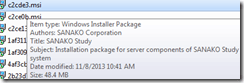
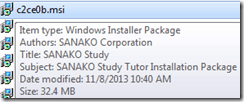

- The msi packages contained in teacher training setup as of Fall 2013, in case you ever get around automating the installer using AutoIt that you can deploy it from teacher station instead of having to touch each machine, please share:






How to record a screencast and submit it to the Sanako teacher – the ultimate training…
2014/03/28
Leave a comment
…using animated GIFs. Slower? Click 0.50sec, 0.50sec, 0.75sec, 1sec, 2sec, 3sec, 4sec, 5sec, 6sec, 7sec, 8sec, 9sec, 10sec.

Categories: animated-GIFs, digital-audio-lab, e-languages
ms-community-clips, sanako-study-1200
Protected: Sanako Web browsing activity fails with Outlook web access
2014/03/27
Enter your password to view comments.
Categories: digital-audio-lab, Glitches&Errors
OWA, sanako-study-1200, web-browsing-activity
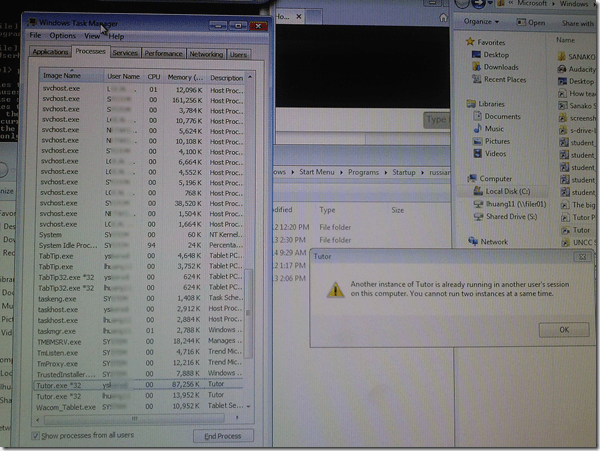
Prevent multiple user login to avoid “Another instance of Tutor is already running in another user’s session on this computer” by disabling fast user switching
2014/03/27
Leave a comment
- Problem: As reported earlier (in the Spring and in the Fall term), for the student PCs, Sanako issues (but likely also general performance problems, and reportedly problems on classroom computers outside of the LRC) caused by multiple users being logged into the same PC – not limited to logging in from remote via MSTSC - seem on the increase this term (this year?), also on the teacher PC, where they prevent the digital audio lab from starting:
- Workaround: force restart of the computer (time-consuming, though).
- Solution: Avoid, better prevent multiple user login, maybe by disabling fast user switching?
- Registry: HKEY_LOCAL_MACHINE\Software\Microsoft\Windows\CurrentVersion\Policies\System\HideFastUserSwitching =1, or
- Group policy: Computer Configuration\Policies\Administrative Templates\System\Logon\Hide Entry points=Enabled.
- Other considerations:
- Side effects: unclear?
- Root cause: Not enough data. Why do users remain logged in in the first place?

Sanako Web browsing activity not compatible with modern web infrastructure (SunGard Portal, Outlook Web Access)?
2014/03/26
Leave a comment
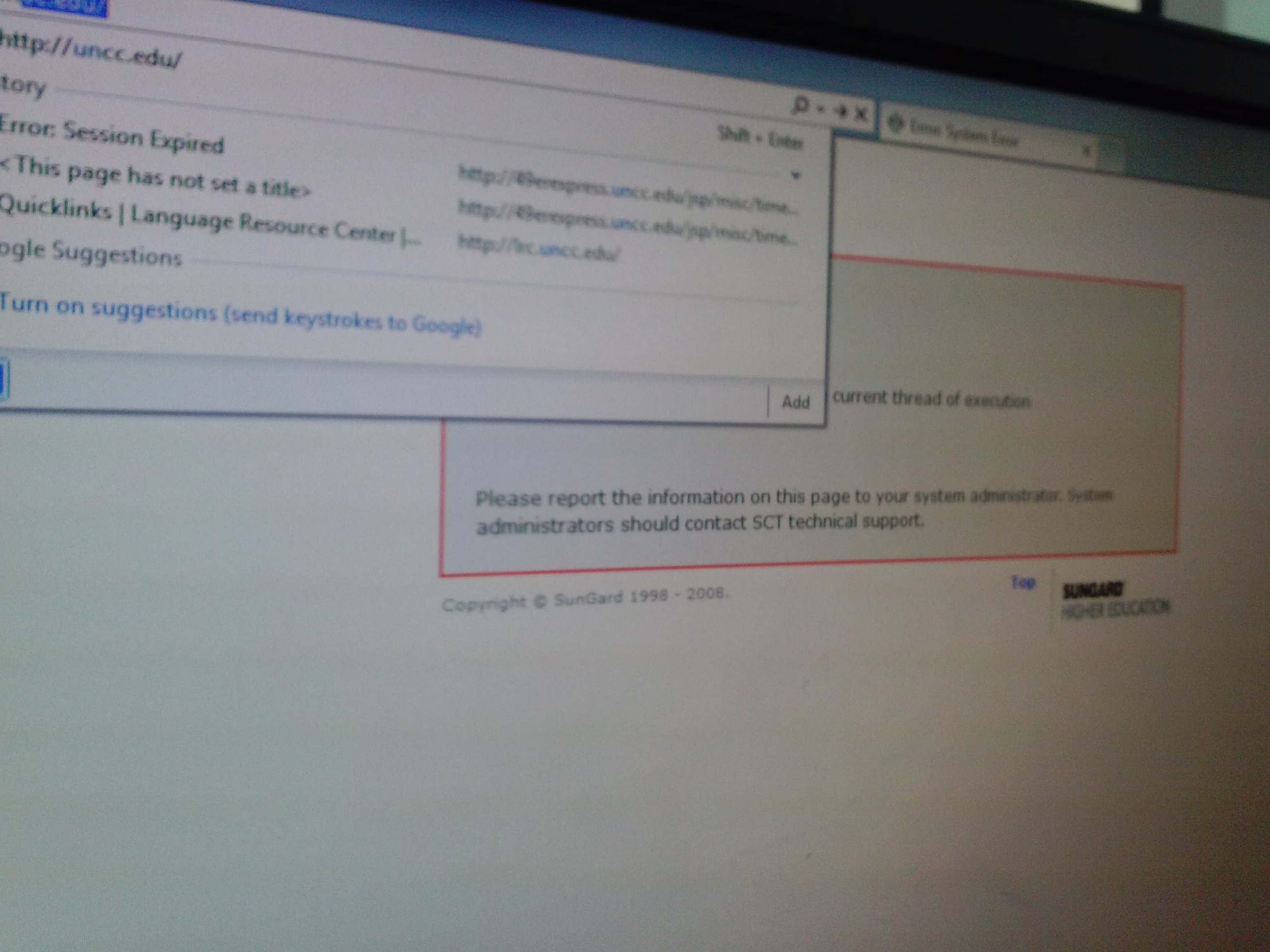
- To access campus resources – here an assignment in a Moodle course – our students need to log into a SunGard portal (with SSO – a pretty common product in higher education)l, but already the redirection after login fails with this session expiration error.
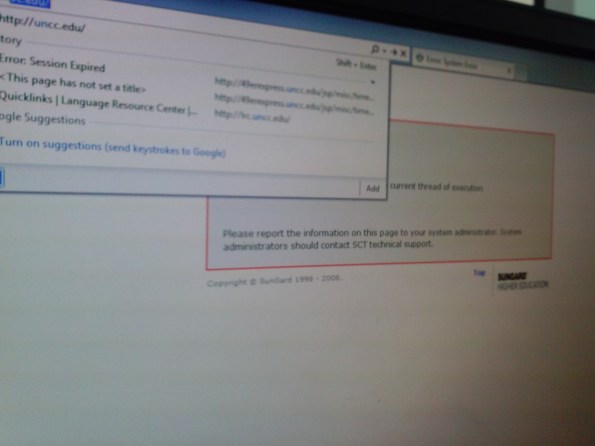
- We could work around this problem by browsing to the target site and logging into Moodle directly. But our students normally do not know how to do that.
- More problems arose when students tried to open an email in their campus OWA, in a popup window, which, however, gets redirected to the first browser homepage.
- This was during an “open/prevent policy” web browsing-activity, where – to keep students on task – only certain sites (social web, webmail) were blocked.., as can be seen in this screenshot:


How students can manage sidetone manually
2014/03/08
Leave a comment
Sidetone echoes your voice from the microphone back into your headphone speakers. It makes wearing the headphones feel more natural, and lets you evaluate your pronunication better.
Until it is configured properly out of the box, to enable it, you have to:
Open sound settings: 
Check and Increase the sidetone volume until you can hear yourself talking well: 
Categories: audience-is-students, digital-audio-lab, e-languages, Speaking
sanako-study-1200, sidetone


Questions? Read the About. Or just ask me a quick Our Databases: Resources with calendars -- Language learning material Moodle Sites, multimedia files -- films


FAQs for LRC student staff or for students or for teachers. To search our FAQs, in the browser addressbar, add after "https://plagwitz.wordpress.com/feed/?tag=faqs+/" "+TAG1" (from tag cloud below) OR "https://plagwitz.wordpress.com/feed/tag=faqs
&category_name=" "CAT1" (from category hierarchy below). OR search both categories and tags, and multiple TAGs/CATs (connect with "," for OR-search, with "+" for AND-search), like so: https://plagwitz.wordpress.com/feed/?tag=TAG1+TAG2+...TAGn&category_name=CAT1
+CAT2+...CATn"
Other ways to find help
If you cannot find it here, look there: 5,500 Language-Learning Links and Programs for learning or teaching 150 languages
Shortcuts:Our Lists, Our Maps, LRC Staff Moodle Site,LRC Project Moodle Site, 49erexpress, UNCC Moodle, Student Recordings: s:claslcslrcsanakostudent
Learning usage samples: Sanako oral exam, Kaltura webcam presentation, Dictation with speech recognition, Sanako written exam, Chinese and Japanese interactive stroke-order practice
Test the Sanako Installer, Webbrowser Popup Konfigurator for XP, or Windows7, faster LRC TeacherPC Log-in Let MS facilitate diacritics writing by installing for you US-International keyboard layout
This is my personal blog (Google+). The views expressed on these pages are mine alone and not those of my employer. The information in this weblog is provided “AS IS” with no warranties, and confers no rights.
 Thomas' Work Space