Archive
Archive for the ‘Institution-is-any’ Category
Design options for the departmental WordPress-based website using Widgets and Pages
2013/07/28
Leave a comment
- For layout design:
- Go to http://[yo r site’s URL here]/wp-admin, e.g. http://lrc.unc.edu/wp-admin, and log in (you need site admin privileges , like I have for the LRC site).
- In the left-hand menu, click on “appearance”/ “widgets”
- You should see this:

- to design your right sidebar, follow the instructions on top of the widget list (i.e. drag and drop, then unfold the widget in question by clicking on the down arrow to the right
 to edit the appearance of the site.
- Go to http://[yo r site’s URL here]/wp-admin, e.g. http://lrc.unc.edu/wp-admin, and log in (you need site admin privileges , like I have for the LRC site).
- “Pages”(in the left hand menu)
- are an afterthought in wordpress which was originally based on dated posts (for a diary-like web logs), but can be useful for not time-sensitive , stable areas/sections of your site.
- You can include a bulleted or numbered list which you periodically update manually (click “edit” on the page)
- or, for frequently changing information (like lists of students), you can use a system that may have more initial learning curve, but in the long run makes updating easier
- embed an online spreadsheet from Google Apps or SkyDrive
- or embed an RSS feed like in the above example (if you have an RSS. provider).


Summary of the LRC main classroom use in year 2012/3
2013/06/22
Leave a comment

(Tentative while experimenting with Calendaranalytics).
Nearing another 100k milestone…
2013/06/01
Leave a comment
I just noticed that – after that of my site visitors – I have accumulated 99,350 airline miles travelling for work in my current job. I am glad that it will be IALLT 2013 where I break this barrier….
How to organize your email by creating an Inbox rule in OWA
2013/05/28
Leave a comment
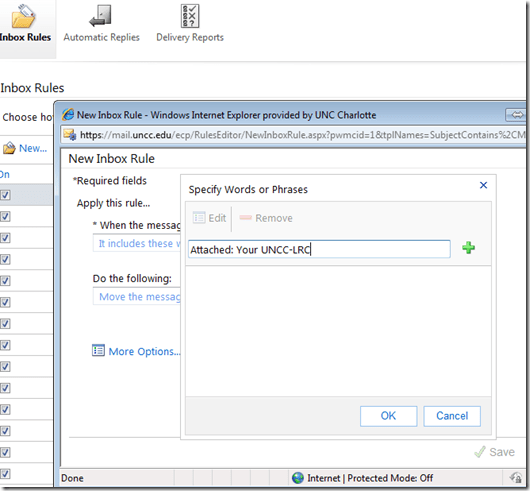
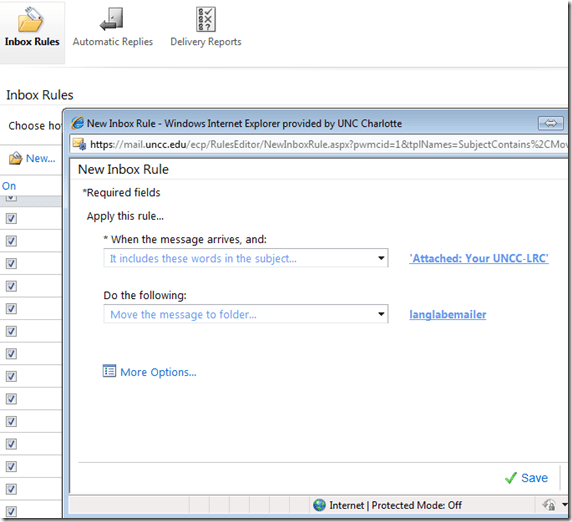
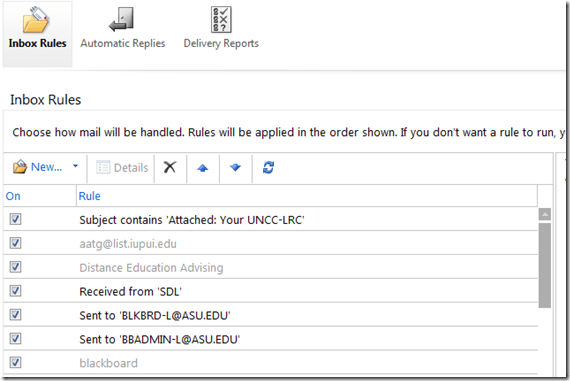
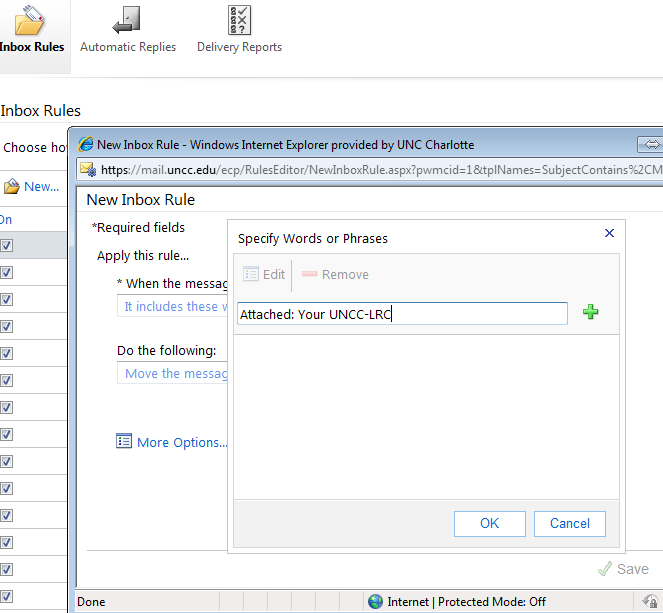
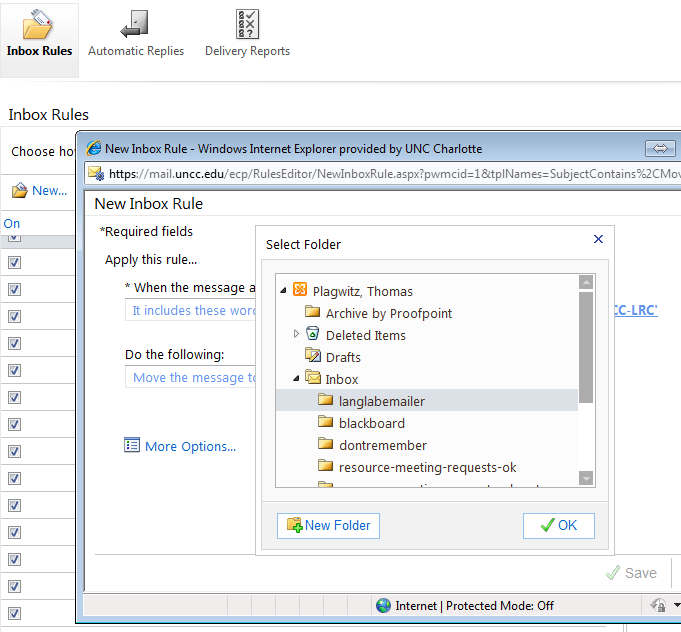
- This step-by-step GUIDE was written for filtering emails from our langlabemailer program (they happen to have “Your UNCC-LRC” in the subject) into a separate folder so that users of the LRC keep the overview:
- students (longitudinally, for their language learner ePortfolios) ,
- but especially teachers (of classes with up to 36 students, throughout the term).
- But you can easily adapt the guide to any other email purpose.
- Including other LRC workflows based on emails: LRC resource booking also relies on OWA emails. All email sent from LRC resource mailboxes have “LRC” at the beginning of the user name and email address.
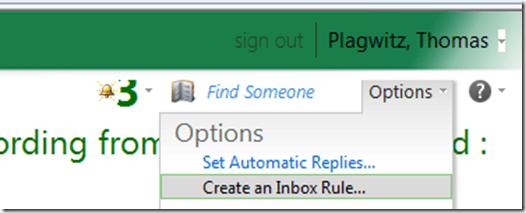
- In short: Options / Create an Inbox Rule / Click “ new” / choose a type / choose keywords / choose folder to sort the email into when it arrives. Or graphically:
-
-

-
-
-
-

-
-

-
-

-
-
-
“
-






How to get access to the LRC Sanako (teacher materials, student recordings) from your office or home PC
2013/05/15
1 comment
- Run the Sanako Installer (first meant for faculty offices only, but now faculty also want to have access from home, so I added that functionality).
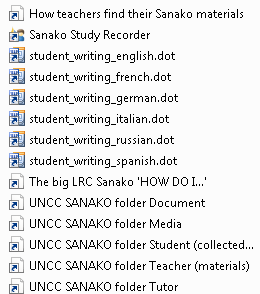
- On your office and or home PC, you get a folder “SANAKO” on your desktop. This folder will contain all you need to access student assessments from past classes or upload learning materials for future classes:
- In the office:
 : It is sufficient to click the additional “UNCC…” links at the bottom of the list .
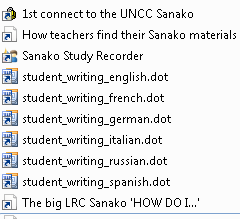
 - At home:
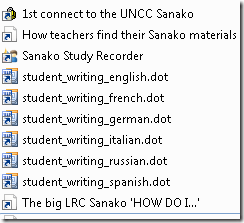
- Click “1st connect…” and log into the campus.
- Click “How teachers find…”, log in with the blog password, open the PDF, click the links in the PDF to the Sanako off-campus folders, log in again with the network credentials as shown in the PDF (sigh…).
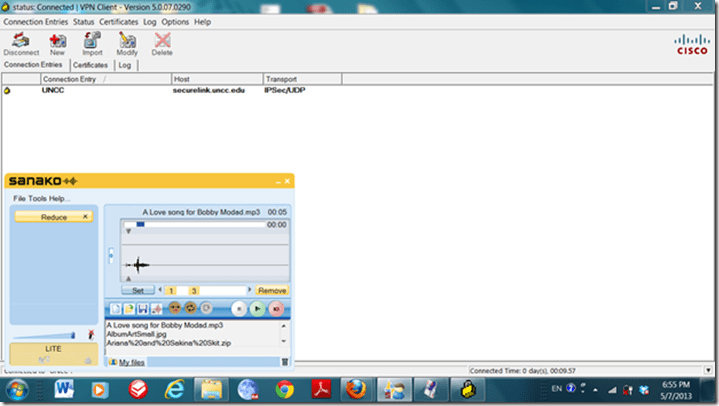
- EXAMPLE: Here you can see on a faculty home PC:
- the sanako recorder and campus connector:
- the SANAKO desktop folder shortcuts:

- You get the Word templates only if you can use them (have WORD installed – remember you can install MS-Office with your free faculty license from here).
- (No, you won’t get the “UNCC…”shortcuts at home, we simplified since.)
- the sanako recorder and campus connector:
- Both office and home:
- Drag any audio files into the Sanako study recorder window (further reading on why the Sanako study recorder is useful for teachers).
- Need to record? configure your microphone in Sanako study recorder, menu Tools.
- In the office:


Categories: audience-is-teachers, documentation, e-infrastructure, e-languages, faculty-offices, Institution-is-University-of-North-Carolina-Charlotte, service-is-configuring-learning-tools, service-is-it-managing, service-is-programming
autoit, iallt2013, MS-Word, sanako-study-1200, sanakorecorderinstall.exe, student.exe, vpn
Voyant-tools.org
2013/03/22
Leave a comment

Neat encounter at the ThatCamp2013 Digital Humanities Unconference at UNCC today. Certainly a simplification over Wordsmith tools. That’s all the reviewing I have time for right now. 


Questions? Read the About. Or just ask me a quick Our Databases: Resources with calendars -- Language learning material Moodle Sites, multimedia files -- films


FAQs for LRC student staff or for students or for teachers. To search our FAQs, in the browser addressbar, add after "https://plagwitz.wordpress.com/feed/?tag=faqs+/" "+TAG1" (from tag cloud below) OR "https://plagwitz.wordpress.com/feed/tag=faqs
&category_name=" "CAT1" (from category hierarchy below). OR search both categories and tags, and multiple TAGs/CATs (connect with "," for OR-search, with "+" for AND-search), like so: https://plagwitz.wordpress.com/feed/?tag=TAG1+TAG2+...TAGn&category_name=CAT1
+CAT2+...CATn"
Other ways to find help
If you cannot find it here, look there: 5,500 Language-Learning Links and Programs for learning or teaching 150 languages
Shortcuts:Our Lists, Our Maps, LRC Staff Moodle Site,LRC Project Moodle Site, 49erexpress, UNCC Moodle, Student Recordings: s:claslcslrcsanakostudent
Learning usage samples: Sanako oral exam, Kaltura webcam presentation, Dictation with speech recognition, Sanako written exam, Chinese and Japanese interactive stroke-order practice
Test the Sanako Installer, Webbrowser Popup Konfigurator for XP, or Windows7, faster LRC TeacherPC Log-in Let MS facilitate diacritics writing by installing for you US-International keyboard layout
This is my personal blog (Google+). The views expressed on these pages are mine alone and not those of my employer. The information in this weblog is provided “AS IS” with no warranties, and confers no rights.
 Thomas' Work Space