Archive
How to fix exception: Sanako Graph Data not installed
- Problem: When trying to administer an oral exam, using model imitation, source: file, I could not, but rather I got this error
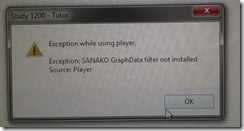
- Root: The same feature had worked in the morning – however, then the Sanakorecorder interfered with the Sanako tutor. Turned out that the Sanako tutor had been installed over a Sanako Student recorder which caused the tutor pc to connect to itself (distracting, also potentially a liability since it eats up licenses if not managed). In between morning and afternoon exam, the student recorder was uninstalled, but without the required functionality testing afterwards. So this exam had to become the test.
- Workaround: Reinstall the student recorder. We used the “test the Sanako installer” program on my home page to not delay the exam too much.

- Solution: do not install the Sanako tutor over a student installation in the first place.
- Either remove the Student recorder after imaging the teacher station with the student image,
- or better, image the PC without the added baseline task “Student recorder”.


How to fix Sync Error code: 0xE0000793 in Microsoft OneNote 2010
That did it:
1.Close all notebooks (will delete the corrupted cache)
2.Open them with the Office Web App using your browser
3.Open them from within the browser using "Open in OneNote" (the cache is rebuild)
How to workaround SkyDrive embed codes not working WordPress.com
- Problem: I cannot seem to get the new embed code that SkyDrive offers now to work on wordpress.com.
- Cause: No idea. Guess somebody did not get the memo? Hope it is not me.

- Workaround:
- Old skydrive embed code still works in wordpress (E.g. https://thomasplagwitz.com/tag/lists+resources/), but is a completely different syntax than what skydrive offers for embedding now (insert office code into [] to try it out):
- office width="750" height="1300" src="http://r.office.microsoft.com/r/rlidExcelEmbed?su=10634757809471938&Fi=SD25C841818181C2!126&kip=1&AllowTyping=True&Item=Table2&wdHideGridlines=True&wdDownloadButton=True"
- However, you can still convert the current embed into the old one:
- by inserting the new parameter values into the old ones:
- "cid" becomes "su" and
- "resid" becomes "Fi" .
- This example successfully embeds into a WordPress.com code now. (insert office code into [] to try it out):
- office width="750" height="1300" src="http://r.office.microsoft.com/r/rlidExcelEmbed?su=4FA3329905D7E1CE&Fi=4FA3329905D7E1CE%2162359&kip=1&AllowTyping=True&Item=Table2&wdHideGridlines=True&wdDownloadButton=True"
- No we seem to have been here before, so we shall see how long this workaround lasts.
PostEditorStorageException when publishing from Windows Live Writer on new DELL
Not always, but more and more often – anybody else seeing this?
Version: 16.4.3508.205
OS Version: Microsoft Windows NT 6.1.7601 Service Pack 1
Runtime version: 2.0.50727.5466
Shutdown started: False
Program: "C:\Program Files (x86)\Windows Live\Writer\WindowsLiveWriter.exe"
Memory Load: 83%
Total Physical: 8146 MB
Available Physical: 1375 MB
Total Page File: 16291 MB
Available Page File: 9137 MB
Total Virtual: 2047 MB
Available Virtual: 1618 MB
Available Extented Virtual: 0 MB
Unexpected Error Occurred
An unexpected error has occurred within the application.
WindowsLive.Writer.PostEditor.PostEditorStorageException: Error Accessing Local Post – Unexpected error occurred while accessing local post (-2147287008)
Share violation–storage may already be opened.
at WindowsLive.Writer.PostEditor.PostEditorFile.SaveCore(IBlogPostEditingContext editingContext, PostEditorFile autoSaveSourceFile, String filePath)
at WindowsLive.Writer.PostEditor.PostEditorFile.SaveBlogPost(IBlogPostEditingContext editingContext)
at WindowsLive.Writer.PostEditor.BlogPostEditingManager.PrePublishHooks(Object sender, PublishEventArgs args)
at WindowsLive.Writer.PostEditor.UpdateWeblogProgressForm.OnShown(EventArgs e)
at System.Windows.Forms.Form.CallShownEvent()
at System.Windows.Forms.Control.InvokeMarshaledCallbackDo(ThreadMethodEntry tme)
at System.Windows.Forms.Control.InvokeMarshaledCallbackHelper(Object obj)
at System.Threading.ExecutionContext.runTryCode(Object userData)
at System.Runtime.CompilerServices.RuntimeHelpers.ExecuteCodeWithGuaranteedCleanup(TryCode code, CleanupCode backoutCode, Object userData)
at System.Threading.ExecutionContext.RunInternal(ExecutionContext executionContext, ContextCallback callback, Object state)
at System.Threading.ExecutionContext.Run(ExecutionContext executionContext, ContextCallback callback, Object state)
at System.Windows.Forms.Control.InvokeMarshaledCallback(ThreadMethodEntry tme)
at System.Windows.Forms.Control.InvokeMarshaledCallbacks()
Saba Centra on startup automatically selects the "microphone" as recording device…
- … But we in the language lab use the (dual function microphone/line-in) "rear input" for our headsets (for ergonomic, health&safety and security reasons). Workaround here.
- Apparently this startup behavior cannot be changed within Saba Centra:
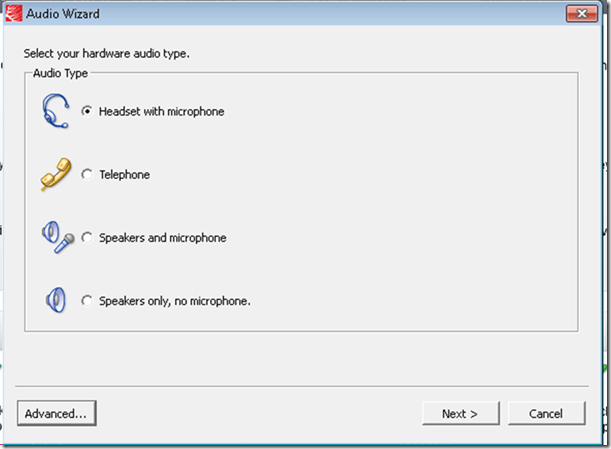
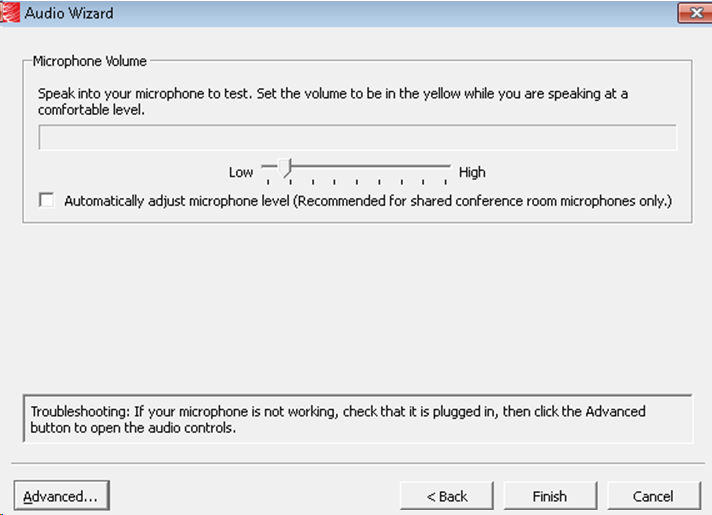
- Any startup will bring up the “Audio Wizard” asking users, even in a controlled lab environment, to configure their audio devices,
- and if users do (and choose what they have: headset), make wrong assumptions which audio plug to enable (“Microphone” front panel, even if your headset is plugged into the rear panel dual “line-in/microphone”)
- The workaround according to these easily Googled instructions is using the “Advanced” audio wizard options to override this “Audio Wizard” error, like so:
- “Re-open the Audio Wizard, go to the third screen and change your recording device in your “Recording Device” menu. Advance two slides and determine if you can hear your recorded voice. ”
- 1st screen:
- 3rd screen:
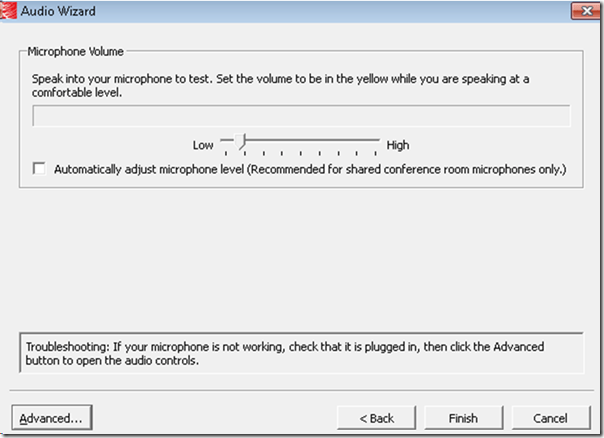
- note the instructions – Click “Advanced”. But it is easier to just use from the start our Workaround here.
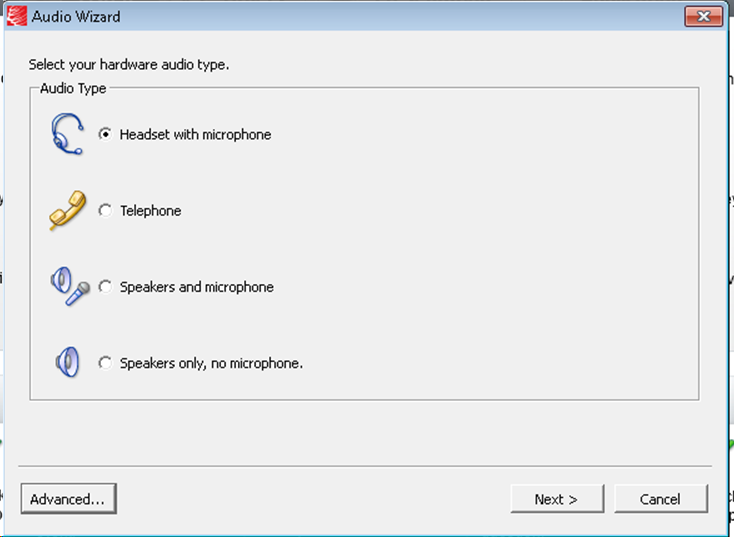
- 1st screen:
- “Re-open the Audio Wizard, go to the third screen and change your recording device in your “Recording Device” menu. Advance two slides and determine if you can hear your recorded voice. ”
- The long-term solution is reconfigure your hardware and disable the front panel audio – but will Saba Centra understand you? Stay tuned…
How a teacher can easily restart the Sanako Study 1200 licensing classroom server when experiencing a crash
- Try clicking and running this (http://goo.gl/lTVLc), if you see that:

- this is for
- if your sanako tutor hangs with status message "verifying tutor" and you are confronted with the error dialogue "Connection to the communication platform has been disconnected and the system is not able to communicate with the classroom server anymore"
- And if you run the classroom server on the same computer as the tutor (as we do)
- And if you have checked your "network connection", like gone to a website, and it is restored (e.g. If you simply had unplugged your the cable)?
- And if you do not want to "restart your system if needed" since, as in our case, that takes a big chunk time out of your class
- Hint: this can’t fix your network if that is the root cause, but may be able to work around temporary service outages.

More Deepfreeze maintenance spontaneous reboots
This is not after hours of inactivity, merely minutes, and – compare the file dates – well within during opening hours



Questions? Read the About. Or just ask me a quick Our Databases: Resources with calendars -- Language learning material Moodle Sites, multimedia files -- films


FAQs for LRC student staff or for students or for teachers. To search our FAQs, in the browser addressbar, add after "https://plagwitz.wordpress.com/feed/?tag=faqs+/" "+TAG1" (from tag cloud below) OR "https://plagwitz.wordpress.com/feed/tag=faqs
&category_name=" "CAT1" (from category hierarchy below). OR search both categories and tags, and multiple TAGs/CATs (connect with "," for OR-search, with "+" for AND-search), like so: https://plagwitz.wordpress.com/feed/?tag=TAG1+TAG2+...TAGn&category_name=CAT1
+CAT2+...CATn"
Other ways to find help
If you cannot find it here, look there: 5,500 Language-Learning Links and Programs for learning or teaching 150 languages
Shortcuts:Our Lists, Our Maps, LRC Staff Moodle Site,LRC Project Moodle Site, 49erexpress, UNCC Moodle, Student Recordings: s:claslcslrcsanakostudent
Learning usage samples: Sanako oral exam, Kaltura webcam presentation, Dictation with speech recognition, Sanako written exam, Chinese and Japanese interactive stroke-order practice
Test the Sanako Installer, Webbrowser Popup Konfigurator for XP, or Windows7, faster LRC TeacherPC Log-in Let MS facilitate diacritics writing by installing for you US-International keyboard layout
This is my personal blog (Google+). The views expressed on these pages are mine alone and not those of my employer. The information in this weblog is provided “AS IS” with no warranties, and confers no rights.
 Thomas' Work Space