Archive
Video quizzes on Youtube.com in Beta
Video Questions Editor lets channel owners display multiple-choice questions on top of their videos as they play (I see only a “start” in the timeline), offer hints, get results on your feedback page.
But if it supports only summaries, not usernames, it is more a poll than a quiz, which limits it usefulness in foreign language classes as much as that you apparently are limited to your own uploads, and cannot link your questions to the wealth of foreign language video uploaded by others…
Protected: How to convert Friendly Russian web pages for better use with the Sanako Study 1200
How to download Centro Spanish Textbook audio
The audio is in (compressed) mp3 format. Just right-click on any audio link and choose save target/link as (or similar, depending on browser), like so: 
Example from Centro – Puntos de partida: Online Laboratory Manual, 8th Edition (you need access privileges to follow this link, but you can send links around, users can open them, provided their webbrowser is already logged into the centro site – getting access and finding you way around the website is the real issue. Webspiders are prohibited, though – and even Downthemall saves only files without extensions: rename them to .mp3 or save them manually as .mp3 in the first place, as shown above. Does not work as above? Try a different web browser.
How to use Bulk Rename’s RegEx matching capability
Much desired, but took me a while to figure that one out:
By default, any filename with a matched substrings will be replaced by nothing;

What you want to remain, you have to refer to in the replacement with backticks:
Using NLP tools to automate production and correction of interactive learning materials for blended learning templates in the Language Resource Center. Presentation Calico 2012, Notre Dame University
View screencast  here.
here.
How to easily upload, distribute, share and play large multimedia files with Google Apps
- Tired of burning, lugging around, inserting, ejecting, or forgetting, losing, scratching and replacing CD- and DVD- media, or hard- and thumb drives to handle your large multimedia files? Do you have internet and web browser where you need to access and play your files? Then you can use UNCC Google Apps instead.
- Go to your UNCC Google Apps (you have to log into UNC)
- Click on the Hard-drive-icon in the upper left
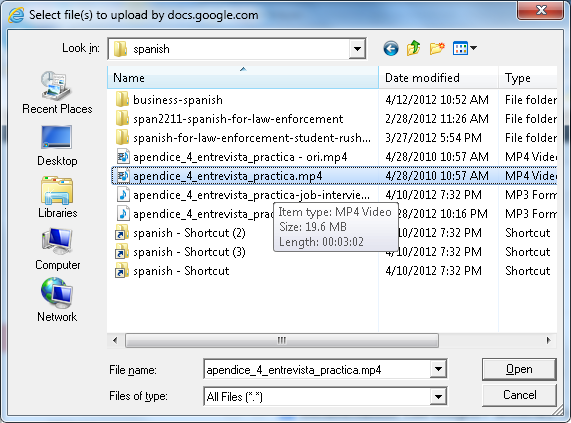
 and on “files”, select a video file:
 (many formats and underlying codecs supported, including Flash, MOV, AVI, WMV, MPG. File size limits: currently “every user is given 1GB of free storage space for files” (not enough for much HD footage, but difficult to upload, and didn’t Google Drive just increase this limit to 5GB, or does this not carry over to Google Apps? Stay tuned for updates), click “Start upload”..
- Wait until upload is finished,
 and then, depending:
- if you want to share the file with colleagues, click on “share” (appears after “cancel”) and fill out the dialogue. You can share your file both
- inside the university community and

- inside the university community and
- outside of the university community:
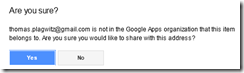

- if you want to share the files with students in your course, there is a better way using Moodle Kaltura video upload;
- if you just want to play the file yourself (including to your students in the classroom), you are already done.
- Go to your files
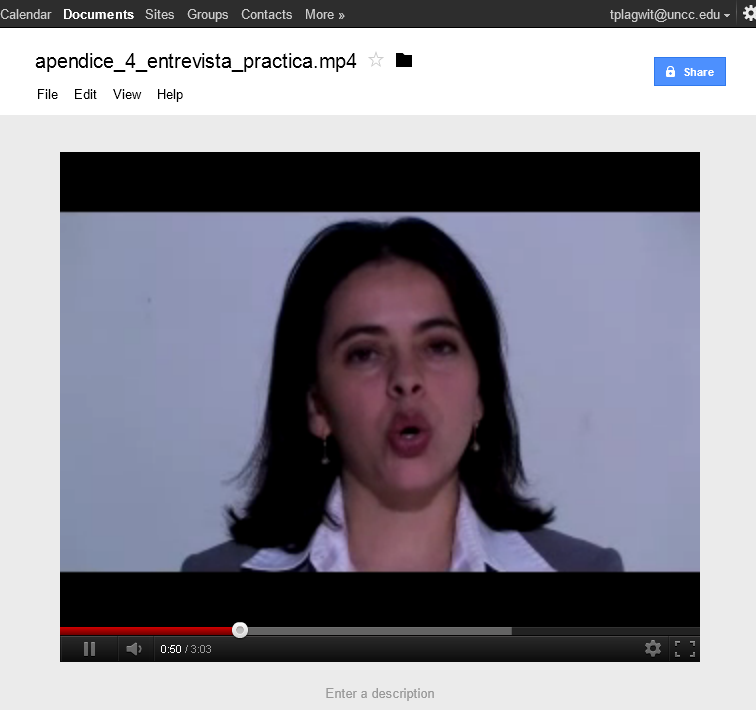
 and click on the file in the list to play the video: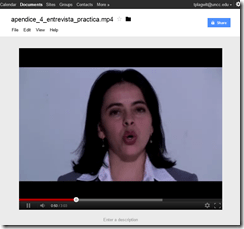
- Also, you can always “get your file back” by “Download”:
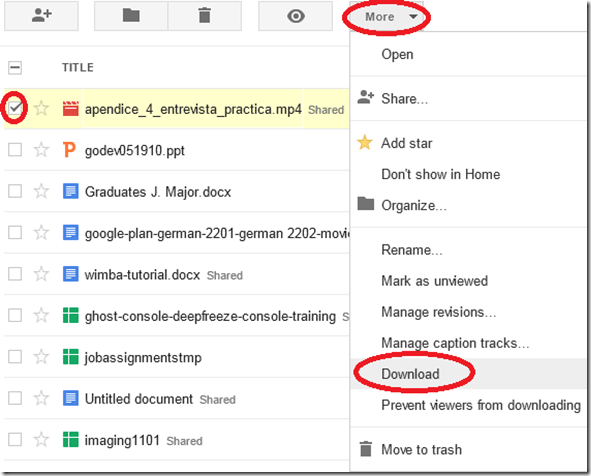 (and note you can also prevent users from downloading the files. This is useful if you only want to temporarily share it, but later revoke permissions).
- if you want to share the file with colleagues, click on “share” (appears after “cancel”) and fill out the dialogue. You can share your file both
- More help is available from the from the source




How to combine oral cue audio with images in Sanako Study 1200 authoring-tool
- This 100-second authoring tool screencast
 shows how to
 - preview the audio in the authoring tool,
- add an image and
- set its display time on the timeline,
- If you make an error by assigning non-sensible times, the authoring tool helps you by flagging it red:
- save (save frequently, on my Windows-XP SP3 machine, the image display within the authoring tool caused frequent BSODs, seemed video-driver-related).
- View results (application during a class) here.

How to use visual instead of aural cues during a Sanako oral proficiency exam
- This exam file has been authored with the Sanako Study 1200 TBA:authoring tool. It is displayed from the Sanako tutor application:
- images on a projection screen connected to the teacher computer,
- aural portion through the tutor-controlled Sanako student player and headsets.
- To protect the integrity and allow for reuse of the exam, only the initial instruction, example and collection of the results of an exam with visual cues are shown in this screencast
 .
.


Questions? Read the About. Or just ask me a quick Our Databases: Resources with calendars -- Language learning material Moodle Sites, multimedia files -- films


FAQs for LRC student staff or for students or for teachers. To search our FAQs, in the browser addressbar, add after "https://plagwitz.wordpress.com/feed/?tag=faqs+/" "+TAG1" (from tag cloud below) OR "https://plagwitz.wordpress.com/feed/tag=faqs
&category_name=" "CAT1" (from category hierarchy below). OR search both categories and tags, and multiple TAGs/CATs (connect with "," for OR-search, with "+" for AND-search), like so: https://plagwitz.wordpress.com/feed/?tag=TAG1+TAG2+...TAGn&category_name=CAT1
+CAT2+...CATn"
Other ways to find help
If you cannot find it here, look there: 5,500 Language-Learning Links and Programs for learning or teaching 150 languages
Shortcuts:Our Lists, Our Maps, LRC Staff Moodle Site,LRC Project Moodle Site, 49erexpress, UNCC Moodle, Student Recordings: s:claslcslrcsanakostudent
Learning usage samples: Sanako oral exam, Kaltura webcam presentation, Dictation with speech recognition, Sanako written exam, Chinese and Japanese interactive stroke-order practice
Test the Sanako Installer, Webbrowser Popup Konfigurator for XP, or Windows7, faster LRC TeacherPC Log-in Let MS facilitate diacritics writing by installing for you US-International keyboard layout
This is my personal blog (Google+). The views expressed on these pages are mine alone and not those of my employer. The information in this weblog is provided “AS IS” with no warranties, and confers no rights.
 Thomas' Work Space