Archive

Phonetic Russian character input on US-keyboards with Google IME in the LRC
- To write Russian phonetically in Cyrillic:
- Since “input methods”are specific to each window (and automatically switch to that of the window you make active), first open the application you want to write in, preferably MS-Word (has proofing tools for Russian).
- In the language bar on the lower right, click on “EN”, select “Russian” instead

- Click on the keyboard symbol and select “Google”:

- You first may have to right-click on the language bar on the lower right of your desktop and select “Adjust” to show the keyboard symbol:
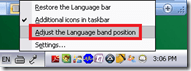
- You first may have to right-click on the language bar on the lower right of your desktop and select “Adjust” to show the keyboard symbol:
- If you now type in MS-Word Russian (your selection did not “stick” in MS-Word? do the above steps again, eventually it will…) phonetically on a US-keyboard, you will be able to select from suggestions in Cyrillic:

- Click the desired suggestion to have it entered into MS-Word:

- To go back to writing temporarily in English (without changing the entire input method back to English), click the (Cyrillic/Latin) letter symbol on the Google Russian IME menu:
 and you can enter English (Latin alphabet) without the popup suggesting you Russian equivalents: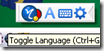
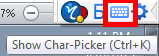
- To switch from the phonetic input to a floating Cyrillic keyboard,
- click on the keyboard symbol in the Google Russian IME.

- Or from the Language bar, switch to the other (Microsoft) keyboard layout for "Russian" (see #4 above), and go to "Start" / "Run" / type OSK, click "OK".
- click on the keyboard symbol in the Google Russian IME.





Character Input Methods for SLA (Western)
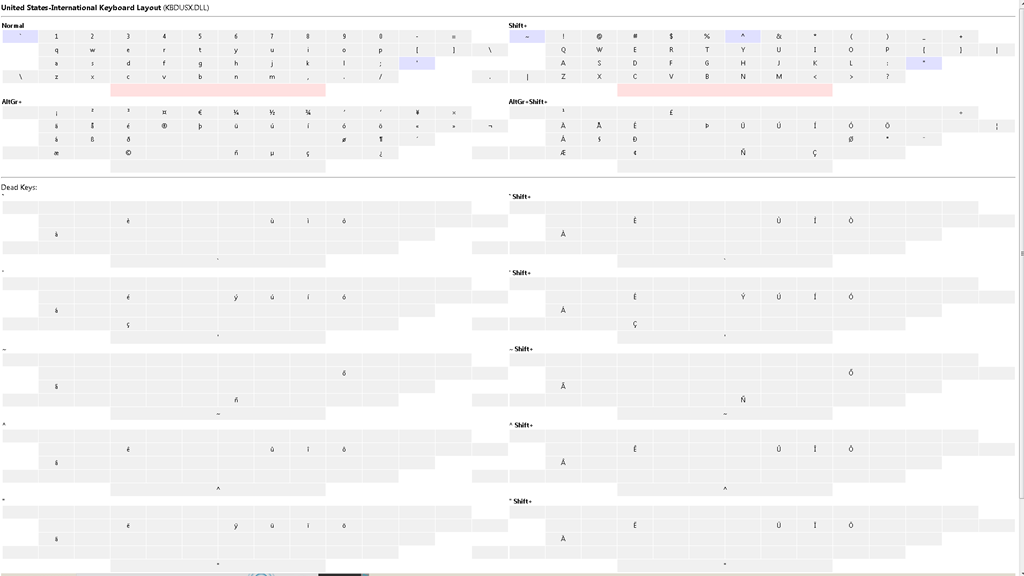
For studying (typing) Western Languages (= need for diacritics only; whether you have a US keyboard hardware or UK which is pretty similar), we recommend the MS Windows US International Keyboard layout which is based on “dead keys”.
Currently installed in the LLC are the Language Bar (floating on top of screen or accessible from the taskbar) with these keyboard layouts:
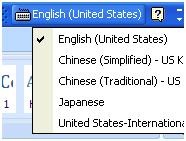
Keyboard layout settings are application/window specific, and “US” (non-international) is still the default for new applications/windows, so prepare to switch after you start a new application;
There are keyboard shortcuts for switching, however, “Key settings”: “switch between input languages” , using LEFT ALT + SHIFT, does not work. Workaround: use the language bar for switching:
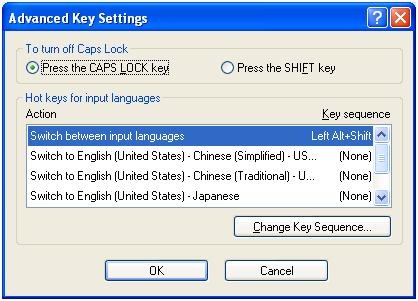
Windows keyboard layout settings can be temperamental – if you find you cannot switch to a certain layout anymore, you may have to restart the computer.
Use the following keyboard shortcuts to enter diacritics more easily:
|
Press (together, then release) |
then press |
Example Result |
|
` (accent grave) |
any letter that can have this accent, e.g. "a”, also cedilla ç |
à |
|
‘ (apostrophe) |
á |
|
|
^ (caret)- |
â |
|
|
~ (tilde) |
ã |
|
|
” (double quotation marks) |
ä |
|
|
CTRL+& |
Z or z |
æ |
|
rightALT+ |
X or x |
œ |
|
rightAlt+n |
|
ñ |
|
ALT+CTRL+? |
|
¿ |
|
rightAlt+? |
|
|
|
ALT+CTRL+! |
|
¡ |
|
rightAlt+1 |
|
|
|
rightAlt+s |
S |
ß |
To access the original, now dead keys, press space bar after pressing the dead key.
|
Modifiers(blue)/Layout |
Note the new modifier = “dead” keys, indicated by light blue color (click to enlarge) |
|
Normal |
|
|
|
|
|
Shift |
|
|
|
US International |
|
|
|
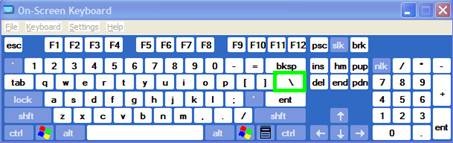
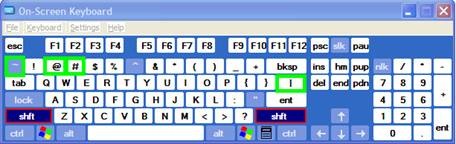
Screencast of US International in action here: deadkeys.wmv
Interactive Demo of installation procedure (personal computers outside of the LLC) here: keyboard_usinternational.swf
Planned improvements:
- Use LEFT ALT+Shift to switch to (Software) “Keyboard Layout” “United-States International”.
- Use other keyboard short cuts to access a desired keyboard layout directly
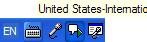
- Dock the “Language Bar” in the Taskbar, then hover over it to make sure you selected the proper “Keyboard Layout”.
· 
How to get started with Moodle here
- Moodle is the UNCC LMS – it is central to teaching with technology.
- The LRC provides Moodle-information specific to language learning, incuding FAQ’s.
- The CTL (= Center for Teaching and Learning) has oodles of general Moodle help.
- Search the CTL site for Moodle by clicking here, and you will find:
- Moodle specific:
- view Moodle on-demand screencast video tutorials,
- read Moodle FAQ’s (updated).
- sign up for instructor-led (face-to-face or webinars, some of which are archived and available on-demand) training:
- Updated Webinar list, which includes for Moodle (I highlighted the more general ones)
- Avoiding the Moodle Scroll of Death (30 min. Webinar)
- Copying a Moodle Course (30 min. Webinar)
- Find & Embed Videos in Moodle (30-min. Webinar)
- How Do I: Peer Review in Moodle (30 min. Webinar)
- Incorporating Streaming Media into Moodle (30 min. Webinar)
- Making Moodle Beautiful (30 min. Webinar)
- Moodle 2 FAQ (30 min. Webinar)
- Moodle Grade Book and Mail Merge (30-min. Webinar)
- Moodle Under the Hood (30 min. Webinar)
- Using Moodle’s Team Assignment (30 min. Webinar)
- Previous (Moodle 1.9)
- Updated Webinar list, which includes for Moodle (I highlighted the more general ones)
- There is more Moodle-information here, just no way for me to provide a direct, filtered link so just browse the pages:
- the CTL podcasts
- Episode 106 Getting Students to Read Your Syllabus: Quizzing in Moodle
- the CTL podcasts
- Moodle specific:
How LRC assistants get paid: paper time sheet if no web time entry
- If there is a delay at the beginning of the term getting you into the web time entry system we normally use,
- print a paper timesheet for Work Study Student,
- get it signed from the LRC coordinator or director,
- on or before the 31st, turn it in to Payroll which is on Reese 3rd Floor (consult the Campus Map).
Getting answers for the LRC management from Report Express
- Report Express is a powerful tool to get current enrolment data which seems vital for running the LRC, but which I have not been able to get my hands on before easily (SCT-Banner limits access too much).
- Excel download format – which I recommend : cleaner (fewer graphics) and more information – DOES work, but for Excel 2010, I have to rename the download file extension from XLS to HTML (which the download is) and “open with” –> Excel.
- I have not been successful merging these output files per language on the command line into one large HTML file and cleaning up the <html><body> framework – so I have to open each one, merge by copy/paste the contents of the result worksheet into a new worksheet and clean up the data in there by converting into an Excel Table and sorting by a suitable table column, e.g. ID, which puts all actual enrolment data sequentially, and separates all (redundant anyways) header and footer information.
- I finally added table columns with array formulas to calculate the enrolment aggregates,
- per this section (to answer questions like: will this class fit into the language resource center?),
- this course # (to answer questions like: where can we have maximum impact on improving learning with technology with creating the minimum of new learning/assessment materials. Assessment is standardized per course #.)
- and per language-level.
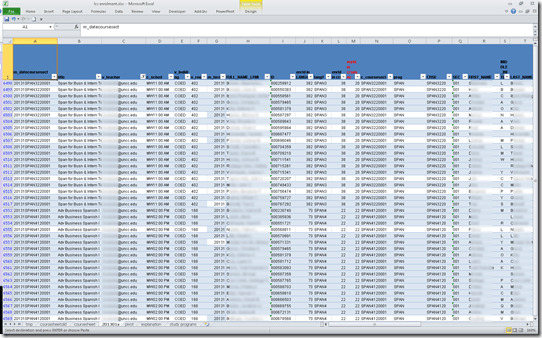
- Finally, vlookup-columns allow me to link the instructor of record and other missing class information (room, building, time) to the student enrolment rows. This allows me to filter, sort and search the enrolment sheet with real-life questions, like
- can we support this size class/course/level and language in the LRC
- is it practical to relocate this course for part/a whole class meeting to the LRC
- which students need be given access permissions to the SANAKO
- etc.
-
Sample filter of the aggregate sheet:

Protected: Meet the Resource Attendants and their Scheduling Assistants– or Who are these people, anyway?


Questions? Read the About. Or just ask me a quick Our Databases: Resources with calendars -- Language learning material Moodle Sites, multimedia files -- films


FAQs for LRC student staff or for students or for teachers. To search our FAQs, in the browser addressbar, add after "https://plagwitz.wordpress.com/feed/?tag=faqs+/" "+TAG1" (from tag cloud below) OR "https://plagwitz.wordpress.com/feed/tag=faqs
&category_name=" "CAT1" (from category hierarchy below). OR search both categories and tags, and multiple TAGs/CATs (connect with "," for OR-search, with "+" for AND-search), like so: https://plagwitz.wordpress.com/feed/?tag=TAG1+TAG2+...TAGn&category_name=CAT1
+CAT2+...CATn"
Other ways to find help
If you cannot find it here, look there: 5,500 Language-Learning Links and Programs for learning or teaching 150 languages
Shortcuts:Our Lists, Our Maps, LRC Staff Moodle Site,LRC Project Moodle Site, 49erexpress, UNCC Moodle, Student Recordings: s:claslcslrcsanakostudent
Learning usage samples: Sanako oral exam, Kaltura webcam presentation, Dictation with speech recognition, Sanako written exam, Chinese and Japanese interactive stroke-order practice
Test the Sanako Installer, Webbrowser Popup Konfigurator for XP, or Windows7, faster LRC TeacherPC Log-in Let MS facilitate diacritics writing by installing for you US-International keyboard layout
This is my personal blog (Google+). The views expressed on these pages are mine alone and not those of my employer. The information in this weblog is provided “AS IS” with no warranties, and confers no rights.
 Thomas' Work Space