Archive
Archive for the ‘audience-is-teachers’ Category
How to use NanoGong in your Moodle course as an audio file recorder
2013/10/17
Leave a comment
- NanoGong is primarily meant for submitting audio recordings to the teacher and fellow students.
- However, it can also serve as a simple audio recorder that can save a recording to a files:
- accessible anywhere where you have internet access (on a JAVA-capable device. I have not tested NanoGong’s compatibility with smartphones or tablets, though) and a microphone – provided you/your teacher have added a NanoGong activity to the Moodle Course.
- Might be useful for collecting recordings as pieces for your language learner ePortfolios.
- To use NanoGong as an audio recorder: Instead of (or on top of/before) submitting your recording to the course, click the rightmost button:
 :
:
- and you can save your recording to a file
![image_thumb[17]_thumb[1]](https://thomasplagwitz.com/wp-content/uploads/2013/10/image_thumb17_thumb1_thumb.png?w=600&h=530 "image_thumb[17]_thumb[1]") ,
,- in a variety of formats (compressed WAV is likely most compatible),
- including in the different speeds:
![image_thumb[18]_thumb](https://thomasplagwitz.com/wp-content/uploads/2013/10/image_thumb18_thumb_thumb.png?w=244&h=68 "image_thumb[18]_thumb") that you de/increased the playback speed here:
that you de/increased the playback speed here: ![image_thumb[15]_thumb](https://thomasplagwitz.com/wp-content/uploads/2013/10/image_thumb15_thumb_thumb.png?w=129&h=103 "image_thumb[15]_thumb") .
.

![image_thumb[17]_thumb[1]](https://thomasplagwitz.com/wp-content/uploads/2013/10/image_thumb17_thumb1.png "image_thumb[17]_thumb[1]")
![image_thumb[18]_thumb](https://thomasplagwitz.com/wp-content/uploads/2013/10/image_thumb18_thumb1.png "image_thumb[18]_thumb")
![image_thumb[15]_thumb](https://thomasplagwitz.com/wp-content/uploads/2013/10/image_thumb15_thumb1.png "image_thumb[15]_thumb")
Categories: Arabic, audience-is-students, audience-is-teachers, documentation, English, eportfolio, Farsi, French, German, Greek (modern), Hebrew, Hindi, Italian, Japanese, Korean, Mandarin, multimedia-recording, Polish, Portuguese, recording-software, Russian, Spanish, Speaking, Swahili, Yoruba
audio, moodle, nanogong
JAVA warning dialogues to bypass during NanoGong activities
2013/10/17
Leave a comment
- You may be prompted to update JAVA – likely a not a bad idea:
![java outdated warning_thumb[1]](https://thomasplagwitz.com/wp-content/uploads/2013/10/java-outdated-warning_thumb1_thumb1.png?w=560&h=354 "java outdated warning_thumb[1]")
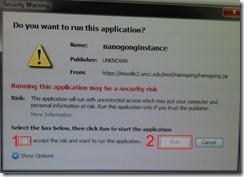
- Click “RUN”:
![image_thumb[8]_thumb[1]](https://thomasplagwitz.com/wp-content/uploads/2013/10/image_thumb8_thumb1_thumb1.png?w=461&h=542 "image_thumb[8]_thumb[1]")
- Check (1) “Accept”and Click (2) “Run”:

- Click “Don’t Block”:
![CAM03106_thumb[1]](https://thomasplagwitz.com/wp-content/uploads/2013/10/cam03106_thumb1_thumb1.jpg?w=556&h=294 "CAM03106_thumb[1]")
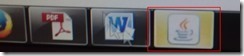
- Even more annoying when warning dialogues do not come to the foreground, and your computer/web browser simply seems to be stuck. Check your task bar/dock for blinking/jumping JAVA notifications, like here:
 .
. - You have to bypass these dialogues only once – per session (lab) or possibly per computer. Choose the right answer, for university assignments, it is safe to “Allow! Allow! Allow! (“run”, “don’t block:”, update”, what ever – use common sense).
- Remember, thinks could be worse, – like if you try to use NanoGong in a Firefox that has not been explicitly configured to allow JAVA applets – read more on our troubleshooting NanoGong page.
![java outdated warning_thumb[1]](https://thomasplagwitz.com/wp-content/uploads/2013/10/java-outdated-warning_thumb11.png "java outdated warning_thumb[1]")
![image_thumb[8]_thumb[1]](https://thomasplagwitz.com/wp-content/uploads/2013/10/image_thumb8_thumb11.png "image_thumb[8]_thumb[1]")
![CAM03106_thumb[1]](https://thomasplagwitz.com/wp-content/uploads/2013/10/cam03106_thumb11.jpg "CAM03106_thumb[1]")
How teachers can ease their editing pain by turning on "filters" in Moodle
2013/10/17
Leave a comment
- A teacher called my attention to the filters when she reported that the automatic linking of references to chapter/topic activities in the chapter/topic text stopped working for her with the upgrade to Moodle 2. If you change the below setting for "Activity names auto-linking", it will start working again:
-

-
A "filter" in Moodle (if turned on) examines what is being add to your course by you (also by your students: That’s at least what I assume the Word censorship” filters is meant for!) and if it finds a certain pattern/feature, “automagically” enhances or adorns your input. This can save you a lot of manual editing time .
-
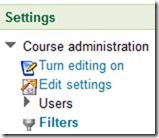
You can view and change the filter settings by clicking on "filters" in Activities:
-
-
There is a campus default – which, to judge from my course, seems to be this:
-

-
The teacher of the individual course can override this default (there seems to be no personalization that would allow you to use the same settings for all courses you teach, within and across terms):
-
The documentation linked on the filter settings page explains what these filters do. I only quote the filters which I think are of interest to language and humanities:
-
“Activity names auto-linking – This scans text for activity titles that exist in the same course and creates a link
-
Convert URLs into links – This filter converts URLs in selected formats, such as Moodle auto-format, to click-able links
-
Database auto-linking – As the name suggests, this filter enables automatic linking of Database module entries
-
Display emoticons as images – This converts emoticon (smiley) characters into images
-
Glossary auto-linking – This scans text for glossary entries that exist in the same course and creates a link
-
Multimedia plugins – This finds a link in text that points to a multimedia resource and replaces the link with an appropriate multimedia player code which can play the resource.”
-
[This one we do not seem to have installed, unfortunately:] Multi-language content – This filter enables resources to be created in multiple languages.
-
[These ones are not included in the documentation linked on the filter settings page, since these plugins are specific to our campus installation, but extremely useful for authentic speaking proficiency assignments: ] NanoGong, Kaltura.
-
-
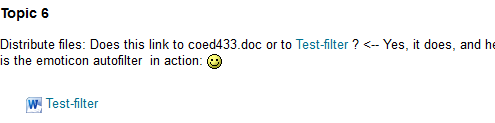
For what it is worth, here are the filter settings that I am testing now in my course:
-



How a teacher can easily assign an audio recording in Moodle, using the new NanoGong plugin
2013/10/17
Leave a comment
- We are back in business with easy audio recording assignments in the LMS, thanks to NanoGong – the free recorder I recommended when first starting here – now being available in MOODLE (presumably with the Upgrade to Moodle 2, I almost missed that….)
- To assign, click “turn editing on”, “Add activity or resource”, select “NanoGong voice activity”, as pictured below:

- There are a few interesting options:
- you can limit the duration
- you can limit the number of recordings (attempts?) allowed (0 is unlimited)
- You can let students listen to each other recordings. (Is there a rating feature that can be combined with this?)
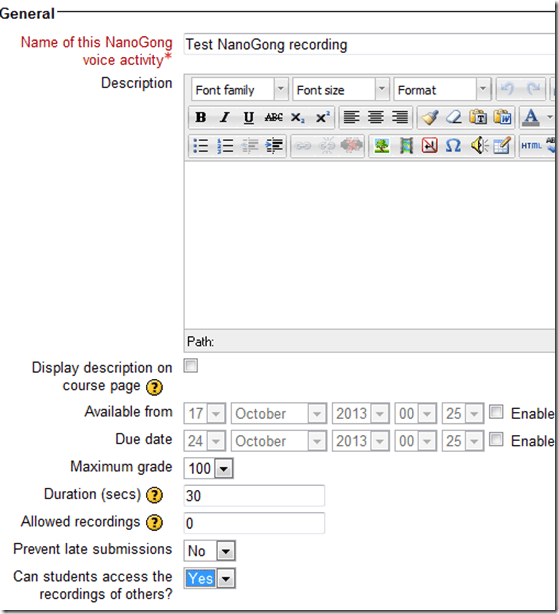
- And this is what
- you will see (TBA:read on for how to listen to student submissions, give feedback and grade.)

- you will see (TBA:read on for how to listen to student submissions, give feedback and grade.)
- your students will see…


Categories: Arabic, assignments, audience-is-teachers, e-languages, English, Farsi, French, German, Greek (modern), Hebrew, Hindi, Italian, Japanese, Korean, lms, Mandarin, multimedia-recording, Polish, Portuguese, Russian, Spanish, Speaking, Swahili, Yoruba
moodle, nanogong
How to retroactively remove comment option from WordPress posts
2013/10/07
Leave a comment
- Unchecking “Allow comments” does not affect past posts (you had better find that out early in your blogging career – I did not …)
- To disable comments for past posts, you have to uncheck “Allow comments”in each one of them.
- To even show “Allow comments” in the post editing interface, do this:
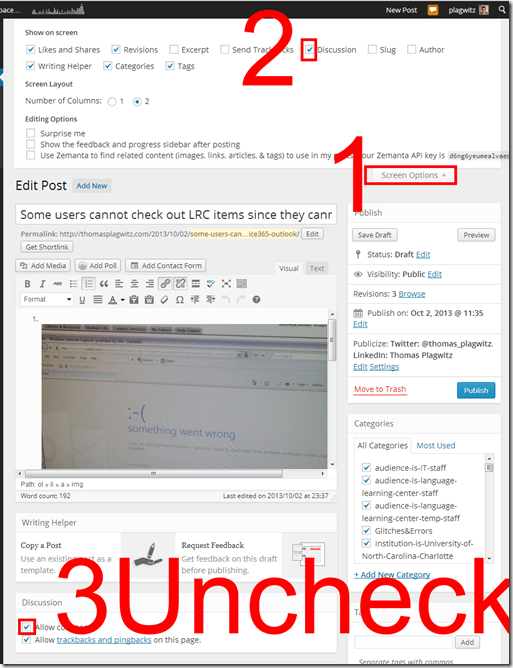

Categories: audience-is-teachers, documentation, e-infrastructure, Screenshots
wordpress
Use Moodle 2 Forums’ Mail Now Option to speed up communication
2013/10/04
Leave a comment
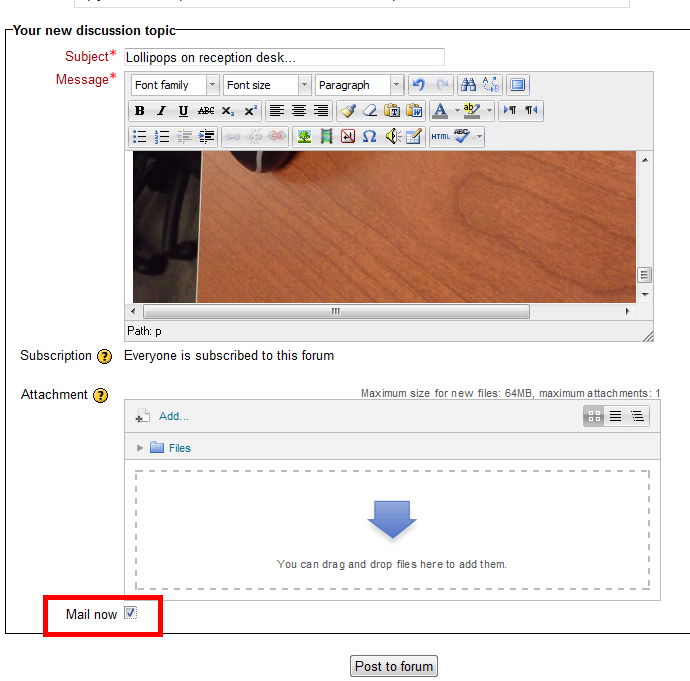
- The “Mail Now” checkbox is still there, just the location has changed, compared with Moodle 1..9.:
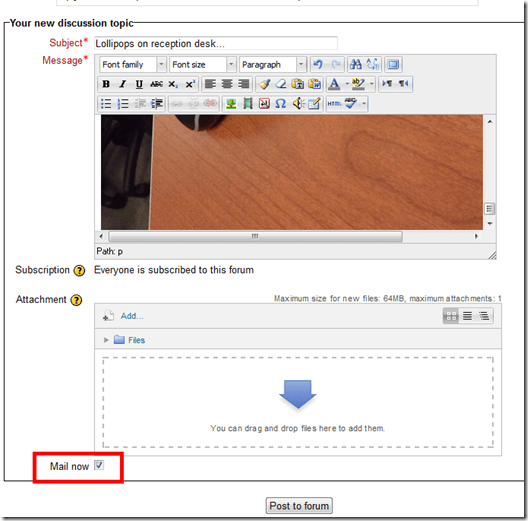
- Even without “Mail Now” checked, your post goes immediately to the forum – but on the forum, you can still edit it (if you didn’t proof read etc.).
- Email, however, you cannot recall after sending it (well, MS-Exchange email you can, but not Moodle email). That’s why “Mail Now” tries to provide a safety net for emailed forum messages.
- That Forum messages are emailed (“notifications”) is a function of the subscription of users to a forum, which is (“force subscription”) the default, but can be changed in the forum settings.
- If you try to use the Moodle forum as a mailing list and/or real-time messaging system (like we do with the LRC Moodle as groupware for LRC staff), checking “Mail now” is recommended.
Don’t worry about uppercase letters when logging in to post an issue to the online Helpdesk
2013/10/03
Leave a comment
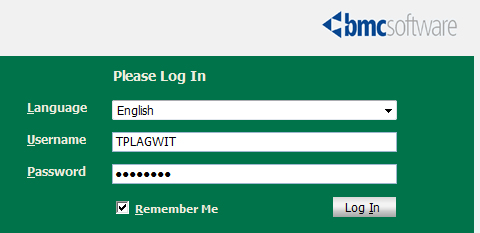
- The username input for our helpdesk system login is set to write uppercase letters, and this cannot be changed:

- Once you have made sure that your keyboard is indeed not set to uppercase (caps lock on, see light in upper right), which it most ikely is not, you can ignore the uppercasing, proceed as normal with entering your password.
- If you get a login error, it is not because of the uppercasing. Rather, you may have mistyped something else. A good strategy (when nobody is looking over your shoulder, that is) is to type your password somewhere else (word, notepad, google search box) where is it visible and copy/paste it onto the Password field.
How you can report and get help with non-LRC-related computer issues
2013/10/02
Leave a comment
- First try to talk to temporary and permanent staff in the LRC. However, Computer issues that cannot be resolved within the LRC need to be reported to ITS – unless they are already known issues.
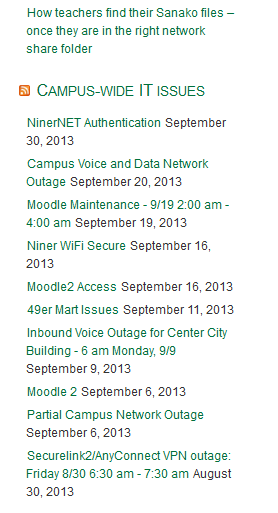
- To make it easy for you to check for known campus-wide issues, I added the ITS alerts to the bottom right of the LRC homepage (
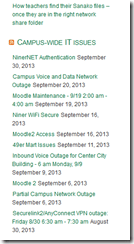 ). Depending on when this feed was last updated (simply refreshing the LRC homepage may NOT update it), you may also have to click on the title of this section, “Campus-wide IT issues”, to view the most recent updates.
 - If you find out this way that need to report an issue to ITS, you can find ways to contact them in the upper right corner of my blog:



Questions? Read the About. Or just ask me a quick Our Databases: Resources with calendars -- Language learning material Moodle Sites, multimedia files -- films


FAQs for LRC student staff or for students or for teachers. To search our FAQs, in the browser addressbar, add after "https://plagwitz.wordpress.com/feed/?tag=faqs+/" "+TAG1" (from tag cloud below) OR "https://plagwitz.wordpress.com/feed/tag=faqs
&category_name=" "CAT1" (from category hierarchy below). OR search both categories and tags, and multiple TAGs/CATs (connect with "," for OR-search, with "+" for AND-search), like so: https://plagwitz.wordpress.com/feed/?tag=TAG1+TAG2+...TAGn&category_name=CAT1
+CAT2+...CATn"
Other ways to find help
If you cannot find it here, look there: 5,500 Language-Learning Links and Programs for learning or teaching 150 languages
Shortcuts:Our Lists, Our Maps, LRC Staff Moodle Site,LRC Project Moodle Site, 49erexpress, UNCC Moodle, Student Recordings: s:claslcslrcsanakostudent
Learning usage samples: Sanako oral exam, Kaltura webcam presentation, Dictation with speech recognition, Sanako written exam, Chinese and Japanese interactive stroke-order practice
Test the Sanako Installer, Webbrowser Popup Konfigurator for XP, or Windows7, faster LRC TeacherPC Log-in Let MS facilitate diacritics writing by installing for you US-International keyboard layout
This is my personal blog (Google+). The views expressed on these pages are mine alone and not those of my employer. The information in this weblog is provided “AS IS” with no warranties, and confers no rights.
 Thomas' Work Space