Archive
Moodle Streaming Video Recording Assignment Glitch 2
- environment: win xp sp3, firefox 3.6
- If you view the Moodle video assignment from the grade book table, inline, in Firefox 3.6, how do you close the popup window?
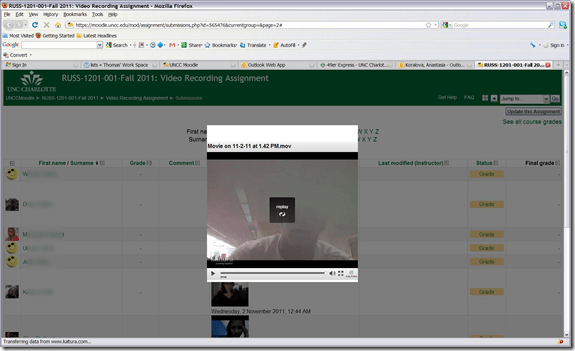
- no hovering around revelaed a close control to us, escape did not help eithe, nor the brwoser back button.
- workarounds:
- copy the url from the address bar, open a new tab, paste the url, close the old tab
- do not view the video in the grade book overview chart, but after opening the individual submission form the grade button.
- try a differnet browser than firefox. on the mac, safari solved a similar problem with firefox and kaltura.

Deutsche Welle ends her live German program streaming today
- Too bad:
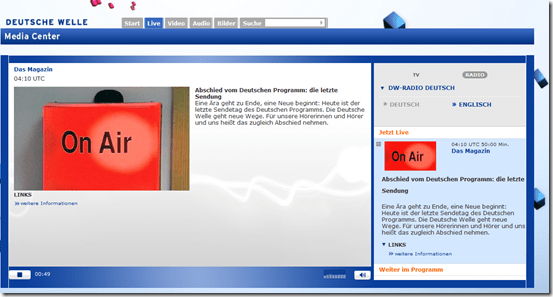
- And in those last news: “The Chinese government demands reforms in the Euro-zone before providing financial help”.
- I remember a time when Deutsche Welle was available during family vacation only via short wave radio. Now, the on-demand offerings of the Deutsche Welle will be expanded. They are more useful for language learning than live streaming anyway.

Student peer assessment options for a more “social learning” experience in Moodle 1.9.
- The most simple solution, briefly explained:
- Add a forum: button: “Turn editing on”, dropdown: “Add activity: “discussion”, Set dropdown “Forum type”: “a single simple discussion”/ section: grade, dropdown: “aggregate type”: “average rating” (also set your max attachment size if you want uploads of multimedia recordings).
- Set Permissions: course administration block / item:assign roles / tab: override permissions (we do not have this!) / section:forum, enable checkbox:”rate posts”, disable checkbox: “view any ratings”, “view ratings” .
- Visually explained (notes deviously: “if you do not have tab: override permissions, ask your admin”. If she says “no”, ask to enable the workshop module in Moodle 1.9. If she says “no”, ask to upgrade to the workshop module in Moodle 2.0. If she says “no”, ask her for other ideas how to do “social learning” in Moodle…
 ).
).
New Teacher MAC Computer in Coed037 with Final Cut Pro 3
- A new Mac Mini on the teacher podium was installed today in Coed037.
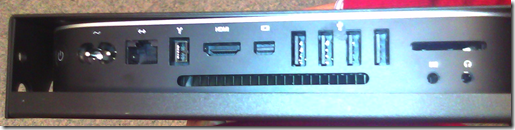
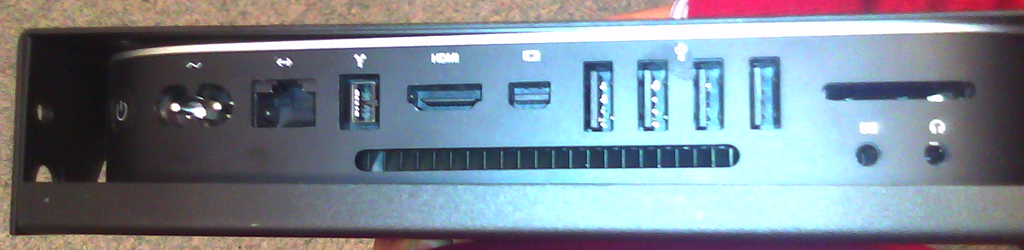
- Because of case size difference, the new Mac Mini had to be installed on the right side wall of the podium, unlike the old one which was smaller and fit on the keyboard tray.
- It is still switched through the podium as before:
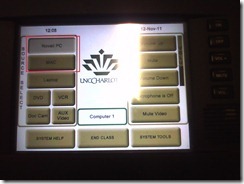
- For logging in, use the generic, not your personal account.
- Standard current ITS MAC image.
- Final Cut Pro 3
- was installed into the image, and run.
- Media components (Audio content, Motion content) allegedly have also been included in this install.
- We also added MPEG Streamclip 1.9.2. Note, however, that the non-beta version does not have the YouTube.com download capability mentioned here earlier (you will get this error more focused):
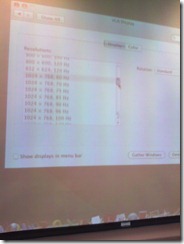
- Because of podium monitor incompatibility, we could not increase the screen resolution to the minimum 1280*800 required Final Cut Studio 3.
 We nevertheless were able to start Final Cut pro. You can permanently bypass this warning dialog if you see it, and report problems.
- Because of podium monitor incompatibility, we could not increase the screen resolution to the minimum 1280*800 required Final Cut Studio 3.
- We also permanently bypassed this firewire error:

- And here is the result:



Sample of how students use the foreign language TTS (text-to-speech) in the LRC
Last week, I noticed this student in the LRC working on a speaking assignment in her SLA class. First, she wrote a draft of her presentation. She then had the Deskbot TTS wizard (in the lower right of her screen) read out the draft to her. She recorded her version, modeling after the Deskbot’s pronunciation. Then she had the Deskbot read out the draft again, to compare with her own recording.
Look for the little guy in the lower right corner of the screen with the cartoon bubble over his head.
I favor the use of the Deskbot TTS (a Windows XP technology) as an easily accessible speaking dictionary, including during face-to-face teaching, when students may otherwise be too shy to make an utterance because they are not sure about the pronunciation of a single word, or even ask the teacher to pronounce it for them. Prosodically, the deskbot TTS leaves many things to be desired. Let’s hope that Windows 7 will enable us to set up more advanced TTS support in the LRC.
How to use the online Portuguese pronunciation help to generate phonetic alphabet transcriptions and text-to-speech
- Go to http://www.co.it.pt/~labfala/g2p/
- Write or paste your text into the textbox:“Grafemas”
- Choose your preferred phonetic alphabet (IPA, SAMPA) and other options.
- Press button: “Converter” to see results.
- Press button: “Sintetizar” to hear results.
- Like so:
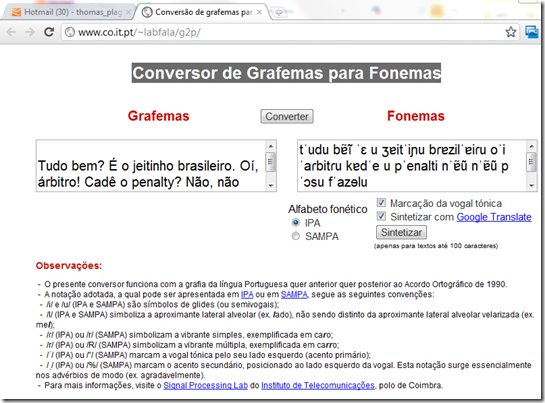
- Or click here to view a demo (requires Windows Media Player) with audio (download requires Windows Media Player). Our example was:
- Input: Tudo bem? É o jeitinho brasileiro. Oí, árbitro! Cadê o penalty? Não, não posso faze-lo.
- Output: tˈudu bɐ̃ĩ ˈɛ u ʒɐitˈiɲu bɾɐzilˈɐiɾu oˈi ˈaɾbitɾu kɐdˈe u pˈenalti nˈɐ̃ũ nˈɐ̃ũ pˈɔsu fˈazɘlu

How to make a screenshot of your computer screen
- You can look it up, or:
- on Windows, press the “PrintScr” key (upper right corner of your keyboard)
- on Mac OS X, Command+Shift+3.
- Then paste the clipboard into an application that can handle images and that you are familiar with (your best bet may be MS-Word).


Questions? Read the About. Or just ask me a quick Our Databases: Resources with calendars -- Language learning material Moodle Sites, multimedia files -- films


FAQs for LRC student staff or for students or for teachers. To search our FAQs, in the browser addressbar, add after "https://plagwitz.wordpress.com/feed/?tag=faqs+/" "+TAG1" (from tag cloud below) OR "https://plagwitz.wordpress.com/feed/tag=faqs
&category_name=" "CAT1" (from category hierarchy below). OR search both categories and tags, and multiple TAGs/CATs (connect with "," for OR-search, with "+" for AND-search), like so: https://plagwitz.wordpress.com/feed/?tag=TAG1+TAG2+...TAGn&category_name=CAT1
+CAT2+...CATn"
Other ways to find help
If you cannot find it here, look there: 5,500 Language-Learning Links and Programs for learning or teaching 150 languages
Shortcuts:Our Lists, Our Maps, LRC Staff Moodle Site,LRC Project Moodle Site, 49erexpress, UNCC Moodle, Student Recordings: s:claslcslrcsanakostudent
Learning usage samples: Sanako oral exam, Kaltura webcam presentation, Dictation with speech recognition, Sanako written exam, Chinese and Japanese interactive stroke-order practice
Test the Sanako Installer, Webbrowser Popup Konfigurator for XP, or Windows7, faster LRC TeacherPC Log-in Let MS facilitate diacritics writing by installing for you US-International keyboard layout
This is my personal blog (Google+). The views expressed on these pages are mine alone and not those of my employer. The information in this weblog is provided “AS IS” with no warranties, and confers no rights.
 Thomas' Work Space