Archive
Archive for the ‘audience-is-teachers’ Category
How to duplicate assignments in Moodle course sections by importing
2011/11/30
Leave a comment
- Limitation: You cannot use other users’content. Use the backup/restore content procedure instead.
- Benefits are:
- You can save the time it would take to redo the assignment from scratch.
- plus avoid breaking things when you try and copy the assignment over manually: this built –in way does not break links.
- But have to jump through these hoops:
- Start here:
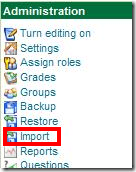
- Choose your source course which has the assignment:
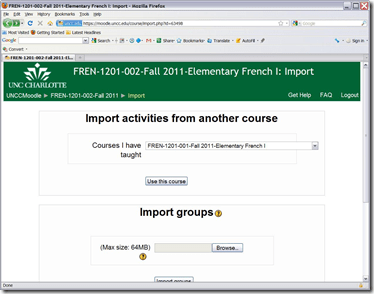
- Then choose what assignment you want to import:
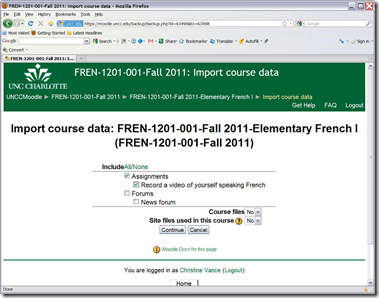
- Jump

- through
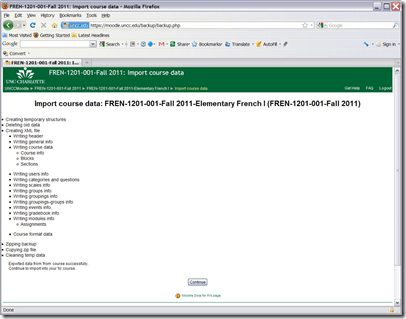
- the

- hoops

- done:
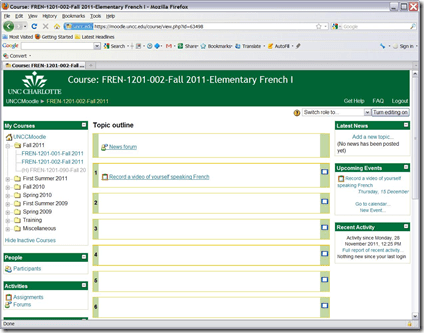
- Choose your source course which has the assignment:
- Start here:


How to stay up to date by receiving RSS like email newsletters in MS-Outlook
2011/11/21
Leave a comment
- Why subscribe?
- RSS is a great way to get your information both fast and filtered.
- For advanced filtering of RSS feeds, try Yahoo Pipes.
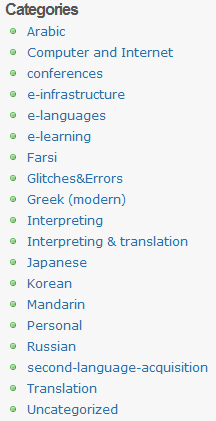
- However, WordPress makes this even easier by allowing for a wealth of atomic searching and filtering options. Choosing the right template (and content strategy), if you click on any of the linked items in either the category list or tag cloud on WordPress,


- the resulting page will include an RSS link
 , or simply add “/feed” to the URL of your category, tag or even search result page, to get a feed that you can subscribe to.
- How to subscribe?
- MS-Outlookmakes subscribing to RSS more convenient since you do not need to go to a separate application like an RSS-Reader. Read your RSS with your email, think of the RSS feed as an email list, but personalized to your interests.
-
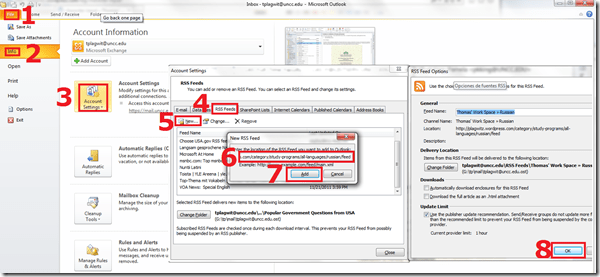
You can subscribe to the “RSS feed” link like so:
- For historical reasons, I still use Google Reader, but I rely on Outlook’s advanced automated content download (including full text posts and multimedia attachments) and well-understood archiving, search and export features to not miss podcasts which I want to collect for potential use as teaching content:
 When Outlook fails, as with some RSS formats, you can still try and resort to the Internet Explorer Feed store:
-
- If you use OWA: you can read feeds, but not add them through the OWA interface. If you are staff, you can still add them in Outlook first. If you are a student and restricted to NINERMAIL, you need to use a different feed reader. I recommend the free web-based Google Reader.
- MS-Outlookmakes subscribing to RSS more convenient since you do not need to go to a separate application like an RSS-Reader. Read your RSS with your email, think of the RSS feed as an email list, but personalized to your interests.




Calendaring: How to view all your Moodle course assignments in Ninermail, OWA or MS-Outlook – Short version
2011/11/21
2 comments
- In Moodle:
- With Firefox (3.6 here), go to Moodle Calendar: https://moodle.uncc.edu/calendar/view.php?view=upcoming&course=1
- Right-Click on
 and choose “Copy Shortcut”: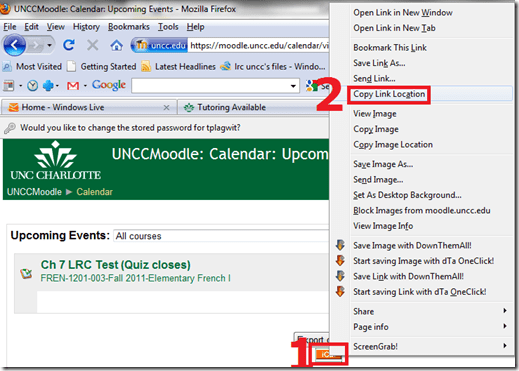
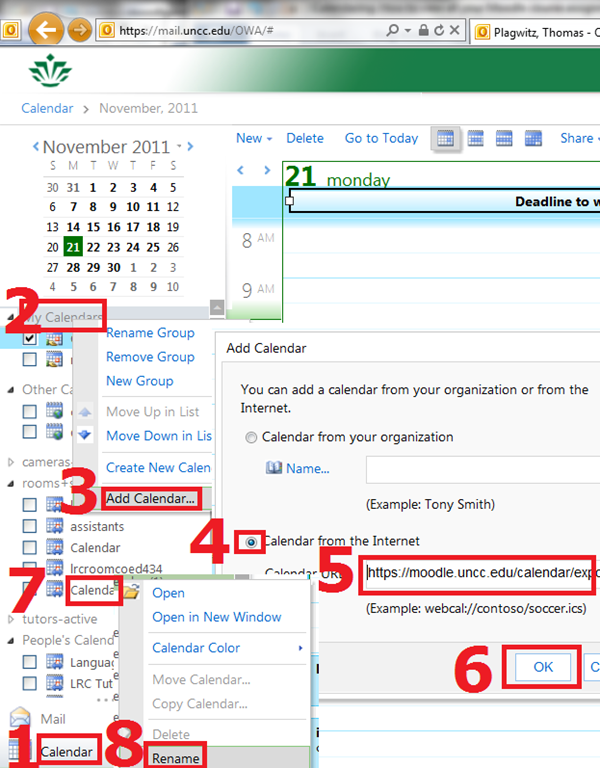
- In Ninermail/OWA: click “Calendar”, right-click “My calendars” , click “Add calendar’, click radio-button “From internet”, paste URL you put in clipboard into textbox, click button “OK”, right-click calendar added, click “rename” and call it “Moodle”

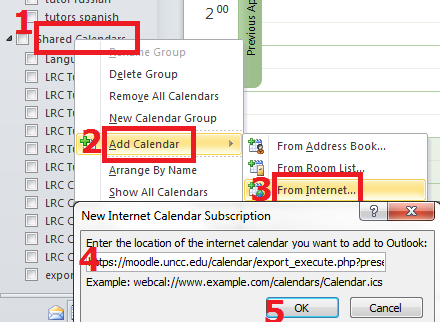
- Alternatively, in Outlook Desktop: go to “calendars”, right-click “shared calendars” , click “add calendar’, click “from internet”, paste URL you put in clipboard into textbox, click button “OK”, right-click calendar added, click “rename” and call it “Moodle”

- Want a longer explanation?

Categories: audience-is-students, audience-is-teachers, documentation, lms
calendaring, moodle, ms-outlook, OWA
How to use the online Spanish pronunciation help to generate phonetic alphabet transcriptions and text-to-speech
2011/11/18
Leave a comment
- Go to http://showroom.daedalus.es/es/tecnologias-de-la-lengua/phonetictrans/phonetictrans.php, enter your text, select your phonetic symbol set:
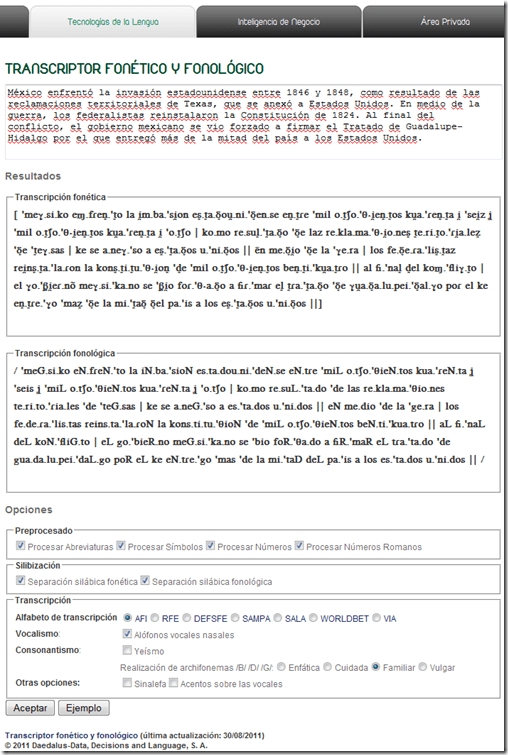
- Unlike with the Portuguese help, there is no text-to-speech option here.

Web-based romanized letters to Cyrillic transliteration tool.
2011/11/16
Leave a comment
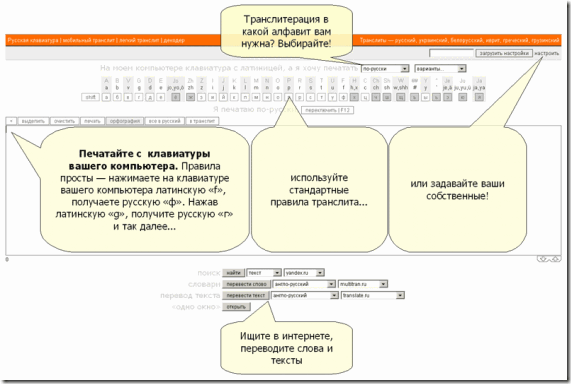
- Our Russian tutor uses this transliteration tool HTTP://TRANSLIT.RU which allows for phonetic input on a keyboard that does not have Cyrillic letters and seems popular with native speakers of languages written in Cyrillic.
- As so often, that implies: not designed for language learners. The explanation attests to that:
Categories: Advanced, audience-is-students, audience-is-teachers, e-languages, Intermediate, Russian, websites, Writing
character-input, websites
Calendaring: How to view all your Moodle course calendars in one place (like live@edu, Google calendar or MS-Outlook)
2011/11/16
Leave a comment
- UPDATE: this does work, just make sure to give it some time to update AND to have actual appointments in the time window (length of that window is a setting you can change in Moodle) that you are trying to display.
- Static inclusion of syllabus deadlines in your calendar
- Go to your Moodle Course / “Go to calendar…” / select from dropdown: “Upcoming Events”: “All courses”/ click on “Export Calendar/. Open with MS-Outlook (fails in IE8).
- Here is showing how: screencast demo loading Moodle’s iCal into MS-Outlook (desktop).
- This is a static export of all your Moodle calendar information – taught and enrolled courses combined (despite
 showing in each of your courses. The dropdown: “Upcoming Events” does default to the current course, though).
 - The utility of this (= what “all” comprises, and how helpful the event information is) depends on how the course designers use the Moodle calendar functionality – or allow Moodle to do it for them: For setting a start/end (= deadline) for any assignment or assessment automagically adds this event to the Moodle course calendar.
- Go to your Moodle Course / “Go to calendar…” / select from dropdown: “Upcoming Events”: “All courses”/ click on “Export Calendar/
- A potentially even more useful dynamic subscription(that will reflect late-breaking changes, like extended deadlines in your courses or additional assignments)
- you can get if you right click on
 and choose “Copy link” from the context menu.
 - I have not found a way to feed the Moodle iCal link manually into MS-Outlook 2010 (Shared Calendars / Add Calendar / From Internet) or OWA (different problem comes and goes. Just subscribe while problem is gone
 ). In MS-Outlook, you can subscribe to this link via menu:tools / tab:internet calendars / button: new / dialogue new internet calendar subscription / paste the URL you copied.
 ![moodle-calendar-outlook-2010-subscri[1]](https://thomasplagwitz.com/wp-content/uploads/2012/01/moodle-calendar-outlook-2010-subscri1_thumb.png?w=244&h=180 "moodle-calendar-outlook-2010-subscri[1]")
- Don’t forget to rename your calendar to something more useful than the default, like “My classes”, by right-clicking and choosing “Rename”in OWA or “Properties” in Outlook2010.
![moodle-calendar-outlook-2010-subscri[3]](https://thomasplagwitz.com/wp-content/uploads/2012/01/moodle-calendar-outlook-2010-subscri3_thumb.png?w=244&h=228 "moodle-calendar-outlook-2010-subscri[3]")
![moodle-calendar-outlook-2010-subscri[2]](https://thomasplagwitz.com/wp-content/uploads/2012/01/moodle-calendar-outlook-2010-subscri2_thumb.png?w=195&h=244 "moodle-calendar-outlook-2010-subscri[2]")
- Your syllabus deadlines are now always only two clicks away in your Ninermail:
- click on “Calendar”
- click on checkbox “Moodle”.
- you can get if you right click on
- What seems not possible with any current version of Moodle is editing/updating your calendar in MS-Outlook and having the changes synch with Moodle, or any import actually – only the opposite direction works. So the tool is more useful for students (who don’t need to edit) than teachers (but still a nice aggregator of teaching information for the latter).
- More on Calendar you can find in the official 1.9 Moodle calendar doc and FAQ.
- I would prefer to use other calendaring software, but the export options of the Moodle (1.9 and 2.)) calendars are limiting. So I also find myself adjusting the settings when using the Moodle calendar:


![moodle-calendar-outlook-2010-subscri[1]](https://thomasplagwitz.com/wp-content/uploads/2012/01/moodle-calendar-outlook-2010-subscri1.png "moodle-calendar-outlook-2010-subscri[1]")
![moodle-calendar-outlook-2010-subscri[3]](https://thomasplagwitz.com/wp-content/uploads/2012/01/moodle-calendar-outlook-2010-subscri3.png "moodle-calendar-outlook-2010-subscri[3]")
![moodle-calendar-outlook-2010-subscri[2]](https://thomasplagwitz.com/wp-content/uploads/2012/01/moodle-calendar-outlook-2010-subscri2.png "moodle-calendar-outlook-2010-subscri[2]")

- Adjusting these settings may also fix the following error in OWA which reads like ICS link is invalid/broken, but may only mean that no events where returned for the time window that Moodle defaults to (with performance reasons, which, however, does not apply if Moodle does not have to return *any* events to your request). In other words: Try expanding the time window for events, e.g. to include the full term.


Categories: audience-is-students, audience-is-teachers, e-infrastructure
calendaring, moodle, ms-outlook
Microsoft Contextual Translator
2011/11/14
Leave a comment
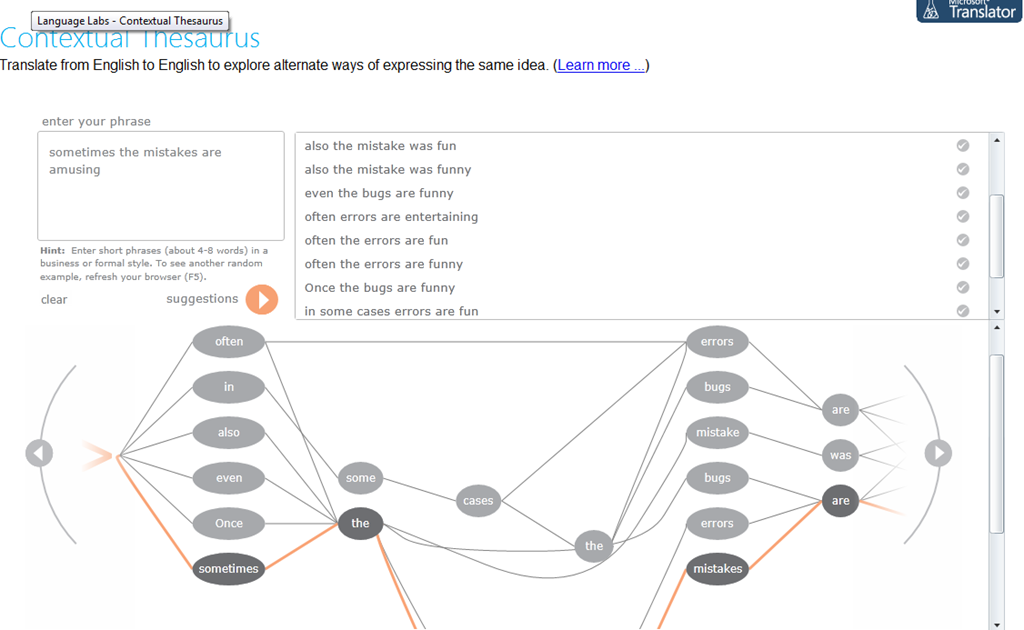
Certainly an advance over the MS-Word thesaurus (unlike the MS-Word 2007 and up spell check, still not contextual). Does this work at least well enough to serve as a fruitful pedagogical exercise: “Which phrase does not belong in the group?”
Categories: Advanced, audience-is-students, audience-is-teachers, Beginner, e-languages, English, Intermediate, Speaking, websites, Writing
links, thesaurus
How a teacher creates and grades a Moodle streaming video assignment.
2011/11/02
Leave a comment
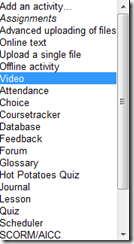
- Click button: “Turn editing on”, from the “add an activity dropdown, choose: “video”, like so:
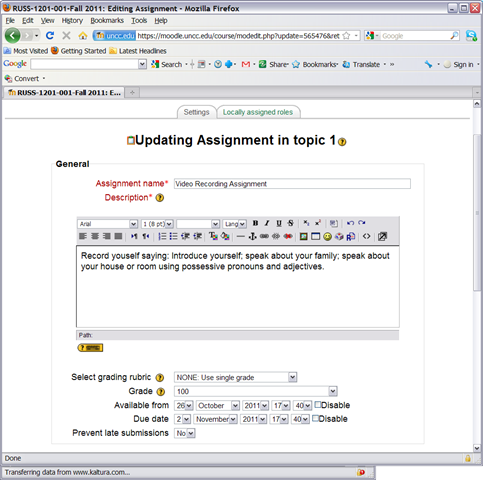
- Edit your assignment, like so:

- using the following options (or else expect problems)
- Due date: not DISABLED (is the default)
- Prevent late submissions: YES (is not the default)
- Allow resubmitting: NO (is the default)
- using the following options (or else expect problems)
- after you post your assignment and your students took it, like so,
- and if you turned notifications (not recommended; rather grade the assignment well after the deadline, or else expect problems) on (if you get already enough email, remember you can turn notifications off, rather send a deadline to the assignments which the students can see in their calendar, and until they get used to it, tell them there will be more video assignments, best: make it a routine and leave 2 for extra credit could be enough to get everybody to catch), you will get an email like this:

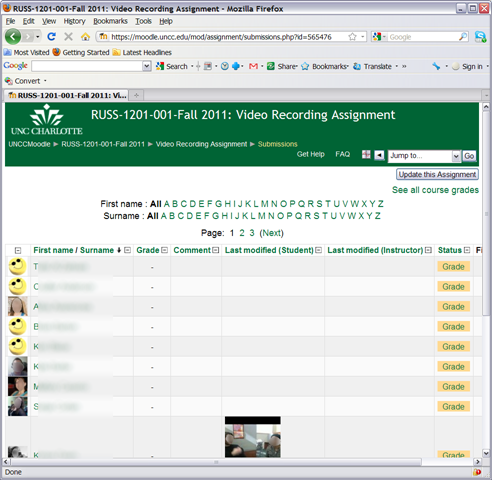
- where you click either on the link (1) to go to the assignment, then click through to the submissions (3)

- or on (2) to go directly to the grade book:

- where you are best advised to click on the button: “grade” to view the video submission, , or else you might run into this bug.
- In the grading window,
 play the video, add helpful comments, if any, add final Grade and click “save and next” (but click “next” if no video submitted yet and you grade before the submission deadline. Better: do not grade before the submission deadline).
 - If video seems unwilling to play (frozen frame), drag the play cursor forward on the timeline underneath the video.
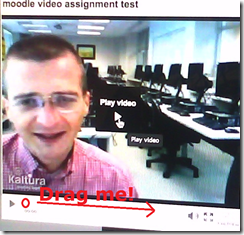 If this does not unfreeze the video, let the timeline run to the end (both workarounds have helped with Kaltura issues we encountered here).





Categories: all-languages, audience-is-teachers, e-languages, lms, Speaking, step-by-step-guides
1.9, kaltura, moodle, video


Questions? Read the About. Or just ask me a quick Our Databases: Resources with calendars -- Language learning material Moodle Sites, multimedia files -- films


FAQs for LRC student staff or for students or for teachers. To search our FAQs, in the browser addressbar, add after "https://plagwitz.wordpress.com/feed/?tag=faqs+/" "+TAG1" (from tag cloud below) OR "https://plagwitz.wordpress.com/feed/tag=faqs
&category_name=" "CAT1" (from category hierarchy below). OR search both categories and tags, and multiple TAGs/CATs (connect with "," for OR-search, with "+" for AND-search), like so: https://plagwitz.wordpress.com/feed/?tag=TAG1+TAG2+...TAGn&category_name=CAT1
+CAT2+...CATn"
Other ways to find help
If you cannot find it here, look there: 5,500 Language-Learning Links and Programs for learning or teaching 150 languages
Shortcuts:Our Lists, Our Maps, LRC Staff Moodle Site,LRC Project Moodle Site, 49erexpress, UNCC Moodle, Student Recordings: s:claslcslrcsanakostudent
Learning usage samples: Sanako oral exam, Kaltura webcam presentation, Dictation with speech recognition, Sanako written exam, Chinese and Japanese interactive stroke-order practice
Test the Sanako Installer, Webbrowser Popup Konfigurator for XP, or Windows7, faster LRC TeacherPC Log-in Let MS facilitate diacritics writing by installing for you US-International keyboard layout
This is my personal blog (Google+). The views expressed on these pages are mine alone and not those of my employer. The information in this weblog is provided “AS IS” with no warranties, and confers no rights.
 Thomas' Work Space