Archive
Archive for the ‘audience-is-teachers’ Category
How you can view the computer screens of your class using Sanako Study 1200
2012/05/04
Leave a comment
- Here is a 2.5 minute screencast showing off the different ways how you can view your students’ screens using the Sanako Study 1200,
 .
. - from smallest to biggest, all accessible form the button:”screensharing”
- first thumbnails
- then thumbnails in extra window
- finally autoscan
- There will always be tradeoff on the teacher computer between size of individual student screen and overview over class.
- for as long as the teacher screen resolution is nowhere near the combined sizes of the student screen resolution;
- having the same screen resolution is also desirable, for projecting the teacher screen to the students; multi-monitor teacher stations are a nice compromise.
- However, as you can see in the screencast, there a number of nice options that make switching between large size and overview (drilling in and moving back out) easy.
- The newer versions of the Sanako (here 5.2) allow you to choose many different student screen sizes.
- The newest version of the Sanako (5.4) also allows to fit many students screens on a teacher screen by implementing by letting the teacher scroll through the classroom layout).
Loading the right classroom file for an exam that uses Sanako
2012/05/04
Leave a comment
 Currently the preferred layout is Exam 2: Choose this when the Sanako starts
Sanako Study 1200 Version 5 now allows for larger student screen thumbnails, but still limits the classroom layout size
2012/05/04
Leave a comment
- The capability of increasing the size of the student thumbnails, to be able to easily read the MS-Word writing student exercises template that I had programmed for Sanako Lab 300 was sorely missed in version 1 and 2 of the Sanako Study 1200 software.
-
In version 5, the capability to adjust the size has been added. In Tutor.exe, Go to Menu: tools / preferences / thumbnail-size.
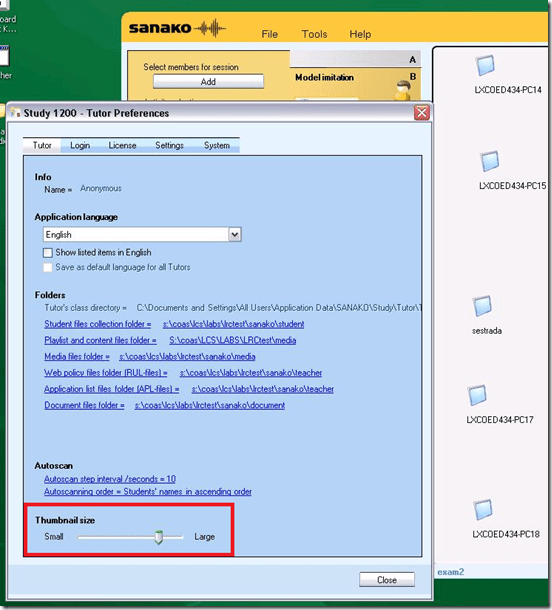
- Now, however, the 20 licensed student seats we have, already fill up the entire Teacher software’s screen estate since the software window cannot be spanned across our multi-monitor setup (The Sanako software seems to have this single-screen limitation built-in. Our unusual asymmetric (1280 and 1024) dual-monitor system may have something to do with it).
- Fortunately, in the newest version 5.42 for of Sanako Study, scrollbars appear and allow for panning the classroom layout window if there are more student icons/thumbnails than will fit on the screen.
- Upgrading to a screen with a larger screen resolution on the teacher computer would be even better.
- We hope to teach up to 30 students (class sizes seem to be constantly increasing, but the LRC also caters to visits of merged class sections which may be even larger than 30 students) in this large classroom setup:


How to play a DVD from the LRC teacher podium
2012/05/04
Leave a comment

- On the Control panel, click on “DVD”
- This makes the DVD controls appear, which include play and FF.
- By clicking on “Advanced Controls”, you can access another screen with more controls.
- Or you can play your DVDs from the teacher podium computer which is more integrated with the rest of the computer use, and you do not have to walk over to the AV cabinet to insert the DVD. Read in…
Categories: audience-is-teachers, Presenter-Computer
DVDs, videos
How to stream video clips to students in classroom and at home, using Moodle Kaltura
2012/05/02
Leave a comment
- DVDs are getting a bit long in the tooth, not to mention VHS, and can form a real obstacle or time-consuming distraction in an educational setting, from handling the media to finding compatible software and/or hardware players for the media.
- Fortunately, there is a now a better way to make video clips available to students than uploading them to YouTube.com:
- university-supported,
- more compliant with copyright and fair use restrictions (which still apply)
- also requiring only a web browser (available on all campus computers, including teacher computers in classrooms, including those that have no (region-free) DVD-player installed)
- and a course enrolment. But access to a Moodle course can now be considered a given, both for teachers and students.
- Moodle Kaltura allows for easy
- uploading of a video file by the teacher
- viewing by the student (streamed – Flash required, not different from YouTube.com).
- View a screencast example how easy it is with Moodle Kaltura to upload and playback a video clip from a movie DVD.

- Not different from YouTube.com, you still need to edit out the segment from the DVD that you want to show in your class, uploading a full DVD I do not intend to test.
- From this example, you can also get an idea how long the server-side encode takes before the video an be streamed back to students: the short clip of a few minutes here starts playing back at 12:40. Naturally, a teacher would prepare their course, including all video uploads, before the term starts or possibly before the week starts, or, in extremis, before the class starts – in practice, only the – extremely unlikely – scenario where the teacher would try and upload the video during the class is not supported.
Spring 2012 Faculty Workshop II: Oral Proficiency testing with Audacity/Sanako
2012/04/30
Leave a comment
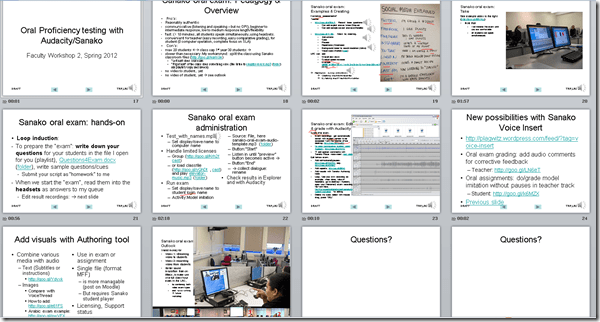
- View screens (best viewed side by side, but note that left and right screen are not synchronized):
- for full slide show (note the included short links for convenient further reading), left screen

- for Sanako interface and full audio track, right screen
 .
.
- for full slide show (note the included short links for convenient further reading), left screen
- Table of contents:
- Overview of a Sanako Oral Exam
- Examples of Exam teachers’ exam question recordings
- Example of a Sanako Exam
- Loop induction
- creating an exam question recording
- by taking a Sanako exam as a student
- Step-by-Step of administering a Sanako oral exam
- Grading Sanako oral exam student files
- Sanako voice insert for
- facilitating recording oral assignments for student without hard-coded pauses
- commenting on student responses during grading
- Sanako voice insert for
- Sanako authoring tool for providing visual on top of aural cues to students

Categories: Absolute-Beginner, Advanced, Arabic, audience-is-teachers, Beginner, digital-audio-lab, e-languages, English, Farsi, French, German, Greek (modern), Hindi, Intermediate, Italian, Japanese, Korean, Listening, Mandarin, multimedia-recording, Polish, Portuguese, Presenter-Computer, Russian, Screencasts, service-is-assessing, service-is-learning-materials-creation, Slideshows, Spanish, Speaking, step-by-step-guides, Student-Computers, Swahili, workshops, Yoruba
audacity, authoring-tool, sanako-study-1200, student.exe
How to combine oral cue audio with images in Sanako Study 1200 authoring-tool
2012/04/26
Leave a comment
- This 100-second authoring tool screencast
 shows how to
 - preview the audio in the authoring tool,
- add an image and
- set its display time on the timeline,
- If you make an error by assigning non-sensible times, the authoring tool helps you by flagging it red:
- save (save frequently, on my Windows-XP SP3 machine, the image display within the authoring tool caused frequent BSODs, seemed video-driver-related).
- View results (application during a class) here.

How to use visual instead of aural cues during a Sanako oral proficiency exam
2012/04/26
Leave a comment
- This exam file has been authored with the Sanako Study 1200 TBA:authoring tool. It is displayed from the Sanako tutor application:
- images on a projection screen connected to the teacher computer,
- aural portion through the tutor-controlled Sanako student player and headsets.
- To protect the integrity and allow for reuse of the exam, only the initial instruction, example and collection of the results of an exam with visual cues are shown in this screencast
 .
.


Questions? Read the About. Or just ask me a quick Our Databases: Resources with calendars -- Language learning material Moodle Sites, multimedia files -- films


FAQs for LRC student staff or for students or for teachers. To search our FAQs, in the browser addressbar, add after "https://plagwitz.wordpress.com/feed/?tag=faqs+/" "+TAG1" (from tag cloud below) OR "https://plagwitz.wordpress.com/feed/tag=faqs
&category_name=" "CAT1" (from category hierarchy below). OR search both categories and tags, and multiple TAGs/CATs (connect with "," for OR-search, with "+" for AND-search), like so: https://plagwitz.wordpress.com/feed/?tag=TAG1+TAG2+...TAGn&category_name=CAT1
+CAT2+...CATn"
Other ways to find help
If you cannot find it here, look there: 5,500 Language-Learning Links and Programs for learning or teaching 150 languages
Shortcuts:Our Lists, Our Maps, LRC Staff Moodle Site,LRC Project Moodle Site, 49erexpress, UNCC Moodle, Student Recordings: s:claslcslrcsanakostudent
Learning usage samples: Sanako oral exam, Kaltura webcam presentation, Dictation with speech recognition, Sanako written exam, Chinese and Japanese interactive stroke-order practice
Test the Sanako Installer, Webbrowser Popup Konfigurator for XP, or Windows7, faster LRC TeacherPC Log-in Let MS facilitate diacritics writing by installing for you US-International keyboard layout
This is my personal blog (Google+). The views expressed on these pages are mine alone and not those of my employer. The information in this weblog is provided “AS IS” with no warranties, and confers no rights.
 Thomas' Work Space