Archive
Archive for the ‘audience-is-teachers’ Category
Our Clickers: Software and Hardware
2013/09/10
Leave a comment
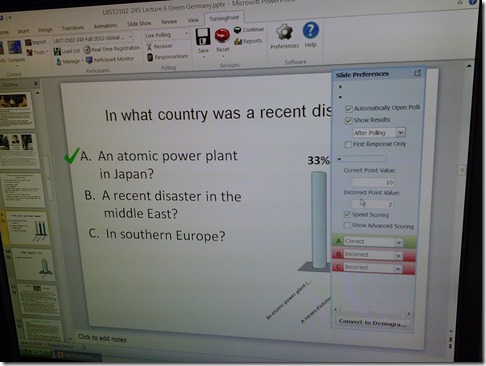
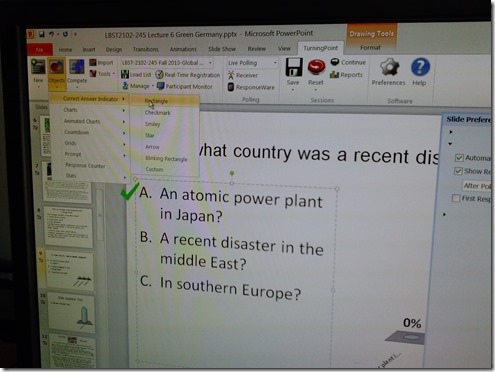
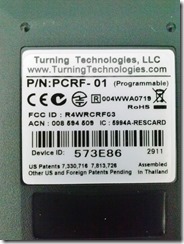
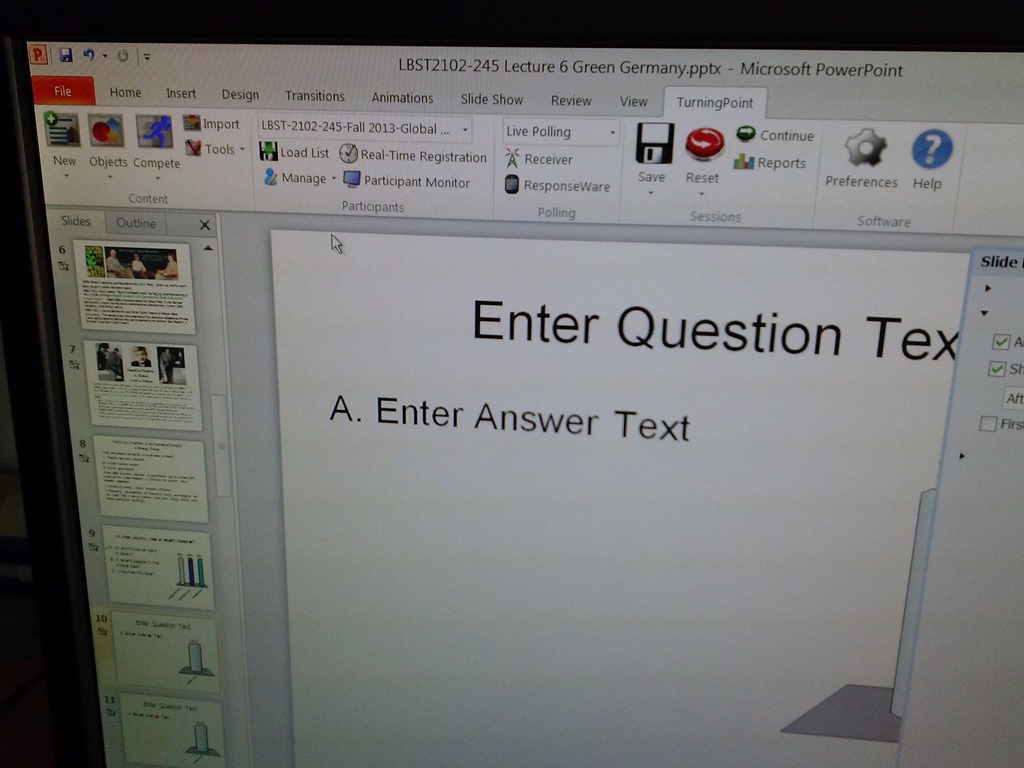
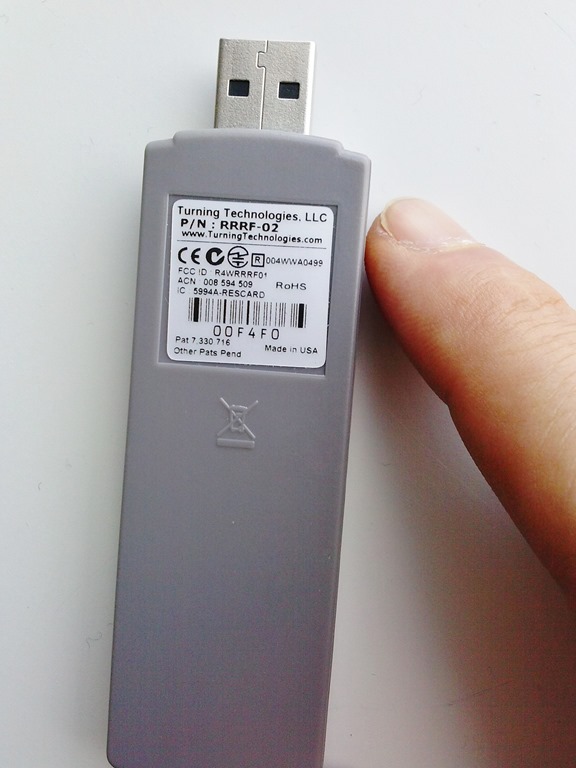
- The clickers come with software (PPT Add-In) that allows teachers to integrate simple interactivity (multiple choice questions etc.) into their slide decks.

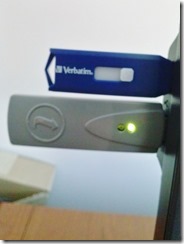
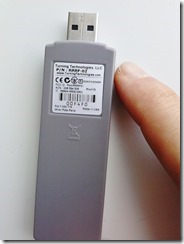
- The following teacher-hardware allows the teacher to present their interactive slide deck in the classroom and aggregate and display (for discussion and adaptive teaching) the student responses






How to easily avoid “Death by PowerPoint” and focus audience attention by showing paragraphs 1-by-1
2013/09/10
Leave a comment
- Open the Slide Master (“menu:View”/ “Slide Master”), then make these changes:
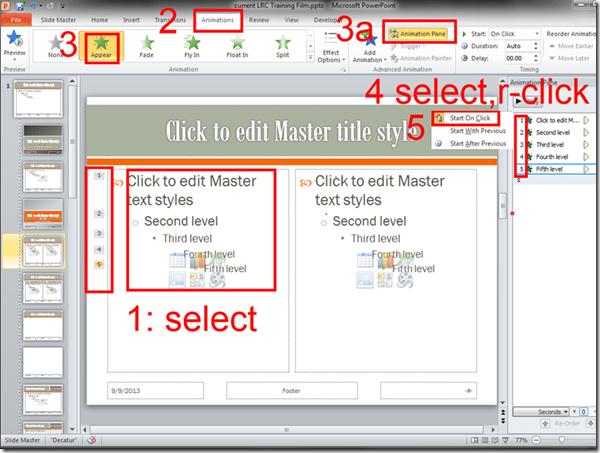
- Close the Slide Master, for the change to affect all your slides from now on (without you having to add animations for each paragraph individually).
- We only did the master for the main layout. I f you want to have the effect on all slide layouts, keep adding animations like shown above.
- If you want to remove this effect, you can go into the master slide as shown and delete the animations in the animation pane.

Categories: audience-is-teachers, office-software
ms-powerpoint
The Scheduling Assistant is simply multiple calendars displayed as parallel timelines for easier comparison
2013/09/09
Leave a comment
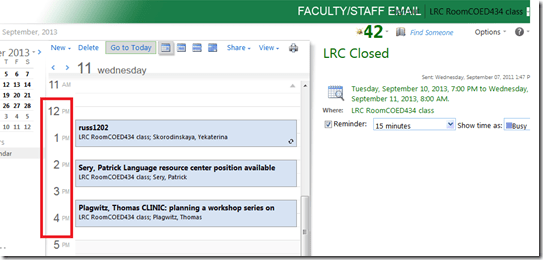
- We are all conversant in reading a daily – like here for the classroom-, weekly or monthly calendar sheet:
- If you send a Meeting request to the classroom to book it, the Scheduling Assistant displays exactly the same free/busy information for the classroom.
- Same pattern of events as above:
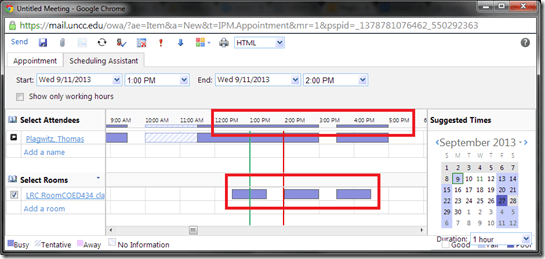
- Except that it is folded from a calendar into a timeline format (and in OWA does not display text explanatory beyond with what/whom the room is busy).
- This timeline format may be less familiar, but is much more practical to compare the availability for the multiple participants of a meeting.
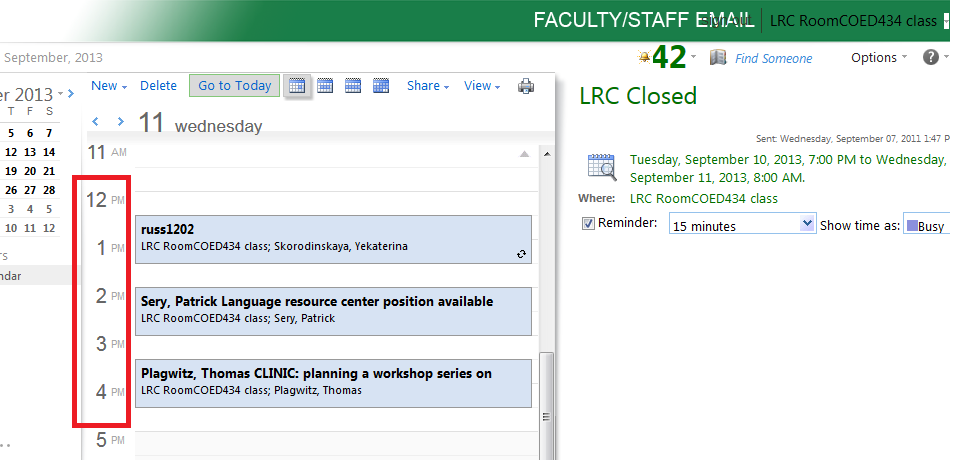
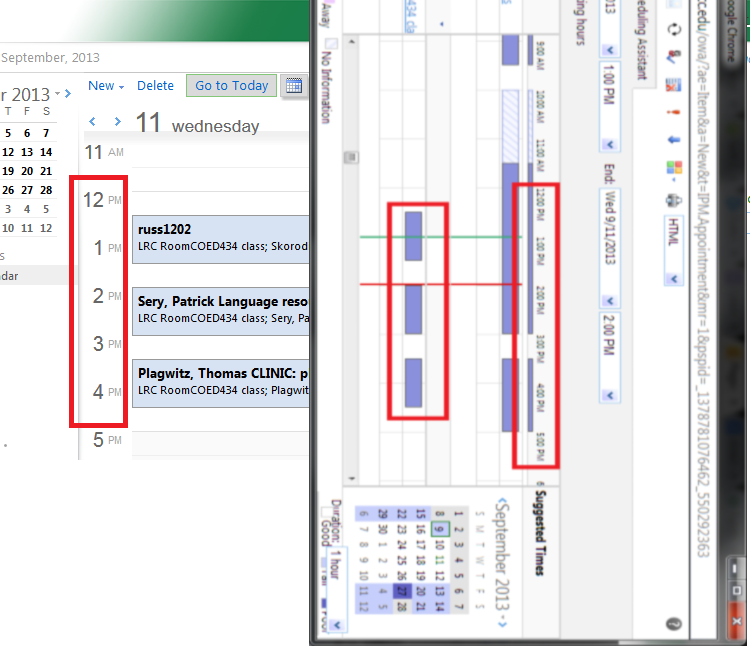
- Same pattern of events as above:
- Compare here: Same pattern for the room booking on both views.

Clinic on PowerPoint for teaching presentations
2013/09/09
Leave a comment
Categories: audience-is-teachers, workshops
ms-powerpoint
How to set up your computer to access ASCM URLS with Adobe Digital Edition for DRM-protected eBooks
2013/09/09
Leave a comment
-
I downloaded the Adobe digital Edition from here: http://www.adobe.com/products/digital-editions/download.html
-
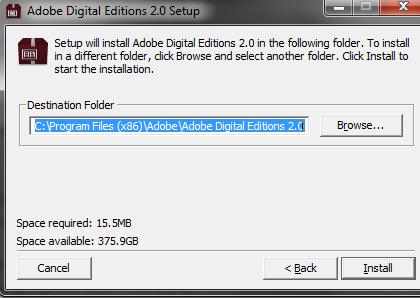
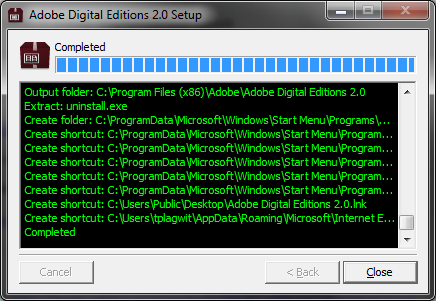
I installed the downloaded Adobe Digital edition like so:
-

-

-
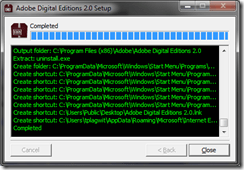
-
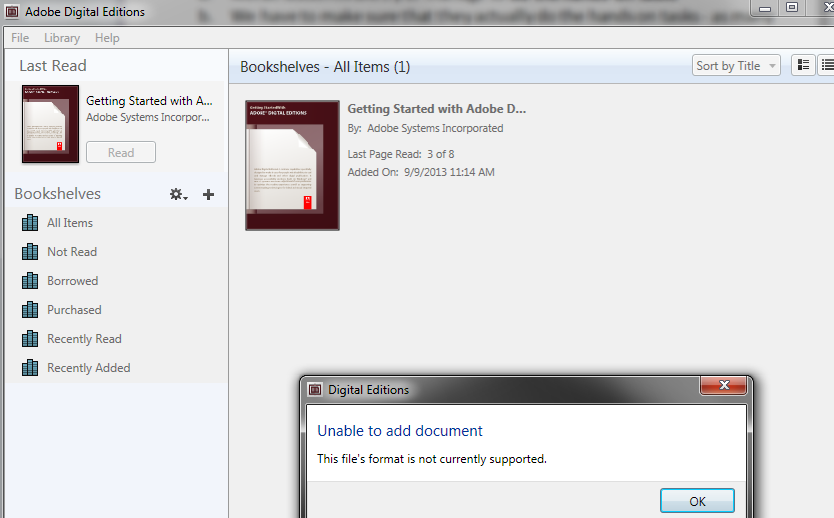
I can now run the Adobe Digital Edition program:
-
However, File / open / paste url won’t work.
-
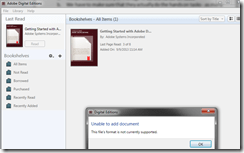
-
Also, if I download the ASCM file, Windows still does not know which application to open ASCM file with
-

-
I CAN HOWEVER DOWNLOAD AN ASCM FILE AND DRAG drop this into an open digital edition window, to get this at least
-

-
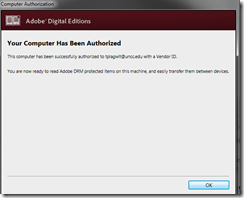
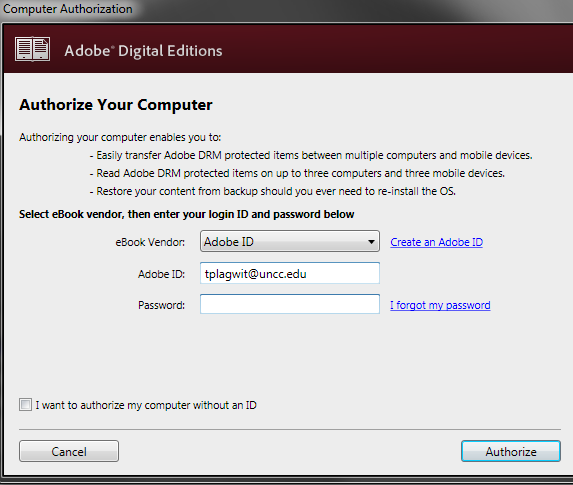
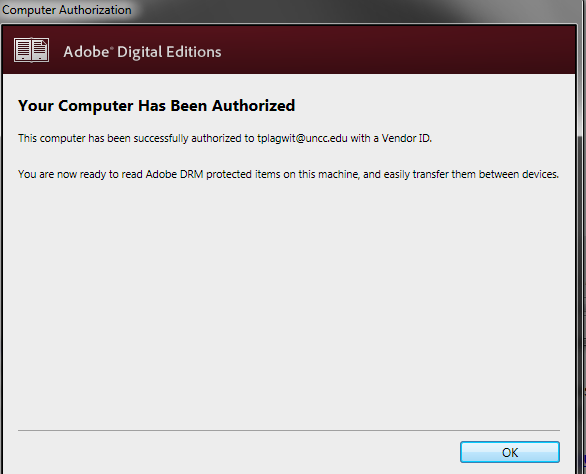
I went down the "authorize your computer" route:
-

-
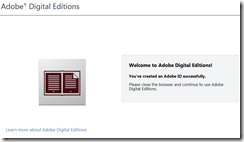
-
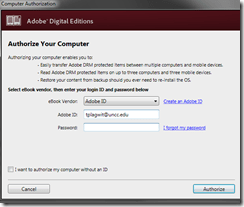
-
-
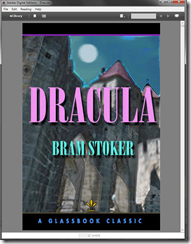
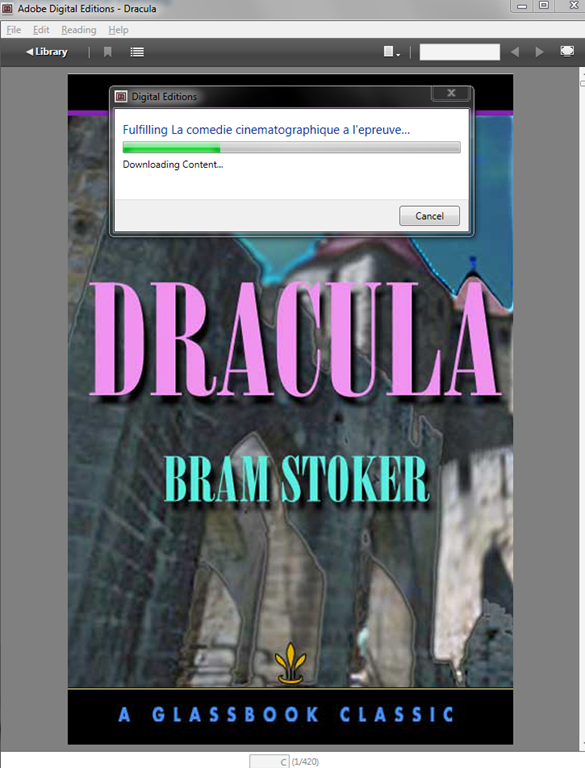
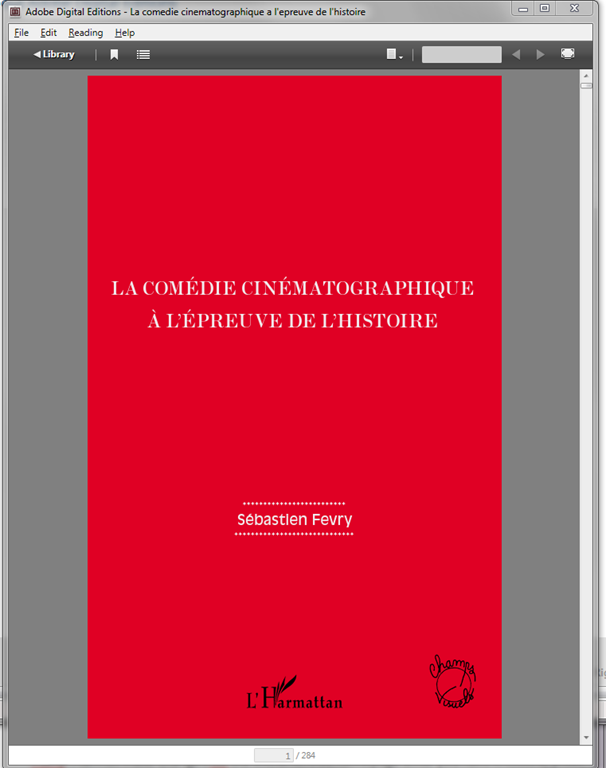
Here is my first example (from the Adobe samples website):
-
-
From now on, I can simply click on adobe digital edition links with ASCM files.
-
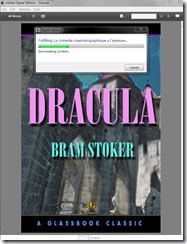
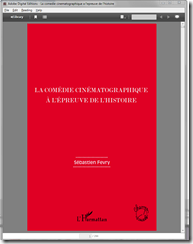
When getting the download dialogue, I can skip saving and click "open":
-

-
-
-
Note: you are consuming a license if you open te ebook with your account.





Creating site-specifically useful learning content for the Sanako Study 1200 vocabulary testing
2013/09/06
Leave a comment
- The usefulness of the Sanako Study 1200 new (from ver 6) vocabulary test activity hinges on the availability of site-specific vocabulary lists.
- Sanako UK
- seems aware of this and publishes vocabulary collections for textbooks and assessments commonly used in UK secondary education.
- Sanako favors using the built-in format and saving it on the network share that is required for the Sanako study 1200.
- Vocabulary tests are organized and can be discovered and browsed by file name only.
- TBA: How could something similar be done in a US HE context? One would need:
- establish which textbooks are (and will remain) in use?
- are they e-books or would the material need digitization?
- is the chapter vocabulary easily accessible as a list? Appendix glossaries encompass usually much more than the vocabulary required to study, so testing on these would quickly become frustrating
- how best to reformat the materials (from turning into a table to handling linguistic metadata) for easy use with the Sanako vocabulary test?
- how best to publish the material?
- to make it manageable for the updaters: crowdsourcing? copyright issuew?
- to make it easily selectable for the teacher: filter by integrated linguistic and course metadata?
- Last not least: How to do all this economically? Taking into consideration teacher preference, enrollment, preexisting materials…?
- cost lowered if tabular lists of vocabulary already exists
- benefit is lowered if online flash card applications already exist.
“I can haz all my online appointment and schedule information in one merged calendar in NINERMAIL?”
2013/09/06
Leave a comment
- Yes, you can! Overlay calendars, a much needed feature from Outlook Desktop (as we mentioned earlier) has finally made it into the web version of Outlook (in Office365 the migration of which from live@edu will be finished by the end off the month), as was announced today: “Users can have multiple calendars in a merged view.”
- Example: In Outlook Desktop (not available to students), you can not only add a calendar like, icsexport.ics to the right, but, if you click on the (1) little black arrow, add/merge icsexport.ics to the (2) already overlaid calendars on the left, which is much more usable if you need to aggregate content from different sources:

- And now also in OFFICE365 NINERMAIL:

- This should make the sharing of calendar information much easier, not only for the about 100 LRC resource calendars, but also for other useful calendars that are published on campus:
- the new LCS calendar
- the registrar’s academic calendar
- the campus-wide faculty calendar
- last not least: your Moodle calendar (view all your moodle assignment deadlines in one place, the same place you check your email)
- And more… ? Do you know of other calendars, and/or a way to discover them?
- The details
- yet need to be panned out. We assume the feature will “just work” like above in Outlook Desktop when you
- We’ll provide more information and examples once we see this feature… TBA

Categories: audience-is-language-learning-center-staff, audience-is-language-learning-center-temp-staff, audience-is-students, audience-is-teachers, e-infrastructure, Institution-is-University-of-North-Carolina-Charlotte, office-software
calendaring, live@edu, ms-exchange, office365, outlook, outlook-live, resources, scheduling, sharing, subscribing
First steps with the Sanako Study 1200 vocabulary test activity
2013/09/06
Leave a comment
- Click to watch an example below of the new (in version 6, we are now on 7) activity:”Vocabulary Test”
 which allows you to administer during a face-top-face-class just exactly what its name says –
 - with these benefits:
- needing no paper,
- digital contents
- “can” and reuse past tests with ease
- TBA: can you swap target and source language?
- blending automated and teacher feedback:
- the example I give below is based on what the teacher gave me: single words and very short idiomatic expression.
- You can use longer phrases (I prefer teaching and studying vocabulary in context), but then it become increasingly unlikely that the automated feedback is accurate (The automated feedback is limited to exact, up to case-insensitive string matching – now distance metrics).
- You can override the automated feedback before sending the results back to the student. This is somewhat practical, since the submitting is fast and not all students will finish at the same time, and if you provided students with the follow up activity after submission, The teacher overriding the feedback gets unpractical in large classes, so it is recommended restricting the test to short source/target language pairs. Also be clear about or minimize punctuation and, if required, the format of other metalinguistic information (gender, plural forms etc).
- Issues:
- not communicative, how can this be used or fitted in with other activities to make best use of a fully computerized face-to-face teaching environment?
- simplistic autocorrecting algorithm (case-insensitive, otherwise exact, right or wrong, my way or the highway” string matching)
- no tracking, no memory, personalization only via the other built-in Sanako personalization features (groups – to be left to the teacher to handle)
- no learning content – at least no vocabulary learning materials usable out of the box for us (TBA).


Questions? Read the About. Or just ask me a quick Our Databases: Resources with calendars -- Language learning material Moodle Sites, multimedia files -- films


FAQs for LRC student staff or for students or for teachers. To search our FAQs, in the browser addressbar, add after "https://plagwitz.wordpress.com/feed/?tag=faqs+/" "+TAG1" (from tag cloud below) OR "https://plagwitz.wordpress.com/feed/tag=faqs
&category_name=" "CAT1" (from category hierarchy below). OR search both categories and tags, and multiple TAGs/CATs (connect with "," for OR-search, with "+" for AND-search), like so: https://plagwitz.wordpress.com/feed/?tag=TAG1+TAG2+...TAGn&category_name=CAT1
+CAT2+...CATn"
Other ways to find help
If you cannot find it here, look there: 5,500 Language-Learning Links and Programs for learning or teaching 150 languages
Shortcuts:Our Lists, Our Maps, LRC Staff Moodle Site,LRC Project Moodle Site, 49erexpress, UNCC Moodle, Student Recordings: s:claslcslrcsanakostudent
Learning usage samples: Sanako oral exam, Kaltura webcam presentation, Dictation with speech recognition, Sanako written exam, Chinese and Japanese interactive stroke-order practice
Test the Sanako Installer, Webbrowser Popup Konfigurator for XP, or Windows7, faster LRC TeacherPC Log-in Let MS facilitate diacritics writing by installing for you US-International keyboard layout
This is my personal blog (Google+). The views expressed on these pages are mine alone and not those of my employer. The information in this weblog is provided “AS IS” with no warranties, and confers no rights.
 Thomas' Work Space