Archive
Example 6: How even a false beginner can work with foreign language Speech recognition on Windows 7 Enterprise
- Executive summary: Don’t let initial poor speech recognition results discourage your from using this feature. Results will much improve if you go through a few minutes of the built-in voice training for speech recognition. Like in the last 30 seconds of this video.
- With the upgrade to Windows 7 Enterprise in the LRC – and the continued availability of high-quality Sanako headphones on the majority of LRC PCs – , we can now offer speech recognition in a number of foreign languages – including French.
- This feature can be used for language learning exercises, including dictation, like in this example. How robust is windows 7 speech recognition?
- You can expose yourself to some embarrassingly bad French in this screencast – and that is the point. (My French is limited to a mere 2 high school years of 3-hour per week voluntary French studies, more than 30 years ago, no practice since).
- The screencast shows how even a (false) beginner can,
- 0:00-1:00: from terrible initial results,
- 11:45-12:10: considerably improve (not make perfect!) the foreign language (here French) speech recognition on Windows 7,
- 1:00-10:40: by going through the built-in voice training.
- The LRC computers are “frozen”between reboots, but students still need to train them only once, since they can back up and restore their training data easily.

- (This is not proof of the overall validity of the recognition – for that, you are better off watching this screencast with Windows 7 Enterprise speech recognition in German).
Sanako student lite recorder needs reconfiguration
- Because of a misconfiguration, students now always have to make these two changes (on teacher screen) from the default configuration (on student screen) before their Sanako will become operational:

- If you made the default, but wrong choice “Lite recorder”, you will get stuck with this:
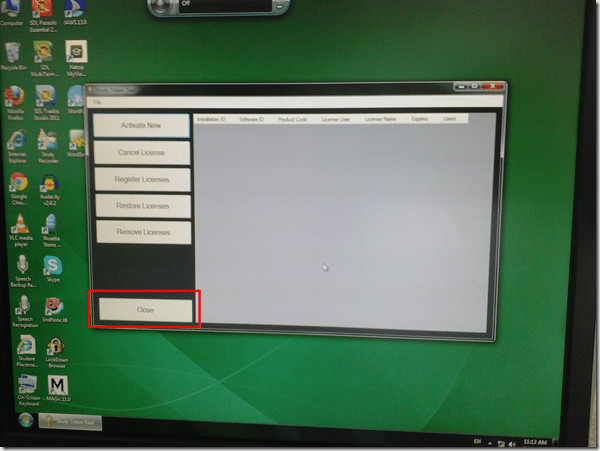
- To get out of it, click button:”close”and start over.


How to organize your email by creating an Inbox rule in OWA
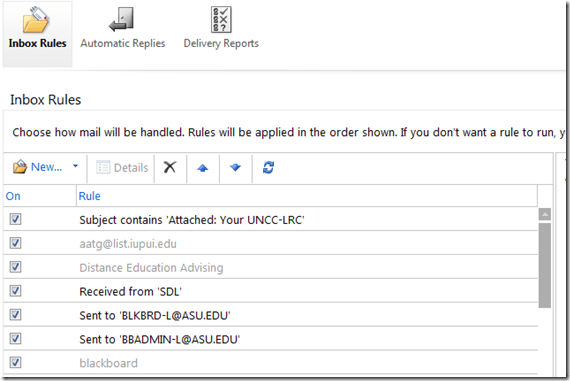
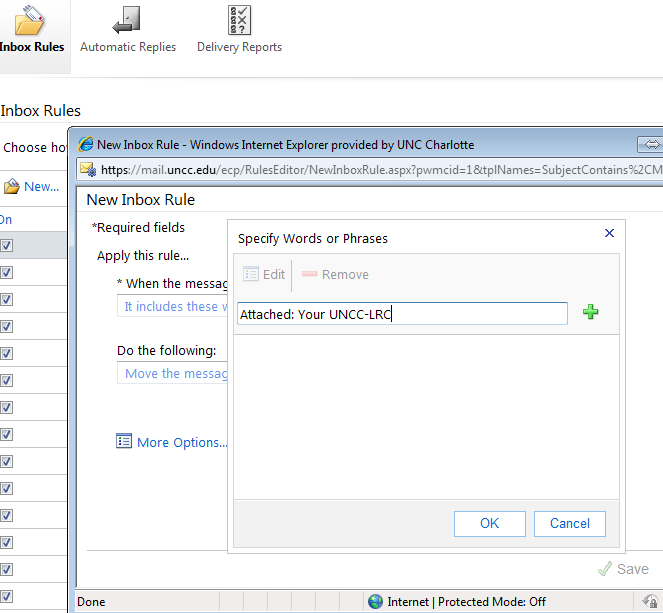
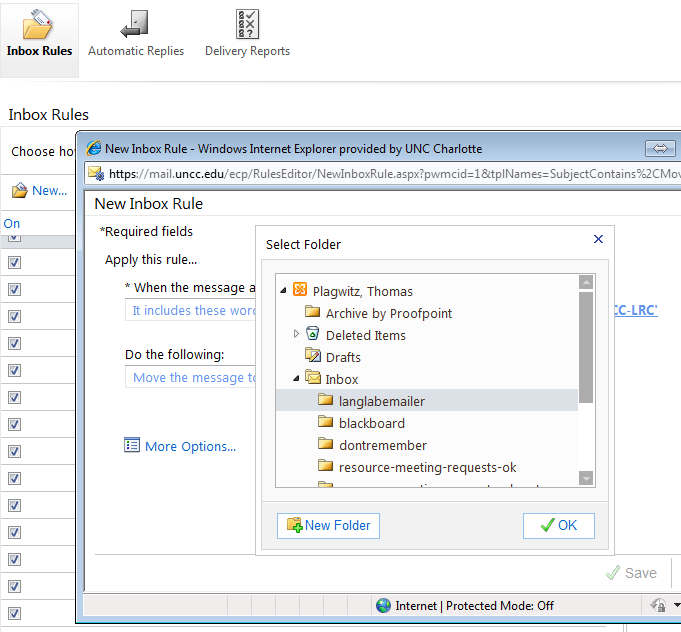
- This step-by-step GUIDE was written for filtering emails from our langlabemailer program (they happen to have “Your UNCC-LRC” in the subject) into a separate folder so that users of the LRC keep the overview:
- students (longitudinally, for their language learner ePortfolios) ,
- but especially teachers (of classes with up to 36 students, throughout the term).
- But you can easily adapt the guide to any other email purpose.
- Including other LRC workflows based on emails: LRC resource booking also relies on OWA emails. All email sent from LRC resource mailboxes have “LRC” at the beginning of the user name and email address.
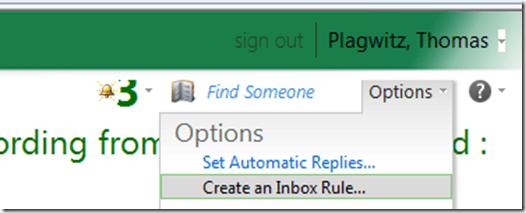
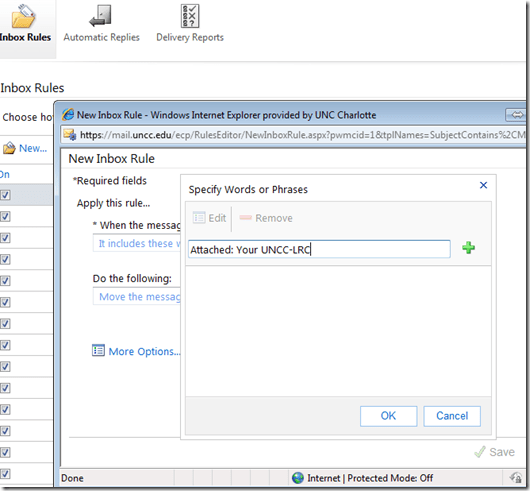
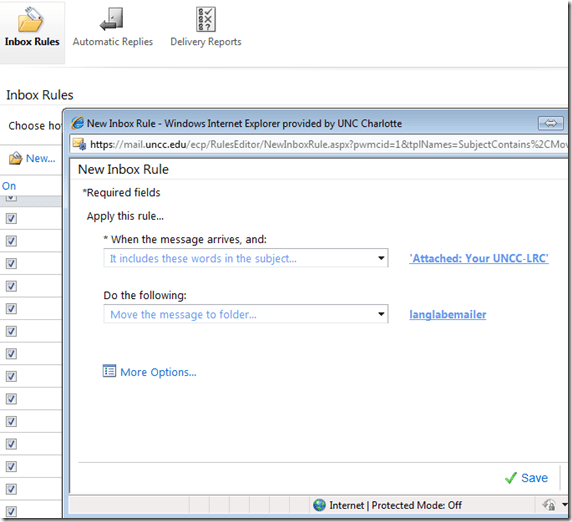
- In short: Options / Create an Inbox Rule / Click “ new” / choose a type / choose keywords / choose folder to sort the email into when it arrives. Or graphically:
-
-

-
-
-
-

-
-

-
-

-
-
-
“
-






How not to have to join a Saba Centra online class from the LRC late, for lack of speaking capabilities
- Problem: We continue getting reports from teachers that students who try to participate in a Saba Centra online class from the LRC listening station computers (with analogue headphones) experience a considerable delay in joining and cause disruption to online classes since they have to troubleshoot their microphones, for lack of being audible online.
- Root cause: Saba Centra on startup automatically selects the “microphone” as recording device…
- Workaround:
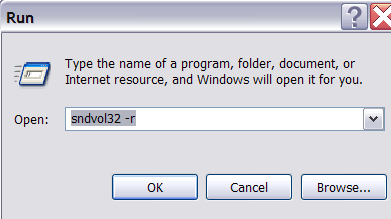
- On XP, click “Start”, click “Run”, type (without quotes) “SndVol32 –R” (meaning: “SoundVolume for Recording”), click “OK” which opens the volume mixer for recording devices. The radio button selected will be “Rear input”.

- Start Saba Centra.
- Switch back to the volume mixer you opened in step 1. Note that the radio button now selected is “Microphone”. This is wrong for the listening stations (and the teacher station) in the LRC. Switch it back to “Rear input” (you know that your headset is supposed to be plugged into the rear).

- And off you go… Plus note: There is no need for “expensive” workarounds like:
- haphazardly trying to replug headphones,
- purchasing your own USB headphones,
- hogging the main classroom with its USB headphones.
- On XP, click “Start”, click “Run”, type (without quotes) “SndVol32 –R” (meaning: “SoundVolume for Recording”), click “OK” which opens the volume mixer for recording devices. The radio button selected will be “Rear input”.

You can get the LRC’s keyboard shortcuts to write foreign language characters automatically installed on your home or office PC …
..if you click on Microsoft’s FixIt here: http://support.microsoft.com/kb/306560 (’nuff said elsewhere about US International keyboard layout) . Our British Friends seem to still type French, German, and Spanish accents the old tedious way. Maybe they find it too difficult to install the MS UK-International keyboard layout which takes care of most accents in all languages that use a Roman alphabet. I wish I could recommend them also a Microsoft FixIt installer which automatically enables the UK "international" keyboard layout option built-in to Windows. However, the FixIt version automated enablement seems only available for US International, not for UK international. If you want US International without manually configuring it (interactive video) , take advantage of MS FixIt by clicking here.
Text messaging in class using Sanako Study 1200
Students click:  – Tutors click:
  . Stop endless spelling out of URL’s or queuing with raised hands during class. Your students will
  .
.
Cheatsheet for typing phonetic symbols with the IPA Keyboard Layout on Windows 7 – the ultimate training…
…using animated .gifs. Slower? Compact: 0.25sec, 0.5sec, 0.75sec, 1sec, 1.5sec, 2sec, 3sec, 4sec, 5sec, 6sec, 7sec, 8sec, 9sec, 10sec. 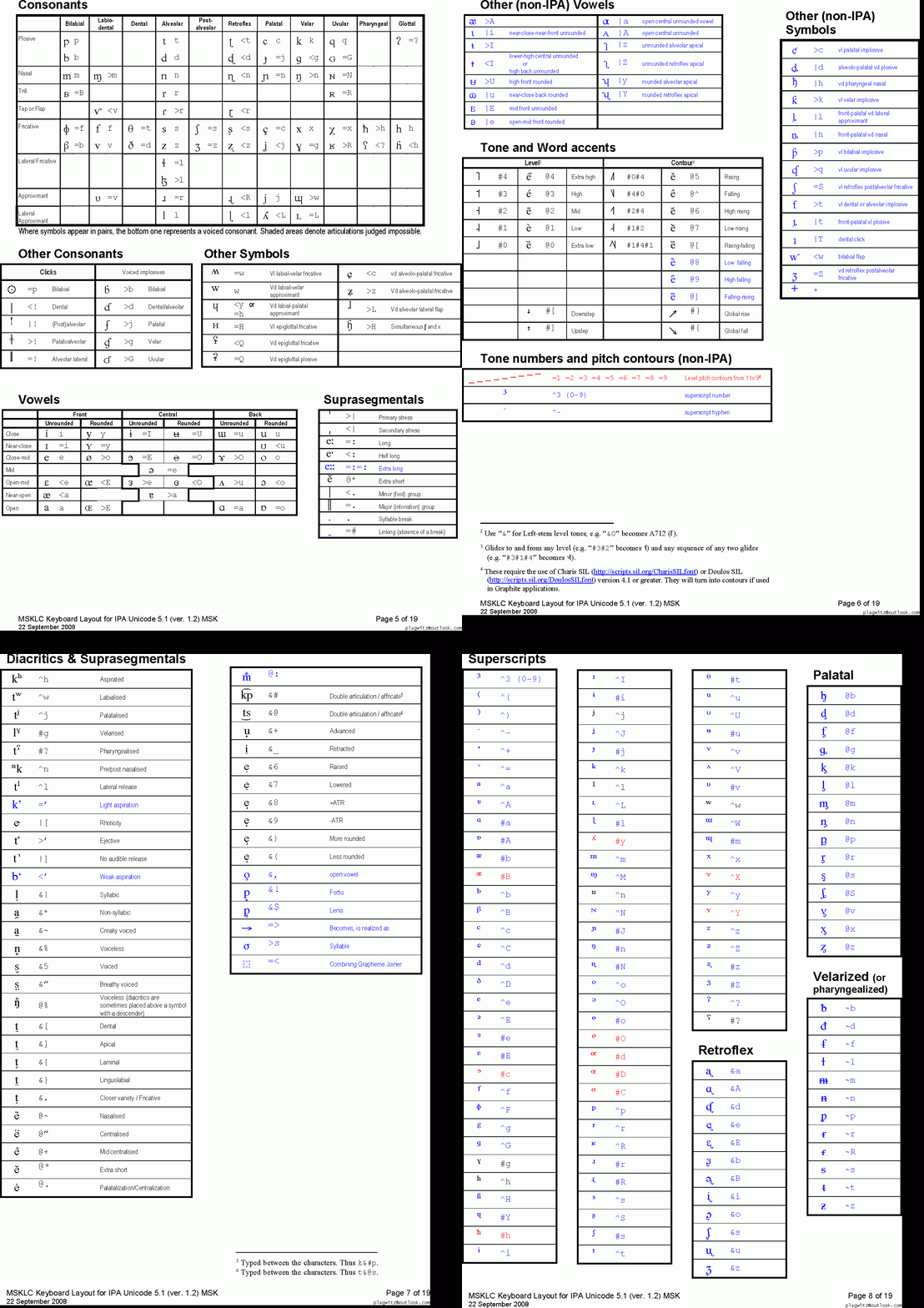
This is taken straight from the great documentation of this great Phonetic symbols Windows keyboard layout by SILS international, but needed a bit of massaging to support hands-free lookup via display on one screen of your dual screen system, while you learn or demo the keyboard to the class). Users without dual screen (including students) are better off with the slideshow below in which they can stop the images on any page:


The IPA MSKLC can produce both regular Roman characters and transcriptions with phonetic symbols by employing certain “dead keys” that can be combined with regular keys. Just and like our default LRC keyboard us-international .
Your first must select the keyboard like so. 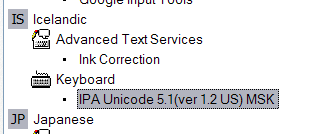 (Icelandic is suitable since it is not used for other purposes much). In the LRC, you must wait until we upgrade to Windows7.


Questions? Read the About. Or just ask me a quick Our Databases: Resources with calendars -- Language learning material Moodle Sites, multimedia files -- films


FAQs for LRC student staff or for students or for teachers. To search our FAQs, in the browser addressbar, add after "https://plagwitz.wordpress.com/feed/?tag=faqs+/" "+TAG1" (from tag cloud below) OR "https://plagwitz.wordpress.com/feed/tag=faqs
&category_name=" "CAT1" (from category hierarchy below). OR search both categories and tags, and multiple TAGs/CATs (connect with "," for OR-search, with "+" for AND-search), like so: https://plagwitz.wordpress.com/feed/?tag=TAG1+TAG2+...TAGn&category_name=CAT1
+CAT2+...CATn"
Other ways to find help
If you cannot find it here, look there: 5,500 Language-Learning Links and Programs for learning or teaching 150 languages
Shortcuts:Our Lists, Our Maps, LRC Staff Moodle Site,LRC Project Moodle Site, 49erexpress, UNCC Moodle, Student Recordings: s:claslcslrcsanakostudent
Learning usage samples: Sanako oral exam, Kaltura webcam presentation, Dictation with speech recognition, Sanako written exam, Chinese and Japanese interactive stroke-order practice
Test the Sanako Installer, Webbrowser Popup Konfigurator for XP, or Windows7, faster LRC TeacherPC Log-in Let MS facilitate diacritics writing by installing for you US-International keyboard layout
This is my personal blog (Google+). The views expressed on these pages are mine alone and not those of my employer. The information in this weblog is provided “AS IS” with no warranties, and confers no rights.
 Thomas' Work Space