Archive
Problems with accented characters in Respondus Lockdown Browser
Update: Just click on the menu item “ A” under Respondus titlebar window to bring the floating accents window back. 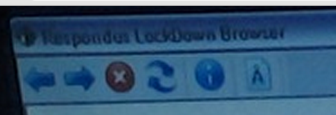 Problem is only: this menu disappears now also. Anyhow: using below keyboard shortcuts is faster, and MS FixIT can now enable it for you on your home or office PC also.
Respondus Lockdown browser limits the use of modifier keys (e.g. on Windows CTRL, ALT). This prevents the use of certain traditional keyboard shortcuts for entering foreign language accented characters – including the method from times yore: ALT+number code.
Respondus Lockdown browser can work with a floating toolbar for accented characters. Unfortunately, reports are in that the floating toolbar disappears (may be related to a recent Respondus upgrade?).
Fortunately, Windows US-international keyboard – the default in the LRC – is not as much hampered by Respondus – except in t he few cases where US-international keyboard also relies on ALT- and CTRL-modifier: consult this table.
|
Press (, then release) |
then press |
Example Result |
|
` (accent grave) |
any letter that can have this accent, e.g. “a”, also cedilla ç |
à |
|
‘ (apostrophe) |
á |
|
|
^ (caret)- |
â |

How LRC assistants get paid: paper time sheet if no web time entry
- If there is a delay at the beginning of the term getting you into the web time entry system we normally use,
- print a paper timesheet for Work Study Student,
- get it signed from the LRC coordinator or director,
- on or before the 31st, turn it in to Payroll which is on Reese 3rd Floor (consult the Campus Map).


How to use the MS-Office Labs Community Clips Screen Capture Tool
- I seem to remember this initiative of having MS-Office users sharing tips and tricks using screencasts has been faded out – but the screen capture tool is still available, and it is not restricted to recording MS-Office applications.
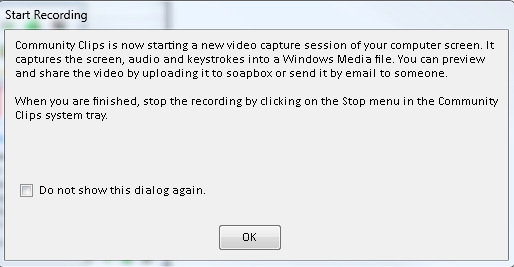
- After download and install (here on Windows 7),

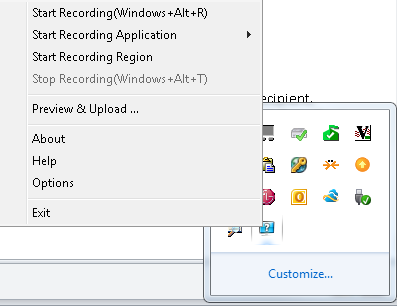
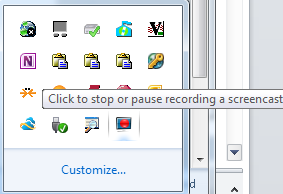
- click the community clips system tray icon to easily start a screen capture:
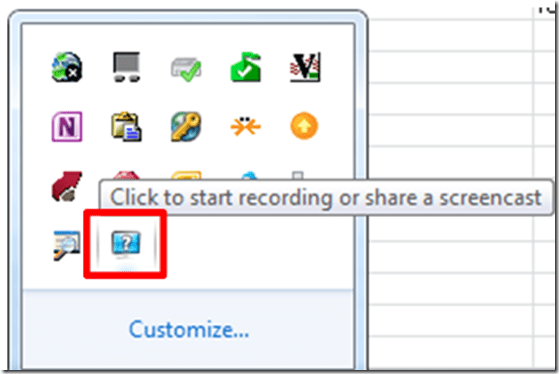
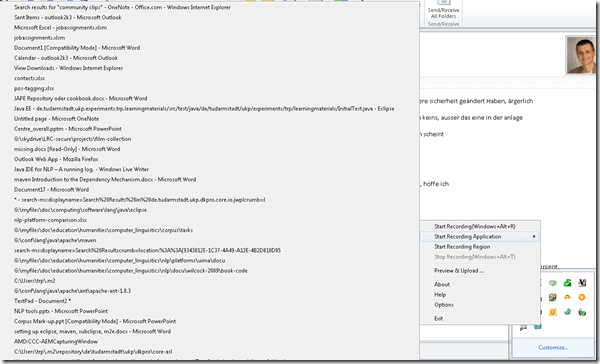
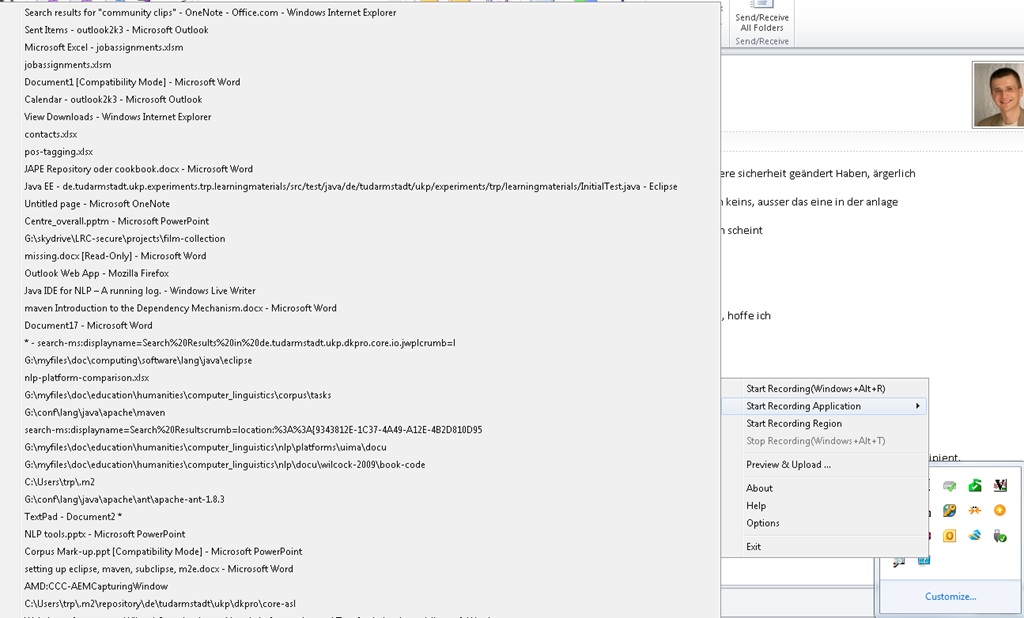
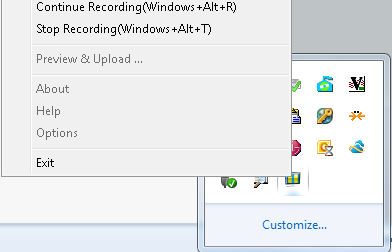
- Or access the context menu with advanced options:

- including restricting recording to specific windows:
- It does not start up very fast:

- It flashes a frame around the recorded area.
- This is a test…
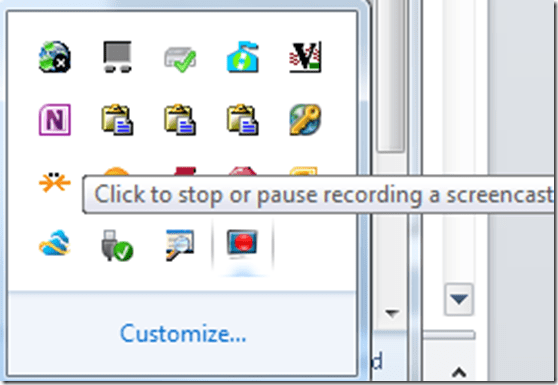


- The preview starts automatically:
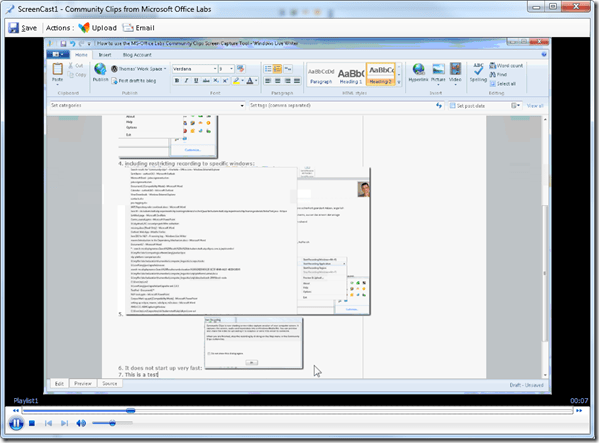
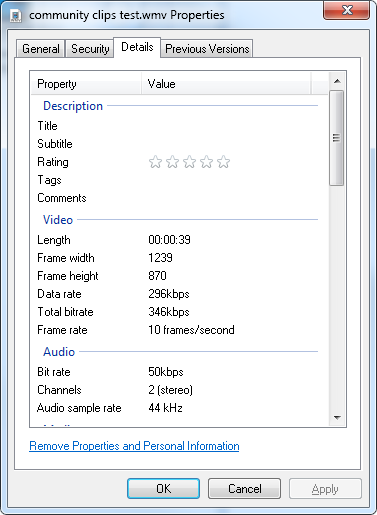
- About the file quality:

- Both the save and the email option
 work, only the built-in upload fails, likely due to the demise of MS-Soapbox:
  , but can be easily uploaded to other services, e.g. MS-SkyDrive
 - Unfortunately, like the Windows Media Encoder clips, it won’t preview without download on SkyDrive – unlike the (newer) MS-PowerPoint 2010-recorded screencasts:

- Still, the MS-Office Labs Community Clips Screen Capture Tool seems to have a friendlier interface than Windows Media Encoder, and is as free.






Protected: New LRC Calendars/Equipment mailboxes visible to students


Questions? Read the About. Or just ask me a quick Our Databases: Resources with calendars -- Language learning material Moodle Sites, multimedia files -- films


FAQs for LRC student staff or for students or for teachers. To search our FAQs, in the browser addressbar, add after "https://plagwitz.wordpress.com/feed/?tag=faqs+/" "+TAG1" (from tag cloud below) OR "https://plagwitz.wordpress.com/feed/tag=faqs
&category_name=" "CAT1" (from category hierarchy below). OR search both categories and tags, and multiple TAGs/CATs (connect with "," for OR-search, with "+" for AND-search), like so: https://plagwitz.wordpress.com/feed/?tag=TAG1+TAG2+...TAGn&category_name=CAT1
+CAT2+...CATn"
Other ways to find help
If you cannot find it here, look there: 5,500 Language-Learning Links and Programs for learning or teaching 150 languages
Shortcuts:Our Lists, Our Maps, LRC Staff Moodle Site,LRC Project Moodle Site, 49erexpress, UNCC Moodle, Student Recordings: s:claslcslrcsanakostudent
Learning usage samples: Sanako oral exam, Kaltura webcam presentation, Dictation with speech recognition, Sanako written exam, Chinese and Japanese interactive stroke-order practice
Test the Sanako Installer, Webbrowser Popup Konfigurator for XP, or Windows7, faster LRC TeacherPC Log-in Let MS facilitate diacritics writing by installing for you US-International keyboard layout
This is my personal blog (Google+). The views expressed on these pages are mine alone and not those of my employer. The information in this weblog is provided “AS IS” with no warranties, and confers no rights.
 Thomas' Work Space