Archive
Archive for the ‘audience-is-language-learning-center-staff’ Category
Status of the language lab and purpose of the LangLabEmailer
2013/06/07
3 comments
- Status of the language lab: Modern language labs – digital audio labs with integrated computer classroom management systems, like the Sanako Lab 300 and Study 1200 –
- are great tools for driving the use and benefit of computer technology into the face-to-face language teaching classroom,
- but for years have been sorely lacking integration with the rest of the digital campus workflow, mostly through the web-based LMS
- Sanako once had a Blackboard integration that allowed to bring media files stored in Blackboard to the file, but not upload student assessments into the gradebook.
- I once ran a Sanako Lab 100 that acknowledged that need by providing USB thumb drives for students, and a mechanism to load class recorded files to them at the end of class.
- Online components being developed by language lab vendors seem to be lacking the face-to-face teaching component.
- Synchronous distance education software (like Adobe Connect, Blackboard Wimba, or Saba Centra) – if not just used like a giant loud speaker in supporting lecture presentations, interspersed with calling up individual students for responses – seems currently best positioned to bring some of the benefits of computer technology to the synchronous teaching arena, but in a different (not applicable to what is still the non-distance norm in language instruction), actually more challenging non-face-to-face setting, and – first and foremost – without special consideration (and tools, like a remote controllable dual track recorder) for language learning.
- Purpose of this software:
- The LangLabEmailer combines knowledge of
- how teaching and learning is done in modern language departments
- including common issues in the lab (late students)
- needs outside the lab
- grading from home
- documenting longitudinal language development for eportfolio initiatives
- how (some: you can help us!) digital audio labs save assessments,
- how AD tracks ownership,
- how MS-Exchange can be automated.
- how teaching and learning is done in modern language departments
- in order to
- let the language lab classroom activities (summative assessments, but also formative in the widest sense made so easy by digital audio labs) break out of their isolation in the lab and enter the learning workflow,
- by automatic immediate (we have set to 16 times daily) distribution of assessment files (recordings and writing)
- to teachers
- and – without or with added teacher feedback, including aural – to students via campus email ;
- in 30000 digital audio lab equipped classrooms in the world
- minus the ones that do not have MS-Exchange infrastructure
- plus the ones from other vendors than Sanako – for the above number of classrooms is from SANAKO –, if you share your lab’s configuration back.
- The LangLabEmailer combines knowledge of
- Next: Features. Or Langlabemailer (table of contents).
What are the features of the LangLabEmailer?
2013/06/07
Leave a comment
- Ver 1.0.1.0
- emails as attachments new (hitherto unsent) audio recording or writing assessment or assignment files from the language lab student collection file share to originating student and teacher
- attempts to automatically
- skip sending small files created during microphone and similar systems tests
- reroute email address for files of late students that have been collected under teacher login (simple delimited list, manually editable), but renamed to valid address
- reroute files that have been sent under position number rather than student names (including at least to one student of a student pair or group recording)
- puts meaningful course name in the email subject to easily integrate with email workflow that teachers and students will already be familiar with
- provides options to
- exclude files from sending
- language lab manager: using file name patterns and extensions
- teacher:
- by marking individual files as _sent or, preferably, put them in the subfolder
- not sending or delay sending until after grading (with inserting feedback, written or voice-insert recorded aural feedback)
- send to students only
- and more…
- Not implemented yet:
- Full Support for Sanako ver 6 save files under “last name, first name”
- Send to teacher only
- Support of Exchange Online.
How to easily view resource mailboxes calendar free/busy using Outlook calendar groups
2013/05/29
Leave a comment
- Display all items in a category with a single click on the checkbox I front of the calendar group
-
Display any portion of the time line in " scheduling view" by
-
Selecting the days in the square calendar sheet in the upper left
-
Navigate the time line with the bottom horizontal scrollbar
-
Note the additional helpful "from [start date]" indicator in a mailboxes booking that is not displayed completely
-


How to quickly add resource mailbox calendars as an Outlook calendar group
2013/05/29
Leave a comment
- Right-click the left calendar tree.
-
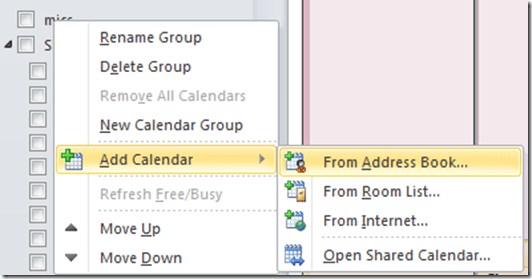
Choose context menu item: add calendar group / from address list:
-
-
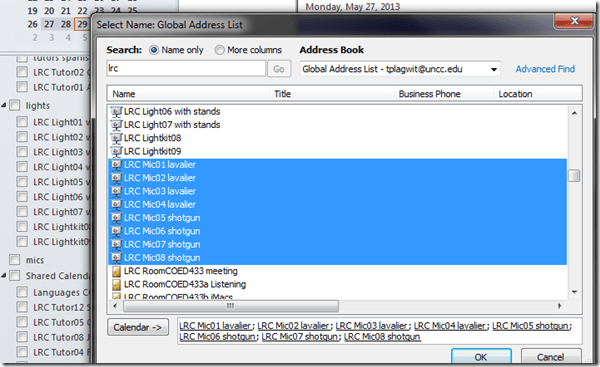
Type " LRC" to search – or the consistent naming scheme you implemented (I hope!).
-
Select all relevant calendars to add.
-
Click on button: "calendar".
-
Click on button: "ok":
-
-
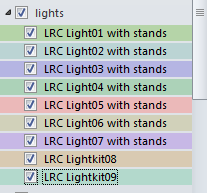
Done:
-


Make life simpler in the language lab by disabling extra audio panels
2013/05/10
Leave a comment
- Problem: Having multiple audio panels enabled can led to too many options = sources of errors and confusion.
- Software (e.g. Saba Centra) may defaults to different audio panels (front “Microphone” preferred over a “Rear Input” that can be used as a Microphone and is the preferred device in your lab (for security, safety and ergonomic reasons).
- Students may make erroneous assumptions and try to reconfigure the PC audio by plugging cables into a different outlet.
- ESP Panel software detects plugging in of devices and asks users to identify whether microphone or line-in device has been plugged into rear input which confuses our users even more.
- Software configuration: On Dell Optiplex 760 under Windows 7 , you can
- run mmsys.cpl,
- go to tab:“recording” devices
- to disable the front panel input microphone:
- select “microphone”(that is the front input)
- right-click and choose “disable”:

- result:

- right-=click and uncheck “show disabled devices”
- to configure the “rear input”:
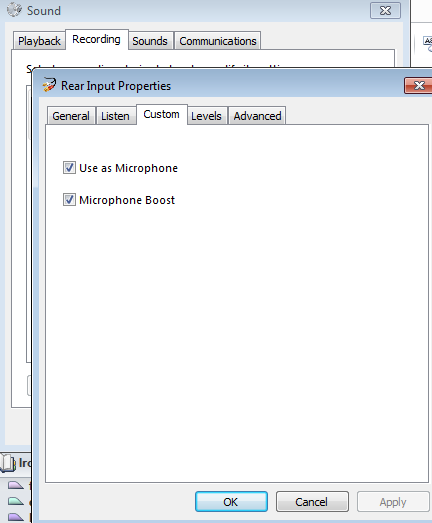
- select and click “properties”

- go to tab “custom” (may require having an add-on driver installed, consult the DELL driver update utility)
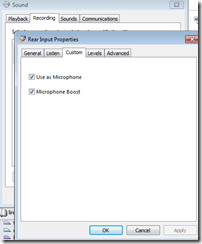
- check “use as microphone”
- check (optional, recommended): “microphone boost”
- select and click “properties”
- “Ok” out of all mmsys.cpl dialogues and (for good measure) restart computer.
- Test your software configuration to work (listening, recording) with the applications used in your lab:
- Sanako student recorder
- Saba Centra
- Audacity
- Voicethread
- Moodle: Audio and Kaltura (even though no webcam)
- Etc.?
- Hardware configuration
- Plug your headset microphone and speaker into the rear audio panel. Tie the microphone cable down with a cable tie. Students have managed to pull the cable through the cable tie, so tie the cable into a knot around the cable tie to prevent that
- Tape (plastic that student cannot push a plug through easily) over the front audio panel and put a label on top: “Do not use! Get help at desk!”. Instruct your help desk student staff.


How not to have to join a Saba Centra online class from the LRC late, for lack of speaking capabilities
2013/05/06
Leave a comment
- Problem: We continue getting reports from teachers that students who try to participate in a Saba Centra online class from the LRC listening station computers (with analogue headphones) experience a considerable delay in joining and cause disruption to online classes since they have to troubleshoot their microphones, for lack of being audible online.
- Root cause: Saba Centra on startup automatically selects the “microphone” as recording device…
- Workaround:
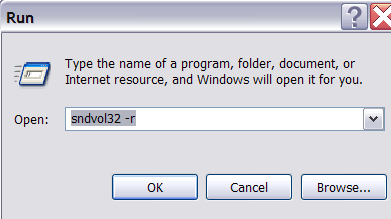
- On XP, click “Start”, click “Run”, type (without quotes) “SndVol32 –R” (meaning: “SoundVolume for Recording”), click “OK” which opens the volume mixer for recording devices. The radio button selected will be “Rear input”.

- Start Saba Centra.
- Switch back to the volume mixer you opened in step 1. Note that the radio button now selected is “Microphone”. This is wrong for the listening stations (and the teacher station) in the LRC. Switch it back to “Rear input” (you know that your headset is supposed to be plugged into the rear).

- And off you go… Plus note: There is no need for “expensive” workarounds like:
- haphazardly trying to replug headphones,
- purchasing your own USB headphones,
- hogging the main classroom with its USB headphones.
- On XP, click “Start”, click “Run”, type (without quotes) “SndVol32 –R” (meaning: “SoundVolume for Recording”), click “OK” which opens the volume mixer for recording devices. The radio button selected will be “Rear input”.

Categories: audience-is-language-learning-center-staff, audience-is-language-learning-center-temp-staff, audience-is-students, audience-is-teachers, Distance-education-format-is-Synchronous, e-learning, Listening-Stations, Presenter-Computer, presenter-computer, service-is-configuring-learning-tools, service-is-testing-troubleshooting-debugging, Speaking
audio, FAQs, saba-centra
Saba Centra on startup automatically selects the "microphone" as recording device…
2013/05/03
Leave a comment
- … But we in the language lab use the (dual function microphone/line-in) "rear input" for our headsets (for ergonomic, health&safety and security reasons). Workaround here.
- Apparently this startup behavior cannot be changed within Saba Centra:
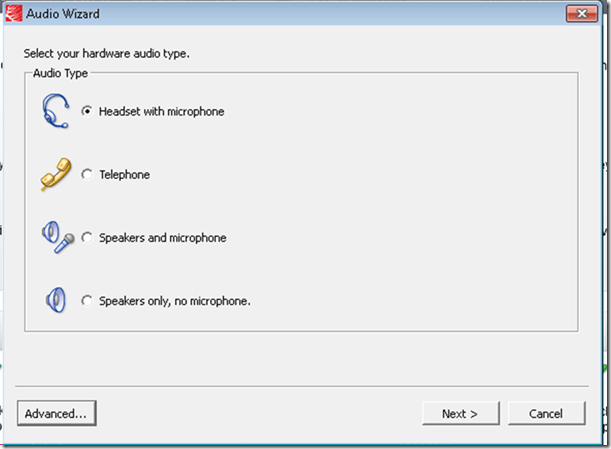
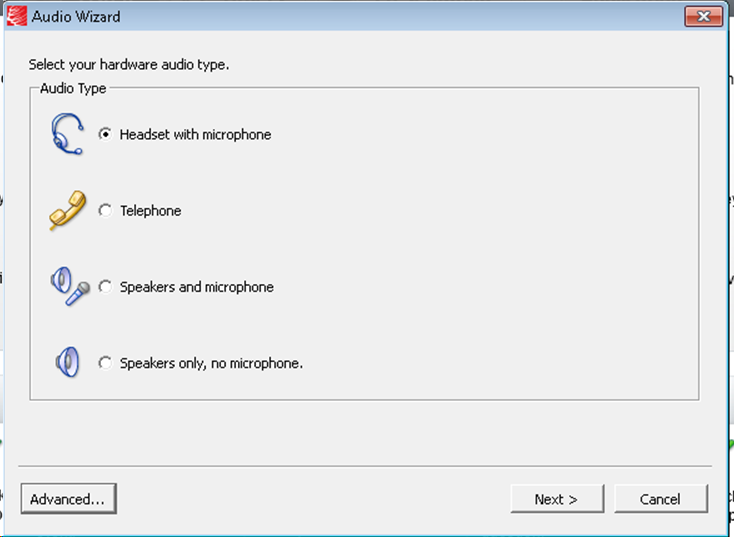
- Any startup will bring up the “Audio Wizard” asking users, even in a controlled lab environment, to configure their audio devices,
- and if users do (and choose what they have: headset), make wrong assumptions which audio plug to enable (“Microphone” front panel, even if your headset is plugged into the rear panel dual “line-in/microphone”)
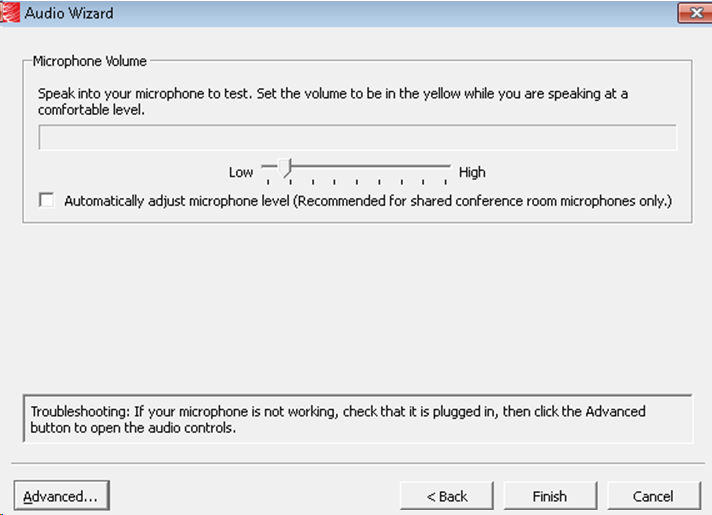
- The workaround according to these easily Googled instructions is using the “Advanced” audio wizard options to override this “Audio Wizard” error, like so:
- “Re-open the Audio Wizard, go to the third screen and change your recording device in your “Recording Device” menu. Advance two slides and determine if you can hear your recorded voice. ”
- 1st screen:
- 3rd screen:
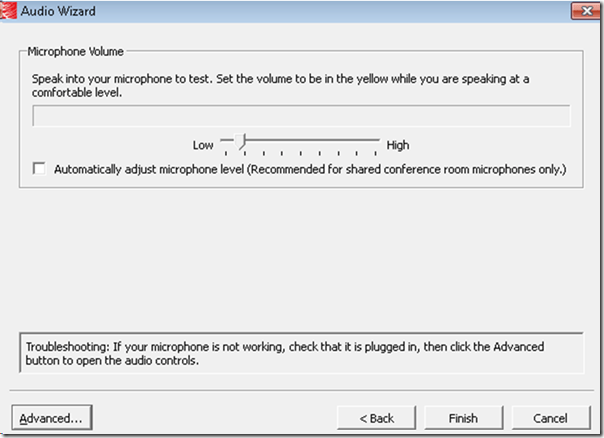
- note the instructions – Click “Advanced”. But it is easier to just use from the start our Workaround here.
- 1st screen:
- “Re-open the Audio Wizard, go to the third screen and change your recording device in your “Recording Device” menu. Advance two slides and determine if you can hear your recorded voice. ”
- The long-term solution is reconfigure your hardware and disable the front panel audio – but will Saba Centra understand you? Stay tuned…
How a teacher can easily restart the Sanako Study 1200 licensing classroom server when experiencing a crash
2013/04/26
Leave a comment
- Try clicking and running this (http://goo.gl/lTVLc), if you see that:

- this is for
- if your sanako tutor hangs with status message "verifying tutor" and you are confronted with the error dialogue "Connection to the communication platform has been disconnected and the system is not able to communicate with the classroom server anymore"
- And if you run the classroom server on the same computer as the tutor (as we do)
- And if you have checked your "network connection", like gone to a website, and it is restored (e.g. If you simply had unplugged your the cable)?
- And if you do not want to "restart your system if needed" since, as in our case, that takes a big chunk time out of your class
- Hint: this can’t fix your network if that is the root cause, but may be able to work around temporary service outages.



Questions? Read the About. Or just ask me a quick Our Databases: Resources with calendars -- Language learning material Moodle Sites, multimedia files -- films


FAQs for LRC student staff or for students or for teachers. To search our FAQs, in the browser addressbar, add after "https://plagwitz.wordpress.com/feed/?tag=faqs+/" "+TAG1" (from tag cloud below) OR "https://plagwitz.wordpress.com/feed/tag=faqs
&category_name=" "CAT1" (from category hierarchy below). OR search both categories and tags, and multiple TAGs/CATs (connect with "," for OR-search, with "+" for AND-search), like so: https://plagwitz.wordpress.com/feed/?tag=TAG1+TAG2+...TAGn&category_name=CAT1
+CAT2+...CATn"
Other ways to find help
If you cannot find it here, look there: 5,500 Language-Learning Links and Programs for learning or teaching 150 languages
Shortcuts:Our Lists, Our Maps, LRC Staff Moodle Site,LRC Project Moodle Site, 49erexpress, UNCC Moodle, Student Recordings: s:claslcslrcsanakostudent
Learning usage samples: Sanako oral exam, Kaltura webcam presentation, Dictation with speech recognition, Sanako written exam, Chinese and Japanese interactive stroke-order practice
Test the Sanako Installer, Webbrowser Popup Konfigurator for XP, or Windows7, faster LRC TeacherPC Log-in Let MS facilitate diacritics writing by installing for you US-International keyboard layout
This is my personal blog (Google+). The views expressed on these pages are mine alone and not those of my employer. The information in this weblog is provided “AS IS” with no warranties, and confers no rights.
 Thomas' Work Space