Archive
Archive for the ‘audience-is-language-learning-center-manager’ Category
PowerPoint 2010 upgrade from 2007 disables setup show display on secondary screen
2011/12/06
Leave a comment
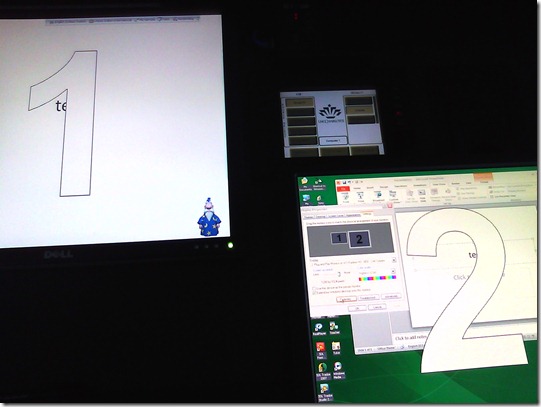
- Symptom: Without hardware changes (a visualizer that seemed to enter into the equation as an AV source seems to have been ruled out as culprit), PowerPoint cannot display show from primary right screen to secondary left screen.
- Cause: Upgrade to PowerPoint 2010 from 2007, but seems really an underlying video driver limitation that has given us grieve in our – admittedly uncommon: 1024*768 on secondary, projector-connected screen, dictated by the projector – setup before.
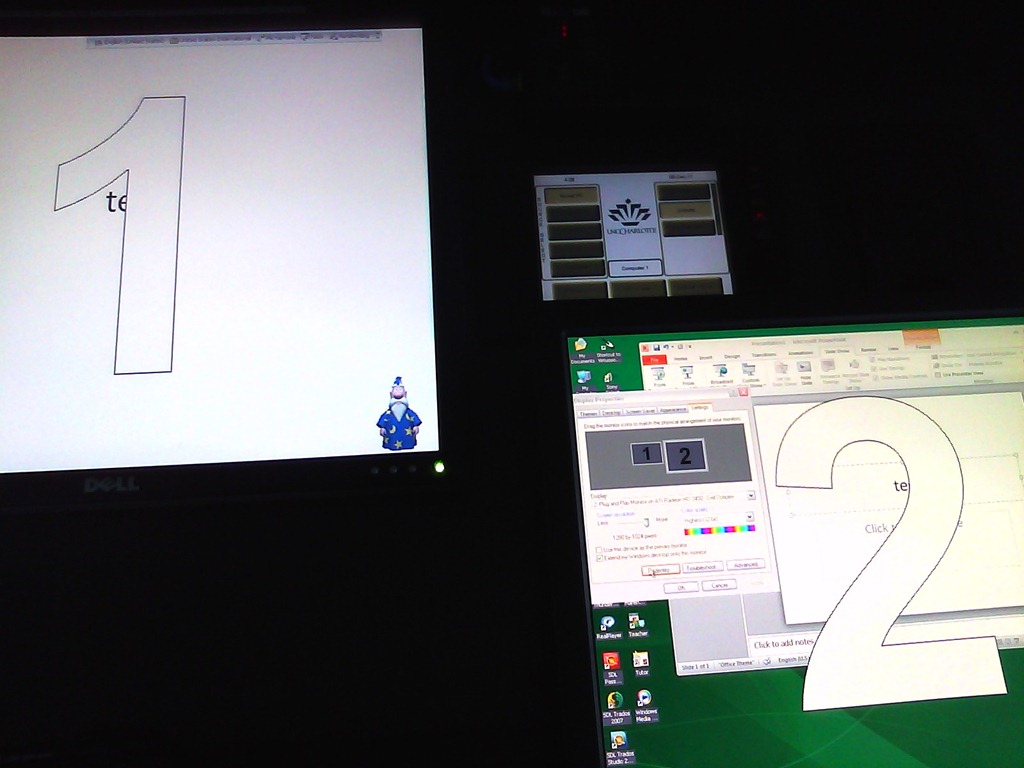
- Workaround: Make the 1024*768 left screen the primary screen.
- Upside: this allows to project the show to the class, but teacher can still move the underlying PowerPoint presentation onto the right screen (for previewing answers. The PowerPoint 2010 upgrade did fix the PowerPoint 2007 bug that interactive animations from PowerPoint 2003 where briefly revealed on slide load before they went into the default hidden state).
- Downsides:
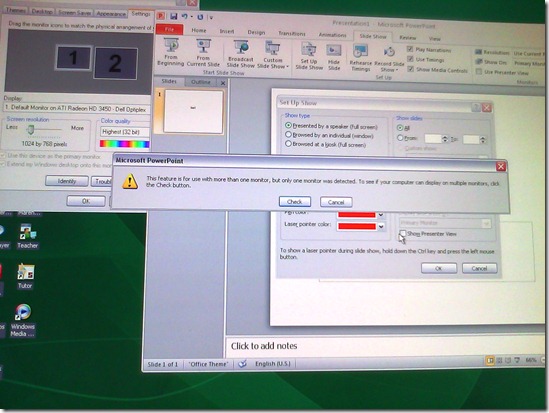
- Presenter view is still not possible, complains about seeing only one screen connected, even though “Check” button brings up the windows screen properties dual screen.
- The Windows taskbar displays on the left screen, so teacher staging is visible to the class when projector is on (as it always was with a single screen. Only the secondary right screen added a staging area for the teacher).
- Presenter view is still not possible, complains about seeing only one screen connected, even though “Check” button brings up the windows screen properties dual screen.
- Upside: this allows to project the show to the class, but teacher can still move the underlying PowerPoint presentation onto the right screen (for previewing answers. The PowerPoint 2010 upgrade did fix the PowerPoint 2007 bug that interactive animations from PowerPoint 2003 where briefly revealed on slide load before they went into the default hidden state).

LRC computer and other hardware inventory
2011/11/24
Leave a comment
- These lists document hardware owned by the LRC:
- Symantec-Ghost generated.
- A handmade overview (partially based on the previous) can be (permissions provided) viewed or edited here.
How to poll for the best meeting time using Meeting Requests
2011/11/21
1 comment
- Please also see the follow-up user-perspective video here: How to respond to a poll for the best meeting time using Meeting Requests.
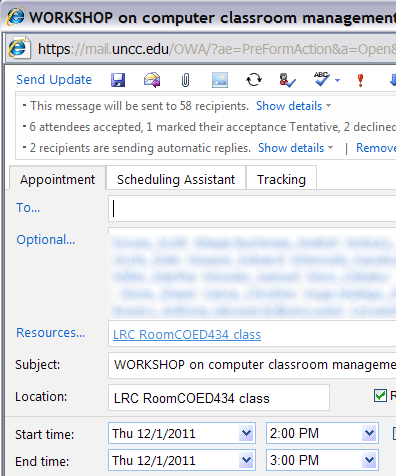
- A traditional issue around the LRC is getting busy teachers to agree on a common workshop time. Ideally, the scheduling assistant would automate this by allowing you to see the common free time slot in their busy timelines. However, this requires that the university calendaring system has already been widely adopted. In the meantime, meeting requests can still greatly facilitate finding this most common free time, by serving as a poll.
- To find the most popular time slot, send a number of alternative meeting requests with the instruction: “If interested in the workshop, please accept those times during which you could attend. I will only not cancel the most popular meeting time”. (Make sure that respondents know that they can “Edit response before sending” to include a message, or else this will skew the tally).
- At the end, you can easily tally the response in your calendar, and, as the meeting organizer, cancel the unpopular ones:

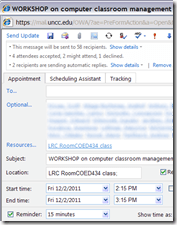

- And you can spare everybody one final summary email: “ Mark your calendars!” . The interested parties’ calendar has already be marked.


CAOS ereserves not compatible with Sanako Study1200 Webbrowser
2011/11/06
Leave a comment
- Last week I noticed in the LRC that I cannot open the ereserves with language learning audio files to my students by using the Study1200 Webbrowser’s “follow” feature .
- While sending the audio listing page still works, including the login page which the students get redirected to, and which, upon successful login, redirects them to the listing;
- Getting to the actual audio file launcher page fails, since this is a popup window which the Sanako Webbrowser first blocks, while redirecting the launcher of the popup to the home page
- No pressing of modifier keys seems to be able to bypass the popup blocker. Is there a setting in the Study1200 Webbrowser to modify this behavior.
RSS feed XML categories are case-sensitive on IE9, if not on WordPress.com
2011/10/31
Leave a comment

- From which follows: tightly manage your metadata…..

ECAR National Study of Undergraduate Students and Information Technology, 2011 Report released
2011/10/28
Leave a comment
- The Educause ECAR for 2011 Lists among its top actionable survey results: “Nail the basics. Help faculty and administrators support students’ use of core productivity software for academic work.
- Not a language learning specific result , but a reminder also for the LRC to prioritize:
- LRC posts on “productivity software”,
- and most of our students’ “academic work” lives online in Moodle.
How to link screencasts from MS-SkyDrive
2011/10/19
Leave a comment
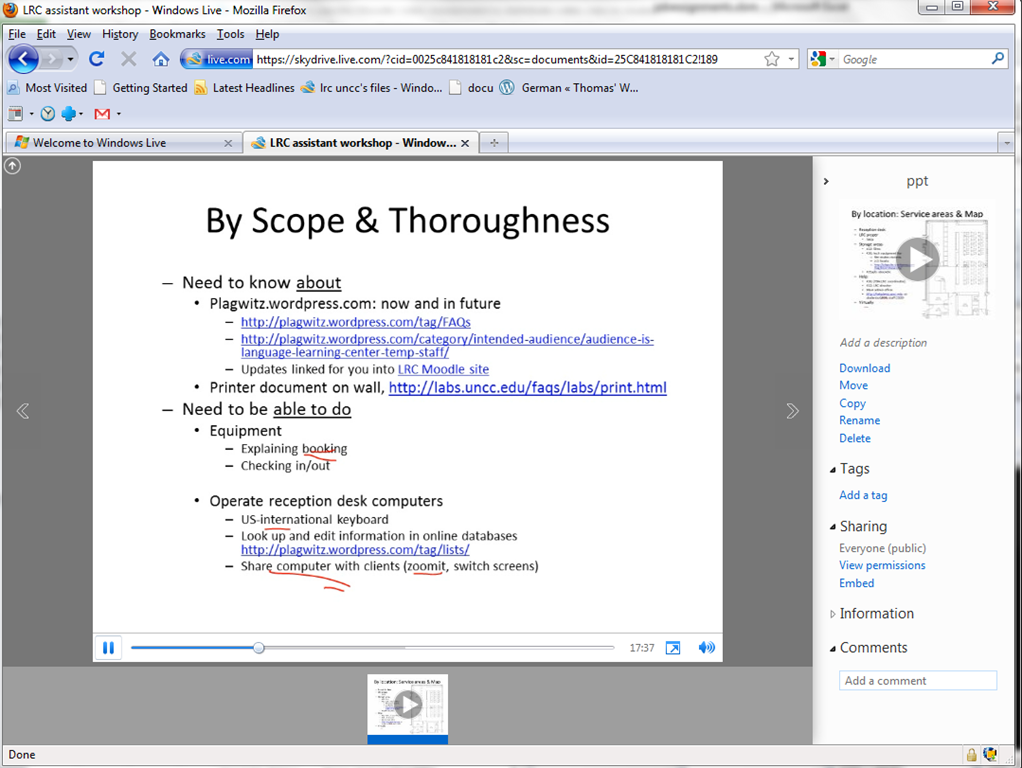
- I am trying to replace – in the routine cases that do not need post-editing, but where speed is of the essence – my practice to post-process my screencasts in MS-Expression Encoder (installed on one machine only) and upload the result with a page to load a Silverlight Control – all hosted on my MS-Windows Azure portfolio.
- Much easier and quicker would it be to store screencasts in MS-SkyDrive (mapping to drives in MS-Windows enables a more robust drag and drop than the still browser-specific web version on live.com), and top take advantage the embed links provided.
- Unfortunately, WordPress.com, my blogging platform, does not support iframes with videos from MS-SkyDrive.
- However, by linking to the URL in the embed code, to open in a new window (with the inelegant instruction to “click on the thumbnail that opens”; if it loads slow, the thumbnail ALT displays essentially the same),:
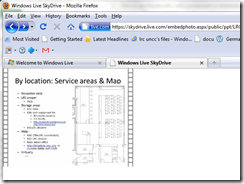
- I can get the user to an MS- Silverlight control which loads:
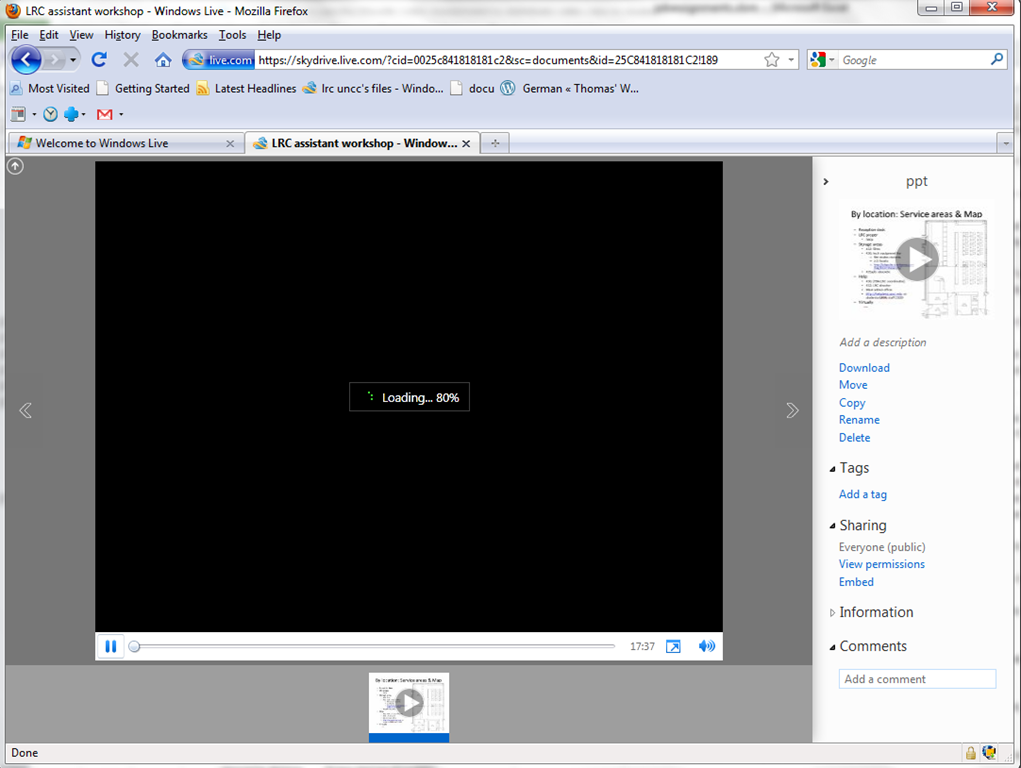
- and plays the video:

- more user-friendly and robustly (This has been tested to work on MS-Windows 7 with IE9 and Firefox 3.6) than distributing the bare WMVs of my screencasts directly.

How to add an RSS feed to your Joomla front page
2011/10/06
Leave a comment
- Go to Top menu: Extensions / menu item: module manager / upper right corner button: new / radio button: feed display / upper right button: next
- Fill out this form, some hints to follow:
- radio button: show title: module name will be displayed on front page,
- Position
- Order
- RTL = Right To Left
- title: can give context
- image: not if you want a tight display
- items: more than 3

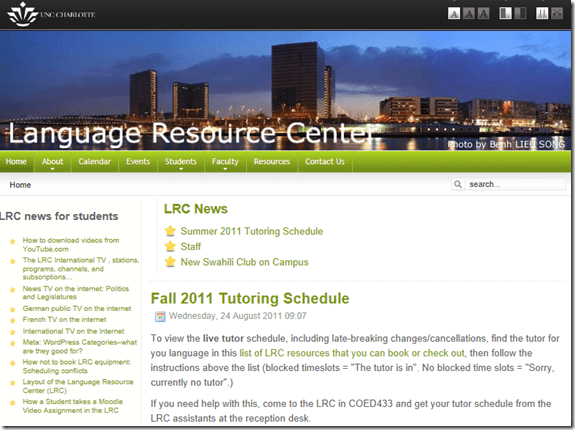
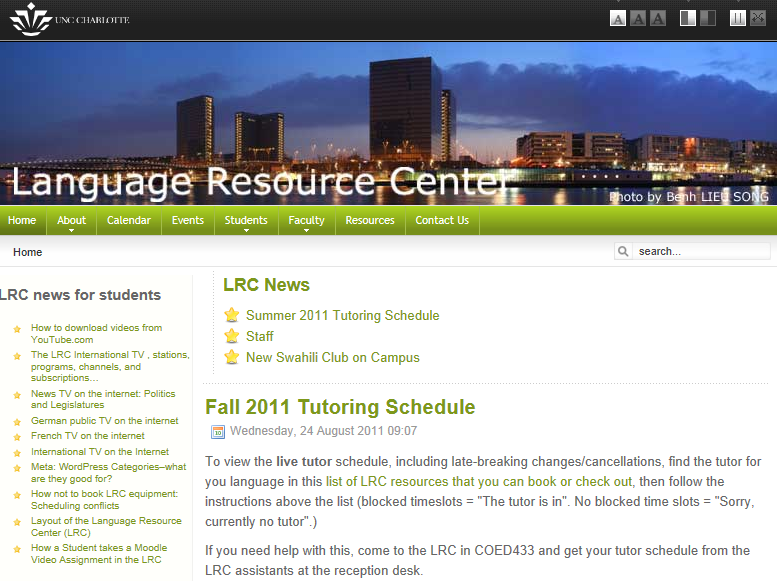
- The resulting feed display looks like this on the Joomla Front Page:



Questions? Read the About. Or just ask me a quick Our Databases: Resources with calendars -- Language learning material Moodle Sites, multimedia files -- films


FAQs for LRC student staff or for students or for teachers. To search our FAQs, in the browser addressbar, add after "https://plagwitz.wordpress.com/feed/?tag=faqs+/" "+TAG1" (from tag cloud below) OR "https://plagwitz.wordpress.com/feed/tag=faqs
&category_name=" "CAT1" (from category hierarchy below). OR search both categories and tags, and multiple TAGs/CATs (connect with "," for OR-search, with "+" for AND-search), like so: https://plagwitz.wordpress.com/feed/?tag=TAG1+TAG2+...TAGn&category_name=CAT1
+CAT2+...CATn"
Other ways to find help
If you cannot find it here, look there: 5,500 Language-Learning Links and Programs for learning or teaching 150 languages
Shortcuts:Our Lists, Our Maps, LRC Staff Moodle Site,LRC Project Moodle Site, 49erexpress, UNCC Moodle, Student Recordings: s:claslcslrcsanakostudent
Learning usage samples: Sanako oral exam, Kaltura webcam presentation, Dictation with speech recognition, Sanako written exam, Chinese and Japanese interactive stroke-order practice
Test the Sanako Installer, Webbrowser Popup Konfigurator for XP, or Windows7, faster LRC TeacherPC Log-in Let MS facilitate diacritics writing by installing for you US-International keyboard layout
This is my personal blog (Google+). The views expressed on these pages are mine alone and not those of my employer. The information in this weblog is provided “AS IS” with no warranties, and confers no rights.
 Thomas' Work Space