Archive
How a teacher creates audio recordings for use with Sanako Student Voice Insert mode
- One of the Sanako Student player’s useful features geared toward language learning activities, is that it can save the teacher the time and effort for inserting pauses into their audio recordings, so that students can record responses into them.
- Meaning the teacher can just press the red speak button
 and record through the entire file in one sitting.
 - The teacher can still help students finding their way around the file, especially where to insert their own audio recording responses, by adding aural cues.
- This can be done in minimal time: I once saw a teacher use a bicycle bell – and why not, if it saves time.
- A spoken instruction “Respond”/”Answer in 10 seconds” is not more difficult to spot (unless only the voice graph is being browsed) and might be even better.
- If you have spare time:
- You can post-edit the file with audacity, generating and inserting sinus tones.
- You can use the Sanako player to insert bookmarks instead of cues.
- Meaning the teacher can just press the red speak button
- As long as students have been instructed to how to use voice insert recording mode with the Sanako student recorder.
- This is for self access of students to teacher recorded files – be it during class or homework.
- If you want to record students under exam conditions, a similar insert recording feature is available within the activity: Model imitation, but not with a pre-recorded file, only when the live teacher is the program source students listen to for cues.

Students get an error when trying to open links from MS-Word file
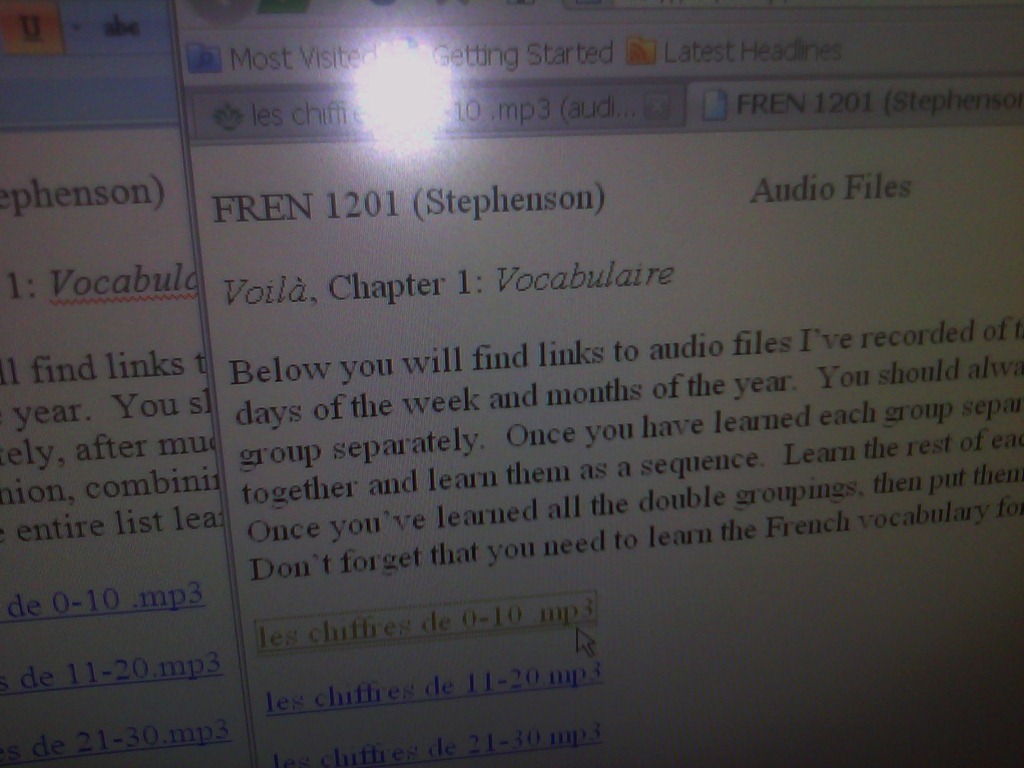
- Error reads: “”this operation has been cancelled due to restrictions in effect on this computer”.
- Immediate workaround:
- right-click on the link, choose copy, open a web browser window
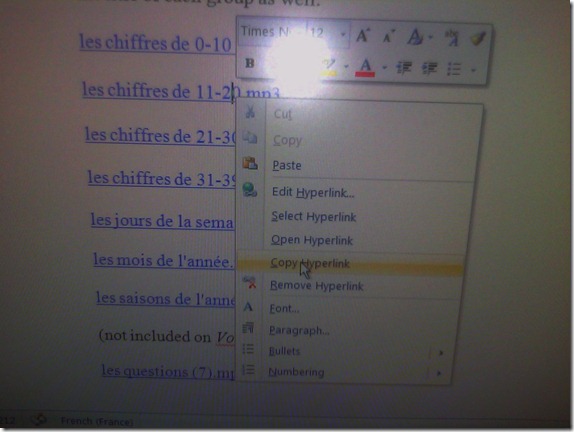 and paste the link into the address bar, browse to it from there.
 - File / Save as / Web page. From where you saved the web page, double click to open it in the your web browser, click the links form within there.

- Have you tried saving your MS-Word files to the new SkyDrive.live.com (login with your NINERNET password) yet? Students can choose to open MS-Word documents in either MS-Word or their web browser which should also bypass the problem.
- right-click on the link, choose copy, open a web browser window
- Solution: Investigating. Seems related to no “default browser set” in XP Control Panel / Internet options. If you cannot live with the workaround, do ask your System Administrator. Or stay tuned

Sanako comparative recording exercises using Moodle
- Comparative recordings are one of the best-established practices in SLA with technology. We can implement them here using:
- The Sanako Study 1200 language lab software installed in LRCRoomCoed434 facilitates comparative recordings by students, based on a teacher-provided model audio, with its student dual track recorder software.
- Moodle’s Simple file upload assignment aids in managing the workflow,
- from delivering the audio file with the model recording to the student
- to organizing, assessing and grading the student input.
- For the teacher
- to create such an exercise, she
- creates an audio recording that serves as a model for the student pronunciation – a special application of our Audacity recording introduction. It is advised, however, to insert clear cues for the student to start his repetition.
- creates a Moodle’s Simple file upload assignment to which she attaches the audio recording
- continue with How a teacher grades a Moodle simple file upload assignment
- to create such an exercise, she
-
For the students to take such an exercise:
- How a student takes a Moodle Simple file upload assignment
- TBA: Sanako Student Recorder
Screencasts for Fall 2011 Workshop: Computer classroom management in the LRC using Sanako Study 1200
- The workshop stayed “this side of the digital audio lab”, i.e. focused on those generic teaching tasks that the Sanako Study 1200 can facilitate which have the widest teaching application (including in, but also beyond language-skill-courses):
- remote controlling student computers,
- screen sharing, collaborating with students,
- launching applications on students computers,
- sending students to webpages,
- launching handout files to students and collecting their input back
- locking their computers, screens or keyboards,
- “clicker” classroom polls, for which I have written a PowerPoint Template you can base your own clicker-like face-to-face class exercises on.
- and more…
- Here are two screencasts of my presentation:
- one for the right screen/participant screen (using the Study1200 teacher to student screen casting). Requires Windows Media Player on PC, like in the LRC: download from MS-SkyDrive.
- one for the left screen/projector, where I displayed mostly a PowerPoint. You can watch this in parallel using another player, e.g. the VLC player, like in the LRC. However, it can also stream from MS-SkyDrive.
Streaming Problems with Realmedia via RTSP from ereserves with VLC Player (and Internet Explorer. And NetOp School)
- VLC-player
- version 1.1.9, but also currently newest 1.1.11 as well on Windows CXP SP 3
- opens from IE8 and Firefox 3.6
- but is not able to play files (tested even multi) through. Rather, it nicely falls on its face, with the audio stream simply appearing to stop, mid-sentence, after 2:38 (pretty consistently – a buffering bug? A great way to slip through pre-testing).
- In the LRC, I could hardly bring the taskswitcher up, let alone (15 minutes of waiting) the task manager, to even find that vlc.exe is the culprit, with a CPU utilization of 99% solid (Ouch!).

- Not quite so bad in the office computer where it hovered slightly above 25%, maybe busying only one CPU core.

- My Google searches do not find anything quite similar.
- RealPlayer 14 to the rescue?
- In IE8, RealPlayer does not open when clicking on the web page link with the RM file which causes a dialogue to open if VLC-player is the default player, rather a strange unplayable content error..

- In Firefox, RealPlayer open and plays (and pre-buffers) the stream completely.

- Note that ereserves “download as zip” cannot serve as a workaround: gives you only the links like http://dlib4.uncc.edu/streaming/media_play.php?file=9364cb66b9e1cae26aed0f471e9eab5b, which require you to re-authenticate, even if in the same browser session, and do not redirect to the resource, neither audio nor web page form which you could launch the audio (in short, I do not get what this download as zip is good for)
- Next Problem: This may work on my office computer. In the lab we have NetOp School installed. That adds another layer of NetOp School problems which look like they can be resolved
next time the lab is reimaged. For now, use instead audio from Moodle metacourses where possible.next time I get around to design and run a Symantec-Ghost Software and File Action on the computers (all LRC lab PCs) and test the result (on PC10) which was now.


Solved: NetOp School NLSP.dll prevents streaming of Real Media via RTSP on student computers
- On a NetOp School system, Realplayer 14, when trying to load e.g. rtsp://dlib4.uncc.edu:554/e_reserves/CD4French1-7.rm (from Firefox, or disk, authenticated), crashes nlsp.dll (version 6, part of of NetOp School from Danware). This is the NetOp Browser Policy IP Filter.
- The MS-windows appcompat contains this:
-
NAME
RealPlay.exe
nlsp.dll
kernel32.dll
FILTER
GRABMI_FILTER_PRIVACY
GRABMI_FILTER_THISFILEONLY
GRABMI_FILTER_THISFILEONLY
NAME2
cddbcontrol.dll
nlsp.dll
kernel32.dll
SIZE
2041072
243728
989696
CHECKSUM
0x902F78A2
0xB9006E28
0x2D998938
BIN_FILE_VERSION
2.6.206.205
6.20.2010.349
5.1.2600.5781
BIN_PRODUCT_VERSION
2.6.206.205
6.20.2010.349
5.1.2600.5781
PRODUCT_VERSION
2, 6, 206, 205
6.20 (2010349)
5.1.2600.5781
FILE_DESCRIPTION
CDDBControl Core Module
NetOp Browser Policy IP Filter
Windows NT BASE API Client DLL
COMPANY_NAME
Gracenote, Inc.
Netop Business Solutions A/S
Microsoft Corporation
PRODUCT_NAME
CDDBControl Core Module
Netop School
Microsoft® Windows® Operating System
FILE_VERSION
2, 6, 206, 205
6.20 (2010349)
5.1.2600.5781 (xpsp_sp3_gdr.090321-1317)
ORIGINAL_FILENAME
CDDBControl.DLL
NLSP.DLL
kernel32
`
INTERNAL_NAME
CDDBControl
NLSP
kernel32
LEGAL_COPYRIGHT
Copyright 1999 – 2009
Copyright © 1981-2010 Netop Business Solutions A/S. All Rights Reserved. Portions used under license from third parties.
© Microsoft Corporation. All rights reserved.
VERFILEDATEHI
0x0
0x0
0x0
VERFILEDATELO
0x0
0x0
0x0
VERFILEOS
0x4
0x4
0x40004
VERFILETYPE
0x2
0x2
0x2
MODULE_TYPE
WIN32
WIN32
WIN32
PE_CHECKSUM
0x1F6508
0x4526B
0xFE572
LINKER_VERSION
0x0
0x0
0x50001
UPTO_BIN_FILE_VERSION
2.6.206.205
6.20.2010.349
5.1.2600.5781
UPTO_BIN_PRODUCT_VERSION
2.6.206.205
6.20.2010.349
5.1.2600.5781
LINK_DATE
04/13/2010 19:48:37
12/15/2010 19:38:53
03/21/2009 14:06:58
UPTO_LINK_DATE
04/13/2010 19:48:37
12/15/2010 19:38:53
03/21/2009 14:06:58
VER_LANGUAGE
English (United States) [0x409]
Language Neutral [0x0]
English (United States) [0x409]
- NetOp support advises to try, among other things, resetting the Winsock catalog via "netsh winsock reset", which seems to work on a testmachine.
Protected: Sharing the LRC main classroom, using LRC Calendar LRCRoomCoed434
Learn Chinese character stroke-order with slowed-down animated GIFs
Further to our prior tips on learning Chinese stroke order, now you can take your time, in the LRC: To facilitate your practicing of Chinese character stroke-order, we have used the most helpful site (also available by direct download) created by Tim Xie for the California State University, Long Beach, to create 100 different speed versions, and one comic strip like static image, for each of the several hundred of animated GIFs demonstrating Chinese character writing, and made them available on the LRC computers under Internet Explorer Favorites – Example:
 |
 |
 |
|
 |
|
 |
|
 |
|
 |
|
 |
|
 |
You can access the files with the stroke order speed of your preference from the LRCCOED434 student computers, like so:
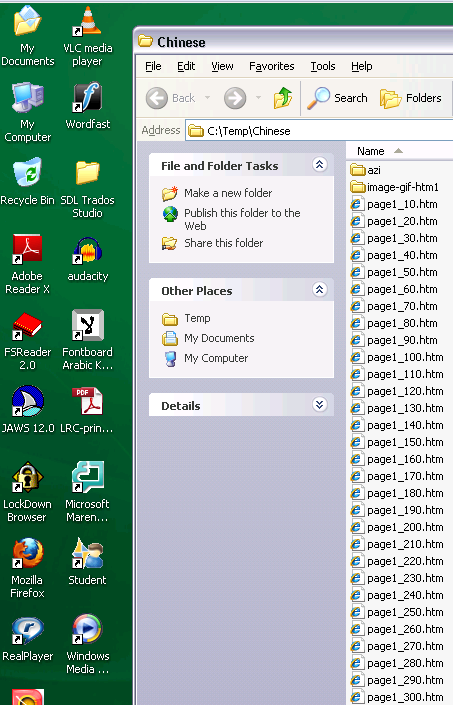
(Many thanks also to the authors of programmable ImageMagick image editor and corresponding Unix shell scripts that we could use in the production of the slowed down animated GIFs. To create your own version of these slowed down animated GIFs, or others similar websites, feel free to pick up and/or adapt our shell script here).


Questions? Read the About. Or just ask me a quick Our Databases: Resources with calendars -- Language learning material Moodle Sites, multimedia files -- films


FAQs for LRC student staff or for students or for teachers. To search our FAQs, in the browser addressbar, add after "https://plagwitz.wordpress.com/feed/?tag=faqs+/" "+TAG1" (from tag cloud below) OR "https://plagwitz.wordpress.com/feed/tag=faqs
&category_name=" "CAT1" (from category hierarchy below). OR search both categories and tags, and multiple TAGs/CATs (connect with "," for OR-search, with "+" for AND-search), like so: https://plagwitz.wordpress.com/feed/?tag=TAG1+TAG2+...TAGn&category_name=CAT1
+CAT2+...CATn"
Other ways to find help
If you cannot find it here, look there: 5,500 Language-Learning Links and Programs for learning or teaching 150 languages
Shortcuts:Our Lists, Our Maps, LRC Staff Moodle Site,LRC Project Moodle Site, 49erexpress, UNCC Moodle, Student Recordings: s:claslcslrcsanakostudent
Learning usage samples: Sanako oral exam, Kaltura webcam presentation, Dictation with speech recognition, Sanako written exam, Chinese and Japanese interactive stroke-order practice
Test the Sanako Installer, Webbrowser Popup Konfigurator for XP, or Windows7, faster LRC TeacherPC Log-in Let MS facilitate diacritics writing by installing for you US-International keyboard layout
This is my personal blog (Google+). The views expressed on these pages are mine alone and not those of my employer. The information in this weblog is provided “AS IS” with no warranties, and confers no rights.
 Thomas' Work Space